How to Check for Neural Processing Units in Windows 11

In this guide, we’ll show you simple steps to find out if your Windows 11 PC has a Neural Processing Unit (NPU).
What is an NPU?
An NPU is a special chip inside your computer. It helps your computer quickly handle smart tasks. These tasks include voice recognition, image processing, and other artificial intelligence (AI) jobs. The best part? It does this without sending your information over the internet.
Your computer’s main processor (CPU) and graphics card (GPU) do most tasks. But an NPU is different. It’s designed to be faster and use less power for AI-related work.
Why Check for an NPU?
Knowing if your PC has an NPU helps you understand what your computer can do. It also helps you get the best performance from it.
How to Check if Your PC Has an NPU Using Task Manager
Windows 11 lets you see if your PC has an NPU through the Task Manager. Here’s how:
- Open Task Manager. Press
Ctrl + Shift + Escon your keyboard. Or you can click here to learn more about Task Manager. - Click on the Performance tab at the top.
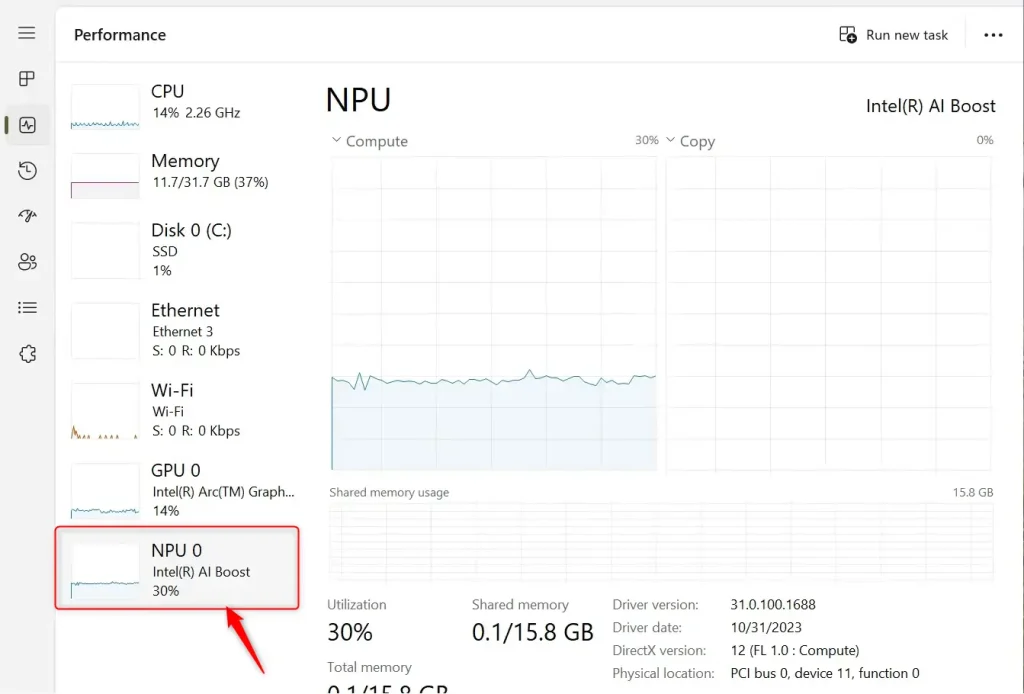
- Look for a section named NPU or something similar. If it’s there, your PC has a Neural Processing Unit. You will see its name and details.
Here’s an example of what the NPU section looks like in Task Manager:
How to Check if Your PC Has an NPU Using Device Manager
You can also check for an NPU by using the Device Manager on your PC. Follow these steps:
- Press
Windows key + Rto open the Run box. - Type
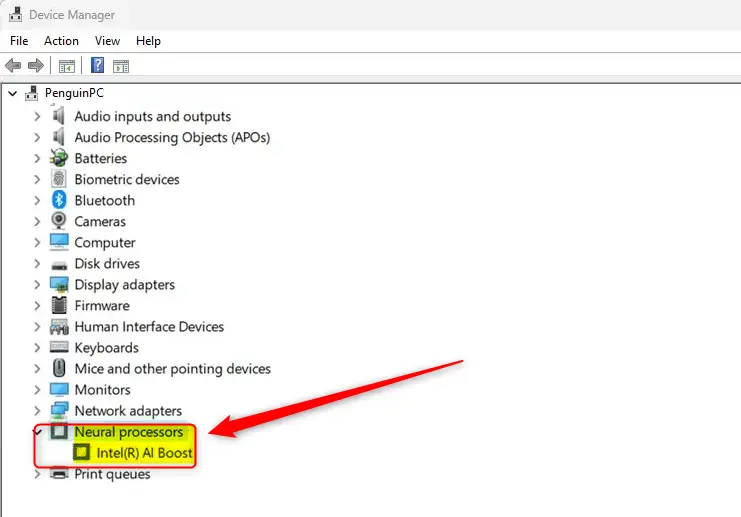
devmgmt.mscand pressEnterto open the Device Manager. - Look for a category called Neural processors in the list.
- If you see it, your PC has an NPU installed.
Here is how it might look in Device Manager:
Summary
- Checking for an NPU helps you know if your PC can handle AI tasks faster and more efficiently.
- You can easily check for an NPU using Windows 11’s Task Manager or Device Manager.
- If your PC has an NPU, it can speed up smart tasks like voice commands and image recognition.
Feel free to leave your thoughts or questions in the comments below!
Was this guide helpful?
No comments yet — be the first to share your thoughts!