How to Change How Narrator Reads Capital Letters in Windows 11

Let’s talk about how to make Narrator, Windows 11’s screen reader, read capital letters exactly how you like. Narrator reads text aloud on your screen. This feature is designed for anyone who has trouble seeing or reading text on their computer screen.
Sometimes, when Narrator reads words in all capital letters (like THIS), it sounds different. You can change how it reads these capital letters to improve understanding.
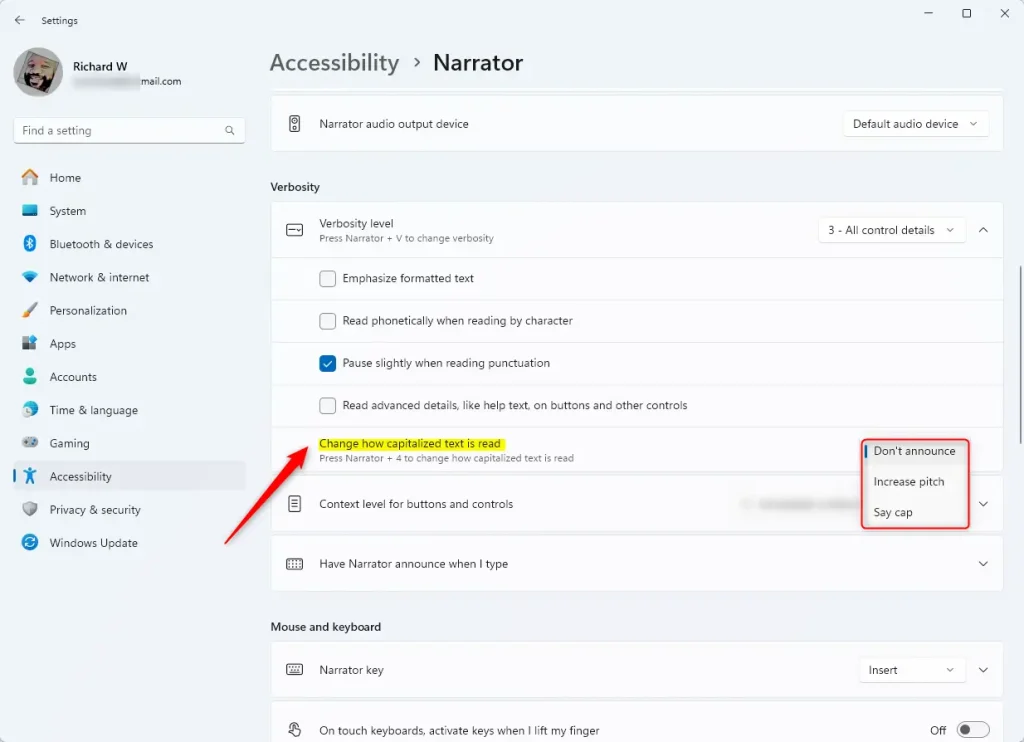
Open Settings, navigate to Accessibility, then Narrator. Under Verbosity, find “Change how capitalized text is read” and select your preferred option: Don’t announce, Increase pitch, or Say cap.
What Are Your Options?
Windows 11 offers three ways Narrator can handle capital letters: ignore them, raise its voice for them, or say “cap” before a capitalized word.
- Don’t announce: Narrator reads the text normally without saying anything special for capital letters.
- Increase pitch: Narrator changes its voice to a higher tone when reading capital letters.
- Say cap: Narrator says the word “cap” before the capitalized word to let you know it’s in all caps.
How to Change This Setting
You can easily change how Narrator reads capital letters in Windows 11 by opening Settings, going to Accessibility, and finding the Narrator options.
- Open Settings. Click the Start menu (the Windows icon in the bottom left corner), then click Settings. Or, press
Windows key + Ion your keyboard to open Settings quickly. - In Settings, click on Accessibility in the left menu.
- On the right side, find and click on Narrator.
- Scroll down to the Verbosity section and click to expand it.
- Look for Change how capitalized text is read and click on it.
- Choose one of the three options: Don’t announce, Increase pitch, or Say cap.
- When done, you can close the Settings app.

Quick Tip
You can also press Narrator key + 4 to cycle through these capital letter reading modes without opening Settings. The “Narrator key”—which you can use to cycle through these modes—is typically your keyboard’s Caps Lock or Insert key.
Why Change This?
Microsoft updated Narrator to make it easier to understand capital letters for everyone. You can pick the option that sounds best to you!
Summary
- Narrator reads text aloud to help people with low vision or blindness.
- You can choose how it reads capital letters: no special announcement, a higher voice, or saying “cap”.
- Changing this is easy and helps make reading out loud clearer for you.
- For more help with Narrator, check out this easy guide on how to turn Narrator on or off in Windows 11.
Narrator helps users by reading text aloud, and you can choose how it handles capital letters – ignore them, use a higher voice, or say “cap”.
Accessibility: A section within Settings dedicated to features that help users with disabilities interact with their devices.
Narrator: Windows’ built-in screen reader that converts text on your screen into speech.
Dropdown menu: A user interface element that reveals a list of options when clicked.
Was this guide helpful?

About the Author
Richard
Tech Writer, IT Professional
Richard, a writer for Geek Rewind, is a tech enthusiast who loves breaking down complex IT topics into simple, easy-to-understand ideas. With years of hands-on experience in system administration and enterprise IT operations, he’s developed a knack for offering practical tips and solutions. Richard aims to make technology more accessible and actionable. He's deeply committed to the Geek Rewind community, always ready to answer questions and engage in discussions.



No comments yet — be the first to share your thoughts!