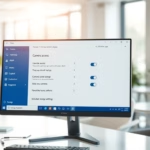
Use Your Android Camera as a Webcam on Windows 11

A new “Mobile devices” feature will let you use the camera of your Android phone or tablet in any video application on your Windows 11 PC.

Windows Mobile devices (or Phone Link) allow you to access your mobile devices from your PC instantly. New features are being added to the Mobile devices’ settings.

With your phone connected, you can effortlessly access and edit your most recent photos and screenshots from your Android mobile device in the Snipping Tool on your PC. To use this, you must first go to Settings > Bluetooth & devices > Mobile devices and turn on “Allow this PC to access your mobile devices.”

You will also be able to wirelessly enjoy the high quality of your mobile device’s camera on your PC with flexibility and ease. Some of the abilities include switching between front and back cameras, pausing the stream during interruptions, and enjoying the effects provided by your mobile model.

This feature isn’t yet available to all Windows PCs. It’s currently being rolled out to Windows Insiders.

Let Windows use your mobile device’s camera as a webcam

As mentioned, you can soon use your mobile device’s camera as a webcam in Windows 11.

Here’s how to use it.

First, open the Windows Settings app.

You can do that by clicking on the Start menu and selecting Settings. Or press the keyboard shortcut (Windows key + I) to launch the Settings app.

When the Setting app opens, click the Bluetooth & devices button on the left.

Windows 11 Bluetooth and devices settings page

Select the Mobile devices tile under ‘Bluetooth & devices ‘on the right to expand it.

Windows 11 Mobile devices tile

Next, select the “Manage devices” button under “Allow this PC to access your mobile device.”

Windows 11 mobile devices manage devices

Next, select the “Use as a connected camera” tile. Then, toggle the switch button to the On position to enable it.

To disable it, toggle the switch button to the Off position.

Use as a connected camera button

Once enabled, you should see your mobile phone connected with available cameras.

use mobile device as webcam in Windows 11 updated
Image: Microsoft

That should do it!

Reference:

Microsoft blog

Conclusion:

  • The new “Mobile devices” feature for Windows 11 allows users to seamlessly use their Android phone or tablet camera in any video application on their PC.
  • With this feature, users can access and edit their most recent photos and screenshots from their mobile devices on their Windows 11 PCs.
  • The ability to wirelessly utilize the high-quality camera of the mobile device on the PC offers flexibility and ease, including switching between front and back cameras, pausing the stream, and enjoying mobile model effects.
  • This feature is being rolled out to Windows Insiders and is unavailable to all Windows PCs. Users can refer to the Microsoft blog and the provided references for more information about this exciting functionality.

Frequently Asked Questions

How can I use my Android camera as a webcam on Windows 11?

To use your Android camera as a webcam on Windows 11, open the Settings app, navigate to Bluetooth & devices, and select Mobile devices. Then, enable the 'Use as a connected camera' option to start using your mobile camera in video applications.

What features does the Mobile devices feature offer for webcam use?

The Mobile devices feature allows you to switch between front and back cameras, pause the video stream, and apply effects based on your mobile model. This enhances your video calls with flexibility and improved quality.

Is the Mobile devices feature available for all Windows 11 users?

No, the Mobile devices feature is currently being rolled out to Windows Insiders and is not yet available for all Windows 11 PCs. You may need to wait for the update to access this functionality.

What do I need to do before using my Android camera as a webcam?

Before using your Android camera as a webcam, ensure that your phone is connected to your PC and that you have enabled the 'Allow this PC to access your mobile devices' option in the Bluetooth & devices settings.

Can I access my recent photos from my Android device on Windows 11?

Yes, with the Mobile devices feature, you can easily access and edit your most recent photos and screenshots from your Android device directly in the Snipping Tool on your Windows 11 PC.

Categories:

Tags:

Leave a Reply

Your email address will not be published. Required fields are marked *

Exit mobile version