
What is Battery Saver?
Battery Saver helps your laptop or tablet use less power when it runs on battery. When you turn it on, Windows reduces some features to save energy. This helps your battery last longer.
By default, Battery Saver turns on automatically when your battery drops below 20%.
Why Lower Your Screen Brightness?
Your screen uses a lot of battery power. When Battery Saver is active, your screen brightness automatically dims by about 30%. This simple change can help your battery last much longer.
You can change how much the brightness lowers. You can also turn this feature on or off completely.
Important Things to Know
- Battery Saver only works when your device runs on battery, not when plugged in.
- It turns off automatically when you plug your device in to charge.
- If you watch HDR videos (high-quality videos with bright colors), you might want to turn off dimming. This keeps your screen bright for the best picture.
How to Turn On or Off Lower Screen Brightness in Battery Saver
- Open Settings by pressing
Win + Ion your keyboard. - Click on System in the left menu. Then click Power & battery on the right side. You can also click this link to go straight there: Open Power & battery settings
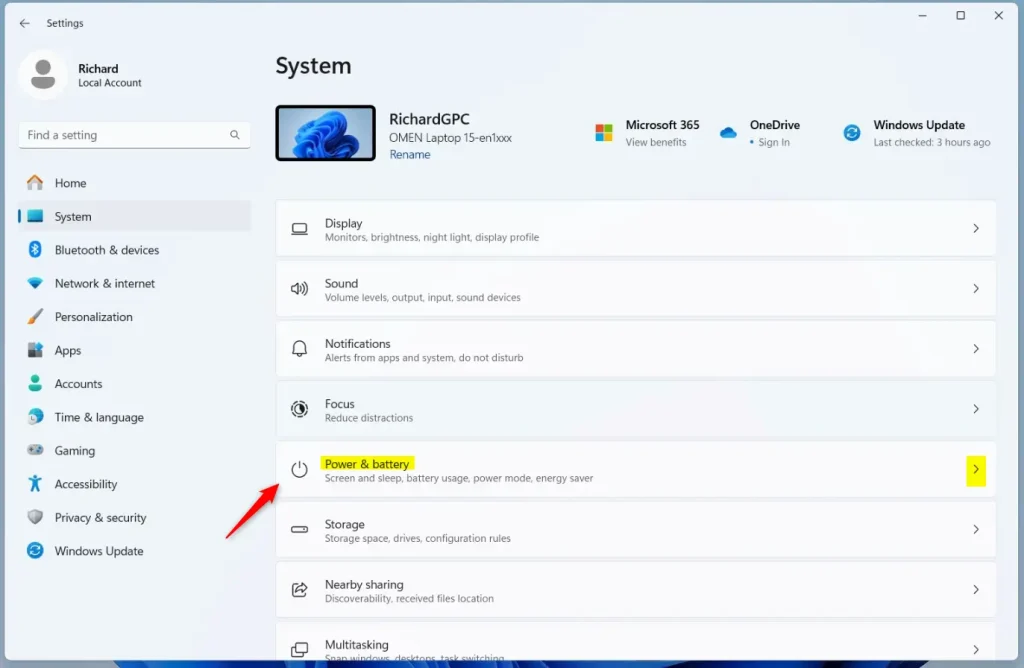
- Scroll down to find Battery saver and click it to expand.
- You will see the option Lower screen brightness when using battery saver. Turn it On or Off depending on what you want.
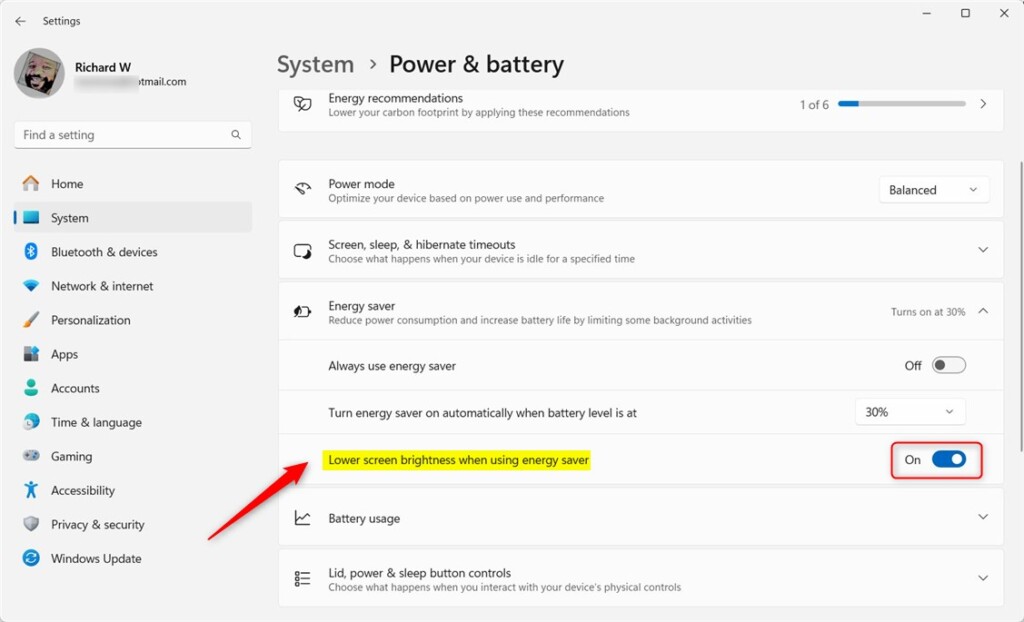
- When you’re done, close the Settings window.
Summary
Why use Battery Saver? It helps save power when your battery is low.
What happens when you turn on lower screen brightness? Your screen automatically dims to save more battery power.
Key points to remember:
- Battery Saver turns on by itself when your battery drops below 20%.
- For the best video quality (HDR), you might want to keep your screen brightness normal and turn off the dimming option.
- Changing these settings is quick and easy in the Settings app under Power & battery.
- By knowing how to use these settings, you can make your Windows 11 device last longer on battery and still enjoy a good screen experience.



Leave a Reply