How to Turn On or Off AutoPlay in Windows 11

You can turn AutoPlay on or off in Windows 11 to control how your PC responds when you insert media or connect devices.
AutoPlay is a handy Windows feature. It automatically launches an app or does a specific action when you connect a removable drive or insert media like a USB drive, DVD, or SD card.
For instance, connecting a USB drive might open File Explorer to show its contents, or a camera might trigger the Photos app to import your pictures. You can manage these settings to prevent unwanted actions or make sure your preferred programs launch automatically.
Here’s how to toggle AutoPlay on or off within Windows 11’s settings.
Open Settings, navigate to Bluetooth & devices, then click AutoPlay to use the switch. Alternatively, open Control Panel, find AutoPlay, and check or uncheck the box to enable or disable it.
What is AutoPlay?
AutoPlay in Windows 11 is a setting that lets your computer know what to do when you plug in a USB drive, camera, or insert a CD. It can automatically play music, show you options, or list apps to open based on the device you connect.
Here’s what AutoPlay can do when you connect a device:
- Play media automatically (like music or videos).
- Show a menu asking what you want to do.
- Show a list of apps you can use if the device has mixed files.
- Open the device folder so you can see all files.
- Do nothing, if you told it not to.
Note: If AutoPlay is off, or you previously selected “Take no action,” your PC won’t do anything automatically when you connect devices.
Tip: Holding the Shift key when you plug in a device will always bring up the AutoPlay menu, no matter your settings.
How to Turn On or Off AutoPlay in 🪟 Windows 11
Option 1Using Settings
- Press ⊞ Win+I keys to open Settings.
- Click Bluetooth & devices on the left menu.
- Click AutoPlay on the right side.
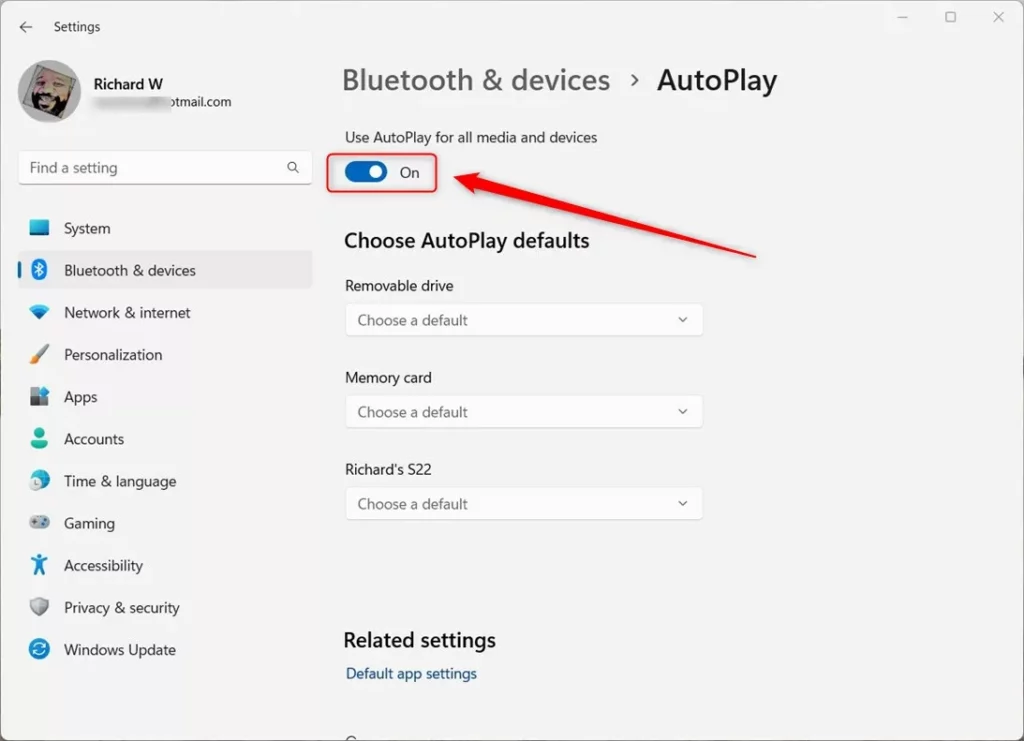
- Use the switch to turn Use AutoPlay for all media and devices On or Off.
- If you turn it on, you can choose what happens for different devices and media below.
You can easily turn autoplay on or off in Windows 11 using the Settings app, which is the simplest way for most people. Just press the Windows key and ‘I’ together to open Settings, then go to Bluetooth & devices and click on AutoPlay.
Option 2Using Control Panel
- Open the Control Panel. You can search for it in the Start menu.
- Make sure the view is set to Large icons or Small icons.
- Click on AutoPlay.
- Check the box for Use AutoPlay for all media and devices to turn it on, or uncheck it to turn it off.
- If turned on, you can select default actions for each device or media type below.
- Click Save when you finish.
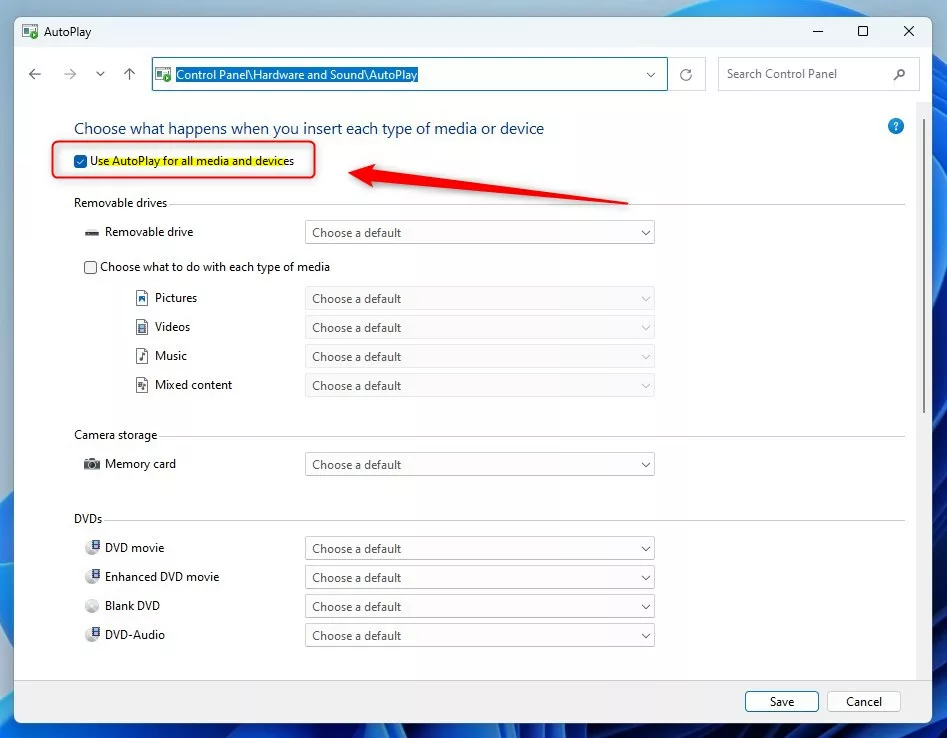
If you prefer the classic Control Panel, you can also turn autoplay on or off there. Open the Control Panel by searching for it, make sure it’s set to Large or Small icons, and then click on AutoPlay to change the settings.
Option 3Using Registry (For Advanced Users)
For users comfortable with making system changes, you can turn autoplay on or off in Windows 11 using the Registry Editor. This method involves typing specific commands to either enable or disable the autoplay feature, but it’s best left for advanced users.
Turn On AutoPlay (default):
reg delete "HKCU\Software\Microsoft\Windows\CurrentVersion\Explorer\AutoplayHandlers" /v DisableAutoplay /fTurn Off AutoPlay:
reg add "HKCU\Software\Microsoft\Windows\CurrentVersion\Explorer\AutoplayHandlers" /v DisableAutoplay /t REG_DWORD /d 1 /fAfter running these, you can delete the .reg file if you want.
Summary
- Easy to customize: Pick what happens when you connect different devices.
- Multiple ways to change settings: Use Settings, Control Panel, or the Registry.
- Full control: Turn AutoPlay on or off anytime to suit your needs.
- Save time: AutoPlay can open your favorite apps automatically.
Turning autoplay on or off in Windows 11 lets you choose exactly what happens when you connect devices or insert media, saving you time. You have multiple ways to change these settings, including the easy-to-use Settings app, the Control Panel, or even the Registry for advanced users.
How do I get 🪟 Windows 11 to AutoPlay next video?
Open Windows Settings. Select Bluetooth & Devices. Select AutoPlay. Toggle “Use AutoPlay for all media and devices” to turn AutoPlay on or off.
Is turning off AutoPlay on Windows good?
Windows AutoPlay lets files run from an external drive as soon as you plug it in. This could potentially allow attackers to install malicious code on your system without you doing anything. To prevent this, you should enable the “Turn off Autoplay” setting.
Was this guide helpful?

About the Author
Richard
Tech Writer, IT Professional
Richard, a writer for Geek Rewind, is a tech enthusiast who loves breaking down complex IT topics into simple, easy-to-understand ideas. With years of hands-on experience in system administration and enterprise IT operations, he’s developed a knack for offering practical tips and solutions. Richard aims to make technology more accessible and actionable. He's deeply committed to the Geek Rewind community, always ready to answer questions and engage in discussions.




No comments yet — be the first to share your thoughts!