#Ubuntu Linux

Ubuntu Linux 5 min read
How to Check Your Ubuntu Version: A Simple Guide

The article provides detailed steps on how to identify the version of Ubuntu Linux operating system running on a system. There are two main versions of Ubuntu: Standard and Long-Term Support (LTS). The version can be identified using command-line utilities (lsb_release, hostnamectl, or examining system files), or through the desktop system's Settings app.

September 26, 2022 Read more →
Ubuntu Linux 3 min read
How to Safely Eject External Drives in Ubuntu

The content provides steps on how to safely eject external storage devices from Ubuntu Linux. A person risks damaging or losing files when unplugging the device while an application is still using it. Using the Files system, one must locate the device in the sidebar and click the eject icon. However, if a file on the device is in use, a "Volume is busy" prompt will appear. Thus, it is crucial to close all open files on the device before ejecting.

Ubuntu Linux 4 min read
Customize Ubuntu Desktop Themes Easily

This post outlines how to change desktop themes and style in Ubuntu Linux, as the current version does not come pre-packaged with desktop themes. A user can individually adjust settings in the System Settings panel, and apply changes using GNOME Tweaks. Alternatively, downloaded GTK3/4 Themes may be used to modify the desktop style.

September 20, 2022 Read more →
Ubuntu Linux 4 min read
Easy Printer Setup in Ubuntu Linux: A Step-by-Step Guide

Setting up a printer on Ubuntu Linux requires connecting the printer to the computer via USB or Wi-Fi, at which point Ubuntu will attempt to install it automatically using the best drivers. Ubuntu also facilitates the installation of network printers via an installation wizard. Should automatic installation fail, users can install the printer manually through Ubuntu's System Settings panel and, if necessary, download additional drivers from the manufacturer's website.

September 19, 2022 Read more →
Ubuntu Linux 4 min read
How to Change Default Apps in Ubuntu

The post details how to change the default application for opening a file type in Ubuntu Linux. Users can alter this through the System Settings -> Default Applications setting panel, choosing the desired default application for file types. Alternatively, it can be adjusted by right-clicking the file, selecting 'Properties', then 'Open With', and setting the new default program.

September 18, 2022 Read more →
Ubuntu Linux 2 min read
How to Uninstall Software in Ubuntu Linux

The post guides users on how to remove or uninstall software packages in Ubuntu Linux using either the Ubuntu Software, Synaptic, or the command line. It provides detailed step-by-step instructions on how to use these tools to list, select, and uninstall desired software or applications. It also points out implications of removing applications that are dependent on others.

September 17, 2022 Read more →
Ubuntu Linux 3 min read
Using File Manager (Nautilus) in Ubuntu Linux

The post explains how to use File Manager (Nautilus), a GNOME package in Ubuntu Linux for managing files on your computer and network resources. It provides multiple ways to open File Manager, such as the Folder icon on the Dock or desktop. Once open, various tasks can be performed including document creation, file searching, and sharing folders.

September 15, 2022 Read more →
Ubuntu Linux 4 min read
Enable Personal File Sharing in Ubuntu Linux

The post provides detailed instructions to enable or disable Personal File Sharing in Ubuntu Linux using the gnome-user-share package. Once enabled, users can access the Public folder in your Home directory from any device on the same network. Further security measures include requiring a password for accessing the shared folder.

September 14, 2022 Read more →
Ubuntu Linux 3 min read
Auto-Start Applications on Ubuntu Login

This text guides on how to configure applications for automatic start-up upon login in Ubuntu Linux. Just like other OS like Windows, you should use the Startup Applications tool, type the command or browse and choose a command from /usr/bin directory, following the steps, will ensure the chosen application initiates at every boot up.

Ubuntu Linux 2 min read
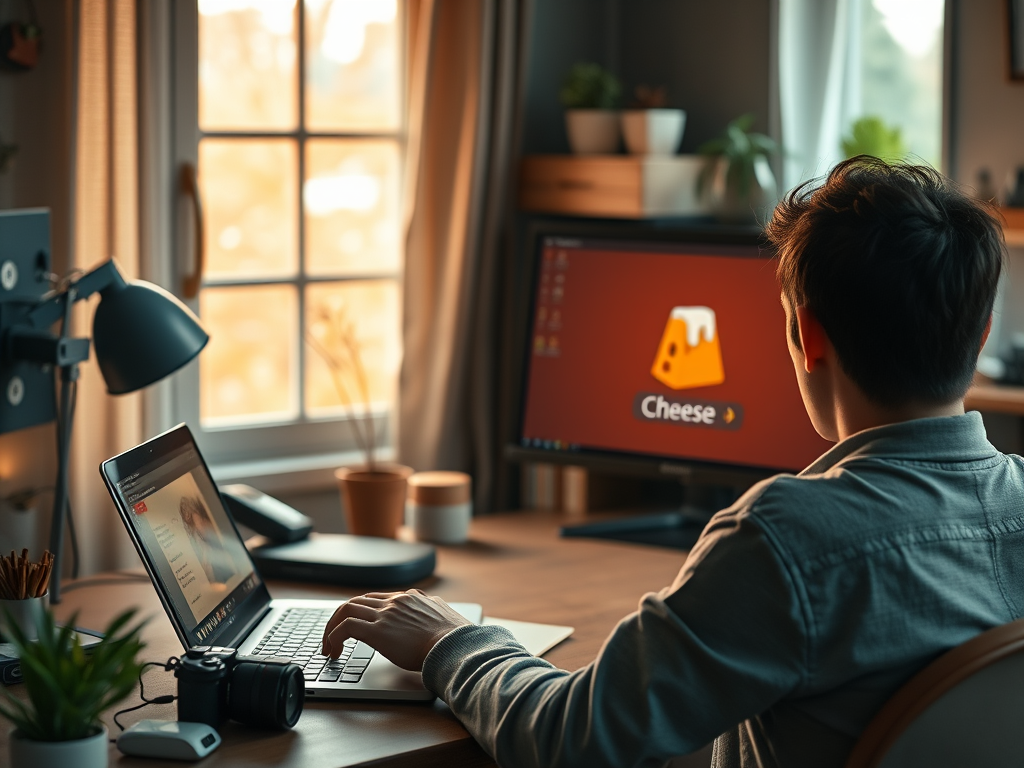
How to Record Videos on Ubuntu with Cheese

This post provides instructions for recording videos using the built-in or external camera on an Ubuntu Linux machine. The Cheese application is the default webcam and camera tool for this OS, which can capture still photos and videos. The videos, saved in the WebM format, are automatically stored in the Videos/Webcam folder in the user's home directory.

September 13, 2022 Read more →
Ubuntu Linux 2 min read
Capture Photos with Cheese on Ubuntu Linux

The post provides a tutorial on using the Cheese webcam application in Ubuntu Linux to take photos. Cheese, the default camera application in Ubuntu Linux, facilitates taking pictures, applying effects, and sharing content. Photos taken are stored in the Pictures/Webcam folder, saved in JPEG format. To use Cheese, navigate its photo mode and take a photo via the respective button or space key.

Ubuntu Linux 4 min read
How to Enable Media Sharing in Ubuntu Linux

The post details the process of enabling or disabling Media Sharing in Ubuntu Linux. Media Sharing, once activated, allows access to music, photos, and videos via UPnP or DLNA-enabled devices on a shared network. The process involves toggling over a Media Sharing switch found under System Settings.

Ubuntu Linux 3 min read
Enable Cursor Blinking in Ubuntu for Better Accessibility

The article provides steps to enable or disable keyboard cursor blinking on Ubuntu Linux for users with poor vision or trouble locating cursors on screens. These steps involve accessing and configuring the Accessibility panel in system settings. Additionally, cursor blinking speed can be adjusted. Various other accessibility features in Ubuntu Linux are also outlined in the text.

September 12, 2022 Read more →
Ubuntu Linux 4 min read
Enable High Contrast in Ubuntu: A Guide

The post provides instructions on using the High Contrast feature in Ubuntu Linux, designed for users with low vision and light sensitivity. The feature adjusts the contrast of windows and buttons, altering the color palette of screen objects for enhanced visibility. Users can enable or disable the feature through the System Settings -> Accessibility panel, or use the accessibility icon on the login screen.

Ubuntu Linux 3 min read
How to Disable or Enable Repeat Keys in Ubuntu

The post outlines how to enable or disable Repeat Keys in Ubuntu Linux. This feature allows repeated characters when a key is held down. To adjust or disable it, users can navigate to the System Settings and select the 'Accessibility' panel. Under 'Typing', the Repeat Keys option can be toggled on or off, or adjusted for delay and speed.

Exit mobile version