How to Enable Media Sharing in Ubuntu Linux

You enable media sharing in Ubuntu Linux by installing and configuring the Rygel package.
Media sharing allows you to stream your music, photos, and videos from your Ubuntu PC to UPnP or DLNA-compatible devices like smart TVs or game consoles directly on your local network.
Rygel serves as a Digital Media Renderer (DMR) and server, making your personal media library accessible to other devices. You can install it easily via the Ubuntu Software Center or using a simple command-line instruction.
Open System Settings, then click Sharing. Toggle the main Sharing switch ON, then click Media Sharing. Toggle the Media Sharing switch ON to stream your music, photos, and videos to other devices on your network.
How to turn on or off media sharing in Ubuntu Linux
Turning Ubuntu media sharing on or off is simple and done through the Sharing panel in System Settings.
Let’s get this set up.
You’ll find most of Ubuntu’s settings in one place: the System Settings panel. This is where you can manage system configurations, create new users, and update your system.
Alternatively, click on the System menu at the top-right corner of the top bar on your desktop.
On the System menu, select Settings, as highlighted below.

In the Settings app, click on Sharing tile to open the panel.
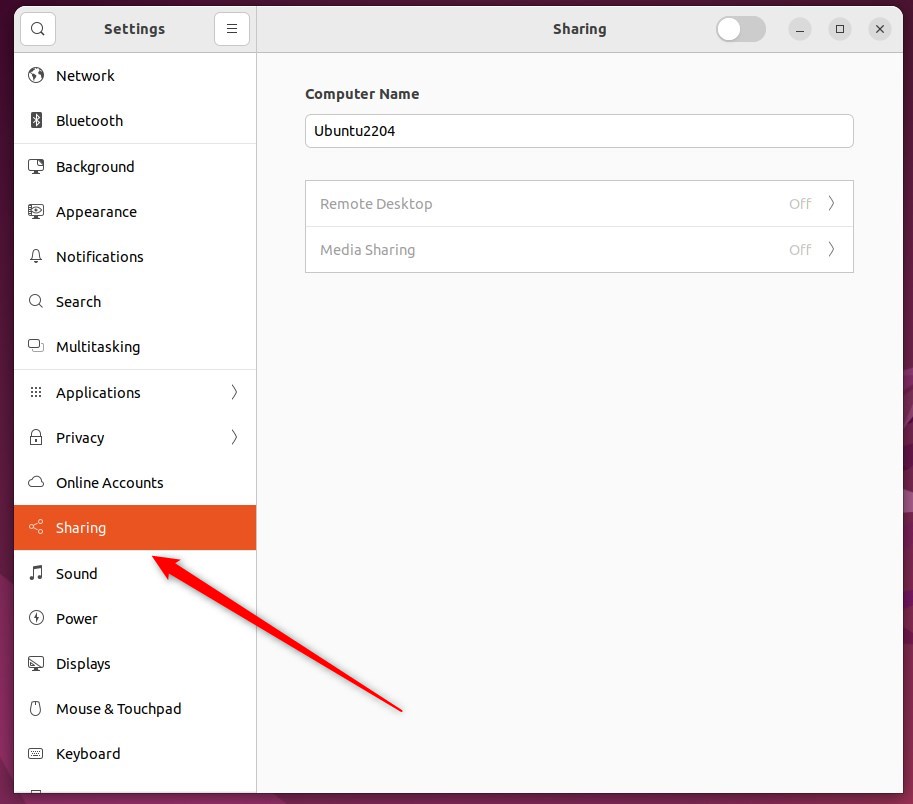
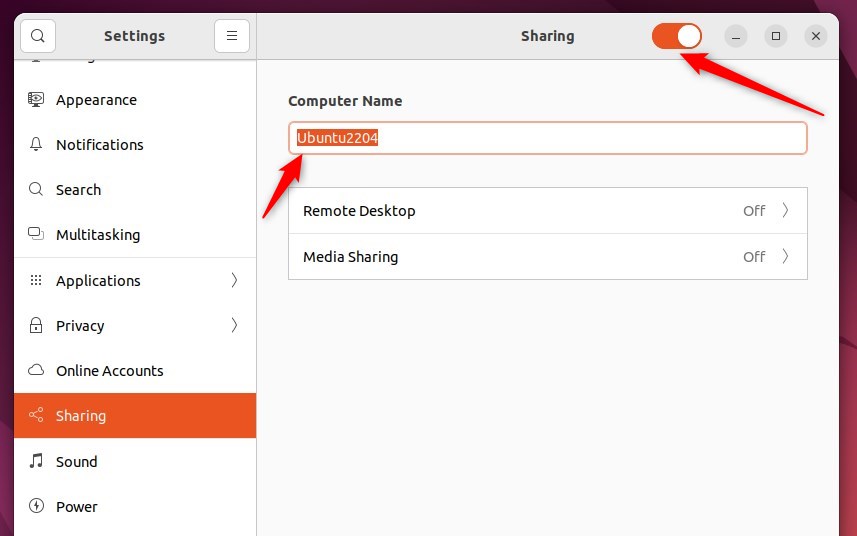
Next, toggle the Sharing switch at the top of the window to On so sharing is enabled.
Sharing is disabled when the switch is set to Off.
If the text below Computer Name allows you to edit it, you can change the name your computer displays on the network.
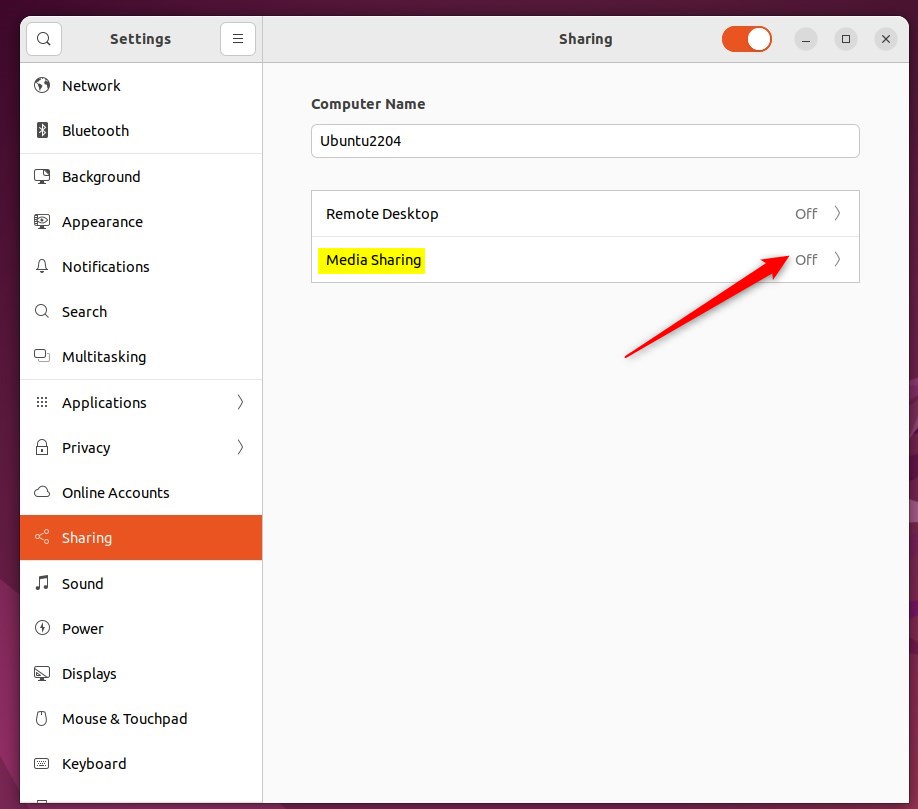
In the System Settings -> Sharing panel, select Media Sharing as highlighted below.
On the Media Sharing window, toggle the Media Sharing switch to On.
To disable it, switch it back to the Off position.
By default, Music, Pictures, and Videos are shared. To remove one, click the × next to the folder name.
Now, choose the network connection you want to use for sharing. Your other devices will need to be on this same network too.
If a Wi-Fi network is available, that should be the best option to reach other devices.
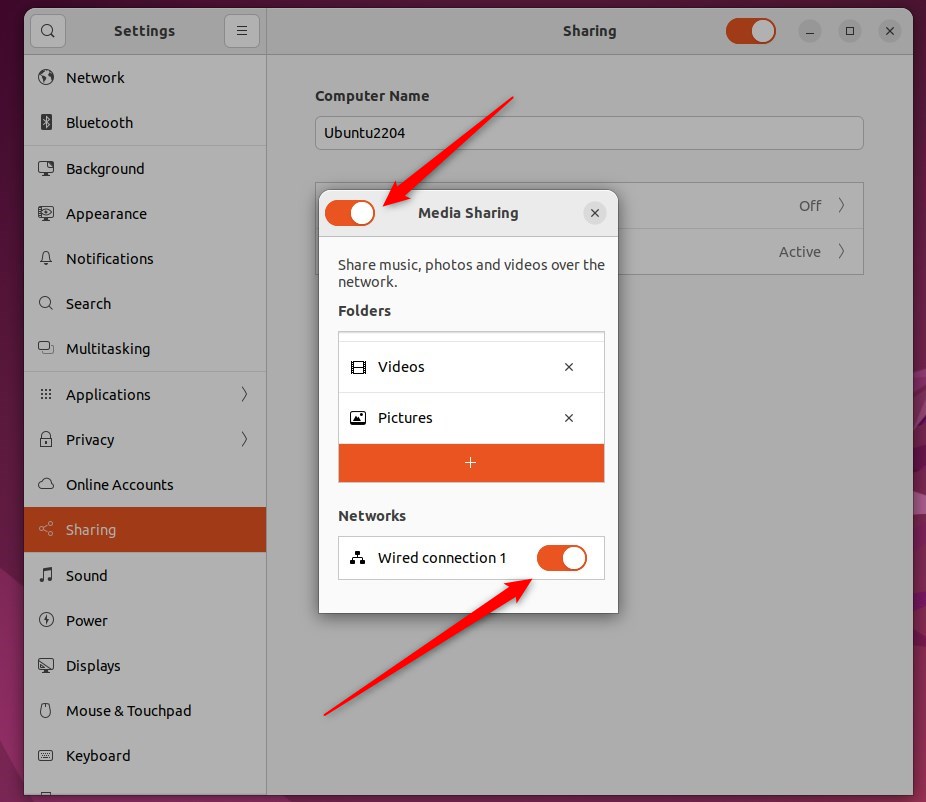
Click + to open the Choose a folder window to add another folder. Then, navigate to the desired folder and click Open.
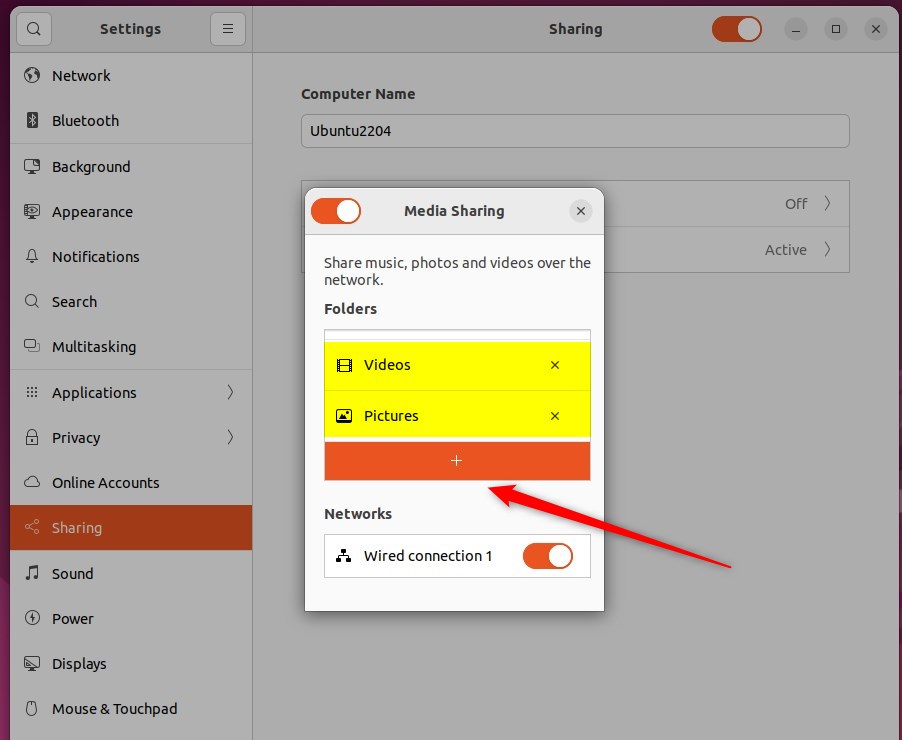
Click X on the Media Sharing window to close. Using the external device, you can now browse or play media in the folders you selected.
That should do it!
Conclusion:
- Media Sharing in Ubuntu Linux can be easily enabled or disabled using the Sharing panel in System Settings.
- Following the simple steps outlined in this post, you can share music, photos, and videos with UPnP or DLNA-enabled devices across the same network.
- Select the appropriate network connection for seamless sharing with other connected devices.
- After configuring Media Sharing, you can access and enjoy your media on various external devices such as phones, TVs, or game consoles.
How does media sharing work on Ubuntu?
So I'm going to share the desktop folder. Maybe let's do that. One. So now instantly the desktop folder is shared for me. Now that's all I have to do. Anyone else on my LAN.
Was this guide helpful?

About the Author
Richard
Tech Writer, IT Professional
Richard, a writer for Geek Rewind, is a tech enthusiast who loves breaking down complex IT topics into simple, easy-to-understand ideas. With years of hands-on experience in system administration and enterprise IT operations, he’s developed a knack for offering practical tips and solutions. Richard aims to make technology more accessible and actionable. He's deeply committed to the Geek Rewind community, always ready to answer questions and engage in discussions.




Even if i turn off the media sharing, the non-default folders are still being shared.
[…] you turn on DLNA media sharing in Windows, your system will begin scanning your network for DLNA-enabled devices. If a device is […]