How to Disable or Enable Repeat Keys in Ubuntu

You disable or enable repeat keys in Ubuntu to control how your keyboard reacts when you hold down a key.
Repeat keys, also known as key autorepeat, determine if and how quickly a character repeats when you press and hold a key. For instance, holding down ‘a’ will continuously type ‘a’s until you release the key.
Recent Ubuntu releases, including 22.04 LTS and later, offer straightforward ways to manage this keyboard behavior.
This setting is useful for preventing accidental double or triple character entries. You can adjust both the initial delay before repeating begins and the rate at which characters repeat afterward.
In Ubuntu, open Settings, navigate to Accessibility, then Typing, and finally select Repeat Keys. Toggle the switch to enable or disable repeat keys, or adjust the Delay and Speed sliders for customization.
How to turn on or off the repeat key in Ubuntu Linux
As mentioned, RepeatKeys lets you adjust or disable the repeat rate altogether if you struggle to lift your fingers off the keyboard quickly.
Here’s how to manage or disable it in Ubuntu Linux.
Most Ubuntu settings live in one place: the System Settings panel. You can manage everything from system configurations to user accounts and updates here.

Alternatively, look for the System menu in the top-right corner of your desktop’s top bar.
From there, select Settings, as shown below.

In the Settings app, click on the Accessibility tile to open that panel.

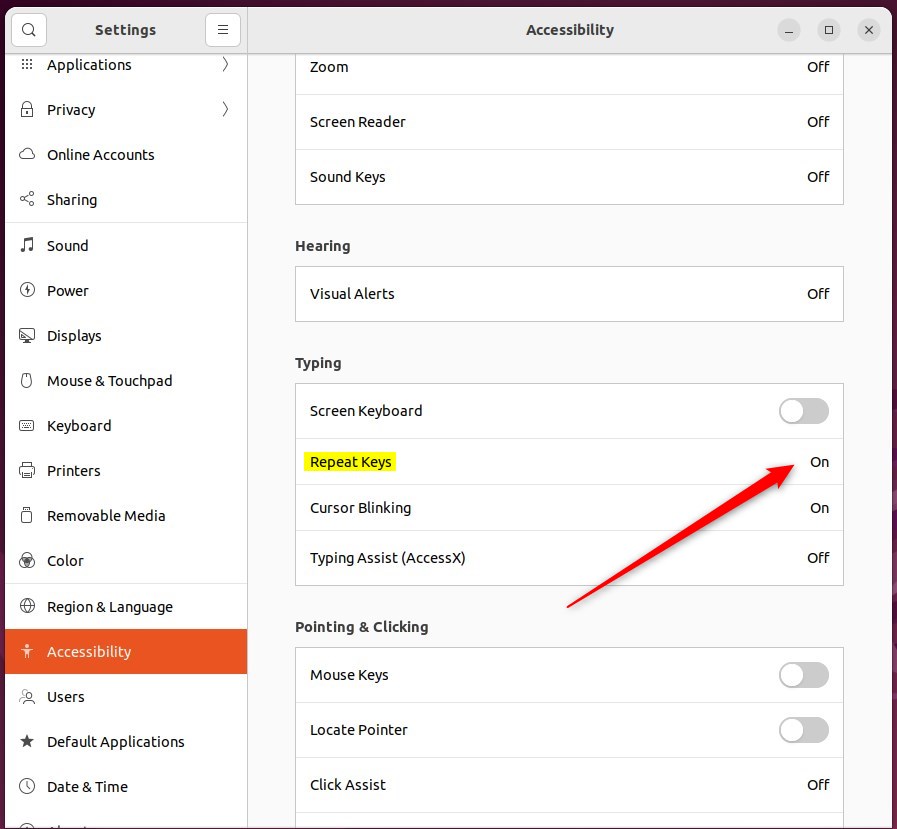
In the System Settings -> Accessibility panel, under Typing, select Repeat Keys as highlighted below.
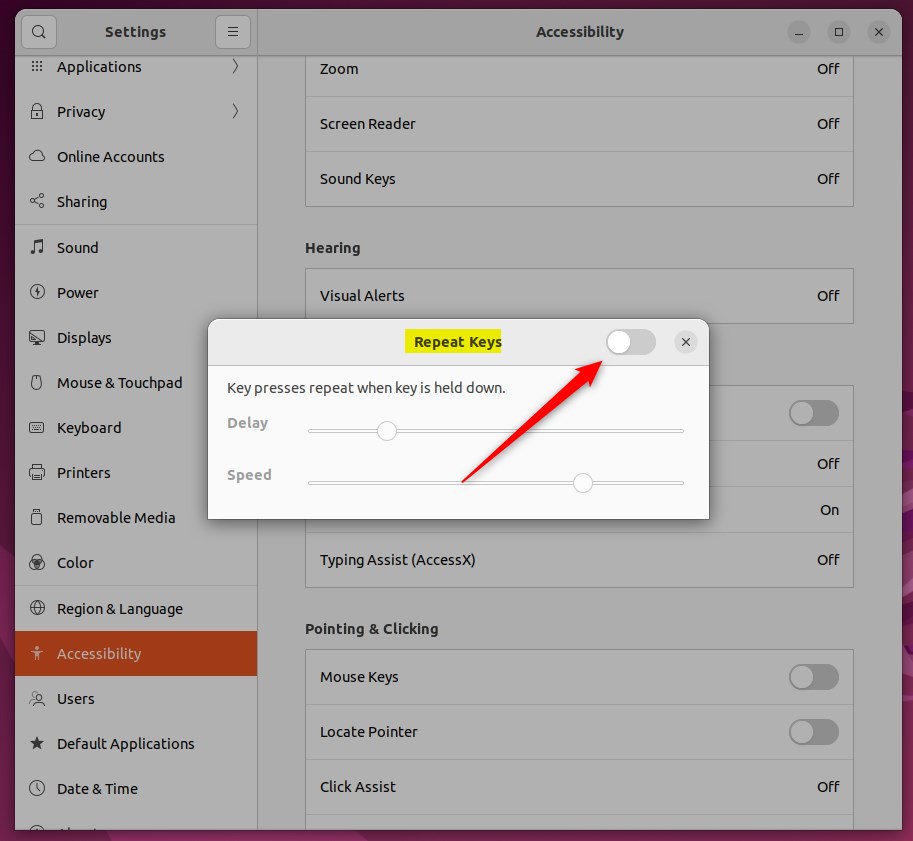
On the Repeat Keys window, toggle the Repeat Keys button to the On position to enable it.
To disable it, toggle the button to the Off position.
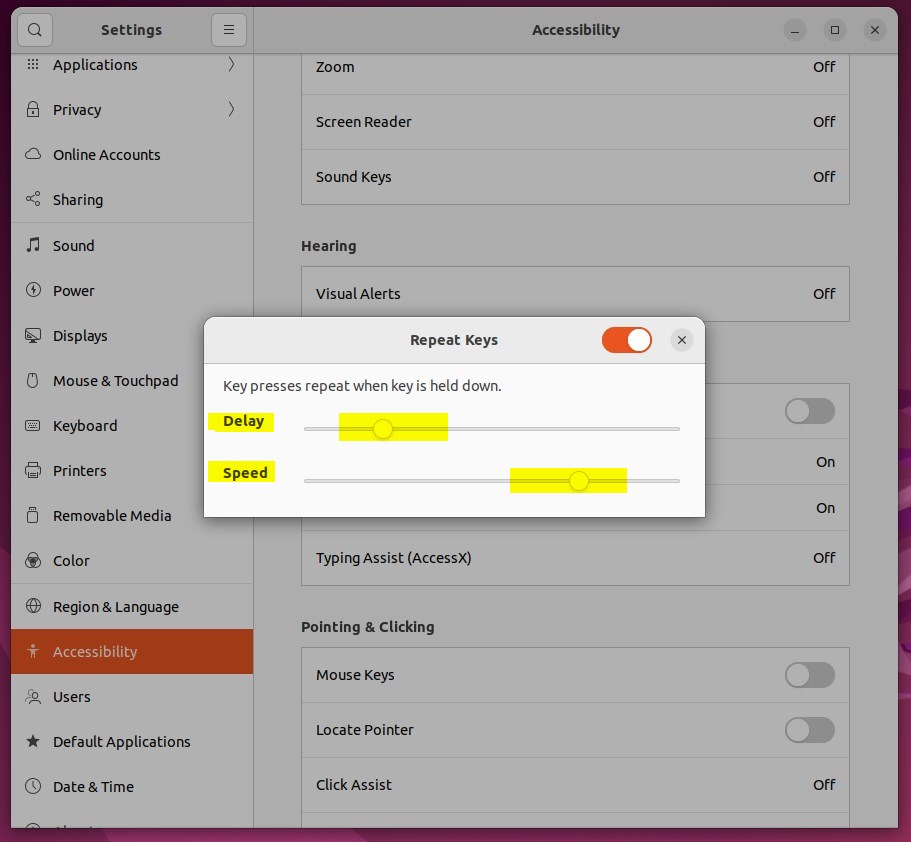
Alternatively, you can adjust the Delay slider to control how long you have to hold a key down before it starts repeating. You can also adjust the Speed slider to control how quickly key presses repeat.
That’s it! You can now close the Settings app.
Conclusion:
- Adjusting the repeat rate or disabling repeat keys can prevent unintentionally repeated characters when holding down a key.
- In Ubuntu Linux, you can manage repeat keys through the System Settings panel under Accessibility > Typing > Repeat Keys.
- Alternatively, users can adjust the delay and speed sliders to control key press repetition.
- These steps provide greater control over keyboard input behavior, enhancing the user experience for Ubuntu Linux users.
Was this guide helpful?

About the Author
Richard
Tech Writer, IT Professional
Richard, a writer for Geek Rewind, is a tech enthusiast who loves breaking down complex IT topics into simple, easy-to-understand ideas. With years of hands-on experience in system administration and enterprise IT operations, he’s developed a knack for offering practical tips and solutions. Richard aims to make technology more accessible and actionable. He's deeply committed to the Geek Rewind community, always ready to answer questions and engage in discussions.



No comments yet — be the first to share your thoughts!