Set ChatGPT as Default Search Engine in Edge

This article explains how to set ChatGPT as the default search engine in Edge on Windows 11.
Microsoft Edge is the default browser in Windows 11. However, users can switch to their preferred or favorite browser anytime. Edge is based on Chromium, similar to Google Chrome and other Chromium-based browsers today.
When you use Edge, its default search engine is Bing. You can change to other search engines like Google, DuckDuckGo, and others.
Now, you have another search engine option that you can try. You can install the “ChatGPT Search” extension from OpenAI to help you replace other search engines on your Chromium-based web browser, including Edge, Chrome, ARC, and Brave.
ChatGPT Search gets you prompt answers with links to relevant web sources.
The steps below walk you through installing the ChatGPT Search engine on your Microsoft Edge browser.
Set ChatGPT Search with its extension
The quickest way to use ChatGPT search in Edge is to install the extension.
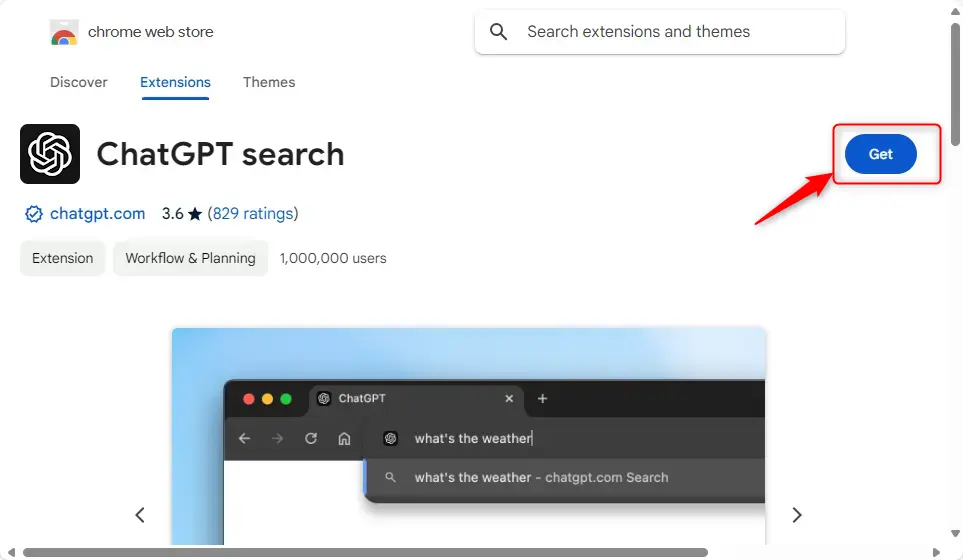
First, open the ChatGPT Search extension page.
Then, click the Get button.
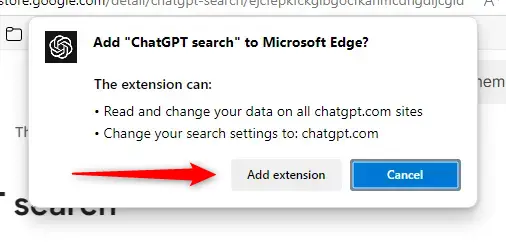
Click the Add extension button.
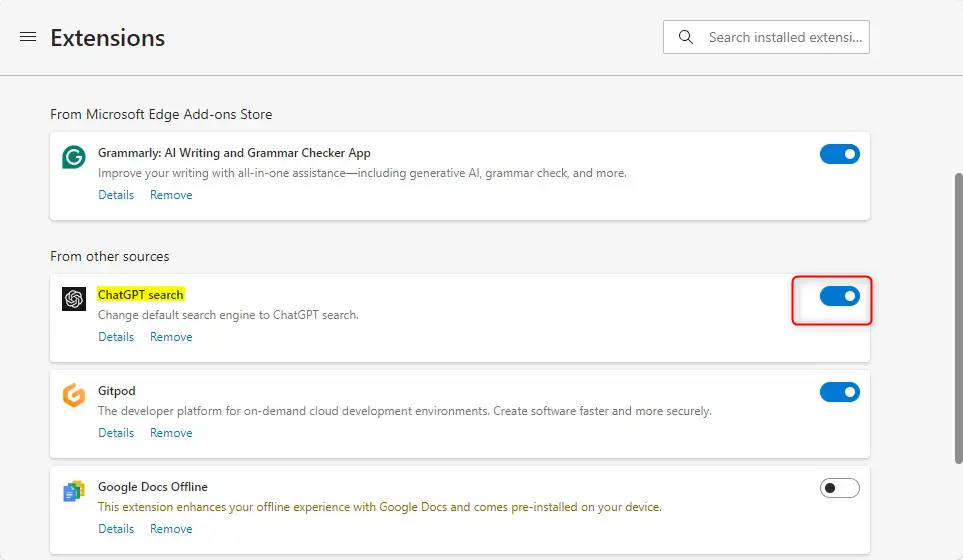
Microsoft Edge browser may automatically disable new extensions upon installation. If you receive a notification to enable it, turn it on.
Otherwise, open the edge://extensions page and manually turn on the “ChatGPT Search” extension.
Set ChatGPT Search as default in Edge Settings
If you don’t want to use the extension to change to ChatGPT search, you can do it manually within the Edge settings page.
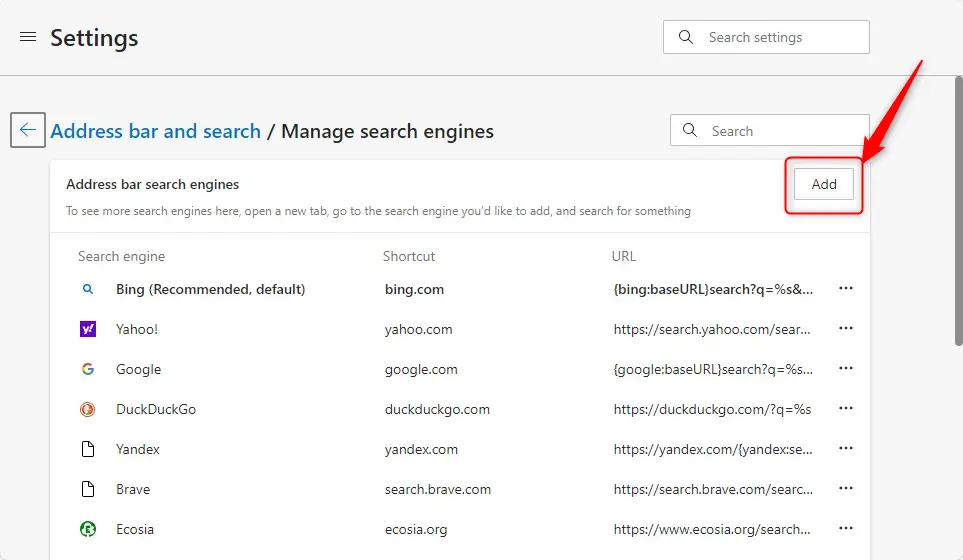
To do that, open Edge and browse to the settings page below.
edge://settings/searchEngines
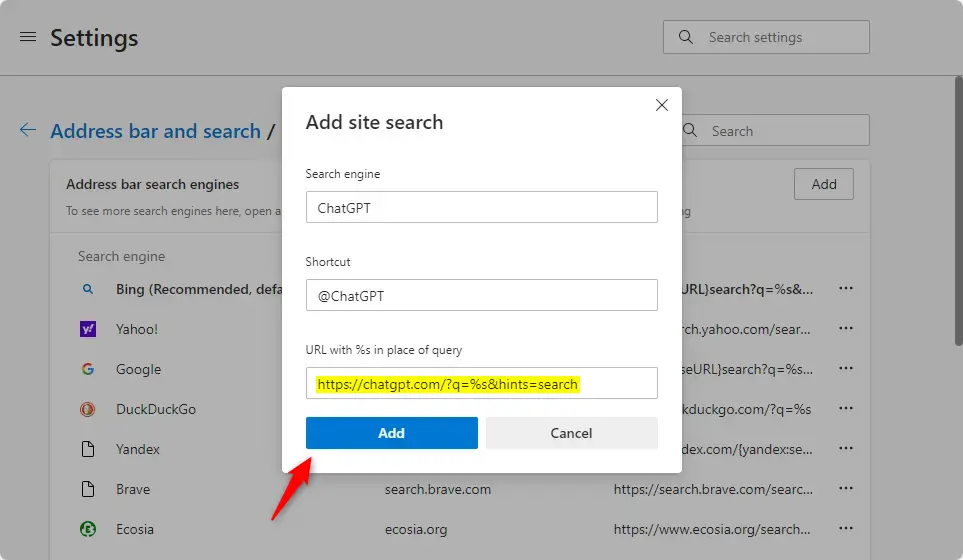
Under the Manage search engines page, click the Add button.
Use these search engine settings for ChatGPT:
Name: ChatGPT
Shortcut: @ChatGPT
URL query: https://chatgpt.com/?q=%s&hints=search
Once you’ve added the ChatGPT search engine, click the menu (three dots button) and choose the Make default.
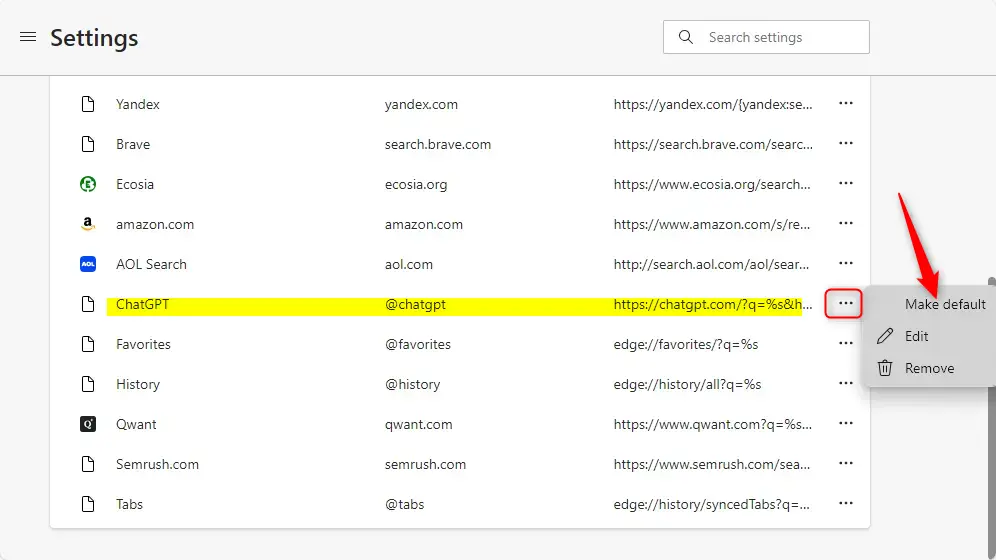
That should do it!
Conclusion:
Setting ChatGPT as your default search engine in Microsoft Edge on Windows 11 is a straightforward process that enhances your browsing experience. Here are the key points to remember:
- Install the ChatGPT Search Extension: Easily add the extension from the Chrome Web Store to start using ChatGPT for web searches.
- Enable the Extension: Ensure the extension is activated in Edge so that it can utilize its features without interruptions.
- Manual Settings Adjustment: For those who prefer not to use the extension, you can manually set ChatGPT as a search engine via Edge’s settings.
- Simple Configuration: Adding ChatGPT to your search engines involves filling in a few details, including name, shortcut, and URL query.
- Set as Default: Don’t forget to mark ChatGPT as your default search engine for seamless integration into your browsing routine.
With these steps, you’ll directly unlock the power of AI-assisted search in your browser!
Frequently Asked Questions
How do I set ChatGPT as my default search engine in Microsoft Edge?
What are the steps to install the ChatGPT Search extension in Edge?
Can I use ChatGPT Search without the extension in Edge?
What URL do I need to set for ChatGPT in Edge?
Why is my ChatGPT extension not working in Edge?
Was this guide helpful?

About the Author
Richard
Tech Writer, IT Professional
Richard, a writer for Geek Rewind, is a tech enthusiast who loves breaking down complex IT topics into simple, easy-to-understand ideas. With years of hands-on experience in system administration and enterprise IT operations, he’s developed a knack for offering practical tips and solutions. Richard aims to make technology more accessible and actionable. He's deeply committed to the Geek Rewind community, always ready to answer questions and engage in discussions.



As of my test today, the Plug In/Extension does not seem to be required to allow this. Maybe due to ChatGPT opening up their search function to all without an account required.
So the instructions from this heading down set it up for me on Edge:
Set ChatGPT Search as default in Edge Settings