How to Search Local Files with Windows 11 Copilot

You can now search your local files directly using Windows 11 Copilot.
Copilot, Microsoft’s integrated AI assistant, has evolved beyond web searches to become a powerful tool for accessing your computer’s data. This new feature allows you to locate documents, spreadsheets, images, and other files on your hard drive using natural language queries.
This capability was introduced in Copilot version 1.25034.133.0, enhancing its utility by bridging the gap between AI assistance and your personal file system, offering a more intuitive way to find information than traditional Windows Search.
You can directly ask Copilot to find specific files or even inquire about the content within them, making retrieval faster and more efficient than ever before.
Why Use Copilot to Search Files?
Copilot’s file search uses natural language. This means you can type like you’re talking to a person. Instead of remembering exact file names, you can describe what you’re looking for. Copilot understands many file types including .png, .jpeg, .svg, .pdf, .docx, .xlsx, .csv, .json, and .txt files.
What Permissions Do You Need?
Before using Copilot to search files, you must enable two permissions. You need to turn on File search and File read in the Copilot Settings.
How to Enable File Search in Copilot
- Open the Copilot app on your Windows 11 computer.
- Click on the Settings button in the app.
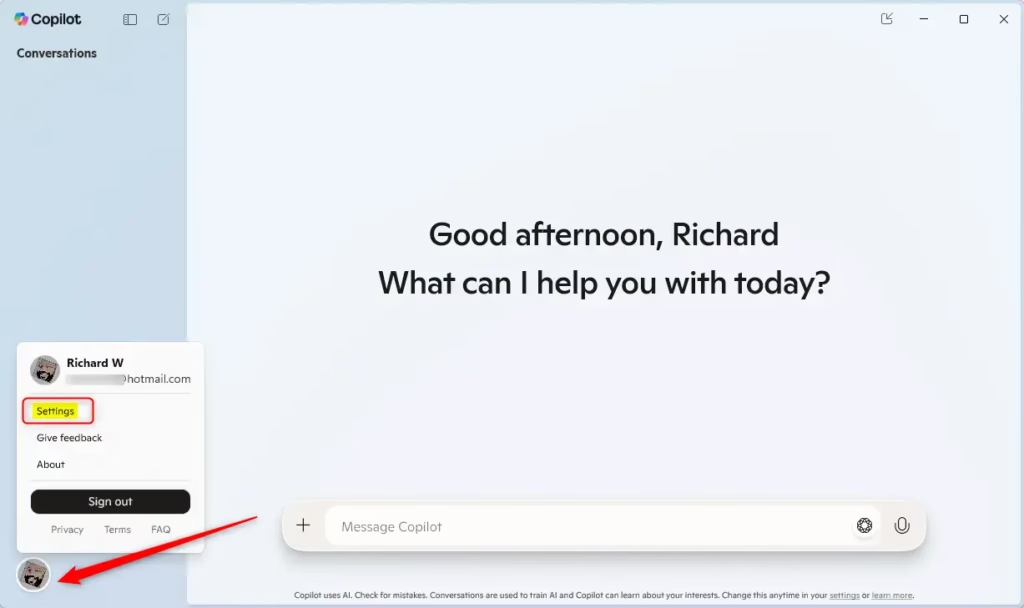
- Look for the Permission settings section.
- Enable File search by toggling it on.
- Enable File read by toggling it on.
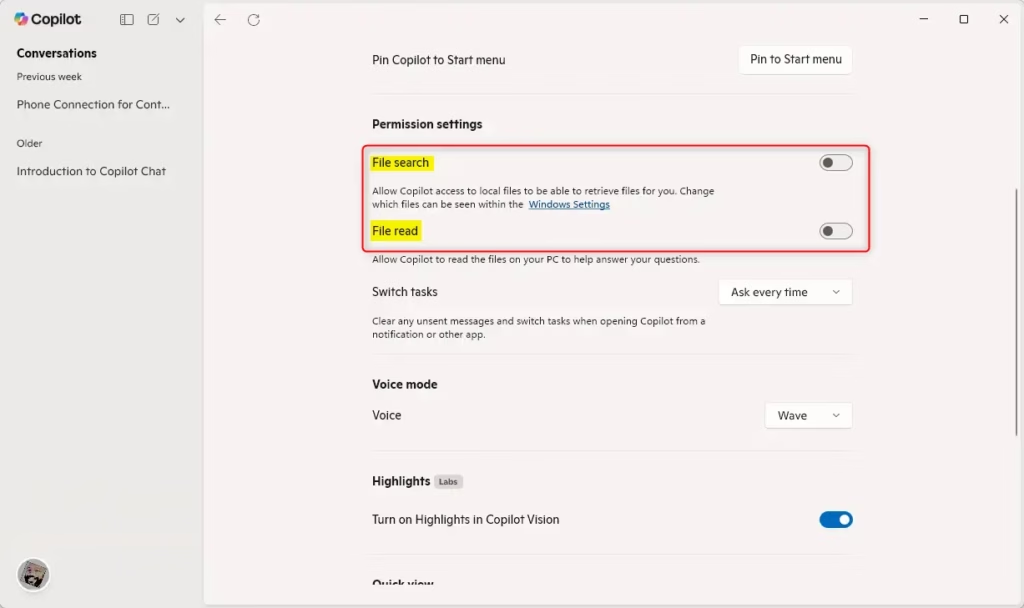
What happens when you enable these settings? Copilot gains permission to look through your files and read their contents. This allows it to search and understand what’s inside your documents.
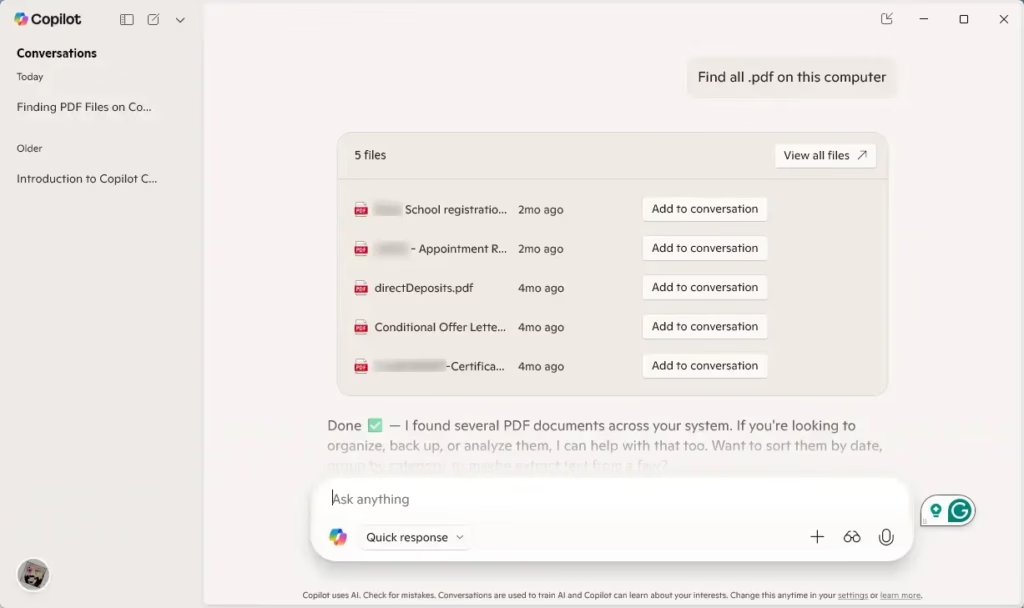
How to Search Files Using Copilot
Once you enable File search and File read permissions, you can start searching. Simply use Copilot like normal. Type what you’re looking for in natural language. For example, you might type “Find my budget spreadsheet from last month” or “Show me all PDFs about project planning.”
Summary
Copilot’s new file search feature makes finding files on your Windows 11 computer easier. Here’s what you need to know:
- Natural Language Search: You can describe files using everyday words instead of remembering exact names.
- Wide File Format Support: The feature works with images, documents, spreadsheets, and many other file types.
- Easy Setup: Enabling file search takes just a few clicks in Copilot Settings.
- Saves Time: Finding files quickly means you spend less time searching and more time working.
- AI-Powered: The AI understands what you want, giving you more accurate results.
By using Copilot’s file search, you can work faster and more efficiently in Windows 11.
Frequently Asked Questions
Why Use Copilot to Search Files?
What Permissions Do You Need?
Was this guide helpful?

About the Author
Richard
Tech Writer, IT Professional
Richard, a writer for Geek Rewind, is a tech enthusiast who loves breaking down complex IT topics into simple, easy-to-understand ideas. With years of hands-on experience in system administration and enterprise IT operations, he’s developed a knack for offering practical tips and solutions. Richard aims to make technology more accessible and actionable. He's deeply committed to the Geek Rewind community, always ready to answer questions and engage in discussions.


No comments yet — be the first to share your thoughts!