
This guide will help you allow or block family members from signing into your Windows 11 computer using Microsoft Family Safety. This tool helps families stay safe online by letting parents control what their kids can do on the computer.
What is Microsoft Family Safety?
It is a free service from Microsoft that helps parents monitor and manage their children’s online activity. Parents can set limits on screen time, control what apps and games kids can use, and get activity reports.
Once you add a family member to your Microsoft Family Safety group, you can decide if they can log into a Windows 11 device or not. You need to be signed in with your Microsoft account as an administrator on the computer to do this.
When a family member signs in for the first time, Windows creates a user folder for them in C:\Users. You can then see which devices they use from your online Microsoft Family Safety dashboard.
How to Allow a Family Member to Sign Into Windows 11
Here’s an easy way to let a family member log into your Windows 11 PC:
- Open Windows Settings: Click the Start menu and choose Settings, or press Windows key + I on your keyboard.
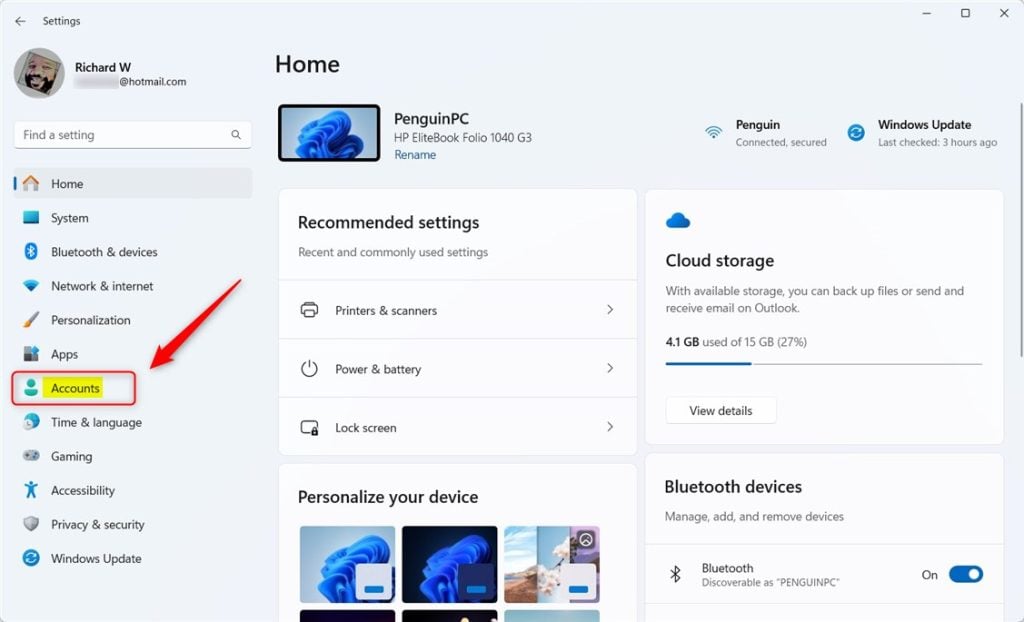
- In the Settings window, click Accounts on the left side.
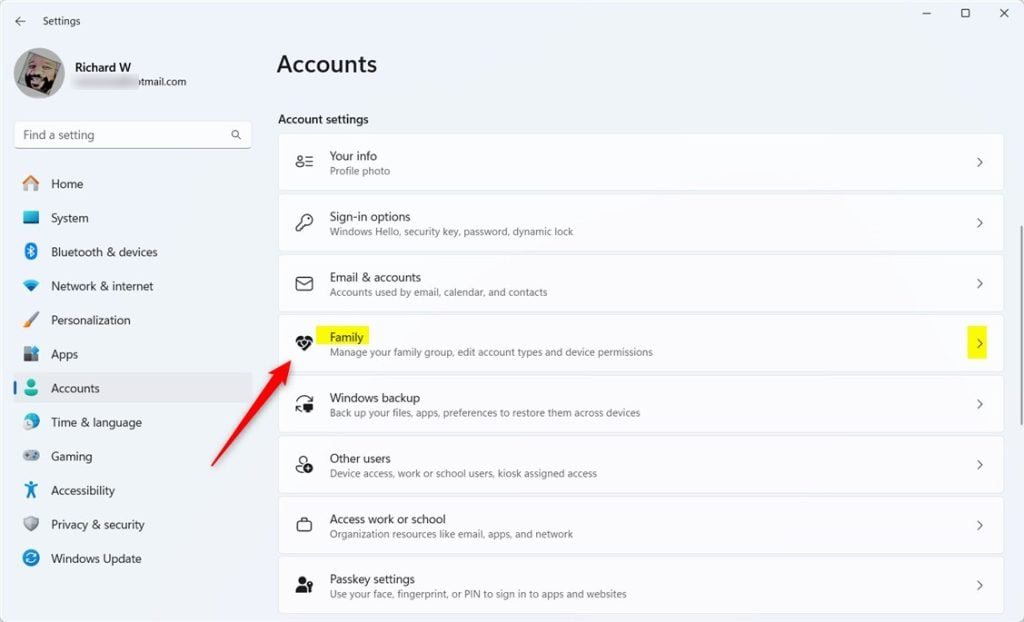
- On the right, find and click the Family option.
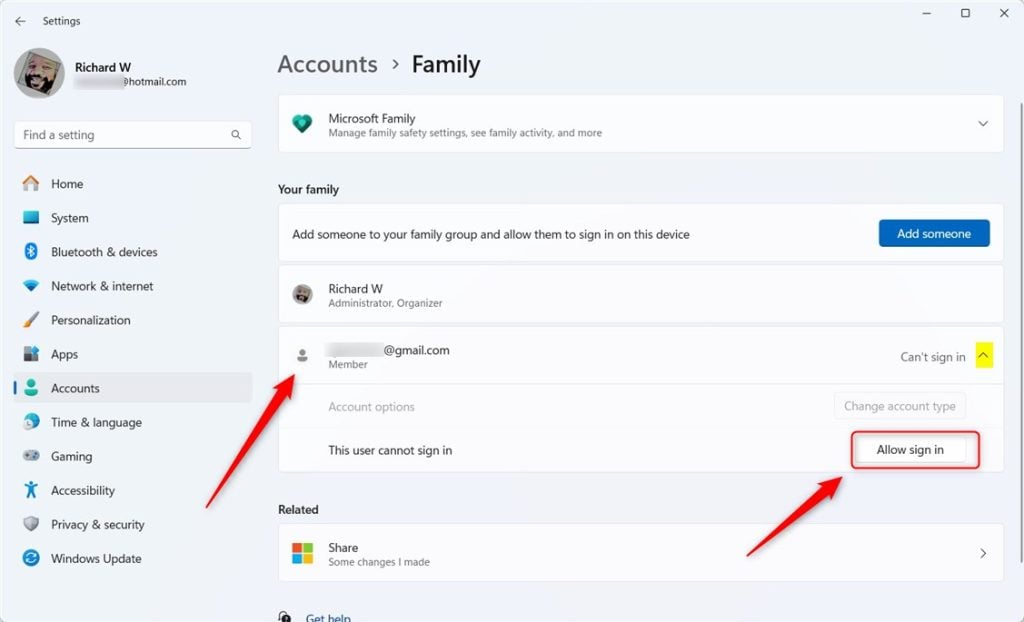
- Next, you will see a list of family members added to your group. Click on the name of the member you want to allow.
- Then click the Allow sign in button.
- A confirmation box will pop up. Click Allow to finish.
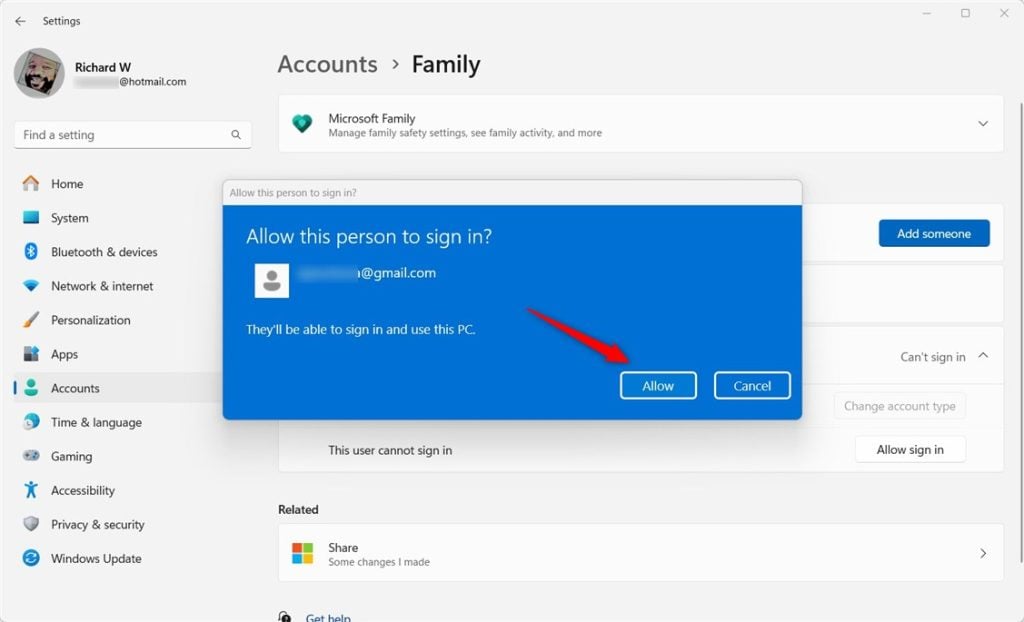
That family member can now sign into the Windows 11 device. You can also change their account type if needed.
How to Block a Family Member from Signing Into Windows 11
If you want to stop a family member from signing into your Windows 11 PC:
- Go back to Settings > Accounts > Family as shown above.
- Click on the family member’s name you want to block.
- Click the Block sign in button.
- Confirm your choice when asked.
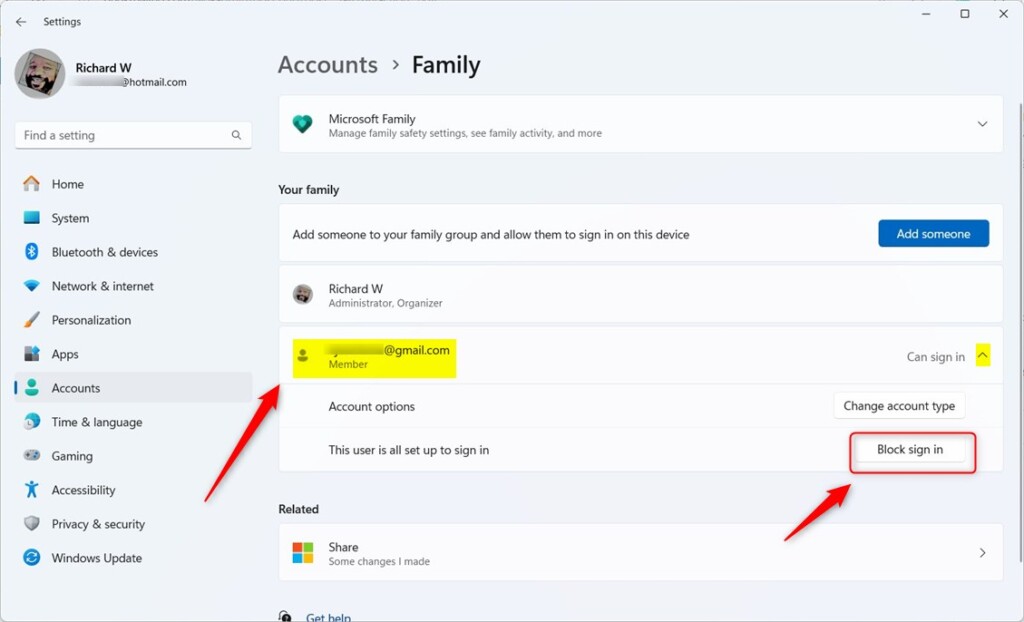
That’s it! The family member will no longer be able to sign into the computer.
Summary
- Microsoft Family Safety lets parents control their kids’ computer use on Windows 11.
- You manage family accounts through the Windows Settings app.
- Allowing or blocking sign-in helps keep your family’s computer use safe and secure.
For more tips about adding members or managing Microsoft Family Safety, check out this helpful guide: Add members to your Microsoft Family Safety group.



Leave a Reply