How to Enable Copilot in Microsoft Edge Sidebar

You enable Copilot in the Microsoft Edge sidebar by toggling a single browser setting.
Copilot in Edge is an AI assistant integrated directly into your browser, providing contextual help and information. Enabling Copilot to open automatically in the sidebar means it’s always accessible.
This feature, available in Microsoft Edge version 120 and newer, allows you to get quick answers, summarize webpages, or draft content without leaving your current tab. You decide if this AI helper appears by default or waits for your command.
Go to Settings and more (three dots), then select Sidebar. Expand the Copilot tile and toggle “Show Copilot” to On. Finally, toggle “Automatically open Copilot in the sidebar” to On.
Turn “Automatically open Copilot in the sidebar” on or off
You can control whether Copilot automatically opens in the Edge sidebar through the browser’s settings.
First, open up Microsoft Edge.
Then, click the three dots (…) in the upper right-hand corner—that’s the ‘Settings and more’ menu (or press Alt+F).
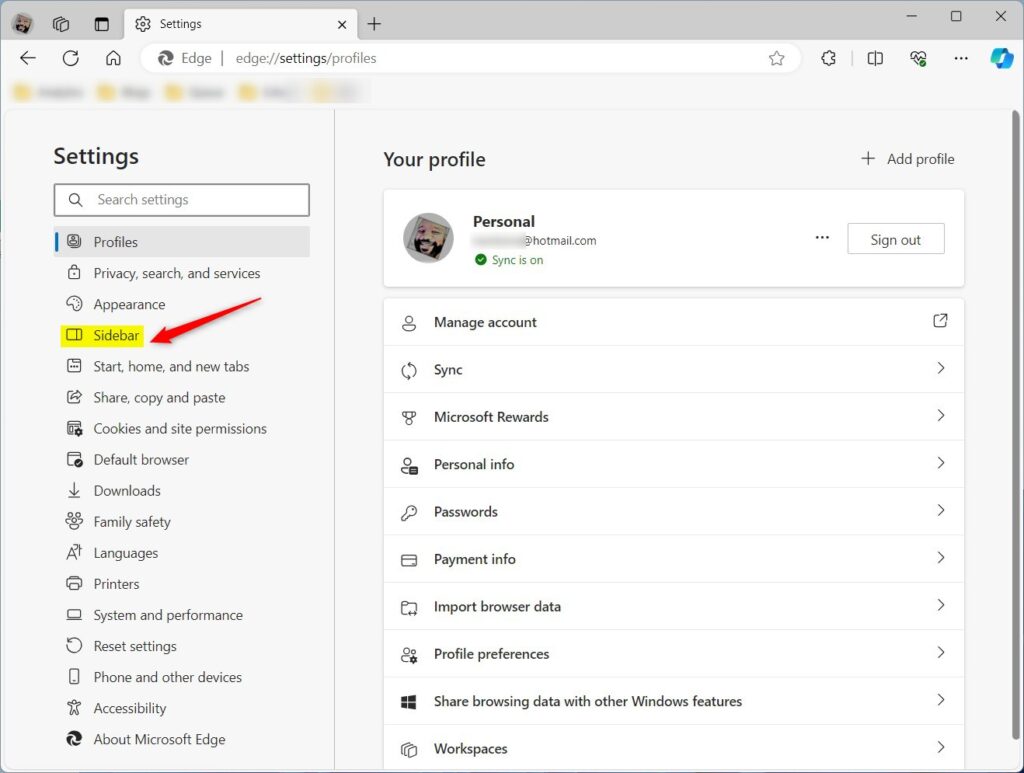
On the Settings page, look for the left-hand panel and click the Sidebar button.
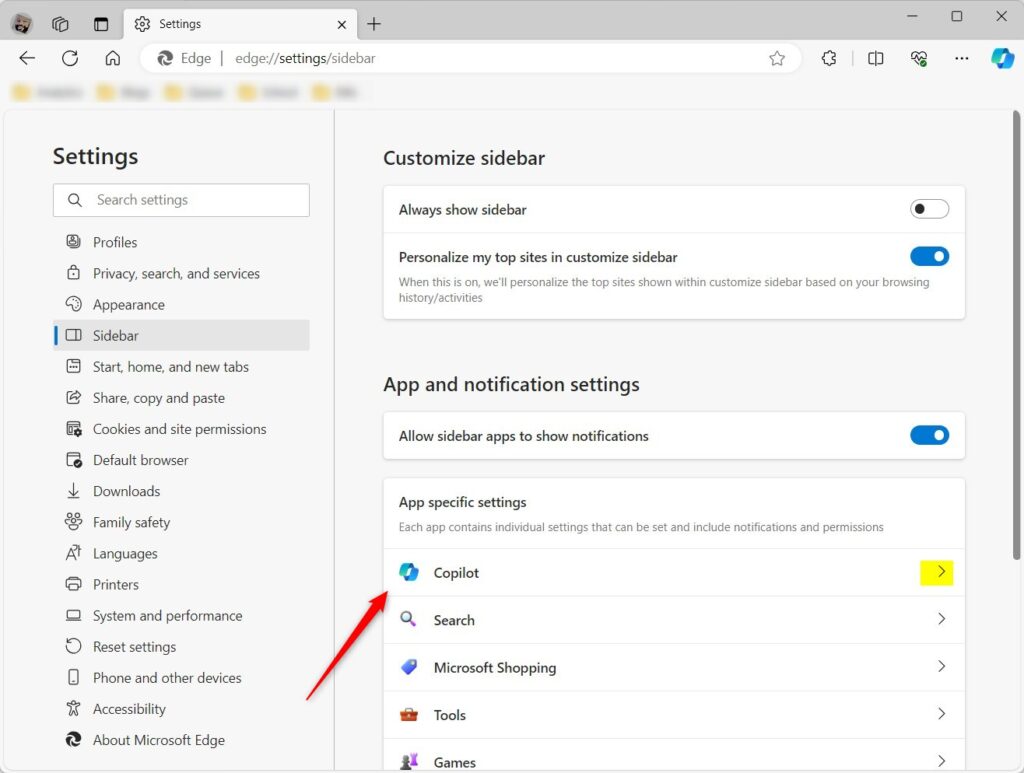
Over on the right, select the “Copilot” tile to expand it.
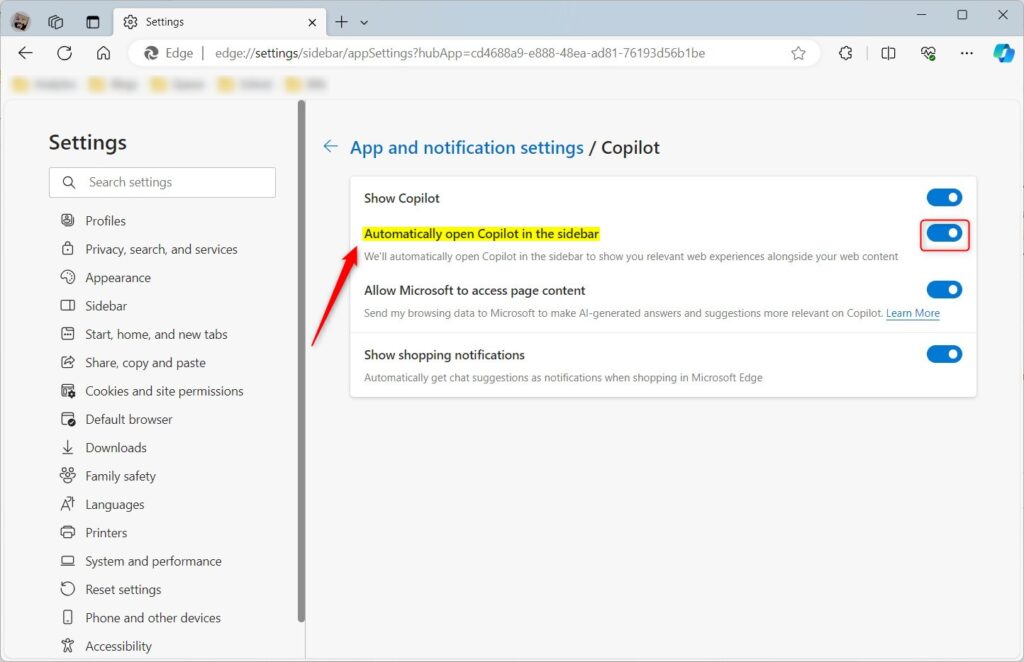
Next, toggle the ‘Show Copilot’ button to the On position. This will enable Copilot in Edge. Just so you know, you can’t change settings that let Microsoft access page content when Copilot is off.
Then, select the “Automatically open Copilot in the sidebar” tile and toggle the switch button to the On position to enable it.
To turn it off, just toggle the switch to the Off position.
And that’s it!
Conclusion:
- Enabling “Automatically open Copilot in the sidebar” in Microsoft Edge can enhance browsing efficiency and productivity.
- Users can turn this feature on or off based on personal preferences and needs.
- The step-by-step guide provides clear instructions on how to manage this setting in the Microsoft Edge browser.
- Feel free to share your feedback through the comments section below for suggestions or corrections.
How to enable Copilot vision on Edge?
To use Copilot vision on Edge, first sign in to your Microsoft account within the browser.
Was this guide helpful?

About the Author
Richard
Tech Writer, IT Professional
Richard, a writer for Geek Rewind, is a tech enthusiast who loves breaking down complex IT topics into simple, easy-to-understand ideas. With years of hands-on experience in system administration and enterprise IT operations, he’s developed a knack for offering practical tips and solutions. Richard aims to make technology more accessible and actionable. He's deeply committed to the Geek Rewind community, always ready to answer questions and engage in discussions.



No comments yet — be the first to share your thoughts!