How to Install Perplexity AI App on Windows 11

This article explains how to install Perplexity AI app on Windows 11.
Download the official app from the Perplexity website and save the Windows installer. Locate the downloaded “.exe” file in your Downloads folder and double-click it to run the installer. Follow the on-screen prompts to complete the installation.
What is Perplexity AI?
Perplexity AI is a smart search tool that gives you direct answers to your questions, pulling information from many websites at once to provide detailed, up-to-date responses.
Why use Perplexity? It searches the internet in real-time. This means you always get current information. You get answers faster than typing into a traditional search engine.
How to Install Perplexity AI on 🪟 Windows 11
Installing the Perplexity AI app on Windows 11 is straightforward; simply visit the download page, grab the Windows version, and run the installer file you downloaded.
- Visit the Download page to download the official app.
- Choose the Windows version and save it to your Downloads folder.
Download Windows version - Find the file named “Perplexity Setup x.x.x-x64.exe” in your Downloads folder. Double-click it to start the installer.
- If you used Edge or Chrome to download, you might see a popup. You can click it to open the installer right away. You don’t need to go to Downloads.
- Wait for the installation to finish. The Perplexity AI app will open automatically when done.
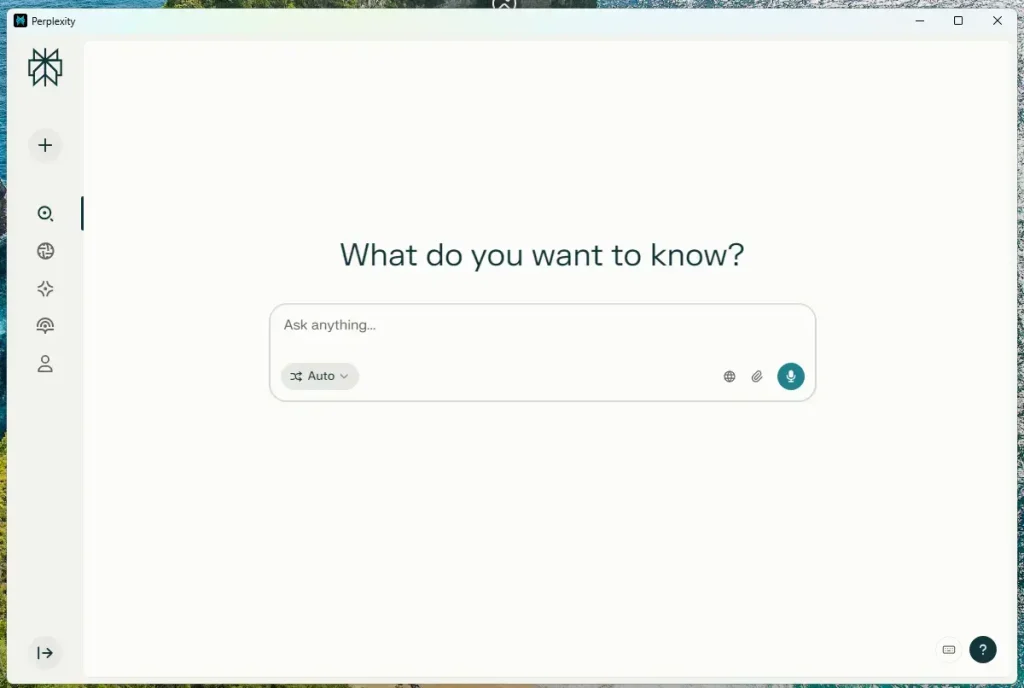
Perplexity app - You can now start using the app.
How to Uninstall Perplexity AI
If you want to uninstall the app, it’s easy. Follow these steps:
- Open Settings on your computer.
- Go to Apps > Installed apps.
- Find Perplexity in the list.
- Click the menu (three dots) next to Perplexity.
- Select Uninstall.
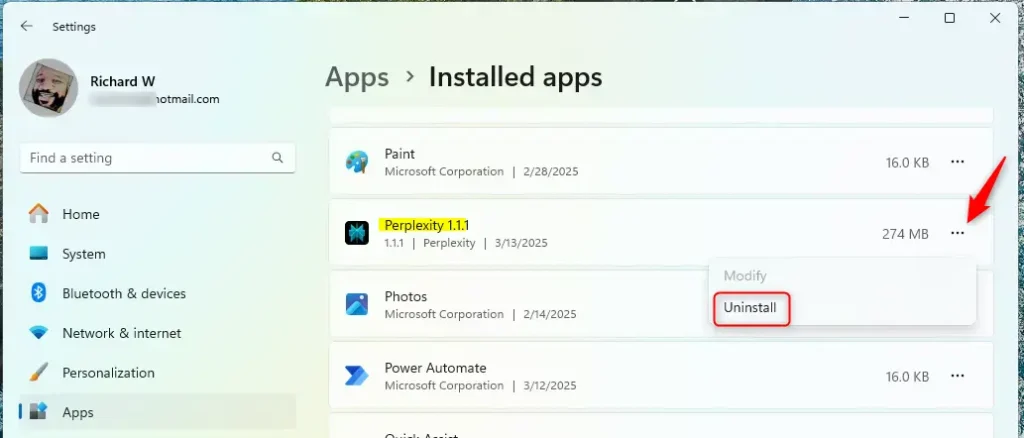
Perplexity uninstall
That’s all you need to do!
Summary
Getting Perplexity AI on Windows 11 is fast and simple, giving you real-time answers from across the web, an easy installation process, and a new, smarter way to search.
- Real-time Answers: The app finds current information from many websites at once.
- Simple Installation: The steps are straightforward. Anyone can do it in minutes.
- A New Way to Search: Perplexity uses AI to give you better answers than regular search engines.
- Easy to Remove: You can uninstall it anytime using Windows Settings.
The Perplexity AI app makes searching for information on your Windows 11 computer faster and smarter. Give it a try and see how it works for you!
Is Perplexity free for 🪟 Windows 11?
As already mentioned, Perplexity is completely free to use, thanks to its standard version.
Is there a desktop version of Perplexity AI?
Now on Windows. Features: · Deep Research: Guided AI search for deeper exploration. Ask with voice or text: Instant, up-to-date answers whether you type or say it.
How to use Perplexity AI on PC?
Access depends on your plan. Only Max and Enterprise users can use Perplexity Computer right now. It runs entirely in the cloud, so you just log in and start using it. The system works best when you give it clear projects instead of simple questions.
Should I install Perplexity AI?
After a month of forcing myself to use it, the answer is yes. For 95% of my daily queries, Perplexity wasn't just enough. It was significantly better. It was easy to get started with, and has a simple interface similar to other AI chatbots.
Was this guide helpful?

About the Author
Richard
Tech Writer, IT Professional
Richard, a writer for Geek Rewind, is a tech enthusiast who loves breaking down complex IT topics into simple, easy-to-understand ideas. With years of hands-on experience in system administration and enterprise IT operations, he’s developed a knack for offering practical tips and solutions. Richard aims to make technology more accessible and actionable. He's deeply committed to the Geek Rewind community, always ready to answer questions and engage in discussions.



No comments yet — be the first to share your thoughts!