

This article explains using Windows Hello to confirm credit cards faster than CVC in Google Chrome.
Google Chrome is a cross-platform web browser developed by Google. It and Microsoft Edge share the same codebase. They are practically identical in basic functionalities, using browsing activities, including history and other browsing data, to provide personalized ads, search, shopping, and news.
Your Chrome browser has a feature that provides a convenient way to securely manage your physical credit cards and associated addresses so you can automatically autofill forms when completing a purchase or adding personal details online.
When your credit card is stored, Chrome will prompt you to provide the card’s CVC to confirm before using it. Now, you can use Windows Hello to confirm cards faster without CVC.
This new feature adds an extra layer of security as well as convenience.
Use Windows Hello to confirm credit cards instead of CVC
As mentioned above, a new feature added to Google Chrome allows users to use Windows Hello to confirm saved credit cards instead of a CVC code on the back of it.
Here’s how to turn it on or off.
First, open the Google Chrome browser.
Then click on the Customize and Control (3 vertical dots button) in the top right corner and select Settings.

On the Settings page on the left panel, click the Autofill and passwords link on the left.
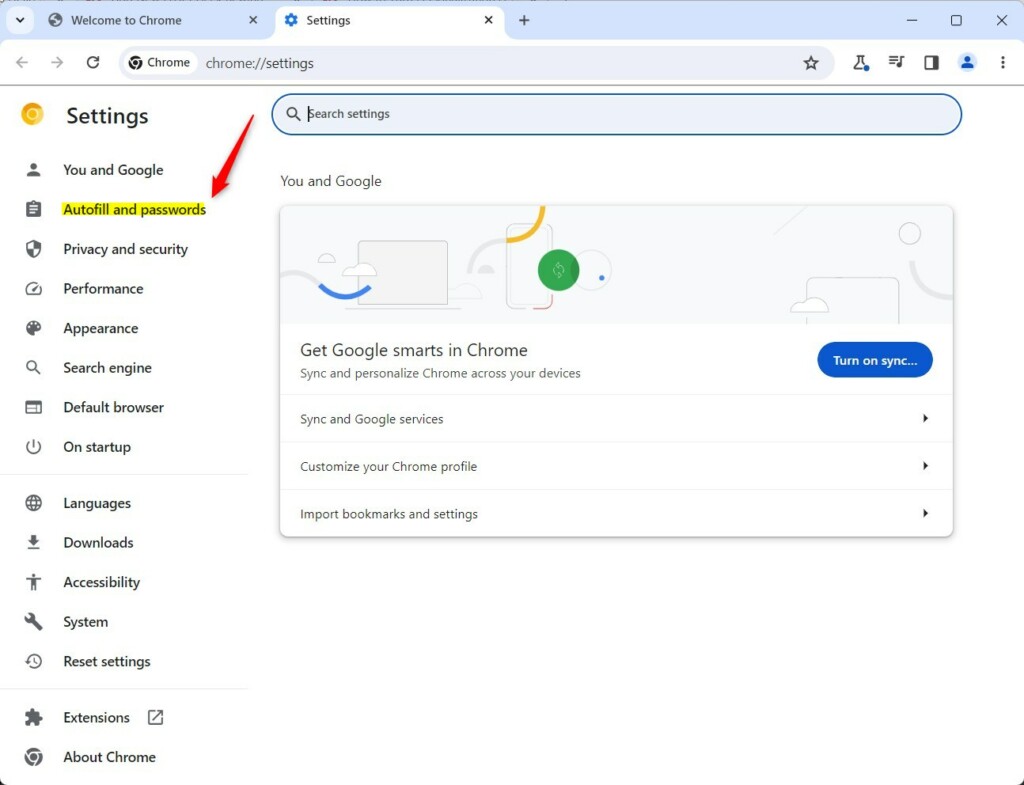
On the right, select the “Payment methods” tile on the Autofill and passwords page to expand it.
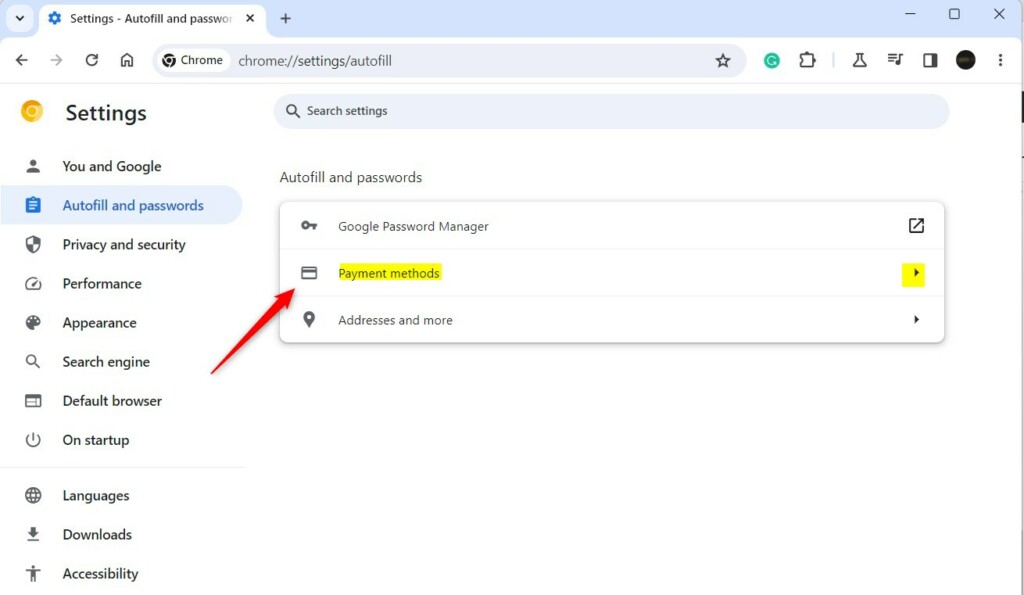
Users can also use the URL below in the address bar to go directly to the Paymens page in Chrome.
chrome://settings/payments
Next, toggle the Windows Hello button to the On or Off position to enable or disable.
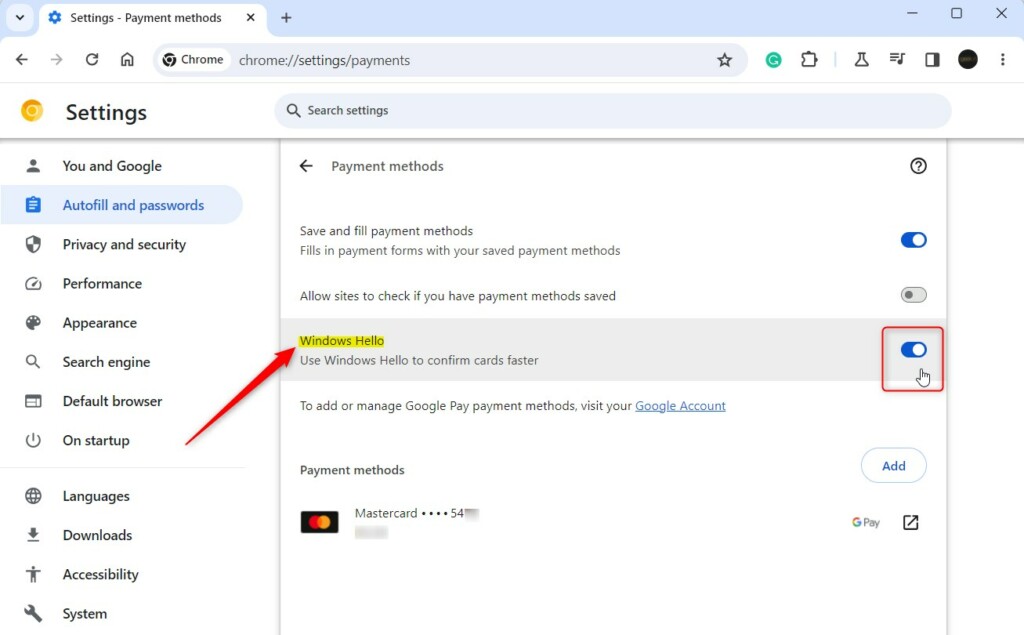
When you turn it on, you will be prompted to confirm the Windows Hello PIN or the fingerprint you signed in with.
On the pop-up “Use Windows Hello instead of CVC?” window, click the “Use Windows Hello” button and confirm your PIN.
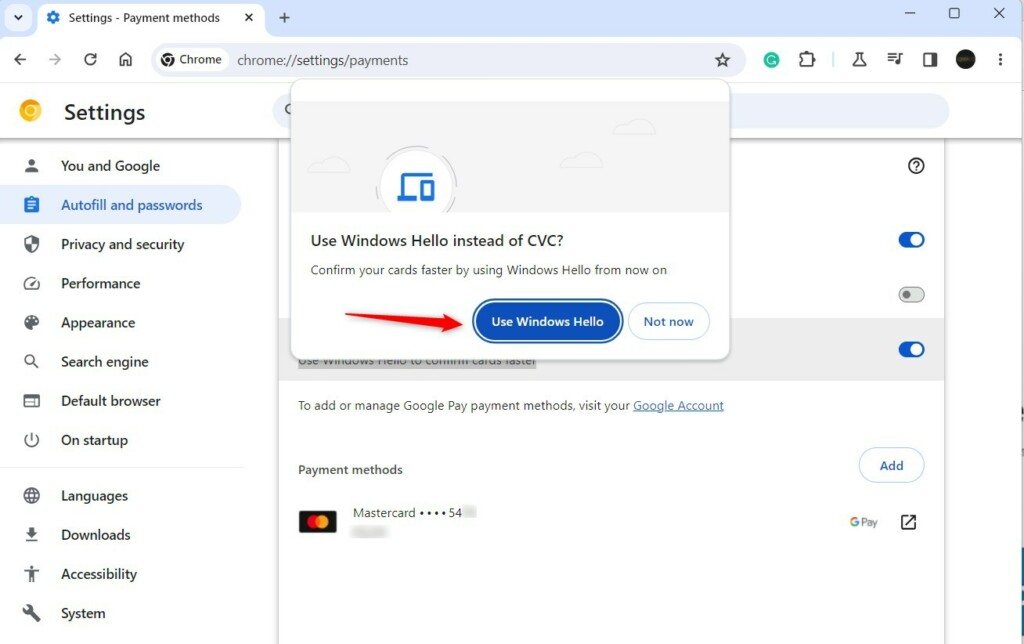
When enabled, you will type your PIN to confirm the credit card instead of the CVC code on the back when you want to use it.
Exit Google Chrome when done.
Conclusion:
- Google Chrome allows users to utilize Windows Hello to confirm saved credit cards, eliminating the need for CVC input.
- This new feature provides an added layer of security and enhances the convenience of managing and using credit cards in Google Chrome.
- Following the outlined steps, users can easily enable or disable the Windows Hello feature to confirm credit cards in the browser.
- Utilizing Windows Hello for credit card confirmation streamlines the process by replacing CVC input with a Windows Hello PIN or fingerprint confirmation.




Leave a Reply to Greg Staunton Cancel reply