How to Turn On or Off Custom Inking and Typing Dictionary in Windows 11

Turn On (Default Setting)
To turn on the Custom Inking and Typing Dictionary using the Registry Editor in Windows 11, you’ll need to run specific commands that set the dictionary value to ‘1’ and accept the privacy policy.reg add "HKEY_CURRENT_USER\Software\Microsoft\Windows\CurrentVersion\CPSS\Store\InkingAndTypingPersonalization" /v Value /t REG_DWORD /d 1 /f
reg add "HKEY_CURRENT_USER\Software\Microsoft\Personalization\Settings" /v AcceptedPrivacyPolicy /t REG_DWORD /d 1 /f
reg add "HKEY_CURRENT_USER\Software\Microsoft\InputPersonalization" /v RestrictImplicitInkCollection /t REG_DWORD /d 0 /f
reg add "HKCUSoftwareMicrosoftInputPersonalization" /v RestrictImplicitTextCollection /t REG_DWORD /d 0 /f
reg add "HKEY_CURRENT_USER\Software\Microsoft\InputPersonalization\TrainedDataStore" /v HarvestContacts /t REG_DWORD /d 1 /f
Turn Off
Turning off the Custom Inking and Typing Dictionary in Windows 11 via the Registry Editor involves running commands that set the dictionary value to ‘0’, which also resets the privacy policy acceptance.reg add "HKEY_CURRENT_USER\Software\Microsoft\Windows\CurrentVersion\CPSS\Store\InkingAndTypingPersonalization" /v Value /t REG_DWORD /d 0 /f
reg add "HKEY_CURRENT_USER\Software\Microsoft\Personalization\Settings" /v AcceptedPrivacyPolicy /t REG_DWORD /d 0 /f
reg add "HKEY_CURRENT_USER\Software\Microsoft\InputPersonalization" /v RestrictImplicitInkCollection /t REG_DWORD /d 1 /f
reg add "HKEY_CURRENT_USER\Software\Microsoft\InputPersonalization" /v RestrictImplicitTextCollection /t REG_DWORD /d 1 /f
reg add "HKEY_CURRENT_USER\Software\Microsoft\InputPersonalization\TrainedDataStore" /v HarvestContacts /t REG_DWORD /d 0 /f
Summary
- The Custom Inking and Typing Dictionary helps Windows 11 give you better typing and handwriting suggestions by learning from your writing habits.
- You can turn this feature on or off easily in the Settings or by using the Registry Editor.
- Turning it off will delete all saved words, so your suggestions won’t be personalized.
- It’s a good idea to check your privacy settings regularly to control what data Windows collects.
The Custom Inking and Typing Dictionary in Windows 11 learns your words to improve typing and handwriting suggestions, and you can manage it in Settings or with the Registry Editor, but turning it off erases learned words.
Speech, voice activation, inking, typing, and privacy – Microsoft Support
What is inking and typing in 🪟 Windows 11?
Windows 11’s inking and typing personalization creates a custom word list from the words you type or write, improving accuracy for both. This list links to your Microsoft account and works across Microsoft products.
Does 🪟 Windows 11 have a writing program?
Next, use the search bar to look for Notepad and open the application. Then, sign in with your Microsoft account within Notepad.
This guide helps you turn the Custom Inking and Typing Dictionary on or off on your Windows 11 computer.
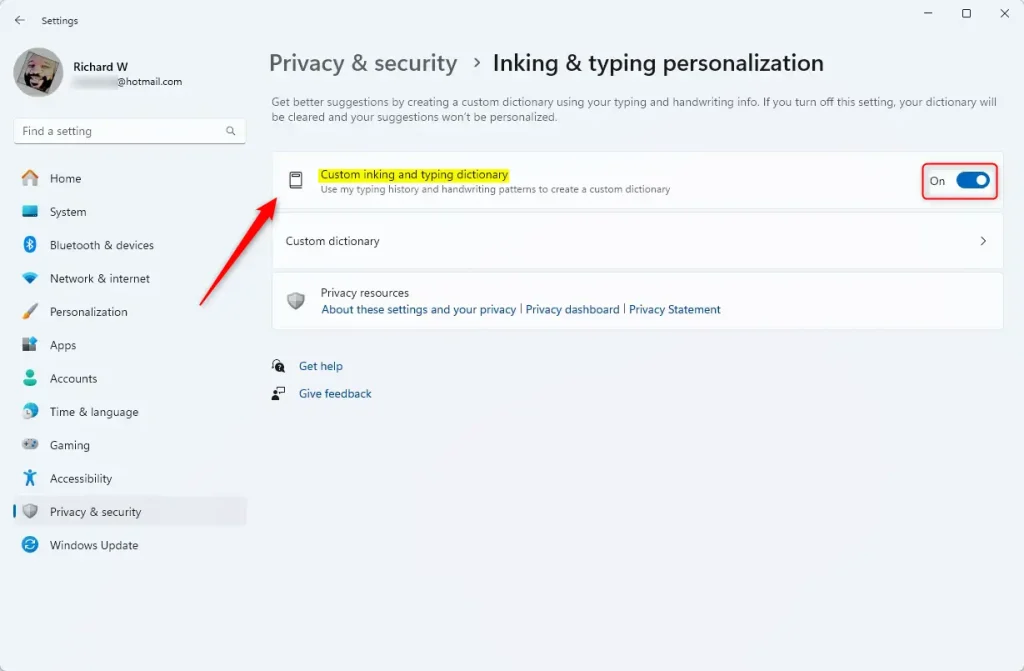
Open Settings by pressing ⊞ Win+I, then navigate to Privacy & security, and click Inking & typing personalization. Toggle the switch for Personal inking and typing dictionary to turn it on or off.
What is the Custom Inking and Typing Dictionary?
The Custom Inking and Typing Dictionary in Windows 11 helps your PC give you smarter word suggestions when you type or use a pen, learning new words like names or places you use often.
Important: If you turn this feature off, your computer will forget all the words it learned, and your suggestions won’t be personalized anymore.
How to Turn On or Off the Custom Inking and Typing Dictionary (Using Settings)
- Press ⊞ Win+I on your keyboard to open Settings.
- On the left side, click Privacy & security.
- On the right, click Inking & typing personalization.
- Turn the switch on or off under Personal inking and typing dictionary depending on what you want.
- You can now close the Settings window.
You can easily turn the Custom Inking and Typing Dictionary on or off in Windows 11 using the Settings app by going to Privacy & security, then Inking & typing personalization.
How to Turn On or Off the Custom Inking and Typing Dictionary (Using Registry Editor)
A heads-up: Editing the Registry is best for advanced users. Please proceed with caution and consider backing up your Registry first.
Turn On (Default Setting)
To turn on the Custom Inking and Typing Dictionary using the Registry Editor in Windows 11, you’ll need to run specific commands that set the dictionary value to ‘1’ and accept the privacy policy.reg add "HKEY_CURRENT_USER\Software\Microsoft\Windows\CurrentVersion\CPSS\Store\InkingAndTypingPersonalization" /v Value /t REG_DWORD /d 1 /f
reg add "HKEY_CURRENT_USER\Software\Microsoft\Personalization\Settings" /v AcceptedPrivacyPolicy /t REG_DWORD /d 1 /f
reg add "HKEY_CURRENT_USER\Software\Microsoft\InputPersonalization" /v RestrictImplicitInkCollection /t REG_DWORD /d 0 /f
reg add "HKCUSoftwareMicrosoftInputPersonalization" /v RestrictImplicitTextCollection /t REG_DWORD /d 0 /f
reg add "HKEY_CURRENT_USER\Software\Microsoft\InputPersonalization\TrainedDataStore" /v HarvestContacts /t REG_DWORD /d 1 /f
Turn Off
Turning off the Custom Inking and Typing Dictionary in Windows 11 via the Registry Editor involves running commands that set the dictionary value to ‘0’, which also resets the privacy policy acceptance.reg add "HKEY_CURRENT_USER\Software\Microsoft\Windows\CurrentVersion\CPSS\Store\InkingAndTypingPersonalization" /v Value /t REG_DWORD /d 0 /f
reg add "HKEY_CURRENT_USER\Software\Microsoft\Personalization\Settings" /v AcceptedPrivacyPolicy /t REG_DWORD /d 0 /f
reg add "HKEY_CURRENT_USER\Software\Microsoft\InputPersonalization" /v RestrictImplicitInkCollection /t REG_DWORD /d 1 /f
reg add "HKEY_CURRENT_USER\Software\Microsoft\InputPersonalization" /v RestrictImplicitTextCollection /t REG_DWORD /d 1 /f
reg add "HKEY_CURRENT_USER\Software\Microsoft\InputPersonalization\TrainedDataStore" /v HarvestContacts /t REG_DWORD /d 0 /f
Summary
- The Custom Inking and Typing Dictionary helps Windows 11 give you better typing and handwriting suggestions by learning from your writing habits.
- You can turn this feature on or off easily in the Settings or by using the Registry Editor.
- Turning it off will delete all saved words, so your suggestions won’t be personalized.
- It’s a good idea to check your privacy settings regularly to control what data Windows collects.
The Custom Inking and Typing Dictionary in Windows 11 learns your words to improve typing and handwriting suggestions, and you can manage it in Settings or with the Registry Editor, but turning it off erases learned words.
Speech, voice activation, inking, typing, and privacy – Microsoft Support
What is inking and typing in 🪟 Windows 11?
Windows 11’s inking and typing personalization creates a custom word list from the words you type or write, improving accuracy for both. This list links to your Microsoft account and works across Microsoft products.
Does 🪟 Windows 11 have a writing program?
Next, use the search bar to look for Notepad and open the application. Then, sign in with your Microsoft account within Notepad.
Was this guide helpful?

About the Author
Richard
Tech Writer, IT Professional
Richard, a writer for Geek Rewind, is a tech enthusiast who loves breaking down complex IT topics into simple, easy-to-understand ideas. With years of hands-on experience in system administration and enterprise IT operations, he’s developed a knack for offering practical tips and solutions. Richard aims to make technology more accessible and actionable. He's deeply committed to the Geek Rewind community, always ready to answer questions and engage in discussions.


No comments yet — be the first to share your thoughts!