How to Check for Neural Processing Units in Windows 11

This guide will show you how to check if your computer has a Neural Processing Unit, also known as an NPU, on Windows 11.
Open Task Manager and go to the Performance tab to see an NPU section. Alternatively, open Device Manager and look for a “Neural processors” category. If you have a compatible chip, ensure your manufacturer drivers are installed.
What is a Neural Processing Unit?
A Neural Processing Unit, or NPU, is a special chip in your computer built to handle tasks like artificial intelligence and machine learning right on your device.
Why is this important? Your CPU and GPU are designed for all sorts of tasks. An NPU, on the other hand, is built specifically for AI math. It measures its power in TOPS, which stands for Trillions of Operations Per Second. Generally, the higher the TOPS, the faster your AI performance will be.
What happens when you have an NPU? Your PC runs AI features much faster and uses less battery because it offloads work from the CPU. This is a big deal for features like real-time translation and advanced photo editing in Copilot+ PCs.
Quick Check: Do You Have an NPU?
You can quickly check if your Windows 11 PC has a Neural Processing Unit by looking at your CPU model, checking Task Manager for an NPU tab, or searching Device Manager for neural processors.
- Check your CPU: Look for Intel Core Ultra (AI Boost), AMD Ryzen 8000/9000 series (Ryzen AI), or Qualcomm Snapdragon X series.
- Task Manager: Open it to see if an ‘NPU’ tab exists under Performance.
- Device Manager: Check for a ‘Neural processors’ category.
Note: NPU visibility depends on having the correct manufacturer drivers installed. If you have a supported chip but see nothing, update your drivers.
How to Check for NPU Using Task Manager
- Open Task Manager by pressing
Ctrl+Shift+Esc. - Click the Performance tab.
- If your PC has an NPU, you will see an NPU section showing its name and current usage.
How to Check for NPU Using Device Manager
⚙️ Admin Required: You need administrator rights to view system hardware details.
- Press
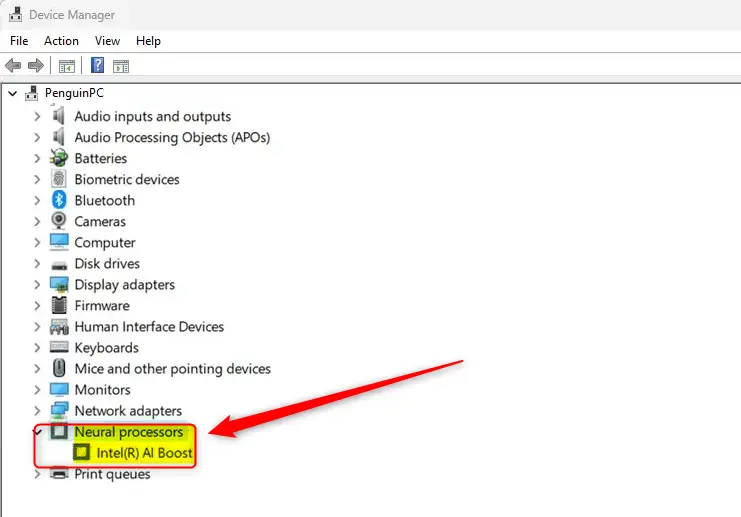
Win + Xand select Device Manager or typedevmgmt.mscin the search bar. - Look for a category named Neural processors.
- Expand this section to see your specific hardware, such as Intel AI Boost or Qualcomm Hexagon.
Hardware-Specific Verification
Different brands label their AI hardware differently. Use these official links to verify your specs:
Summary
Checking for an NPU helps you confirm if your PC is ready for modern AI features. Use Task Manager for a quick look at usage, or Device Manager to confirm your specific hardware model. Ensure your drivers are updated to see the NPU correctly in Windows 11.
Does my NPU improve battery life?
Your NPU helps save battery. It takes over AI tasks from your CPU and GPU, which use more power. This means your laptop can run AI features for longer before needing a charge, making it much more efficient when you’re doing a lot with AI.
How do I know if my NPU drivers are installed correctly?
If your drivers are installed correctly, the NPU will appear in Device Manager under ‘Neural processors’. If you see an ‘Unknown Device’ or no category at all despite having a compatible CPU, visit your manufacturer’s support website to download the latest chipset and NPU-specific drivers for your model.
What is the difference between a GPU and an NPU for AI tasks?
While both a GPU and an NPU can handle AI tasks, a GPU is built for general-purpose parallel jobs like gaming, whereas an NPU is specifically designed for the efficient, low-power math needed by AI.
Was this guide helpful?

About the Author
Richard
Tech Writer, IT Professional
Richard, a writer for Geek Rewind, is a tech enthusiast who loves breaking down complex IT topics into simple, easy-to-understand ideas. With years of hands-on experience in system administration and enterprise IT operations, he’s developed a knack for offering practical tips and solutions. Richard aims to make technology more accessible and actionable. He's deeply committed to the Geek Rewind community, always ready to answer questions and engage in discussions.



[…] use Windows Studio Effects with Voice Focus, the device must have a neural processing unit (NPU) in the new Windows Copilot+ […]
[…] feature uses the Neural Processing Unit (NPU) to generate images locally on your […]
[…] version: Uses smart AI technology on a special chip called a Neural Processing Unit (NPU) for even better noise […]