
This guide will help you understand what TPM is and show you simple steps to use the TPM Troubleshooter in Windows 11 to fix TPM problems.
What is TPM?
TPM stands for Trusted Platform Module. It’s a small chip inside your computer that helps keep your data safe by securely storing important information like passwords and encryption keys.
Why does this matter? If your TPM chip isn’t working right, your computer’s security features might not work properly. That’s why Windows 11 includes a special tool called the TPM Troubleshooter to help find and fix TPM issues.
How to Run the TPM Troubleshooter in Windows 11
Follow these easy steps to open and run the TPM Troubleshooter:
Step 1: Open the Windows Security app
- Click the Start menu (the Windows icon at the bottom left).
- Type
Windows Securityin the search box. - Click on the Windows Security app when it appears.

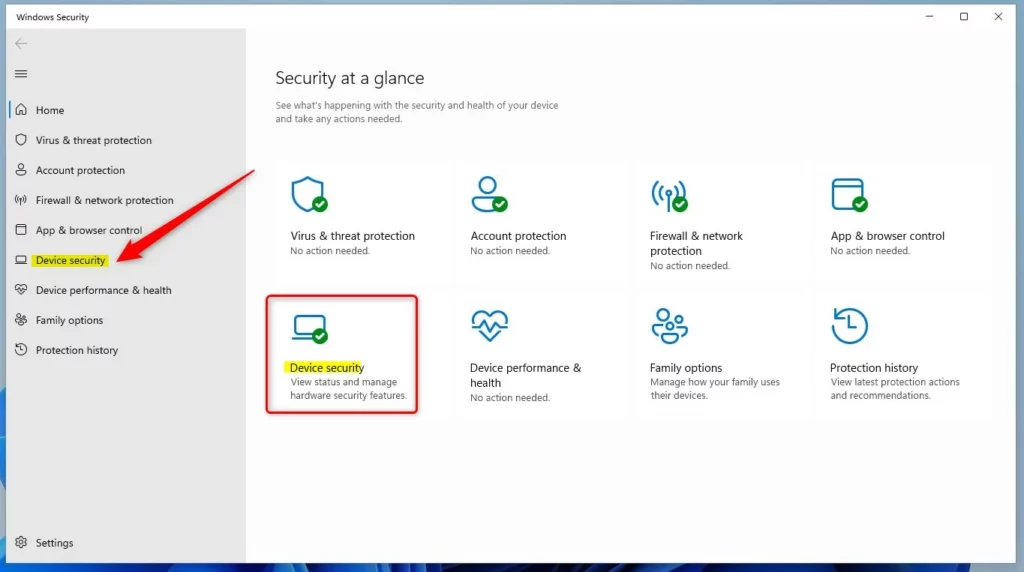
Step 2: Go to Device Security
- In the Windows Security app, find and click Device security on the left menu or the main page.
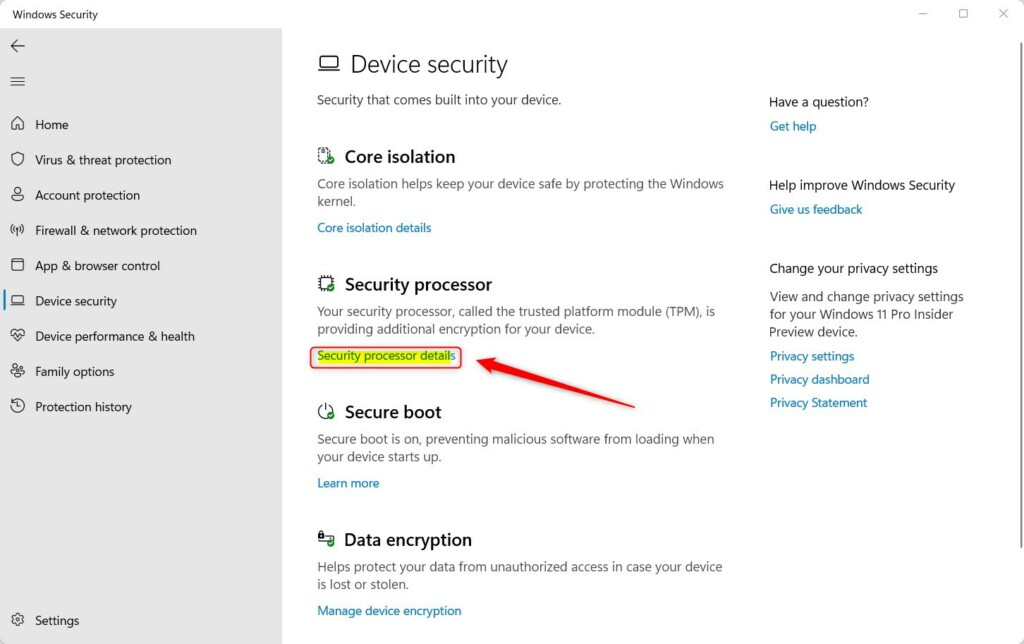
Step 3: Open Security Processor Details
- Under the Security processor section, click Security processor details.
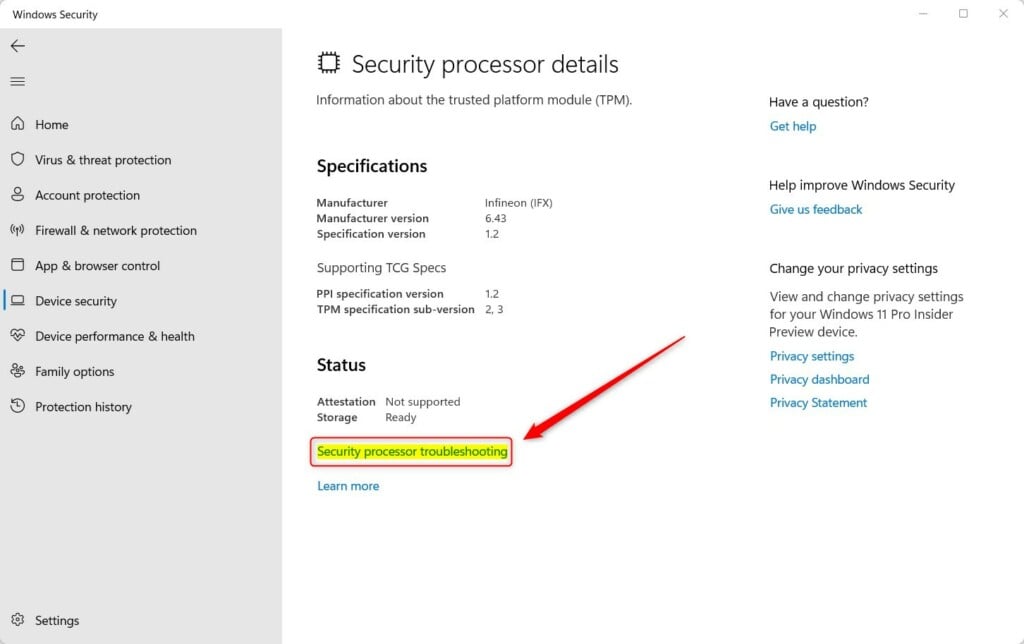
Step 4: Open the TPM Troubleshooter
- On the Security processor details page, click Security processor troubleshooting.
Step 5: Run the Troubleshooter
- Under TPM Troubleshooter, click the Run button.
- The troubleshooter will check your TPM and try to fix any problems it finds.
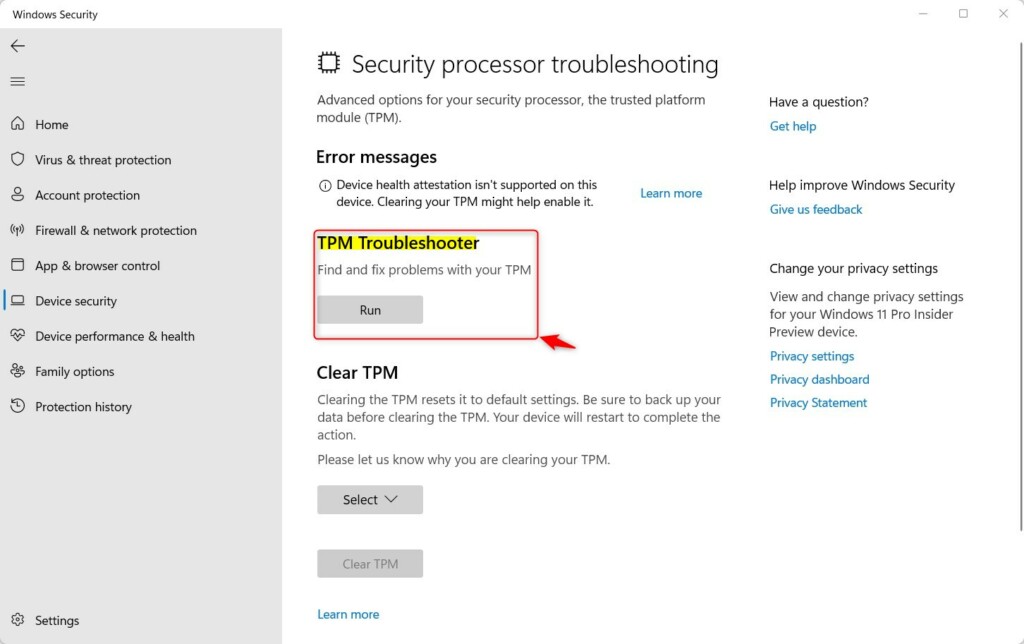
What happens when you run it? The tool scans your TPM chip and identifies any issues that need fixing.
Common TPM Issues You Might See
If your TPM is having trouble, you may see messages like:
- Your TPM needs a firmware update.
- TPM is turned off and needs attention.
- TPM storage isn’t available, and you might need to clear TPM.
- Device health attestation isn’t available or supported.
- Your TPM doesn’t work well with your current system firmware.
- Some TPM logs are missing — restarting your computer might help.
- There is a general TPM problem — try restarting your device.
What to Do If the Troubleshooter Can’t Fix the Problem
If the troubleshooter cannot fix the TPM issue, you can try to clear TPM from the same troubleshooting page. This resets the TPM chip to factory settings.
🔒 Admin Privileges Required: Clearing TPM requires administrator access to your computer.
Important: Clearing TPM will erase stored keys and data related to security, so make sure to back up your important data before doing this.
More Help
For detailed help and official information, visit the Microsoft support page on Security Processor Troubleshooting.
Summary
- The TPM Troubleshooter in Windows 11 helps you find and fix problems with your computer’s security chip.
- Using the Windows Security app, you can easily run this tool without needing technical skills.
- If problems remain, clearing the TPM (after backing up your data) can help reset it.
- Always keep your system updated and check the official Microsoft support if you need more help.
We hope this guide helps you keep your Windows 11 device secure and running smoothly!



Leave a Reply