How to Use the Pen to Erase Ink in Windows 11

Using a digital stylus should feel natural. This guide helps you master the erase ink Windows 11 features, whether you use a Surface Pen or a third-party stylus.
Why use the pen to erase?
Using the top of the pen to erase feels just like using a pencil. It makes fixing mistakes faster and more natural than using on-screen menus. It keeps your workflow smooth without needing to switch tools manually.
What happens when done?
Once you finish these steps, you can flip your pen over and rub it against the screen to remove your digital ink markings instantly.
How to set up the eraser in Settings
You can quickly turn this feature on using the Windows Settings app.
- Open the Windows Settings app by clicking the Start menu or pressing Windows key + I.
- Click on battery-level-in-windows-11/" class="sal-link" rel="noopener" target="_blank" data-sal-id="25961">Bluetooth & devices in the left menu.
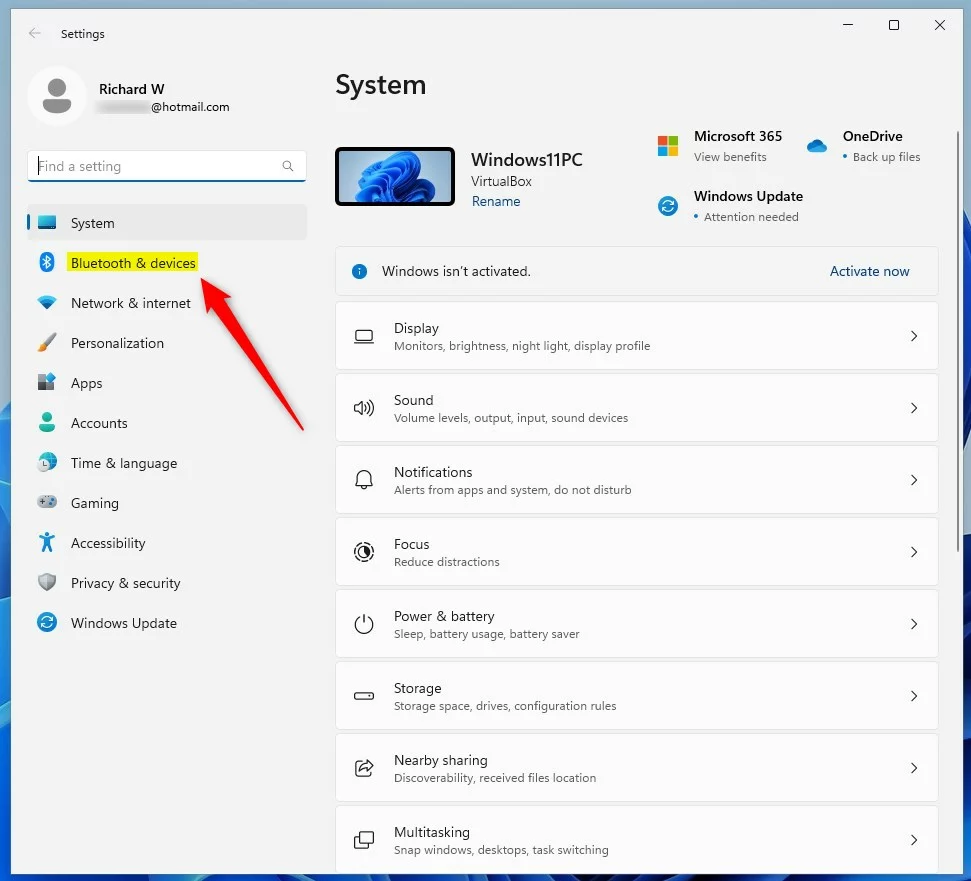
- Select the Pen & Windows ink tile on the right.
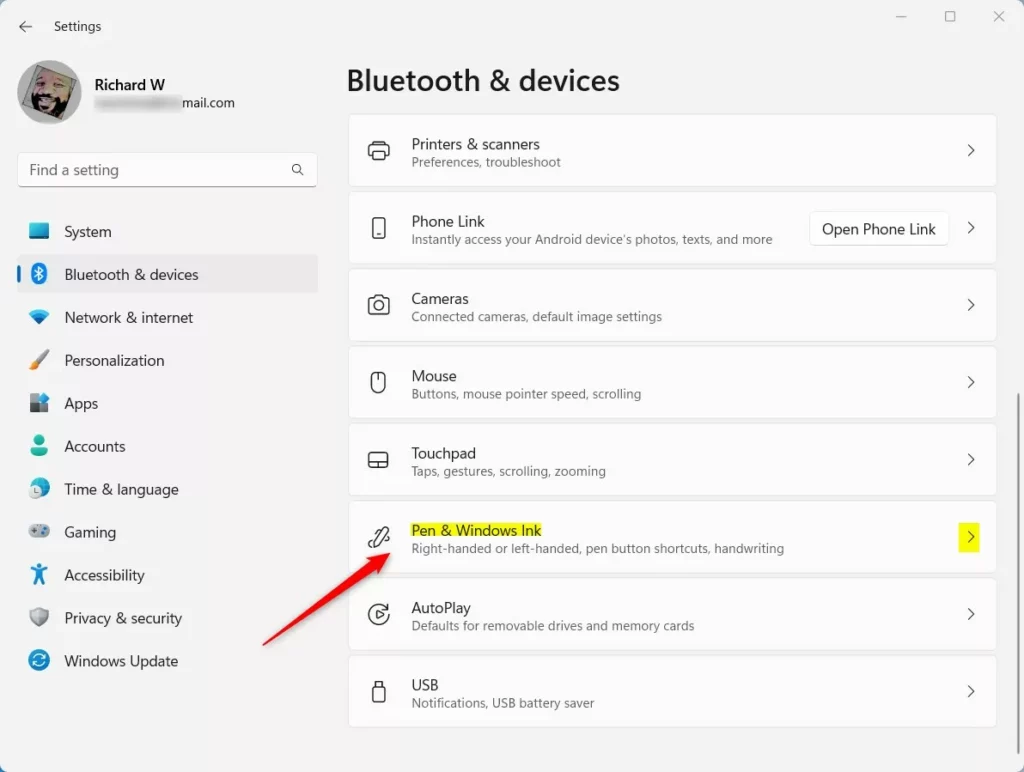
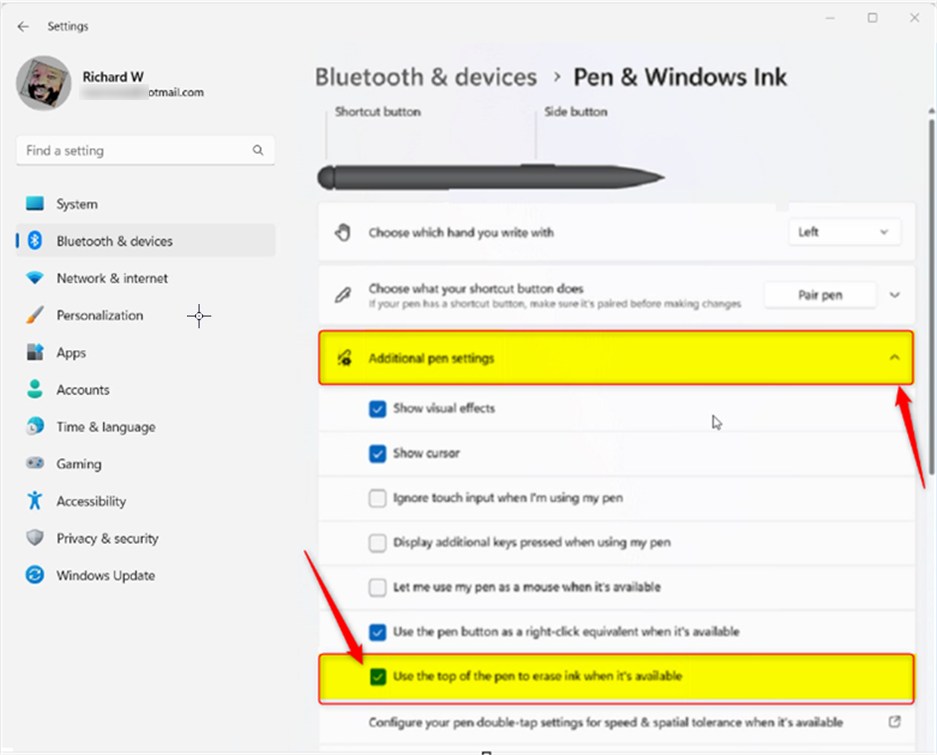
- Click to expand Additional pen settings.
- Check the box that says Use the top of the pen to erase ink when it’s available.
Close the Settings app when you are finished.
Mastering the ‘Scratch Out’ Gesture
If your pen does not have a physical eraser, you can use the ‘Scratch Out’ gesture. Simply scribble over the ink you want to remove. Windows 11 recognizes this motion and deletes the strokes underneath. This works in most apps that support Windows Ink, such as Microsoft Journal or Whiteboard.
Troubleshooting Pen Connectivity
If your pen eraser is not working, try these steps:
- Check Battery: A low battery often disables the top button first.
- Re-pair: Go to Bluetooth settings, remove the device, and pair it again.
- Update Drivers: Open Device Manager, find your Human Interface Devices, and update the pen driver.
How to set up the eraser using the Registry Editor
Note: This method requires admin privileges. Be careful, as changing the registry can affect system settings.
- Open the Windows Registry by searching for it in the Start menu.
- Go to this location:
HKEY_CURRENT_USER\Software\Microsoft\Wisp\Pen\SysEventParameters - If you do not see the
SysEventParametersfolder, right-click the Pen folder, select New, and create a key namedSysEventParameters.
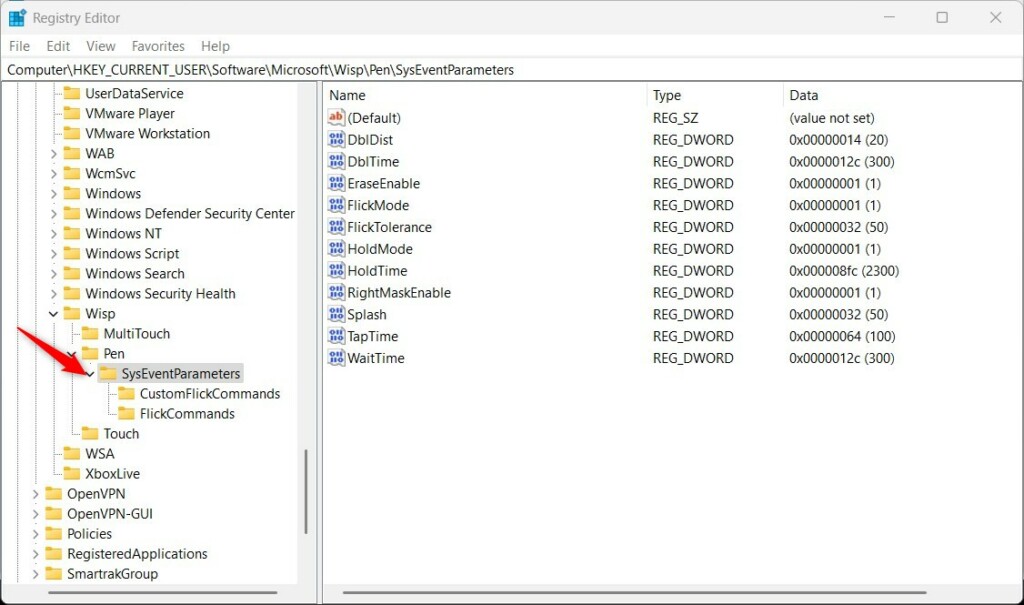
- Right-click in the empty space on the right side, select New, then select DWORD (32-bit) Value. Name it
EraseEnable. - Double-click
EraseEnable, set the Base to Decimal, and enter1in the Value data box.
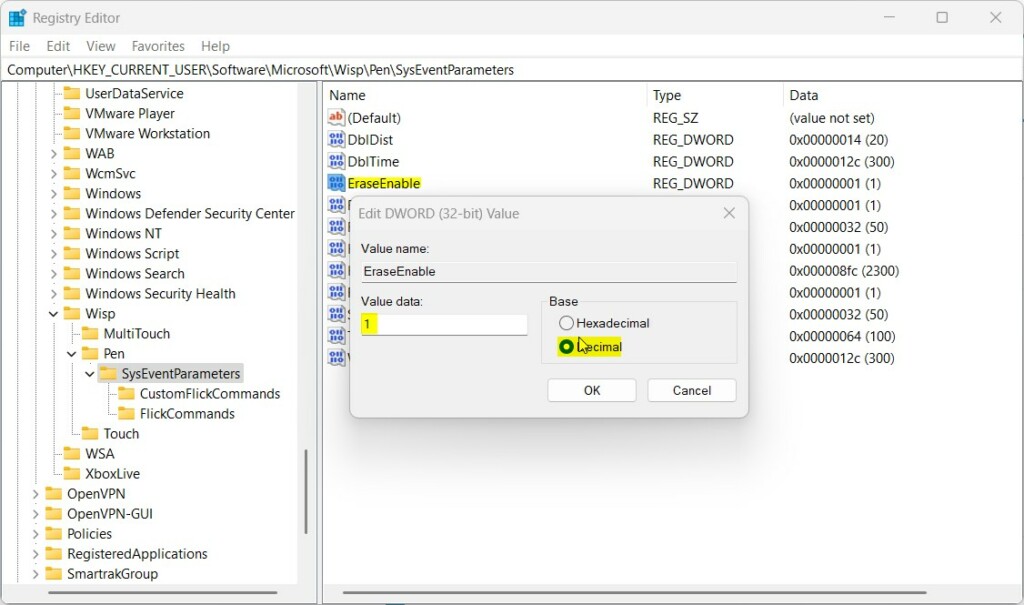
- Restart your computer to save the changes.
Reference: Microsoft Support
Summary
You can enable the pen eraser feature in Windows 11 using the Settings menu for a simple experience or the Registry Editor for more advanced control. By mastering the physical eraser and the scratch-out gesture, you can improve your digital writing efficiency. If issues persist, check your drivers and battery status to ensure your stylus is fully functional.
Why is my pen eraser not working in Windows 11?
Your pen eraser may not work due to low battery, outdated drivers, or incorrect settings. Ensure the ‘Use the top of the pen to erase’ option is enabled in Settings. If it still fails, try unpairing and re-pairing the device via Bluetooth to refresh the connection.
Can I customize the side button of my pen to erase?
Yes, you can customize the side button. Navigate to Settings > Bluetooth & devices > Pen & Windows ink. Under the ‘Pen shortcuts’ section, you can assign the side button to perform specific actions, including acting as an eraser or opening your favorite note-taking app.
Does the scratch-out gesture work in all Windows 11 apps?
The scratch-out gesture is supported in most native Windows 11 apps that utilize Windows Ink, such as Microsoft Journal, Sticky Notes, and Whiteboard. However, support in third-party applications depends on whether the developer has enabled Windows Ink integration within their specific software environment.
Was this guide helpful?


[…] Windows lets you pair the pen with your device via Bluetooth. Once your pen is connected, you can use it to write or click on your screen. You can also customize your pen settings, such as choosing your writing hand or what happens when you hold down the pen’s shortcut button. […]