How to Open Folders in New Windows on Windows 11

Want to open every folder in its own window on Windows 11? Here’s how.
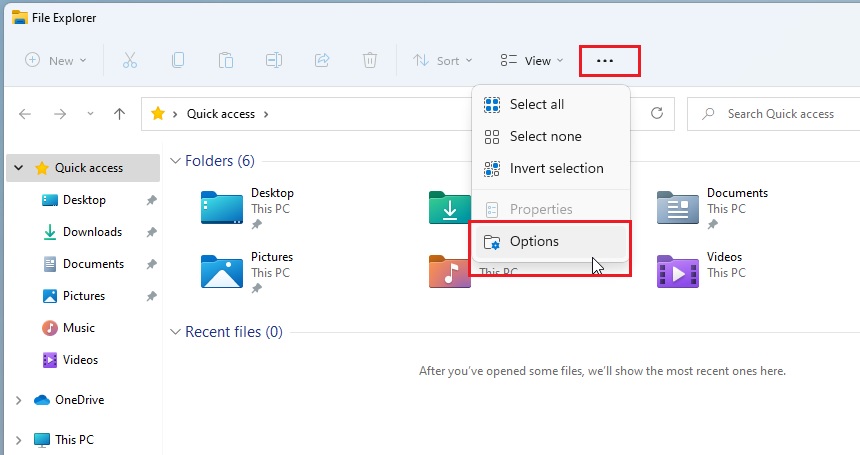
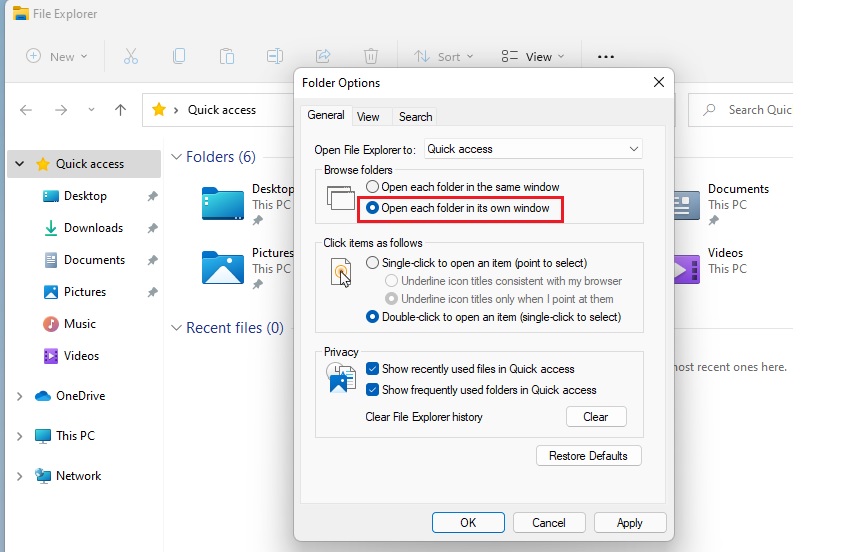
Open File Explorer, click the three dots, select Options, and choose “Open each folder in its own window” in the General tab. Alternatively, use keyboard shortcuts like Ctrl+N or a middle-click on a folder.
Why Open Folders in New Windows?
Windows 11’s new tab feature is great for tidiness, but sometimes you need to open folders in a new window to easily move files around. Having separate windows makes it simple to drag and drop items between different locations on your computer, which can really speed up your work.
What happens when you are done?
Once you make this change, your computer will stop grouping folders into tabs. Every time you double-click a folder, it will open in its own separate window. This is great for anyone who juggles a lot of files at once.
Quick Keyboard Shortcuts
You can open folders in a new window on Windows 11 using simple keyboard shortcuts without changing any settings.
- Ctrl+N: Opens the currently selected folder in a new window.
- Middle-click (Scroll wheel): Click a folder with your mouse scroll wheel to open it in a new window.
- Ctrl + Click: Hold Ctrl and click a folder to open it in a new window.
How to Open Folders in New Windows Automatically
If you want this to be your default behavior, follow these steps:
- Open File Explorer.
- Click the three dots (ellipses) in the top menu bar.
- Select Options.
- In the General tab, find the Browse folders section.
- Select Open each folder in its own window.
- Click OK.
Advanced: Registry Tweak for New Windows
To always open folders in a new window on Windows 11 permanently, you can make an advanced change in the Windows Registry.
You can force this behavior using the Registry Editor. Press the Windows key + R, type `regedit`, and then press Enter. Navigate to: 🗝️HKEY_CURRENT_USER\Software\Microsoft\Windows\CurrentVersion\Explorer\Advanced. Look for a value named SeparateProcess. If you don’t see it, right-click, select New > DWORD (32-bit) Value, name it SeparateProcess, and set its value to 1.
Summary
Windows 11 offers flexibility, letting you choose between tabs or opening folders in new windows to suit your style. Quick keyboard shortcuts like Ctrl+N are great for on-the-fly changes, while other methods provide a permanent solution. Pick the way that makes managing your files easiest for you.
Why does 🪟 Windows 11 open folders in tabs by default?
Windows 11 introduced tabs to reduce desktop clutter and help users manage multiple locations within a single File Explorer instance. This mimics modern web browsers, making it easier to keep your workspace organized when navigating deep directory structures without opening dozens of separate windows.
How do I stop folders from opening in new windows?
To revert to the default tabbed behavior, open File Explorer, click the three dots in the menu, and select Options. Under the General tab, choose the option labeled Open each folder in the same window. Click Apply and OK to save your changes immediately.
Was this guide helpful?

About the Author
Richard
Tech Writer, IT Professional
Richard, a writer for Geek Rewind, is a tech enthusiast who loves breaking down complex IT topics into simple, easy-to-understand ideas. With years of hands-on experience in system administration and enterprise IT operations, he’s developed a knack for offering practical tips and solutions. Richard aims to make technology more accessible and actionable. He's deeply committed to the Geek Rewind community, always ready to answer questions and engage in discussions.



No comments yet — be the first to share your thoughts!