How to Use Soft Focus in Microsoft Teams

Microsoft Teams’ Soft focus feature applies a subtle blur to your video feed, enhancing your appearance during calls.
This effect works by smoothing skin tones and masking minor video quality issues, giving you a more polished look on camera.
You can easily enable Soft focus directly within your Teams settings, and it automatically applies this visual enhancement to all your outgoing video. It’s available on Teams desktop clients for Windows and macOS.
Enable Soft focus in Microsoft Teams by going to Settings, then Devices, and toggling the Soft focus switch to On under Video Settings. This feature subtly blurs your video feed for a more polished appearance during calls.
How to turn on Soft focus in Microsoft Teams
Turning on soft focus in Microsoft Teams is simple and can be done right from the app settings, no special permissions needed.
1. Open the Microsoft Teams app from your Start menu.
2. You can also open the app using the Taskbar or Taskbar overflow.

3. Click the Settings and more (…) button located near your profile picture at the top right, then select Settings.

4. On the left sidebar, click on Devices. Then, look for the “Video Settings” section. If you have multiple cameras, pick the right one from the cameras on the drop-down menu.
5. Find the Soft focus toggle under the “Camera” section. Turn the switch to On to enable it. If you want to turn it off later, toggle the switch back to Off.
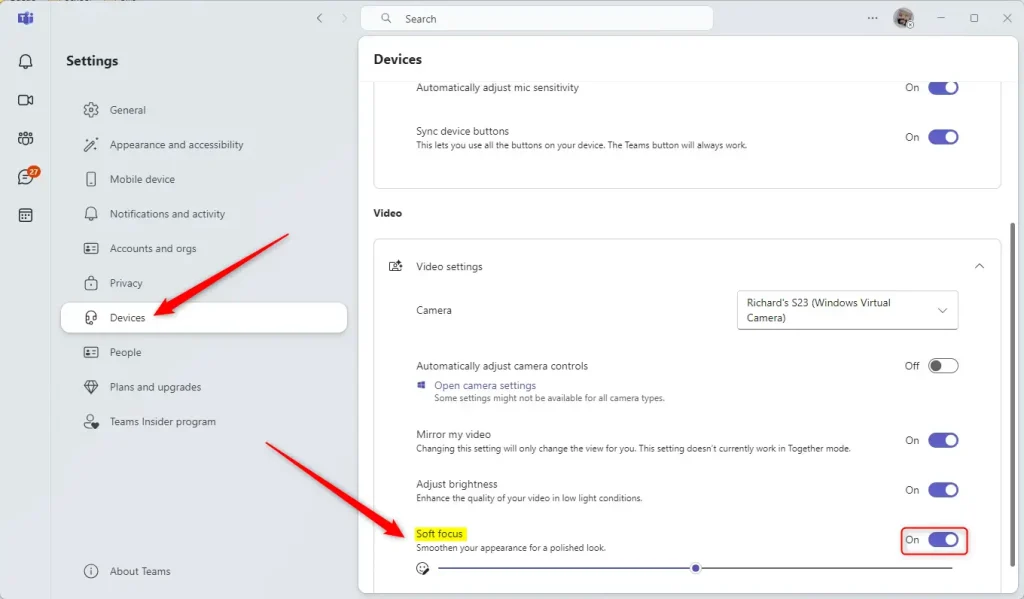
You can also adjust many other settings in the app. These include connecting your Google calendar, managing camera and mic settings on the lock screen, and controlling read receipts.
Summary
Soft focus in Microsoft Teams is a handy tool that helps your video look smoother and more professional during calls.- Soft focus is a built-in tool that makes your video appear smoother and more professional.
- You can toggle this feature on or off at any time via the Settings > Devices menu.
- This setting is perfect for users who want a quick, easy way to improve their appearance during virtual calls.
Where has soft focus gone on Teams?
Soft focus applies a smoothing effect to appearance, and Adjust brightness enhances the video quality when lighting is poor. Users in your organization will see these 2 filters in “Device Settings” panel in meeting and “Settings”->”Devices”->”Camera” panel. Note: This feature is turned-off by default.
Was this guide helpful?

About the Author
Richard
Tech Writer, IT Professional
Richard, a writer for Geek Rewind, is a tech enthusiast who loves breaking down complex IT topics into simple, easy-to-understand ideas. With years of hands-on experience in system administration and enterprise IT operations, he’s developed a knack for offering practical tips and solutions. Richard aims to make technology more accessible and actionable. He's deeply committed to the Geek Rewind community, always ready to answer questions and engage in discussions.




No comments yet — be the first to share your thoughts!