
Mouse Keys is a helpful feature in Windows 11 that lets you move your mouse pointer using the number keys on your keyboard. This is useful if you find it hard to use a normal mouse or touchpad.
What Can Mouse Keys Do?
When Mouse Keys is turned on, you can:
- Press the
5key to click - Press the
+key to double-click - Use other number keys to move the mouse pointer around the screen
You can also choose to make Mouse Keys work only when the Num Lock key is turned on. This means you can switch Mouse Keys on or off by pressing Num Lock without turning off the Mouse Keys feature completely.
How to Turn On or Off “Only Use Mouse Keys When Num Lock is On”
Here’s an easy way to set this up on your Windows 11 computer:
- Open the Settings app. You can do this by clicking the Start menu and then clicking Settings. Or just press
Windows key + Ion your keyboard. - In the Settings window, click Accessibility on the left side.
- Scroll down and click on Mouse on the right side to open mouse settings.
- Turn on the Mouse keys switch.
- Below it, you will see the option “Only use mouse keys when Num Lock is on”. Check this box if you want Mouse Keys to work only when
Num Lockis on. Uncheck it if you want Mouse Keys to work all the time.
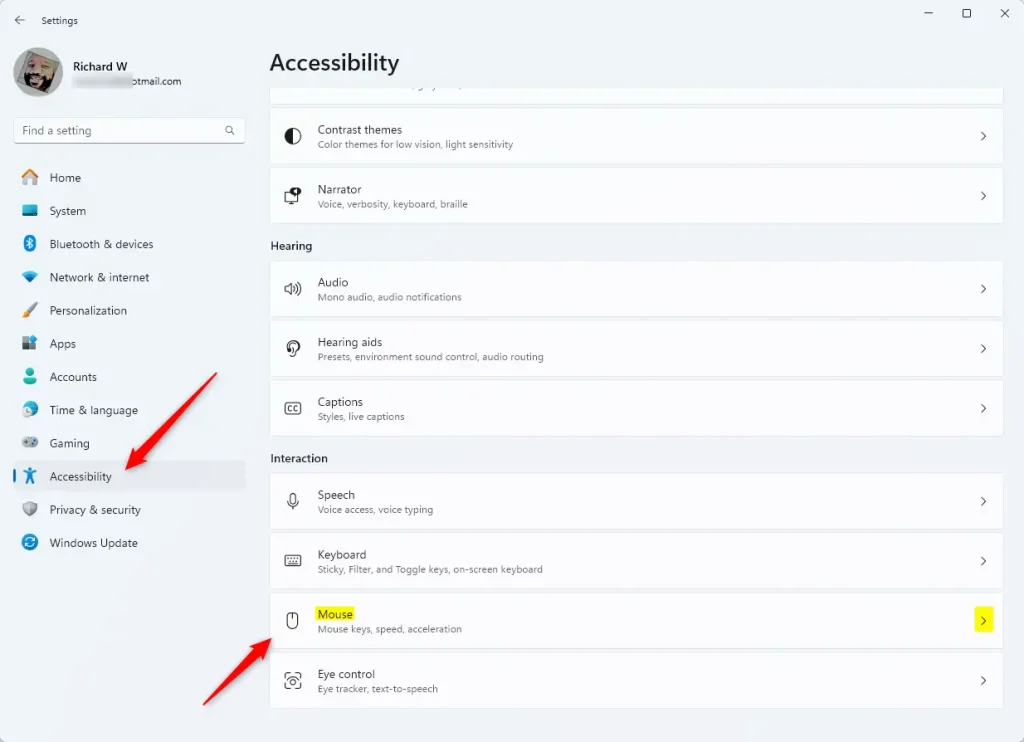
Mouse settings in Windows 11 Accessibility options
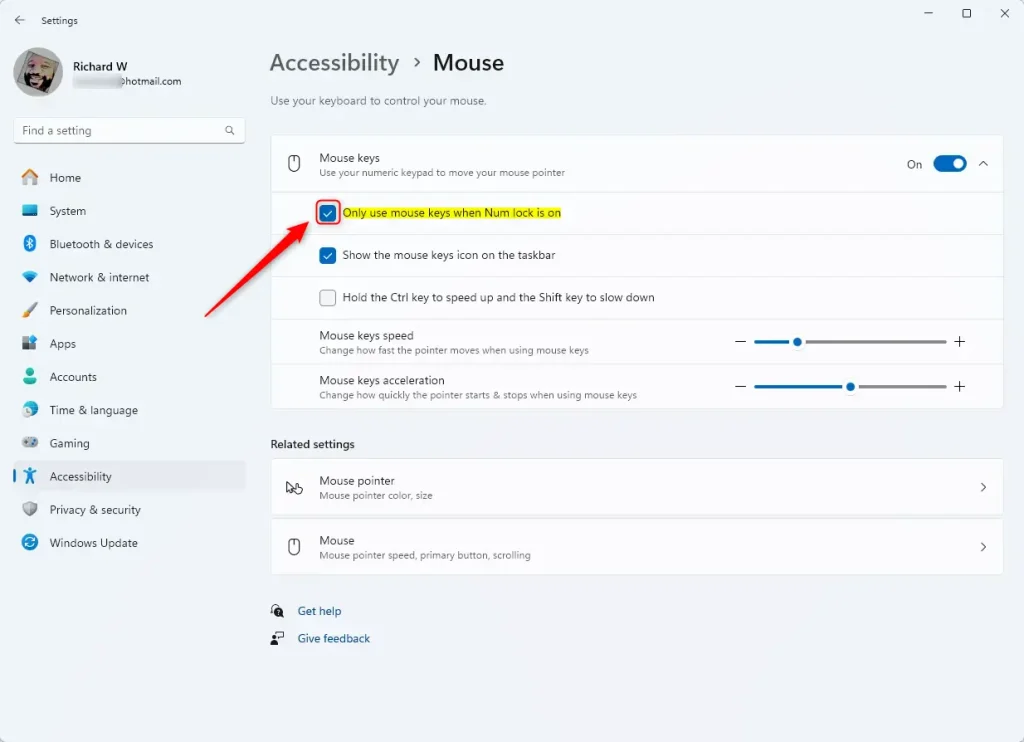
Turning on Mouse Keys and enabling “Only use mouse keys when Num Lock is on”
- When you are done, close the Settings app.
Why Use This Feature?
- It helps people who have trouble using a regular mouse or touchpad.
- You get to control the mouse pointer using just your keyboard.
- You can choose when to activate Mouse Keys with the
Num Lockkey for easier switching. - It gives you more options to use your Windows 11 computer in a way that feels comfortable.
Try it out and see if it makes using your computer easier!
Summary
Mouse Keys is a Windows 11 accessibility feature that lets you control your mouse pointer using keyboard number keys. You can set it to work only when Num Lock is on by opening Settings, going to Accessibility, clicking Mouse, turning on Mouse Keys, and checking the “Only use mouse keys when Num Lock is on” option. This feature is great for people who prefer keyboard control or have difficulty using a traditional mouse or touchpad.

Leave a Reply