
Windows 11 has a helpful feature called Live Captions. It shows words on the screen as people talk. This is great if you have trouble hearing. It also helps you follow along with audio.
You can also make Live Captions show what your microphone hears. For example, if you’re speaking or if there’s sound around your device. This guide will show you how to turn on Live Captions. It will also show you how to include your microphone audio.
What Are Live Captions?
Live Captions turn spoken words into text. The text appears on your screen instantly. They work on most audio from your device. This includes videos, calls, or apps. This feature was added in Windows 11 build 22557.
How to Turn On Live Captions
You can quickly turn on Live Captions. Press these keys on your keyboard at the same time:
Windows key + Ctrl + LOr you can turn it on from Windows Quick Settings. Follow these steps:
- Click the Quick Settings area at the bottom-right of your screen (near the clock).
- Click the Accessibility button. It looks like a person inside a circle.
- Find and turn on Live Captions.
How to Include Microphone Audio with Live Captions
Do you want Live Captions to show what your microphone hears? Follow these steps:
- Turn on Live Captions by pressing
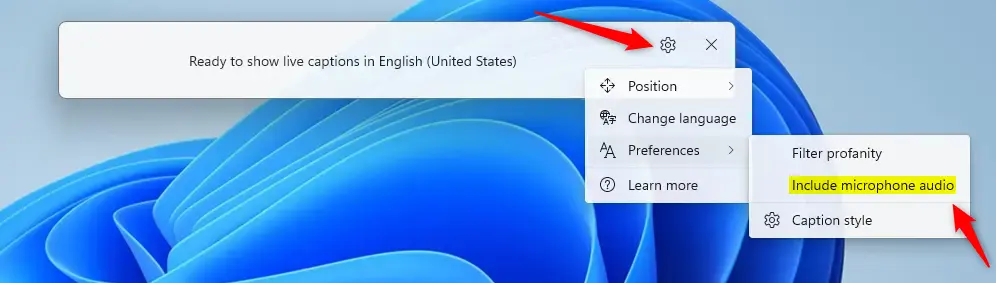
Windows key + Ctrl + L. - In the Live Captions bar that appears on your screen, click the Settings button. It looks like a gear icon.
- Choose Preferences.
- Find the option called Include microphone audio and turn it on.
Here’s an example of what the settings look like:
Now, your computer will caption sounds picked up by your microphone. It will also caption other audio playing on your device.
Extra Tips
- You can move the Live Captions bar anywhere on your screen by dragging it.
- Change the caption language if you want to see captions in a different language.
- Turn off Live Captions anytime by pressing
Windows key + Ctrl + Lagain. - For more info about Live Captions and how to customize them, check out this Microsoft Support page.
Summary
- Live Captions help you see spoken words as text on your screen in real time.
- You can include your microphone’s audio. This captions sounds around you or your voice.
- It’s easy to turn on and off. Use a keyboard shortcut or Quick Settings.
- You can customize captions to fit your needs. This includes moving the caption bar and changing languages.



Leave a Reply