How to Update Video Drivers in Windows 11

Updating your video drivers in Windows 11 can directly fix display issues and improve graphics performance.
Your video driver is a crucial piece of software. Think of it as a translator between Windows and your graphics card, making sure everything from your desktop to your favorite games displays correctly.
Keeping your drivers up-to-date, especially for popular cards like the NVIDIA GeForce RTX 4070, can fix visual glitches and boost game performance.
Windows 11 often handles driver updates automatically through Windows Update, but you can manually check and install them for immediate control.
Update video drivers through Windows Optional Updates by going to Settings > Windows Update > Advanced options > Optional updates. Alternatively, use Device Manager by right-clicking your display adapter and selecting “Update driver,” or download directly from the manufacturer’s website.
1Update Video Drivers Using Windows Optional Updates
Windows Optional Updates can sometimes include newer video drivers for your computer, helping you update your video drivers without extra steps.
What happens when done? Windows will install the latest video driver if it’s available.
Here’s how to check and install them:
- Click the Start menu (Windows icon) at the bottom-left corner.
- Select Settings (the gear icon).
- In Settings, click Windows Update on the left side.
- Click Advanced options.
- Click Optional updates.
- Look for any video driver updates listed here. If you see one, check the box next to it and click Download & install.
2Update Video Drivers Using Device Manager
You can update your video drivers using Windows Device Manager if you prefer to do it manually or if Windows didn’t automatically find a newer driver.
What happens when done? This process will update your video driver to the version you choose.
First, find out which video card your computer has. You can learn how here: How to check graphics card details in Windows 11.
Once you know your video card, follow these steps:
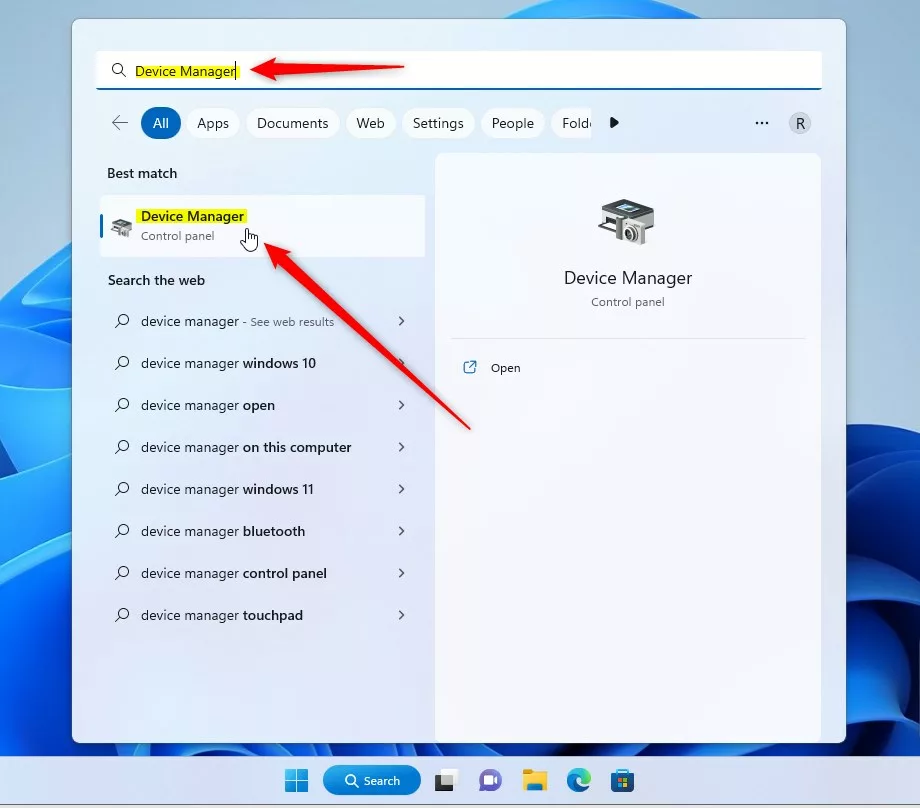
- Click the Start menu and type Device Manager.
- Click on the Device Manager app that appears.
Next:
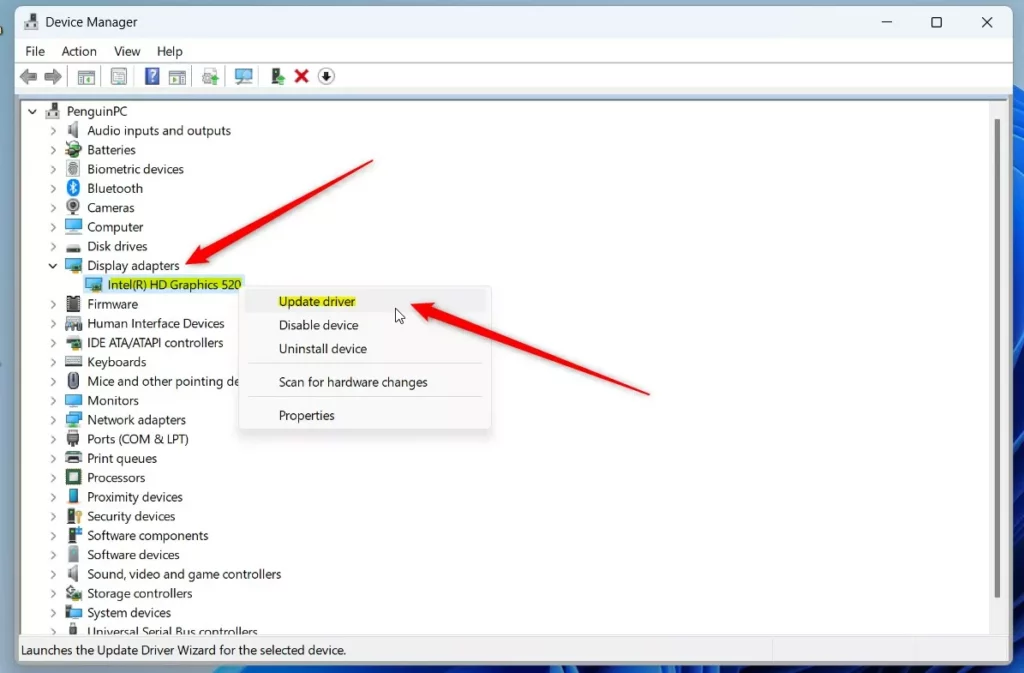
- In Device Manager, find and click the arrow next to Display adapters to expand it.
- Right-click your video card name (for example, Intel(R) HD Graphics 520) and select Update driver.
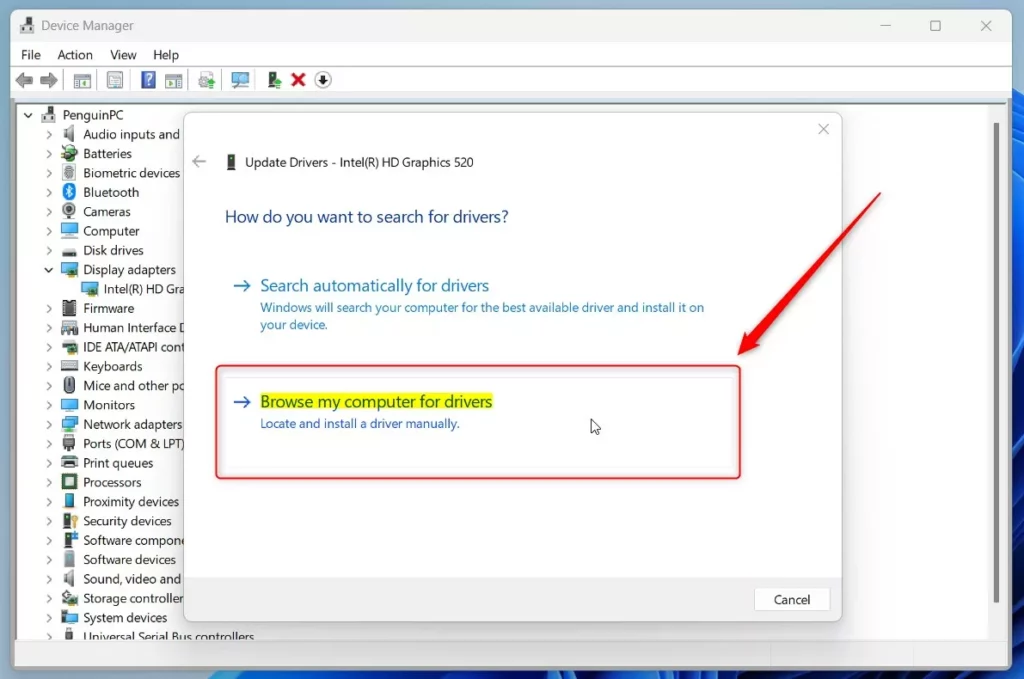
Then choose one of these options:
- Browse my computer for drivers – if you already downloaded the driver from the manufacturer’s website.
- Search automatically for drivers – let Windows try to find the latest driver online.
If you choose ‘Browse my computer for drivers,’ navigate to the folder where you saved the driver. Then, click Next and follow the on-screen prompts.
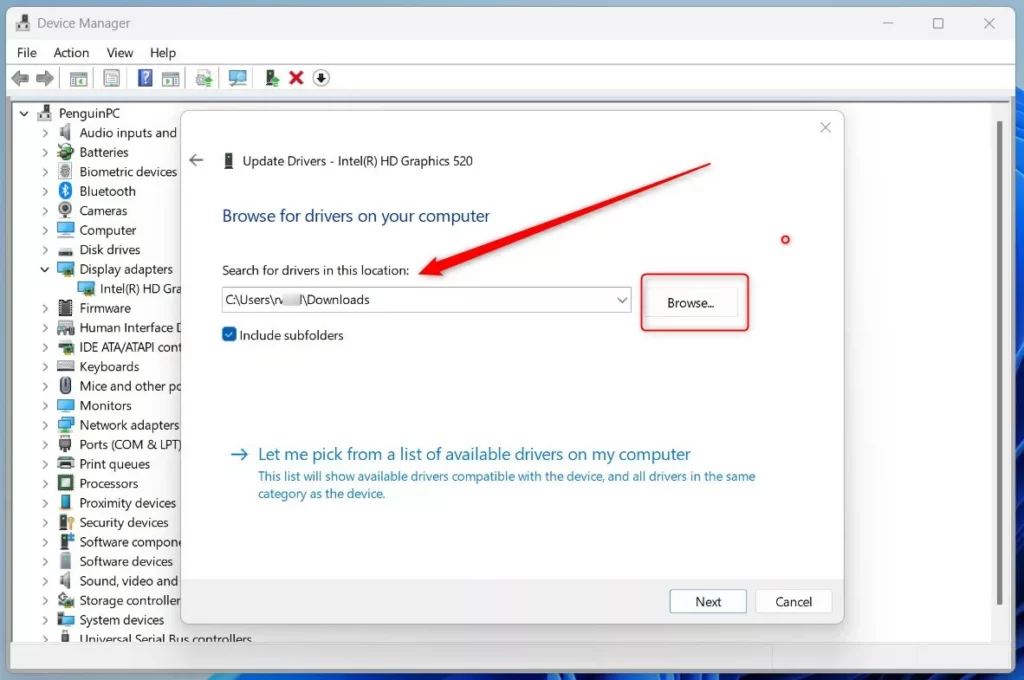
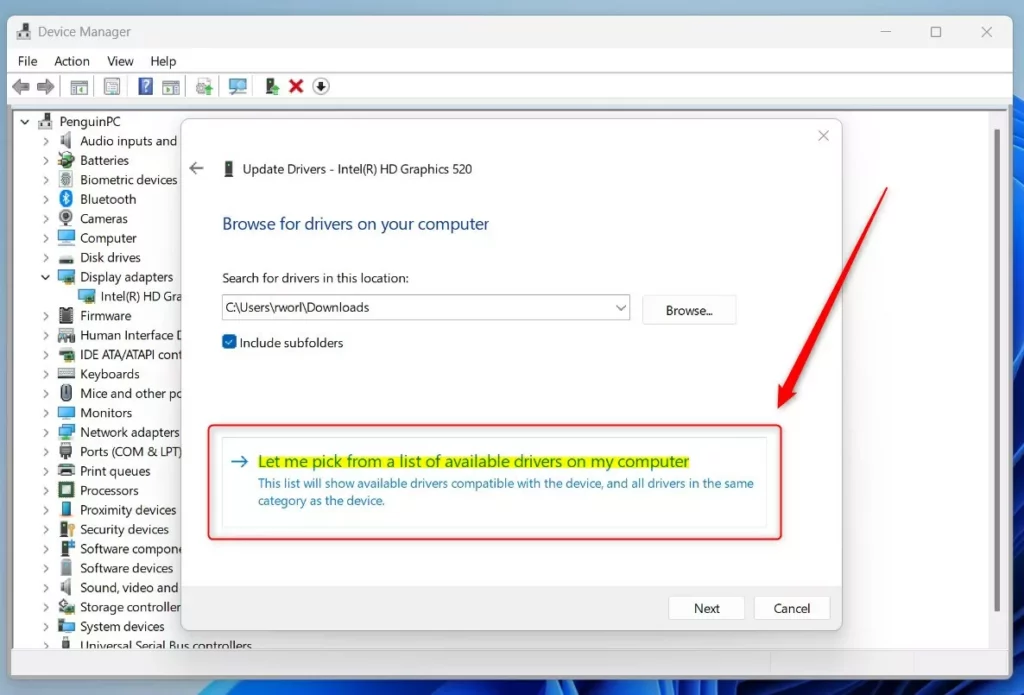
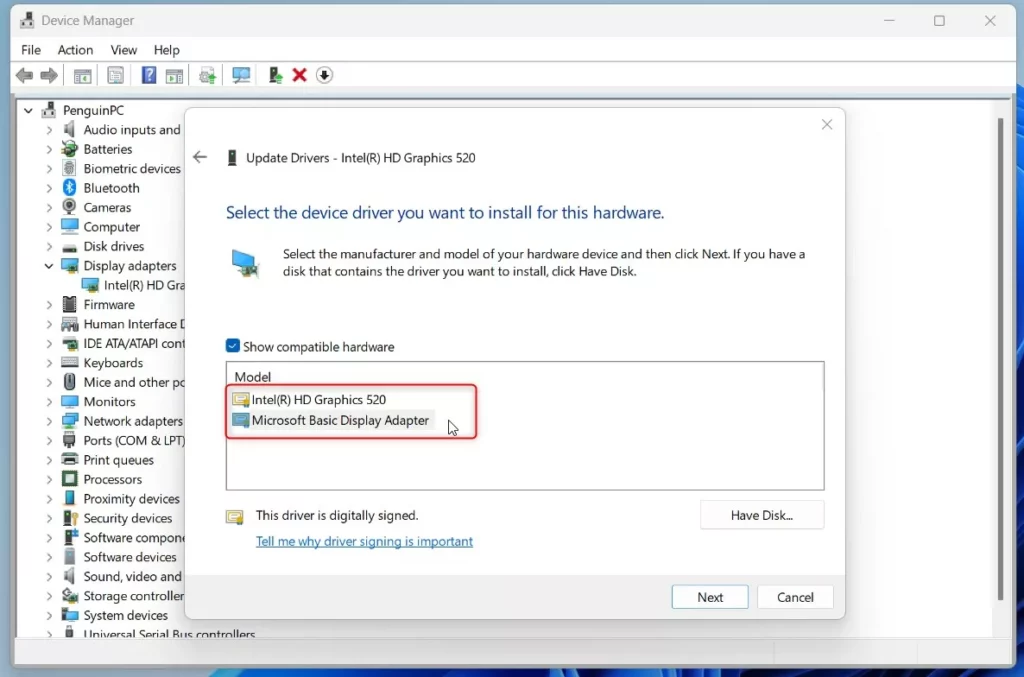
If you don’t have a driver file, you can pick “Let me pick from a list of available drivers on my computer.” Sometimes you have more than one driver version available, and you can select a previous one that worked well.
Select a driver and click OK. Then complete the installation.
After the update, restart your computer so the changes take effect.
3Download and Install Drivers from the Manufacturer’s Website
Downloading and installing drivers directly from your video card manufacturer’s website is the best way to get the absolute latest updates, especially if Windows updates didn’t work.
What happens when done? You’ll have the newest drivers installed on your computer.
Some common graphics card makers and their official driver download pages:
Go to the correct site, enter your video card model, download the driver, then run the file to install it.
Summary
- Updating your video driver can help fix video or game problems and make your computer run better.
- You can update drivers using Windows Optional updates, Device Manager, or by downloading from the manufacturer’s website.
- After updating your driver, restart your computer to make sure the changes work.
How do I Update my video drivers on 🪟 Windows 11?
Right-click on the desired device and select Update driver. In the Update Drivers window that opens, select Search automatically for updated driver software. Windows proceeds to search for updated drivers. If it finds any, it installs the updated drivers.
Does 🪟 Windows 11 automatically Update graphics drivers?
Windows 11 uses Windows Update to install recommended drivers automatically and lets you manually install optional driver updates when they're available.
Was this guide helpful?

About the Author
Richard
Tech Writer, IT Professional
Richard, a writer for Geek Rewind, is a tech enthusiast who loves breaking down complex IT topics into simple, easy-to-understand ideas. With years of hands-on experience in system administration and enterprise IT operations, he’s developed a knack for offering practical tips and solutions. Richard aims to make technology more accessible and actionable. He's deeply committed to the Geek Rewind community, always ready to answer questions and engage in discussions.


[…] Find out how to update your video drivers. […]