How to Enable or Disable Messenger Auto-Start on Windows 11

You can enable or disable Messenger auto-start on Windows 11 to control when the application launches.
Messenger auto-start is a setting that automatically opens the desktop application every time you log into your Windows 11 PC. Disabling this feature prevents Messenger from launching automatically, saving system resources and reducing your computer’s boot time.
Many users find Messenger automatically starts with Windows 11, consuming valuable performance. This tutorial shows you how to easily toggle this setting on or off within a few clicks.
Method 1: Using Messenger Desktop Preferences
This is the easiest way to manage the app’s behavior without needing special permissions.
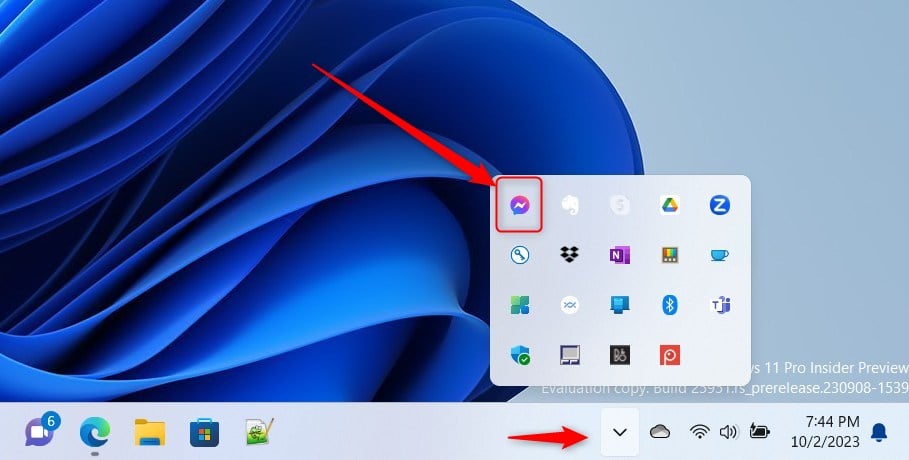
- Open the Messenger app from your Start menu.
- Click your profile picture in the bottom left corner.
- Select Preferences from the menu.
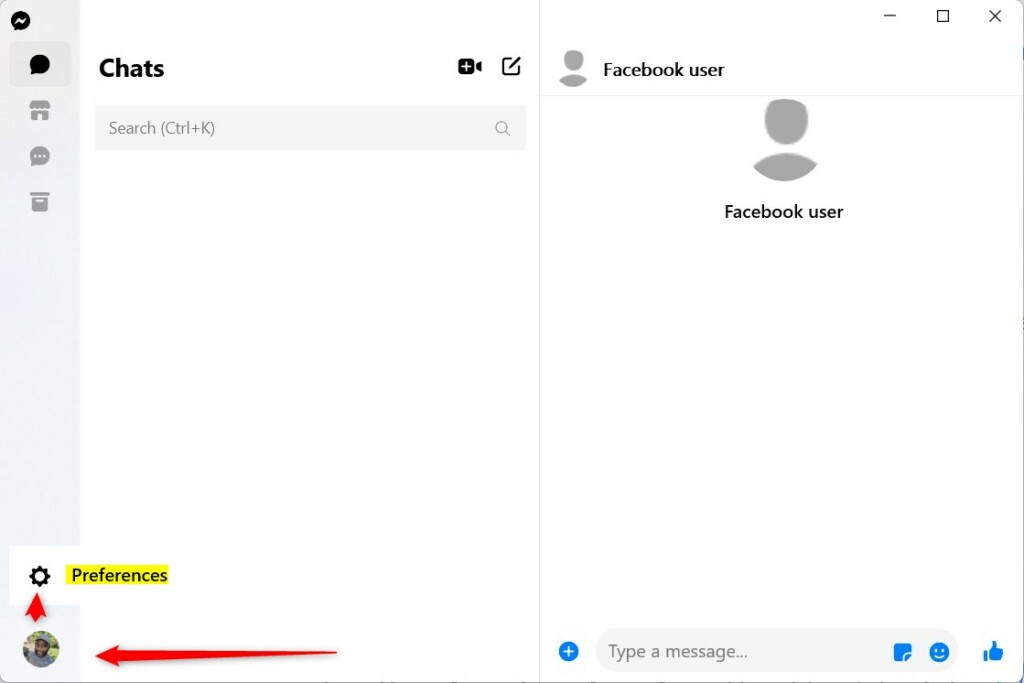
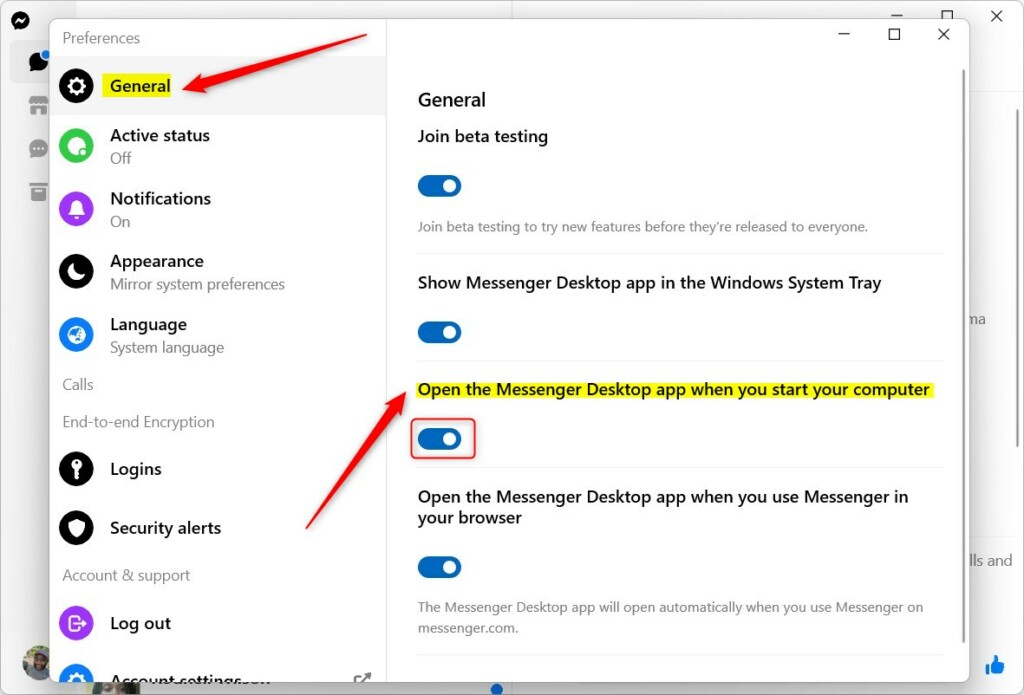
- Click the General tab.
- Toggle the switch for Open the Messenger Desktop app when you start your computer to Off.
Method 2: Using Task Manager
If the app ignores your settings, you can force it to stop via Task Manager.
- Press Ctrl + Shift + Esc to open Task Manager.
- Click the startup-apps-in-windows-11-to-improve-boot-speed/" class="sal-link" rel="noopener" target="_blank" data-sal-id="34978">Startup apps tab on the left.
- Find Messenger in the list.
- Right-click it and select Disable.
Method 3: Checking the Startup Folder
Sometimes apps hide in the Windows startup folder.
- Press Windows Key + R, type
shell:startup, and hit Enter. - If you see a Messenger shortcut here, delete it. Note: This does not uninstall the app.
Method 4: Windows Registry (Advanced)
Warning: Editing the registry can cause system issues if done incorrectly. Proceed with caution.
- Press Windows Key + R, type
regedit, and hit Enter. (Requires Admin Privileges) - Navigate to:
HKEY_CURRENT_USER\Software\Microsoft\Windows\CurrentVersion\Run - Look for a Messenger entry. Right-click and select Delete.
Summary
To disable Messenger auto-start, you can use the built-in Preferences menu, Task Manager, or the Windows Registry. Managing these background-in-windows-11/" class="sal-link" rel="noopener" target="_blank" data-sal-id="26796">background processes helps optimize your boot time and keeps your system resources free for the tasks that matter most. If you need further help, check our Related Articles on general Windows startup management.
Related Articles
Why does Messenger ignore my startup settings?
Sometimes, app updates or corrupted configuration files cause Messenger to reset its startup behavior. If the in-app toggle fails, use the Task Manager method to override the app’s internal settings and ensure the process is blocked from launching during the Windows boot sequence.
Is it safe to disable Messenger from startup?
Yes, it is completely safe. Disabling Messenger from your startup list only prevents the app from opening automatically when you log in. It does not affect the core functionality of your operating system or your ability to use the app whenever you choose to open it manually.
Was this guide helpful?

About the Author
Richard
Tech Writer, IT Professional
Richard, a writer for Geek Rewind, is a tech enthusiast who loves breaking down complex IT topics into simple, easy-to-understand ideas. With years of hands-on experience in system administration and enterprise IT operations, he’s developed a knack for offering practical tips and solutions. Richard aims to make technology more accessible and actionable. He's deeply committed to the Geek Rewind community, always ready to answer questions and engage in discussions.


[…] you use the Messenger app on Windows, you can turn auto-start on or off, change your online status, turn message preview on or off, mute or unmute all […]
[…] you use the Messenger app on Windows, you can turn auto-start on or off, change your online status, turn message preview on or off, mute or unmute all […]
[…] you use the Messenger app on Windows, you can turn auto-start on or off, change your online status, turn message preview on or off, mute or unmute all […]
[…] you use the Messenger app on Windows, you can turn auto-start on or off, change your online status, turn message preview on or off, and […]
[…] Messenger app on Windows, it will automatically start and open when you start your computer. You can turn it off so it doesn’t do that every time you start your computer. You can also change your online status in the […]
[…] you use the Messenger app on Windows, you can turn auto-start on or off, change your online status, turn message preview on or off, mute or unmute all […]