How to Turn On SMB Client Encryption in Windows 11

You turn on SMB client encryption in Windows 11 to secure your file sharing connections by requiring encryption for all SMB client communications.
This feature protects your data from eavesdropping and man-in-the-middle attacks when accessing shared resources over a network.
Enabling SMB client encryption on Windows 11, specifically for versions like build 22621 (22H2), ensures that data transferred between your PC and the server is always encrypted using the SMB protocol.
You can enable this setting through the Group Policy Editor or by modifying the Windows Registry.
You can enable SMB client encryption in Windows 11 using PowerShell, Registry Editor, or Local Group Policy Editor. These methods require administrative privileges and may necessitate a system restart to apply the changes. This setting ensures all SMB client communications are encrypted for enhanced network security.
What is SMB Client Encryption?
SMB client encryption is a security setting in Windows 11 that scrambles your network data, like files and printers, to keep it safe from snoops.
Starting with Windows 11 Insider Preview Build 25982, Windows can make sure that all connections to other computers use encryption. If the other computer does not support secure encryption, your PC will not connect to it. This helps keep your information safe.
Why Should You Turn On SMB Client Encryption?
- It protects your data from being intercepted or snooped on by others.
- It helps prevent hackers from stealing sensitive information.
- It makes your network safer overall.
How to Check and Turn On SMB Client Encryption Using PowerShell
You can turn on SMB client encryption in Windows 11 using PowerShell, a command-line tool that lets you quickly change settings.
- [ADMIN REQUIRED] Open Windows Terminal as Administrator. You can do this by searching “Windows Terminal” in the Start menu, right-clicking it, and choosing Run as administrator.
- Click the Windows PowerShell tab (if it’s not already selected).
- Type this command and press Enter to check if encryption is required:
Get-SmbClientConfiguration | FL RequireEncryption - If you see
RequireEncryption : False, it means encryption is OFF. - To turn ON SMB client encryption, type this command and press Enter:
Set-SmbClientConfiguration -RequireEncryption $true -Confirm:$false - If you want to turn OFF encryption later, use:
Set-SmbClientConfiguration -RequireEncryption $false -Confirm:$false
How to Turn On SMB Client Encryption Using Windows Registry Editor
Turning on SMB client encryption in Windows 11 can also be done through the Windows Registry Editor, which stores many important system settings.
- [ADMIN REQUIRED] Open the Registry Editor by typing
regeditin the Start menu and pressing Enter. - Navigate to this location:
Computer\HKEY_LOCAL_MACHINE\SYSTEM\CurrentControlSet\Services\Lanman\Workstation\Parameters - Look for an entry called
RequireEncryptionin the right pane. - If it’s there, double-click it and change the value to
1to turn encryption ON, or0to turn it OFF. - If it’s not there, right-click on a blank space, choose New > DWORD (32-bit) Value, name it
RequireEncryption, and set its value to1to enable encryption. - Close the Registry Editor and restart your computer to apply the changes.
How to Turn On SMB Client Encryption Using Local Group Policy Editor
The Local Group Policy Editor offers another way to turn on SMB client encryption in Windows 11, letting you adjust advanced settings easily.
- [ADMIN REQUIRED] Open Local Group Policy Editor by searching Edit group policy in the Start menu and clicking it.
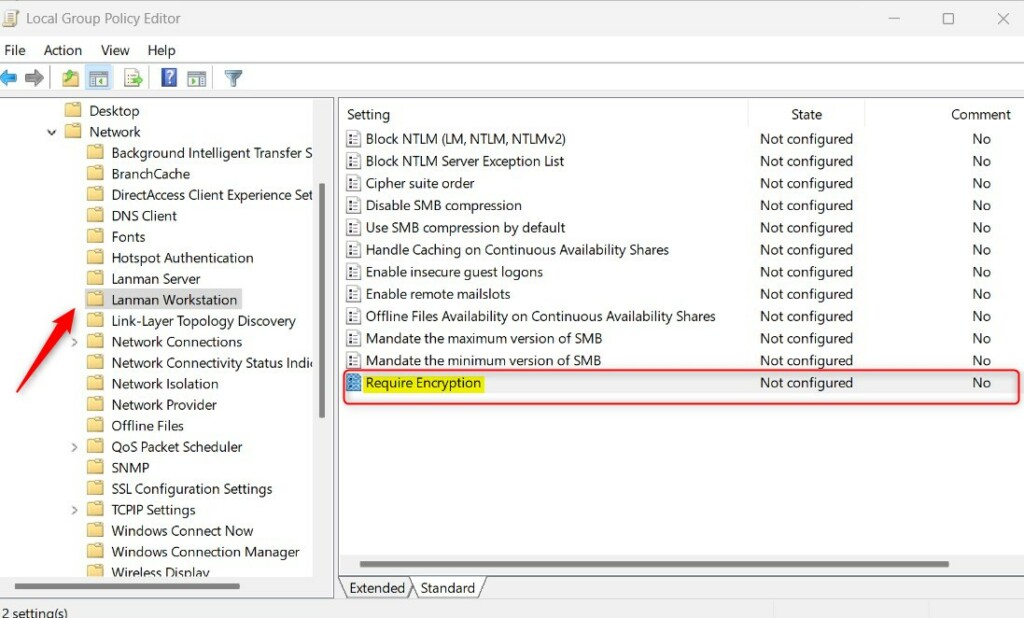
- Go to this folder:
Computer Configuration > Administrative Templates > Network > Lanman Workstation - On the right side, find and double-click
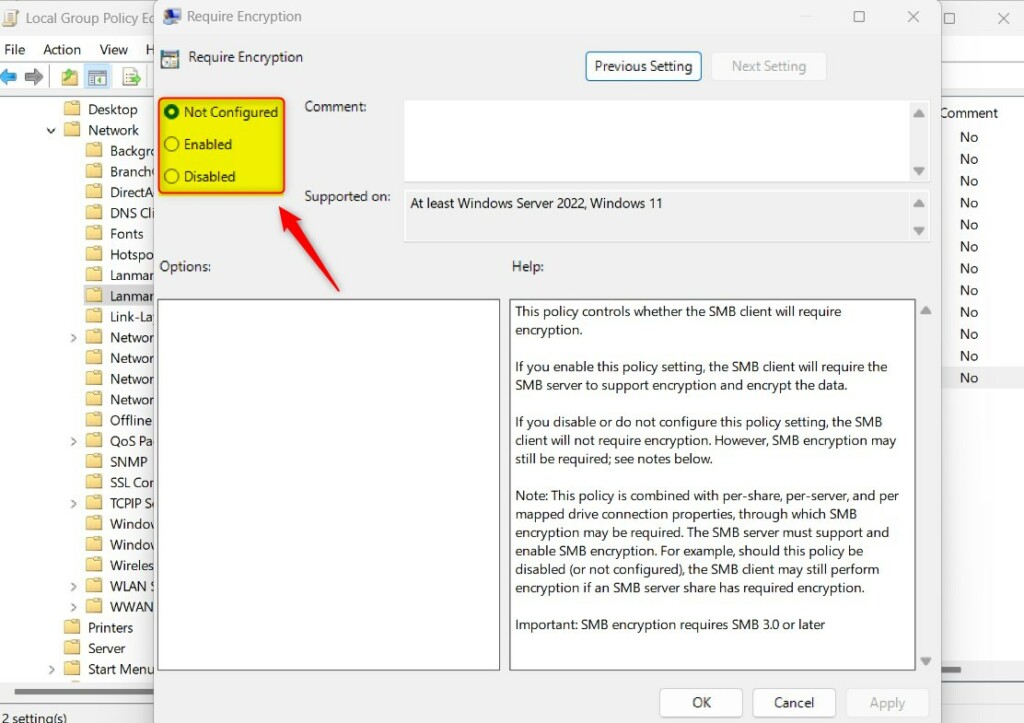
Require Encryption. - Choose one of the options:
- Not Configured – Default setting (encryption not required)
- Enabled – SMB client will require encryption to connect
- Disabled – Same as not configured (encryption not required)
- Click OK and restart your PC for the changes to take effect.
Summary
SMB client encryption in Windows 11 keeps your shared files and printers safe by scrambling the data, and you can turn it on using PowerShell, Registry Editor, or Group Policy.Should I enable SMB encryption?
By default, when you create an SMB server on the storage virtual machine (SVM), SMB encryption is disabled. You must enable it to take advantage of the enhanced security provided by SMB encryption.
How to enable SMB client in 🪟 Windows 11?
And then click on. Okay now the windows will start searching for the required files. And once the changes has been applied. You will be able to see this message Windows completed the requested.
How do I disable SMB encryption in 🪟 Windows 11?
Use Group Policy: Navigate to “Computer Configuration” > “Administrative Templates” > “Network” > “Lanman Workstation” and set the “Require Encryption” policy to “Enabled” or “Disable.”
How do I know if my SMB encryption is on?
Steps to Enable or Disable Require SMB Encryption Open Windows Terminal as administrator then select Windows PowerShell tab. You'll see the result as a RequireEncryption output. If it indicates True, then the SMB client encryption is on or enabled.
Was this guide helpful?

About the Author
Richard
Tech Writer, IT Professional
Richard, a writer for Geek Rewind, is a tech enthusiast who loves breaking down complex IT topics into simple, easy-to-understand ideas. With years of hands-on experience in system administration and enterprise IT operations, he’s developed a knack for offering practical tips and solutions. Richard aims to make technology more accessible and actionable. He's deeply committed to the Geek Rewind community, always ready to answer questions and engage in discussions.




No comments yet — be the first to share your thoughts!