How to Enable USB Battery Saver in Windows 11

Managing your laptop’s power is essential for productivity. The USB battery saver feature in Windows 11 helps extend your battery life by managing peripheral power consumption. When your screen turns off, Windows can cut power to connected USB devices. This prevents unnecessary drain from external drives, mice, and keyboards.
Why use this feature?
External devices pull power from your laptop even when you are not actively using them. If your battery is low, these gadgets will drain it faster. Enabling this feature keeps your battery healthy for longer periods.
What happens when you enable it?
Once enabled, Windows will automatically cut power to your USB devices the moment your screen turns off. This prevents unnecessary power loss and helps your laptop stay awake longer.
Is USB battery saver enabled by default in Windows 11?
Yes, Windows 11 often enables basic power management features by default to optimize system latency and battery life. However, depending on your laptop manufacturer’s power delivery profiles, you may need to adjust these settings manually to balance performance with longevity.
How to change USB battery saver settings
You can manage this through the Windows Settings menu. You do not need admin privileges for these steps.
- Open Settings by pressing the Windows key + I on your keyboard.

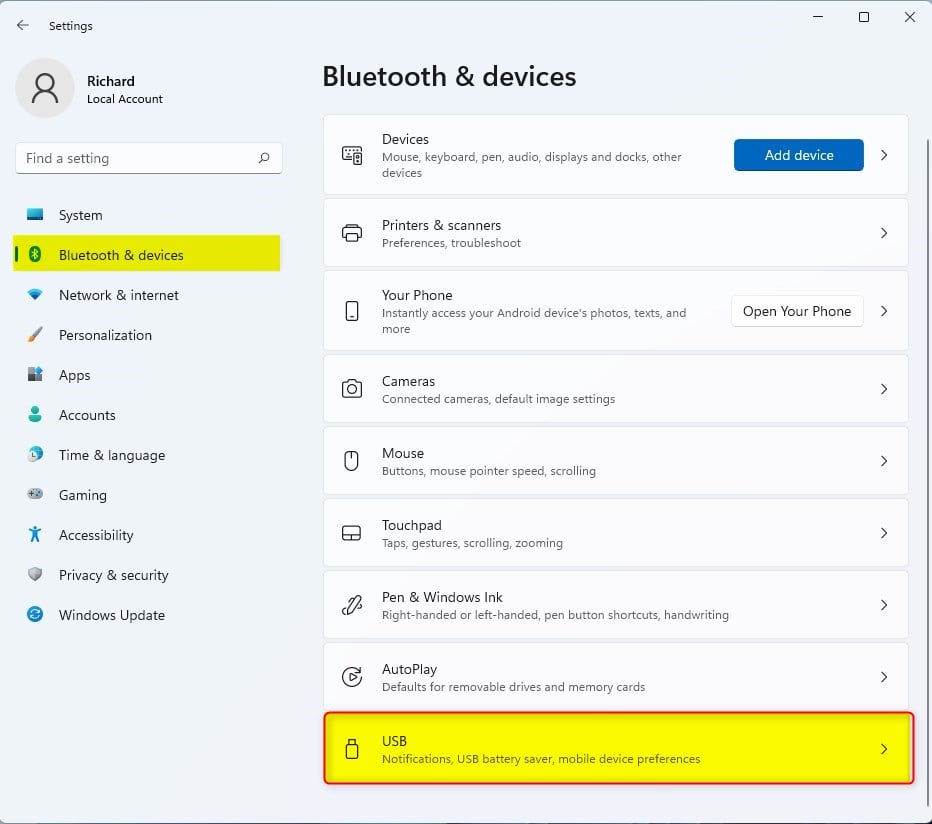
- In the menu on the left, click Bluetooth & devices.
- On the right side of the screen, click the USB tile.
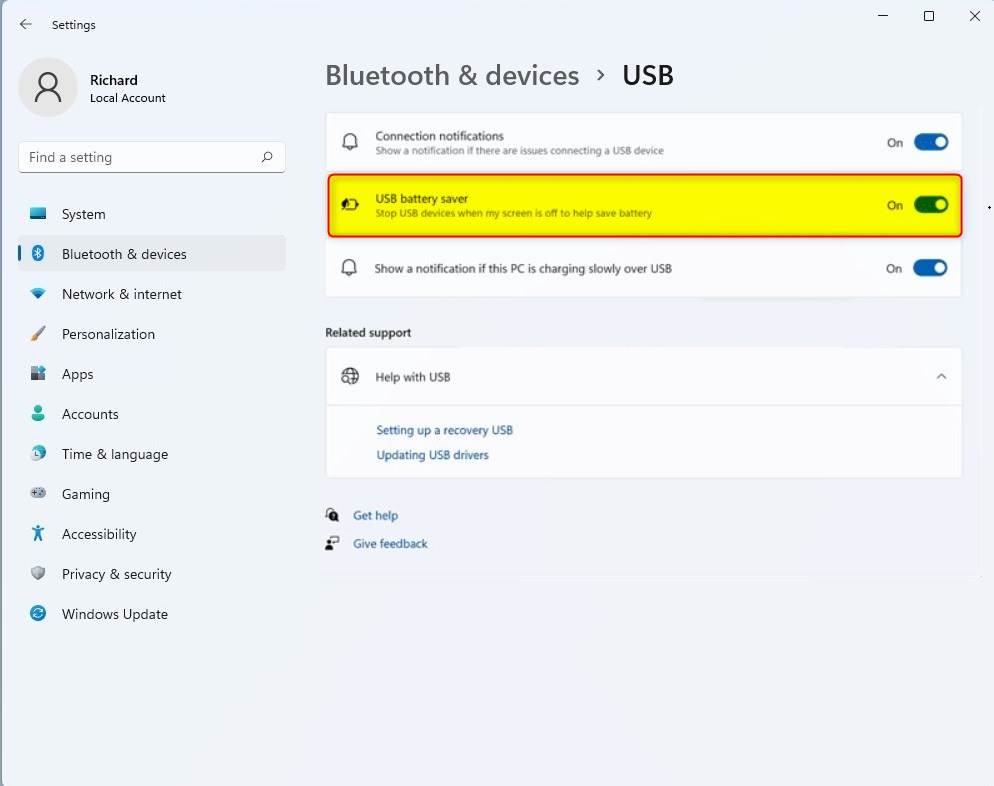
- Find the USB battery saver option and toggle it On or Off.
Advanced Power Management: USB Selective Suspend
Beyond the simple battery saver toggle, Windows uses a feature called USB Selective Suspend. This allows the system to put individual USB ports into a low-power state without affecting the entire system. You can access this via the legacy Power Options menu.
Steps to access legacy Power Options (Requires Admin Privileges):
- Press Windows key + R, type powercfg.cpl, and press Enter.
- Click Change plan settings next to your active power plan.
- Click Change advanced power settings.
- Expand USB settings and then USB selective suspend setting.
Troubleshooting USB Connectivity Issues
If your keyboard or mouse disconnects unexpectedly, it may be due to aggressive power management. You can disable this for specific devices in Device Manager.
Steps to disable power management for a specific device (Requires Admin Privileges):
- Right-click the Start button and select Device Manager.
- Expand Universal Serial Bus controllers.
- Right-click your USB Root Hub and select Properties.
- Go to the Power Management tab and uncheck Allow the computer to turn off this device to save power.
USB4 and Power Delivery
Modern devices supporting USB4 80Gbps require stable power delivery profiles. While USB battery saver is great for basic peripherals, high-performance docks and external GPUs may require consistent power. Always check the official Microsoft USB documentation for compatibility details.
Pro-Tip: Prevent Windows from turning off USB ports
If you have a device that keeps disconnecting, navigate to the Device Manager, find the device under Human Interface Devices, and uncheck the power saving box in the Power Management tab to keep it active at all times.
Summary
The USB battery saver is a simple tool to help your laptop battery last longer. By turning off power to USB devices when your screen is off, you stop unnecessary battery drain. For advanced users, the legacy Power Options and Device Manager offer granular control over power delivery to ensure your peripherals stay connected when you need them most.
Does USB battery saver affect gaming mouse performance?
Yes, it can. If the system cuts power to your USB port, your gaming mouse may experience input lag or disconnect entirely when the screen goes dark. For competitive gaming, it is recommended to disable power-saving features for your specific USB ports to ensure consistent peripheral latency.
Why does my keyboard disconnect after enabling USB power saving?
This happens because the power management system incorrectly identifies your keyboard as an idle device. When the screen turns off, Windows suspends the USB port to save energy. You can fix this by disabling the power management setting for that specific device in the Device Manager.
Was this guide helpful?

About the Author
Richard
Tech Writer, IT Professional
Richard, a writer for Geek Rewind, is a tech enthusiast who loves breaking down complex IT topics into simple, easy-to-understand ideas. With years of hands-on experience in system administration and enterprise IT operations, he’s developed a knack for offering practical tips and solutions. Richard aims to make technology more accessible and actionable. He's deeply committed to the Geek Rewind community, always ready to answer questions and engage in discussions.



No comments yet — be the first to share your thoughts!