Enable Two-Finger Scrolling in Ubuntu: A Quick Guide


Two-finger scrolling in Ubuntu lets you swipe up and down on your laptop touchpad to move through long web pages and documents without an external mouse. Modern laptop touchpads support this feature out of the box, and turning it on takes just a few clicks in the settings menu on recent releases like Ubuntu 22.04 LTS.
You can change these touch settings at any time to match how fast or slow you want the screen to move when you swipe.
Open Settings , then select Mouse & Touchpad. Ensure Touchpad is toggled On, then toggle Two-finger Scrolling to the On position. This enables scrolling with two fingers on your Ubuntu laptop’s touchpad.
How to turn on or off two-finger scrolling in Ubuntu Linux
Two-finger scrolling Ubuntu settings let you turn this feature on or off through the main Settings app in Ubuntu Linux. Moving two fingers up and down or side to side across your touchpad lets you move through long web pages and documents without needing to grab the scrollbar on the side of the screen.
The configuration steps follow below.
Click the System menu in the top-right corner of your desktop.
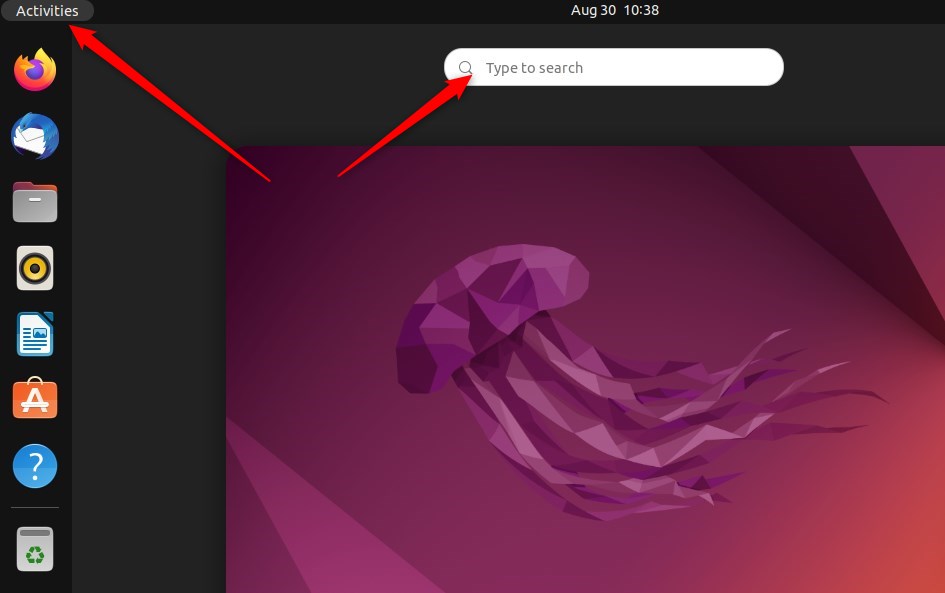
Alternatively, click on the System menu at the top-right corner of your desktop’s top bar.
On the System menu, select Settings, as highlighted below.
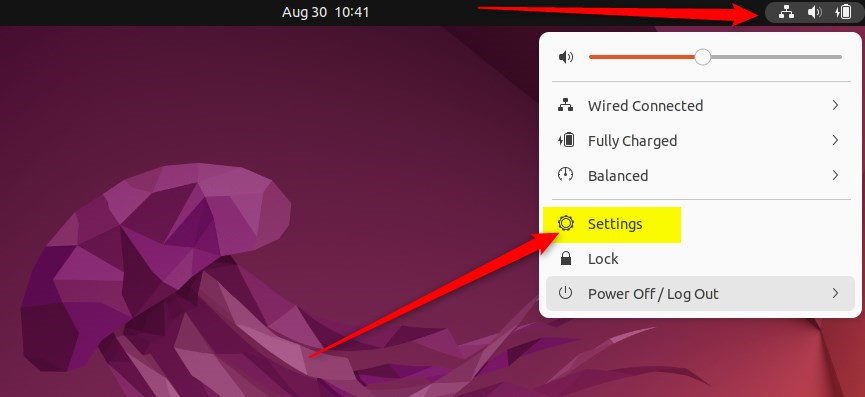
Click on Mouse & Touchpad tile in the Settings app to open the panel.
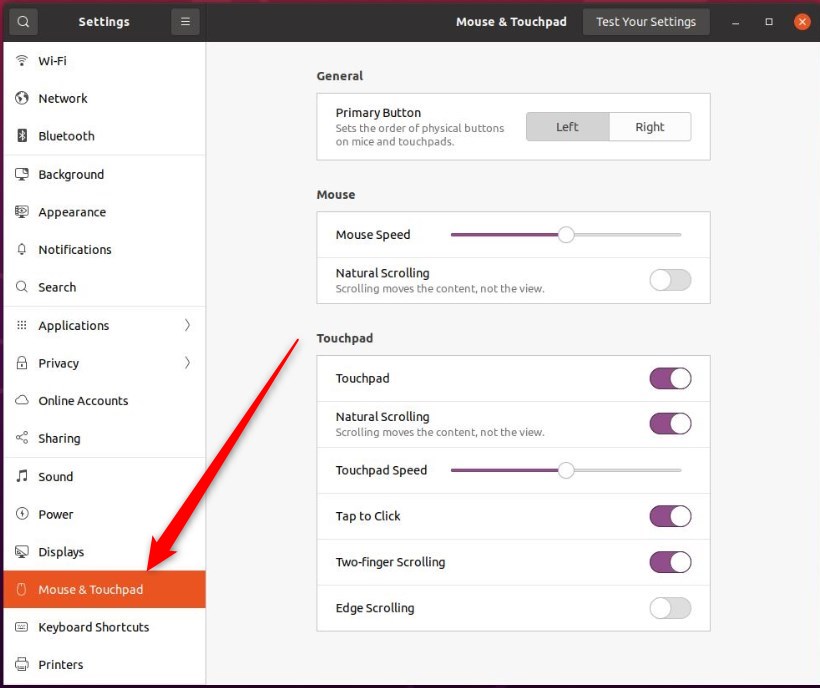
In the System Settings - Mouse & Touchpad panel, under Touchpad, toggle the Touchpad button to the On position to enable.
The 'Touchpad' section will only appear if your system is equipped with a touchpad. Furthermore, the touchpad must be enabled before you can adjust any settings within the 'Touchpad' section.
Once Touchpad is enabled, toggle the Two-finger Scrolling button to the On position to enable.
To disable it, toggle the button to the Off position.
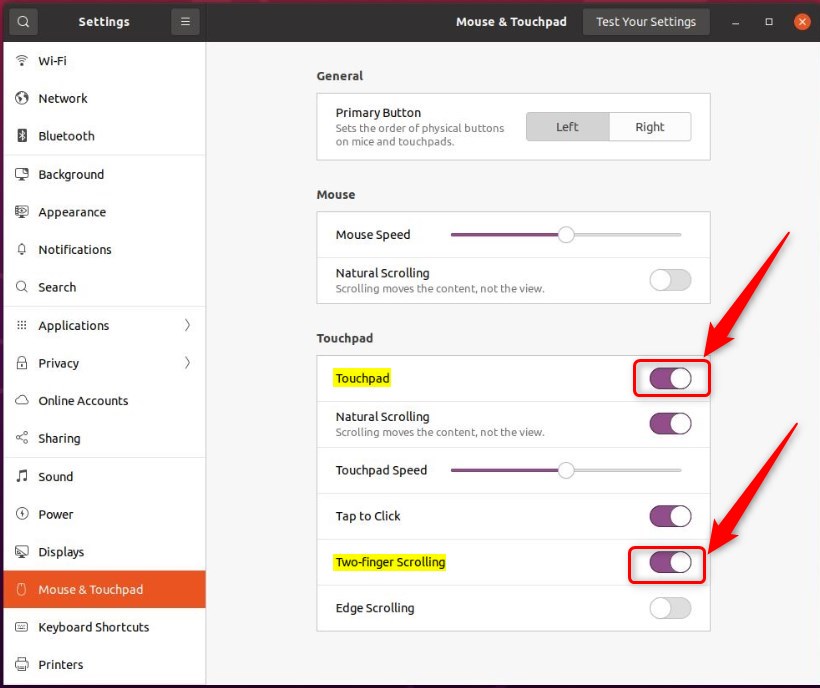
Configuration is now complete, and the Settings app can be closed.
Enabling two-finger scrolling makes navigating documents and web pages on your laptop much easier.
- Enabling or disabling Two-finger scrolling in Ubuntu Linux can greatly enhance the user experience for touchpad users.
- The centralized location for system settings in Ubuntu Linux makes accessing and modifying touchpad preferences easy.
- The visual aids in this post provide helpful guidance for users adjusting their touchpad settings.
- Have additional insights to share or spotted an error? Feel free to use the comment section below to provide feedback or suggestions.
Was this guide helpful?
0% of readers found this helpful (1 votes)

About the Author
Richard
Tech Writer, IT Professional
Richard is a writer at Geek Rewind who turns complex IT tasks into clear, step-by-step guides. He draws on years of hands-on experience in system administration and enterprise IT operations, focusing on Windows, Linux and WordPress: the problems people actually run into, and the fixes that work. His server and WordPress guides come from systems he runs himself. Richard builds and maintains the platform behind Geek Rewind, from its Ubuntu servers and Nginx configuration to its custom WordPress plugins. Many new tutorials start with readers' questions, and he's always glad to answer them in the comments.




No comments yet — be the first to share your thoughts!