

This article explains how to enable or disable the feature that hides your mobile screen while connected to Phone Link on Windows 11.
The Phone Link app is a feature on Windows that allows you to link your phone and PC using Wi-Fi or Bluetooth and access your phone’s apps and data from your PC. It lets you browse, play, order, chat, and more using your PC’s larger screen and keyboard while your phone stays in your pocket or desk.
While your Android phone is connected to your Windows PC, you can turn on or off a feature that hides your mobile screen. This is enabled by default to protect your privacy.
If turned off, your mobile device may be vulnerable in insecure and public environments.
Hide my mobile screen while it’s connected to my PC
As mentioned, users can turn on or off a feature in the Phone Link app to hide their mobile screen while connected to their PCs.
Here’s how to do it.
First, open the Phone Link app.
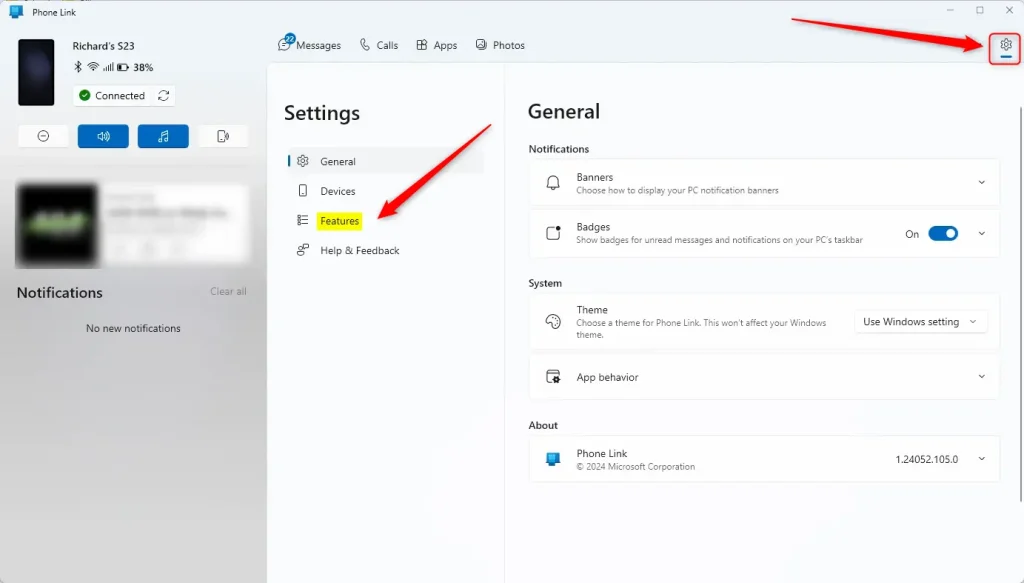
Then, choose to add your phone. If phones are connected to the Phone Link app, click the Settings button (gear) at the top right corner and select the Features tab.
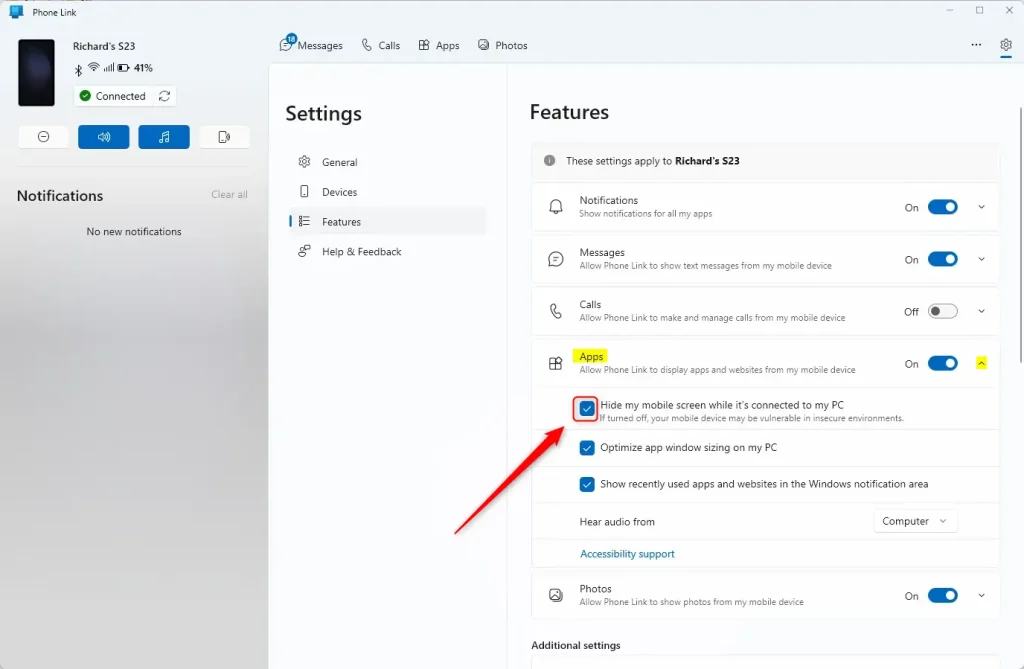
On the right, under Features, select and expand the Apps tile. Then, check the box next to “Hide my mobile screen while it’s connected to my PC” to enable it.
To disable it and show your mobile screen, uncheck the box.
Exit the settings page when you are done.
That should do it!
Conclusion
- The Phone Link app on Windows 11 offers a convenient way to link your phone and PC, enabling easy access to your phone’s apps and data.
- Enabling the feature to hide your mobile screen while connected to the PC by default ensures privacy and security.
- Users can toggle this feature on or off based on their preferences and security concerns.
- Following the simple steps in the Phone Link app, settings allow users to control the visibility of their mobile screen while connected to their PC efficiently.


Leave a Reply