Enable Slow Keys in Ubuntu: A Step-by-Step Guide


Slow Keys is an accessibility setting in Ubuntu that makes the system wait for you to hold a key down for a specific time before it types the letter. This feature stops accidental double keystrokes and helps if you have hand tremors or make frequent typos.
You can turn on Slow Keys in the Ubuntu Settings app and adjust the delay time to match your typing speed.
Open Settings , navigate to Accessibility, then Typing Assist (AccessX), and toggle Slow Keys to On. You can also enable keyboard toggling in the same menu.
How to enable or disable slow keys in Ubuntu Linux
Enabling slow keys makes typing smoother when keys are pressed too quickly. Unwanted repeated characters stop appearing immediately, giving you greater control over when keystrokes register.
Turn the feature on or off by following these steps.
Open the System Settings panel from your system menu.
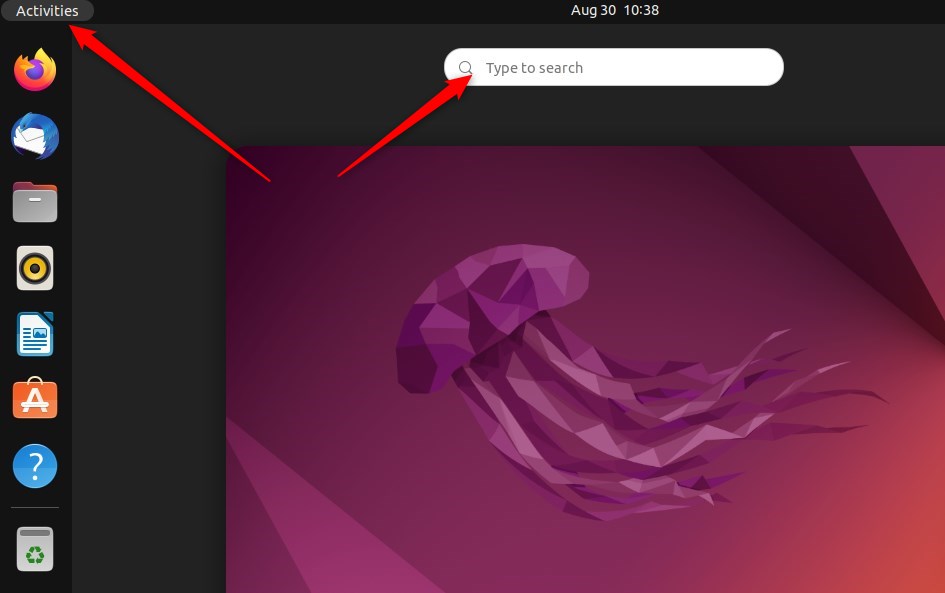
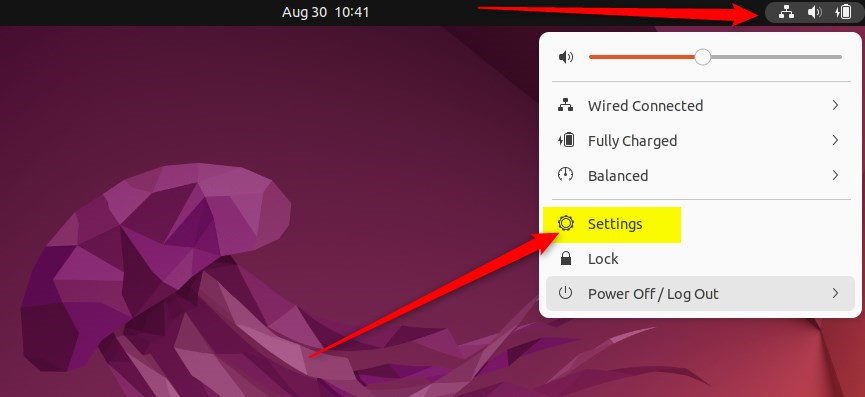
Click the System menu in the top-right corner of the desktop top bar.
Select Settings to open the configuration window, as highlighted below.
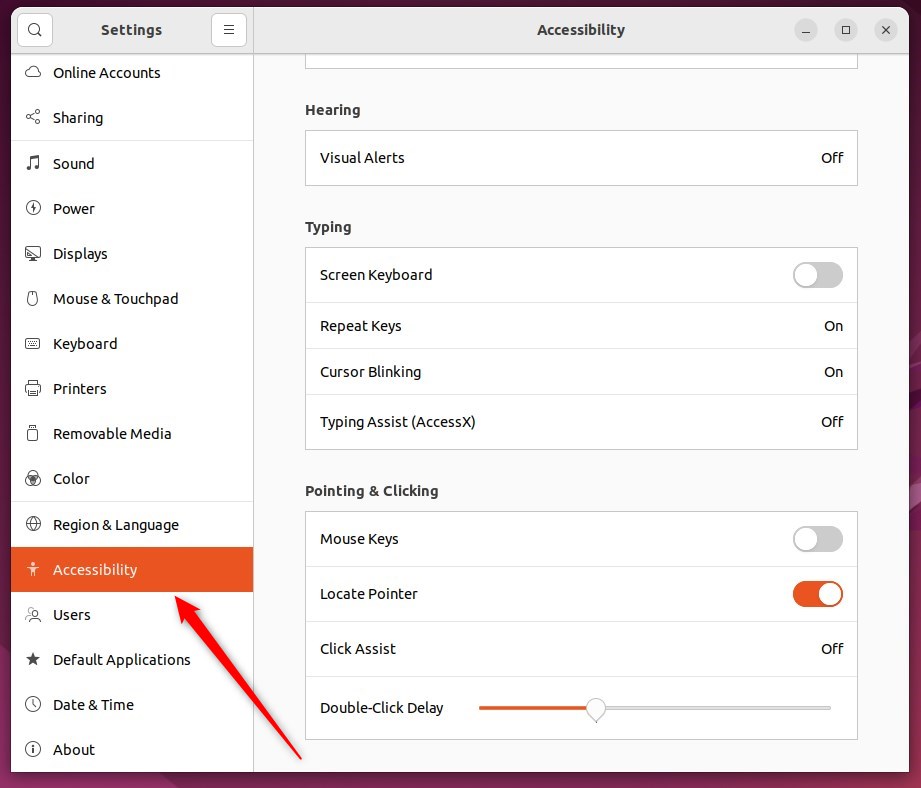
Click the Accessibility tile inside the Settings app to open the necessary panel.
Locate the Typing section under Accessibility to reveal the Typing Assist (AccessX) option, highlighted below.
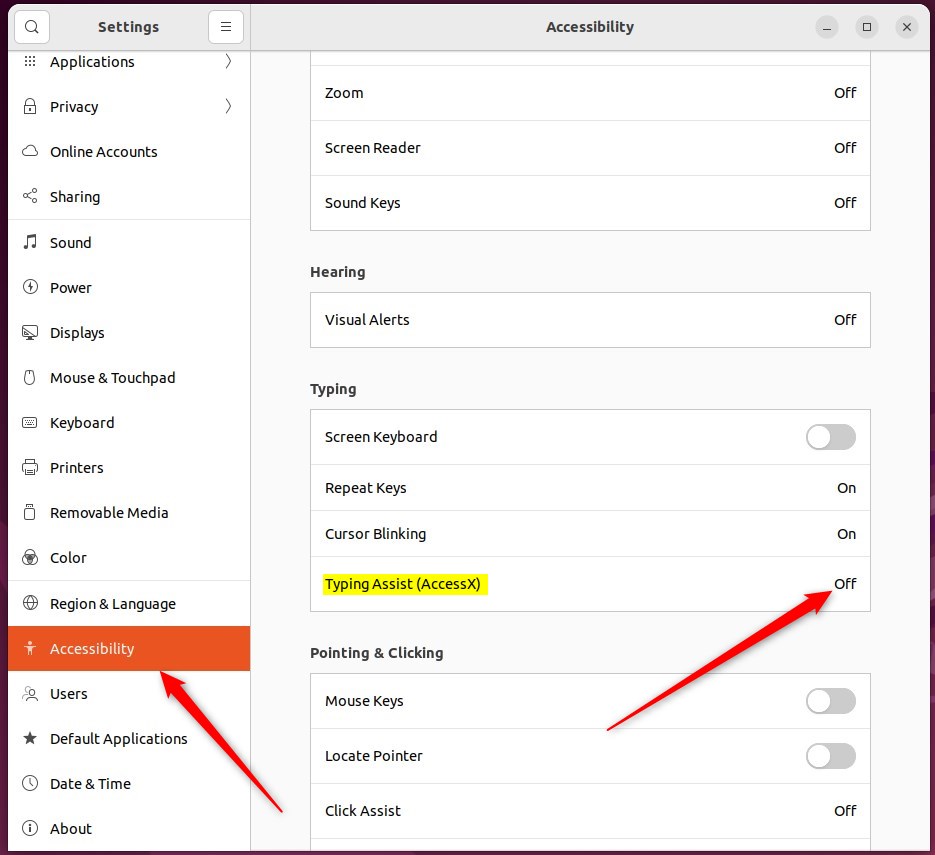
Toggle the Slow Keys button to the On position on the Typing Assist window.
Flip that same button to the Off position to turn the function off.
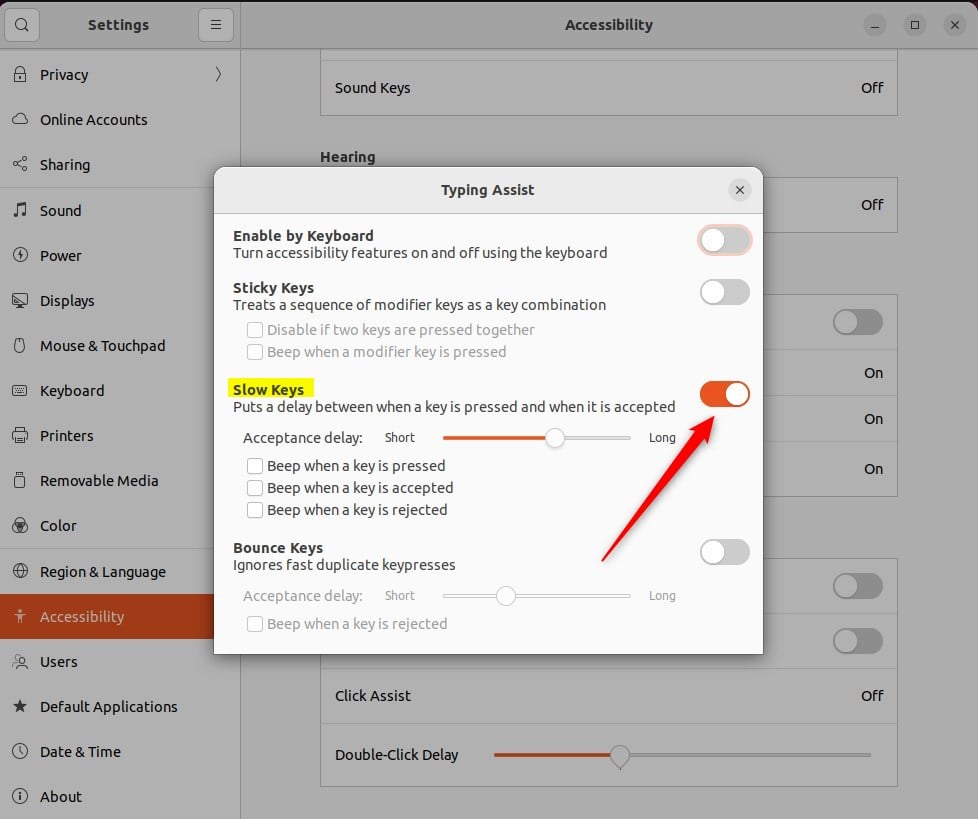
Activate the Enable by Keyboard switch to toggle slow keys directly from the keyboard. Pressing and holding Shift for eight seconds enables or disables the feature once that option is active.
Close the Settings app to complete the setup process.
Conclusion:
- Enabling Slow Keys in Ubuntu Linux can benefit individuals with typing difficulties, particularly those who tend to strike keys or accidentally experience hand tremors.
- The feature instructs Ubuntu Linux to ignore keys that are not held down for a certain period, aiding in accurate and intentional keystrokes.
- Following the outlined steps, users can easily enable or disable Slow Keys and even utilize the convenient 'Enable by Keyboard' switch for added accessibility.
How do I turn on slow keys?
Open settings to find the accessibility menu, where options span vision, hearing, and specialized keyboard controls.
What are slow keys in Ubuntu?
Slow keys in Ubuntu require holding down a key for a moment before text appears, preventing rapid accidental keystrokes or wrong characters.
How do I turn off slow keys in Ubuntu?
Disable slow keys in Ubuntu by flipping the Enable by Keyboard toggle or holding Shift for eight seconds when that shortcut is enabled.
How to enable shortcut keys in Ubuntu?
Select Activities or press the Super key to search for Settings. Choose Keyboard in the left panel, locate Keyboard Shortcuts, and select View and Customize Shortcuts.
Was this guide helpful?

About the Author
Richard
Tech Writer, IT Professional
Richard, a writer for Geek Rewind, is a tech enthusiast who loves breaking down complex IT topics into simple, easy-to-understand ideas. With years of hands-on experience in system administration and enterprise IT operations, he’s developed a knack for offering practical tips and solutions. Richard aims to make technology more accessible and actionable. He's deeply committed to the Geek Rewind community, always ready to answer questions and engage in discussions.



No comments yet — be the first to share your thoughts!