How to Manage Outlook Calendar Notifications in Windows 11

You manage Outlook calendar notifications in Windows 11 by configuring alert settings directly within the Outlook application itself, allowing you to tailor reminders for your schedule precisely.
These alerts are crucial for staying on top of your appointments and tasks without unnecessary disruptions. You can customize not only the timing but also the type of reminder you receive.
For instance, you have the power to select specific alert sounds or even choose to receive notifications even when Outlook isn’t actively running, a feature enhanced in recent versions of Microsoft Outlook.
Effectively managing these notifications helps you maintain focus on your work and ensures you never miss an important event.
Manage Outlook calendar notifications in Windows 11 by opening Outlook, clicking Settings, then General, and Notifications. Select Calendar, and toggle alerts On or Off, then click Save. Ensure Windows notification settings and Focus assist are configured correctly if alerts aren’t appearing.
How to turn Outlook Calendar reminders on or off
You can turn Outlook Calendar reminders on or off right in the Outlook app settings to control alerts for appointments and meetings.
- Open the Outlook app from your Start menu or search bar.
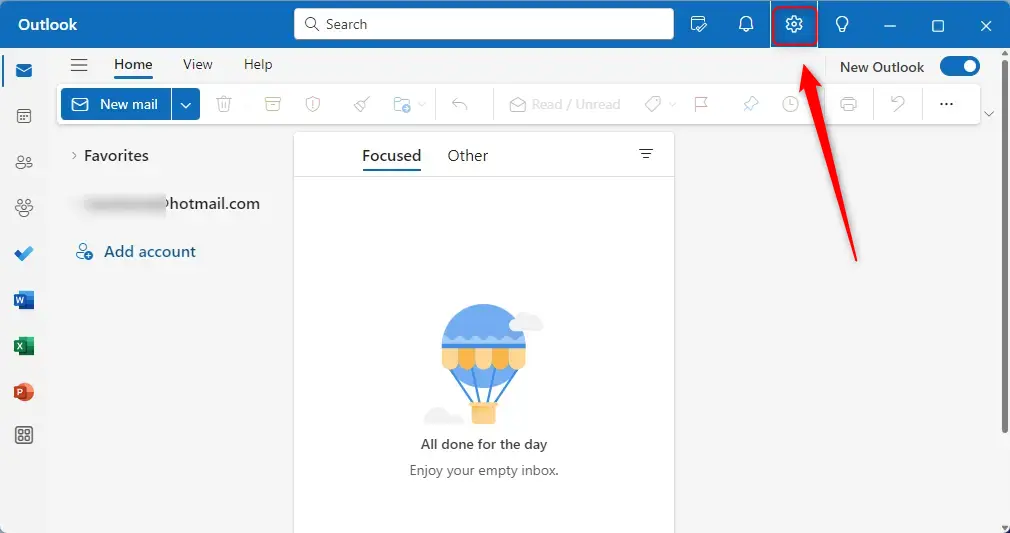
- Click the Settings gear icon located at the top right of the window.
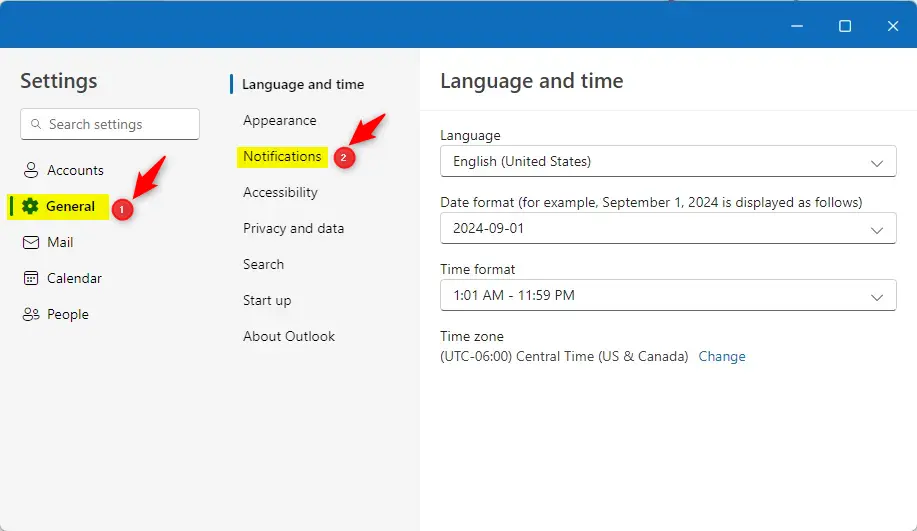
- In the menu, click General and then select Notifications.
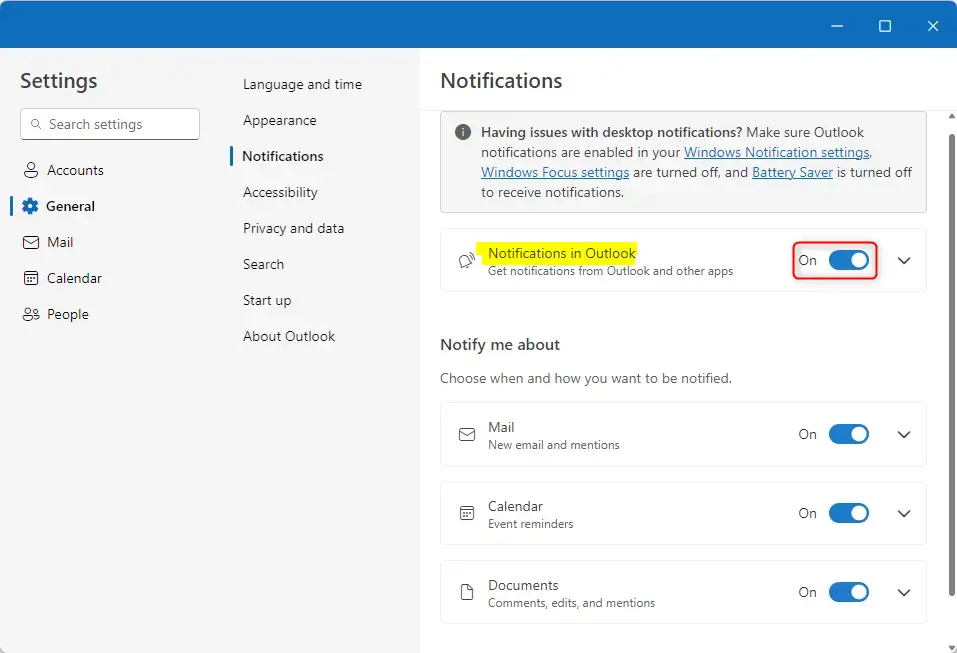
- Find the Notifications in Outlook section. You can choose to turn sounds on or off here.
Note: This only works if you have Notification in Outlook enabled. If you have trouble getting alerts, check that Outlook notifications are enabled in your Windows Notification settings, make sure Windows Focus settings is turned off, and confirm that Battery Saver is turned off.
- Once Notification in Outlook is enabled, click the Calendar tile.
- Toggle the switch to Off to stop alerts, or On to receive them.
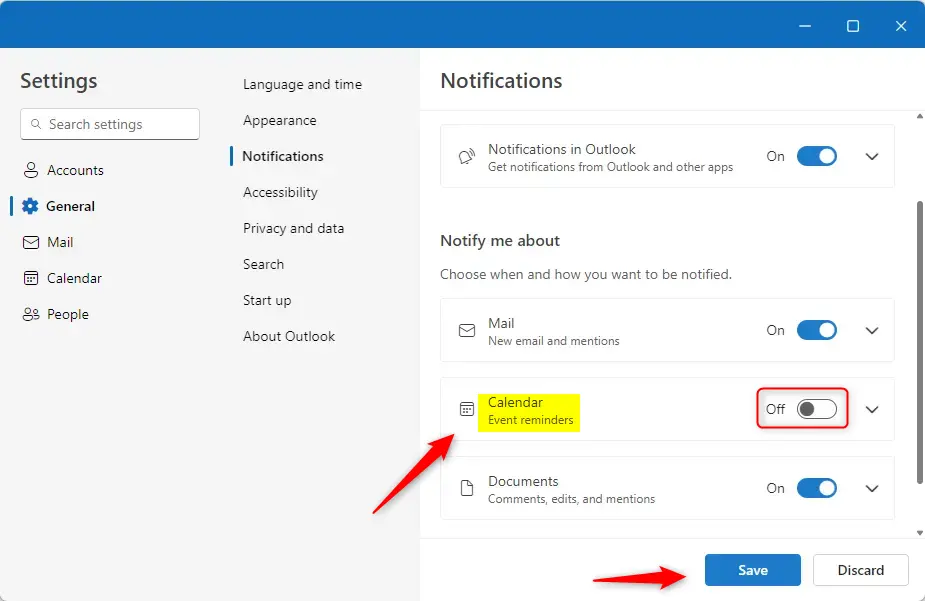
- Click the Save button at the bottom of the screen to finish.
Note: If your computer is managed by an organization, you might need administrator privileges to change system-wide notification settings.
Summary
You control your Outlook calendar alerts by visiting the Settings menu within the app. Turning these on keeps you on schedule, while turning them off removes distractions. Always check your Windows system settings if you are not receiving the alerts you expect.
Why do I have a notification on my Outlook calendar?
Outlook reminders will pop up over your email or calendar to let you know a scheduled event is about to start.
Was this guide helpful?

About the Author
Richard
Tech Writer, IT Professional
Richard, a writer for Geek Rewind, is a tech enthusiast who loves breaking down complex IT topics into simple, easy-to-understand ideas. With years of hands-on experience in system administration and enterprise IT operations, he’s developed a knack for offering practical tips and solutions. Richard aims to make technology more accessible and actionable. He's deeply committed to the Geek Rewind community, always ready to answer questions and engage in discussions.




No comments yet — be the first to share your thoughts!