How to Enable or Disable DLNA Streaming on Windows 11


DLNA (Digital Living Network Alliance) streaming on Windows 11 turns your PC into a home media server so you can share photos, music, and videos with other devices on your local Wi-Fi network. This built-in standard lets smart TVs, game consoles, and phones find and play media files stored on your computer without cables.
Setting up DLNA gives you complete control over your home network because you pick the exact folders to share with other gadgets. You can watch home movies on your living room television or listen to music through wireless stereos in a few clicks.
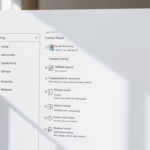
To enable DLNA streaming, open Control Panel , go to Network and Sharing Center, and select “Media streaming options” to turn it on. To disable it, return to the same menu and click “Block All.
How to Enable or Disable Media Streaming
DLNA streaming Windows 11 lets you share music, pictures, and videos from your computer with other devices on your home network. You can turn this feature on or off through the Control Panel by opening the Network and Sharing Center and choosing Media streaming options.
Follow this path once the window opens:
To get there, navigate: Control Panel Network and Internet Network and Sharing Center Media streaming options
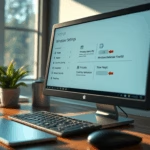
Click the button labeled "Turn on media streaming" inside the settings window.
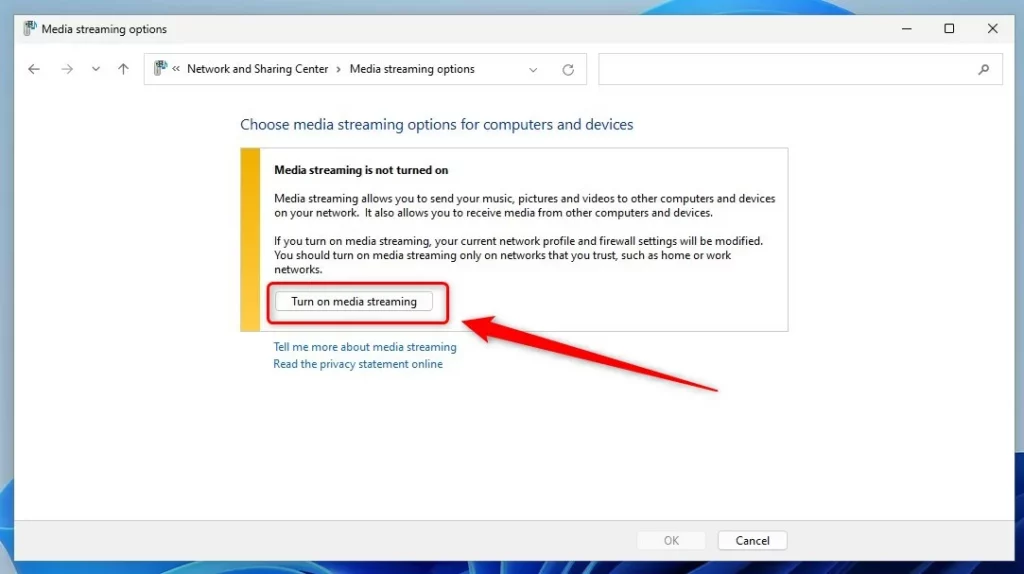
This action changes your Windows Defender Firewall settings. Trusted networks, such as home setups, provide the safest environment for this feature.
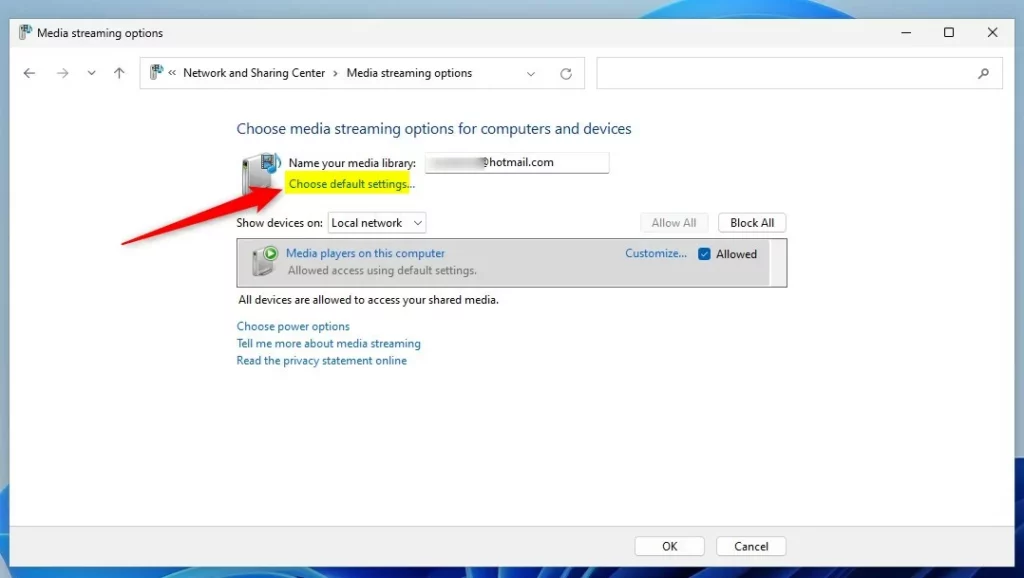
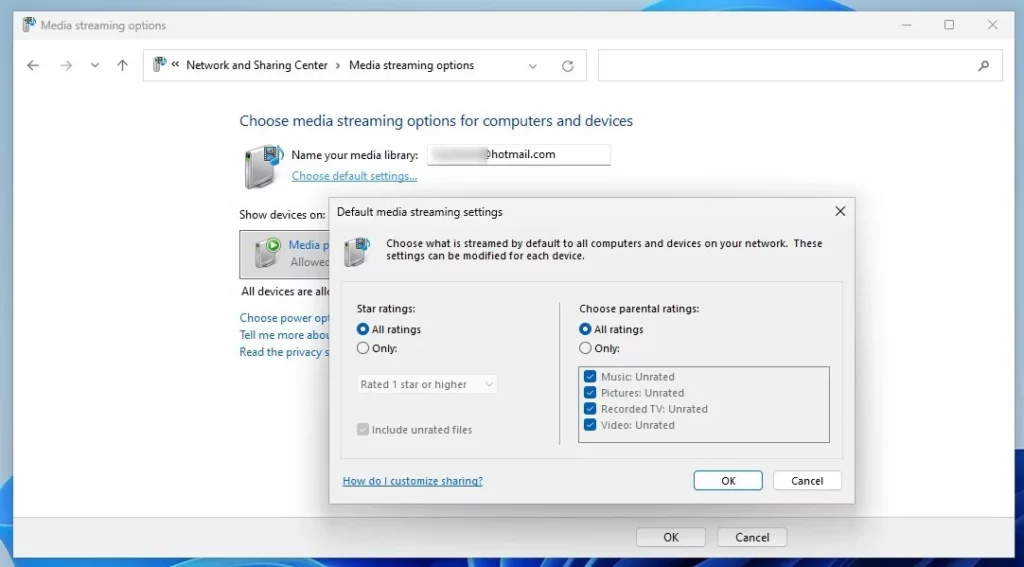
Default configurations share files originating from Music, Pictures, Recorded TV, and Videos directories.
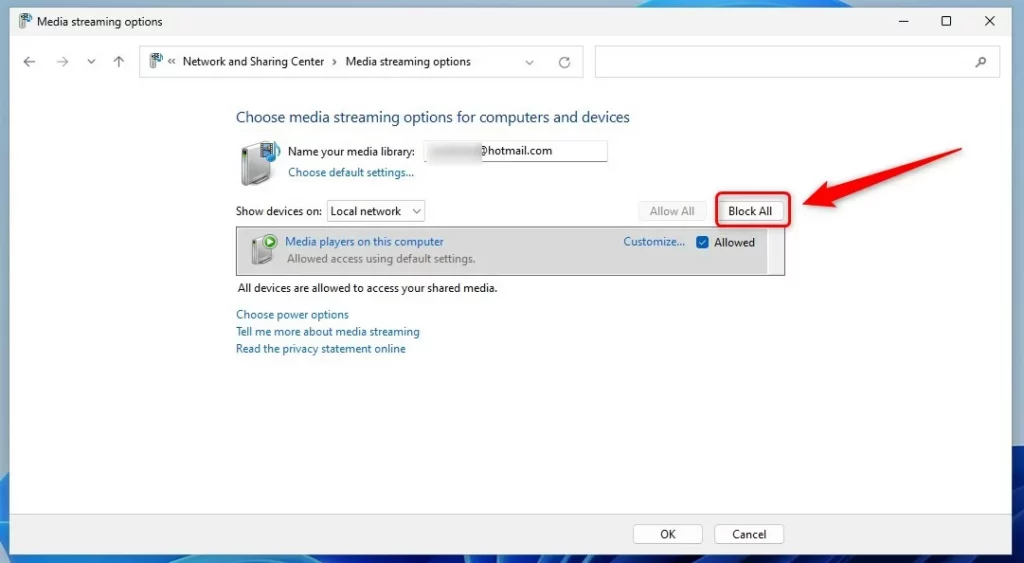
Return to the Media Streaming Options menu and select the "Block All" button to disable DLNA streaming. Blocking all devices stops foreign computers and network hardware from accessing media files stored on the Windows 11 machine.
Troubleshooting DLNA Connection Issues
Troubleshooting Windows 11 DLNA streaming issues requires checking a few fundamentals. Verify that your PC and television share the same network, your network classification is set to Private, and the SSDP Discovery service is running.
Verifying SSDP Discovery
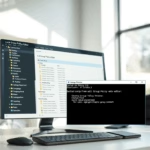
Press the Windows key and R together, type services.msc, and then press Enter. Locate "SSDP Discovery" in the list. Ensure the status is "Running." If not, right-click it and select "Start."
Configuring Windows Defender Firewall
Note: This step requires admin privileges.
Firewall rules occasionally block the WMP network sharing service. Open Windows Defender Firewall with Advanced Security. Confirm that the "Windows Media Player Network Sharing Service" displays as 'Allowed' for Private networks.
Using PowerShell for Management
Note: This step requires admin privileges.
PowerShell provides another method for managing services. Open PowerShell as an administrator and run this command to start the discovery service:
Start-Service SSDPSRV
Third-Party Media Server Alternatives
Alternatives like Plex or Universal Media Server suit users finding Windows Media Player too restrictive. Better codec support and modern interfaces improve media streaming to smart televisions.
Summary
Windows 11 DLNA streaming lets you share photos, music, and videos with other devices on your home network. Manage these settings through the Control Panel or alternative tools, and turn the feature off on public networks to keep your files secure.
Why is my DLNA server not showing up on my TV?
Network profiles set to Public instead of Private, or a stopped SSDP Discovery service, typically trigger this behavior. Ensure the PC and television reside on the same subnet and the firewall permits the Windows Media Player Network Sharing Service.
Is DLNA streaming secure?
DLNA media streaming, designed for home networks without modern encryption, is not secure for public Wi-Fi. Disable DLNA media streaming when leaving home networks to block unauthorized access to personal media files.
Does 🪟 Windows 11 have a DLNA server?
Digital Living Network Alliance (DLNA) media streaming allows a Windows 11 computer to serve as a media server, sharing media files like pictures and music with compatible hardware such as speakers or smart TVs.
Is DLNA obsolete?
Newer technologies exist, yet DLNA remains useful for offline sharing, delivering privacy and control over personal media content.
What is the best DLNA app for streaming?
BubbleUPnP serves as a top DLNA app for Android users. Browsing and streaming media from DLNA servers like PCs or network-attached storage units works seamlessly while casting to renderers such as smart TVs or Chromecast.
Was this guide helpful?

About the Author
Richard
Tech Writer, IT Professional
Richard, a writer for Geek Rewind, is a tech enthusiast who loves breaking down complex IT topics into simple, easy-to-understand ideas. With years of hands-on experience in system administration and enterprise IT operations, he’s developed a knack for offering practical tips and solutions. Richard aims to make technology more accessible and actionable. He's deeply committed to the Geek Rewind community, always ready to answer questions and engage in discussions.
[…] previously showed you how to turn on or off DLNA media streaming in Windows 11. When DLNA is off or disabled, Windows will not receive media from other computers and […]