
Do you type in more than one language? Windows 11 can help. You can set a different keyboard layout for each app you use. For example, one app could use an English keyboard and another could use a Spanish keyboard.
Why Change Keyboard Layouts?
Your keyboard layout controls what letters and symbols show up when you press keys. Different languages need special letters. German has ä and Spanish has ñ. By switching keyboard layouts, you can type these special characters easily.
When you add a new language to Windows, it automatically adds the keyboard layout for that language. You can also add extra keyboards for special needs.
If you have more than one keyboard layout, you can switch between them. Click the language icon on the taskbar or press Win + Spacebar.
By default, Windows uses the same keyboard layout for all apps. But you can tell Windows to remember a different keyboard layout for each app window. What happens? Each app remembers its own keyboard layout.
How to Turn On Different Keyboard Layouts for Each App Using Settings
- Open Settings by pressing Win + I.
- Click Time & language on the left side.
- Click Typing on the right side.
- Scroll down and click Advanced keyboard settings.
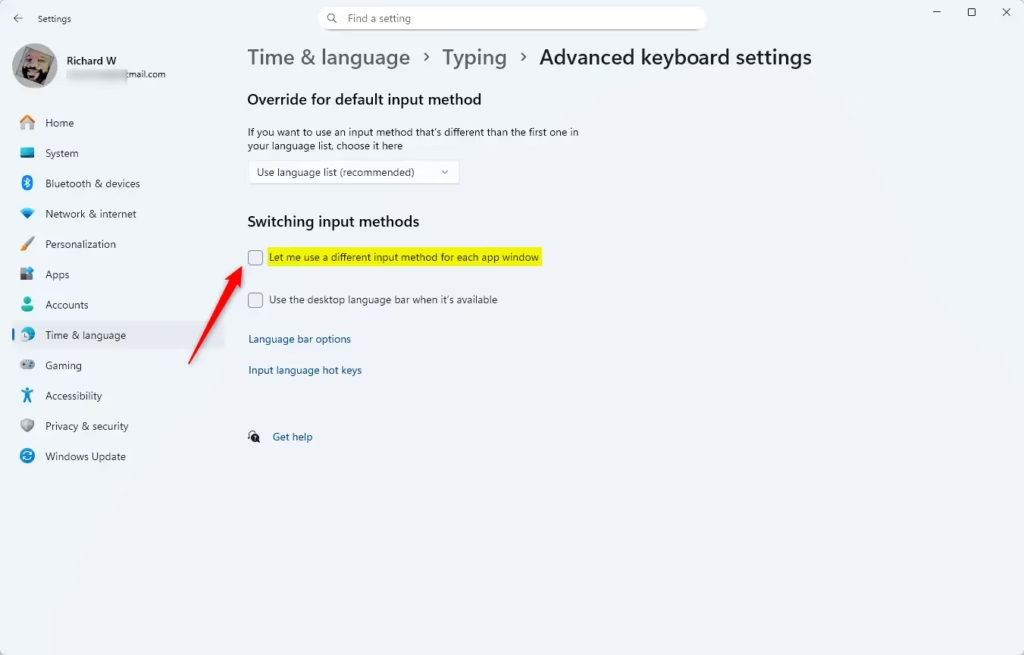
- Look for Let me use a different input method for each app window. Check it to turn on this feature. Uncheck it to turn it off.
- You can now close Settings.
Here is a helpful screenshot showing where to find this setting:
You can also open the Typing settings directly by clicking this link (it opens your Settings app): Open Typing settings
How to Turn On Different Keyboard Layouts for Each App Using PowerShell
If you like using commands, you can do this with PowerShell:
- [REQUIRES ADMIN] Open Windows Terminal (right-click the Start button and choose it), then select Windows PowerShell.
- Copy and paste one of the commands below and press Enter.
Turn On Different Keyboard Layouts for Each App
To turn it on without showing the desktop language bar:
Set-WinLanguageBarOption -UseLegacySwitchModeTo turn it on and show the desktop language bar:
Set-WinLanguageBarOption -UseLegacyLanguageBar -UseLegacySwitchModeTurn Off Different Keyboard Layouts for Each App (Default)
To turn it off and hide the desktop language bar:
Set-WinLanguageBarOptionTo turn it off and show the desktop language bar:
Set-WinLanguageBarOption -UseLegacyLanguageBarAfter running the command, you can close Windows Terminal.
Summary
- You can change your keyboard layout to type in different languages.
- Windows 11 lets you use different keyboard layouts for each app window to make typing easier.
- You can turn this feature on or off in Settings or by using PowerShell commands.
- This feature is helpful if you switch languages often while working in different apps.
- Make sure your keyboard layouts are set up well to get the best typing experience.



Leave a Reply