How to Turn On or Off Dev Drive Protection in Windows 11

This guide will help you easily turn Dev Drive Protection on or off in Windows 11.
What is Dev Drive?
Dev Drive is a new type of storage space designed to make your computer faster, especially for developers. It uses special technology called ReFS that helps organize files better and keeps your data safer.
By default, Dev Drive is set up for best speed and works nicely with Windows security tools like antivirus.
How Does Dev Drive Protection Work?
There are two ways your antivirus can check files on a Dev Drive:
| Protection Mode | Scan Type | What Happens | Simple Explanation |
|---|---|---|---|
| Off | Synchronous (Real-time) | Every time you open a file, your antivirus scans it immediately. | Open the file now, scan it now. |
| On | Asynchronous | Files open quickly, and scanning happens in the background after. | Open the file now, scan it later. |
Want to learn more about how this affects your computer’s speed? Check out this official Microsoft page about Dev Drive performance.
How to Turn Dev Drive Protection On or Off Using Windows Security App
Starting with Windows 11 build 25931, you can easily switch Dev Drive Protection on or off in the Windows Security app. Here’s how:
- Open the Windows Security app: Click the Start menu (Windows icon in the corner) and type Windows Security. Click the app when it shows up.
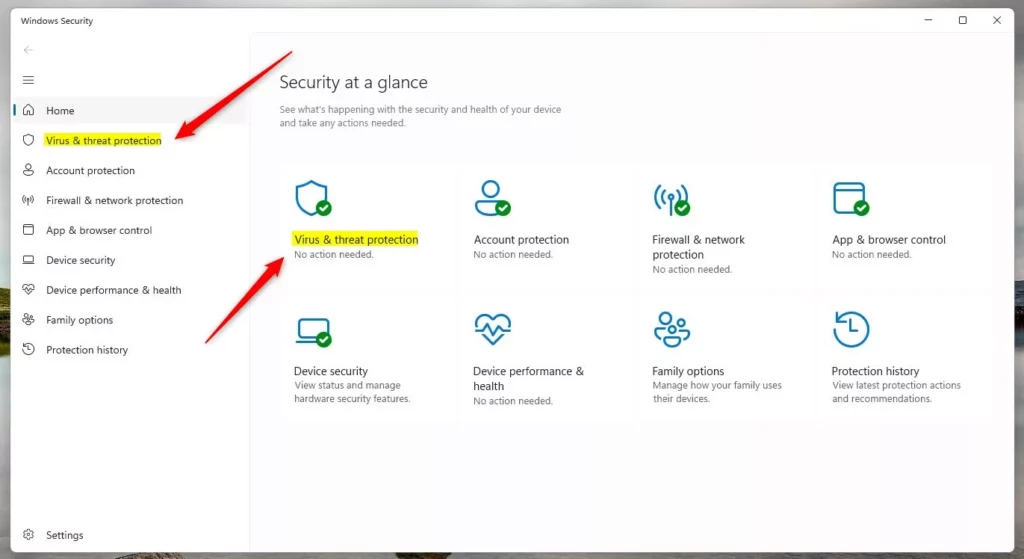
- In the Windows Security app, click Virus & threat protection on the left menu.
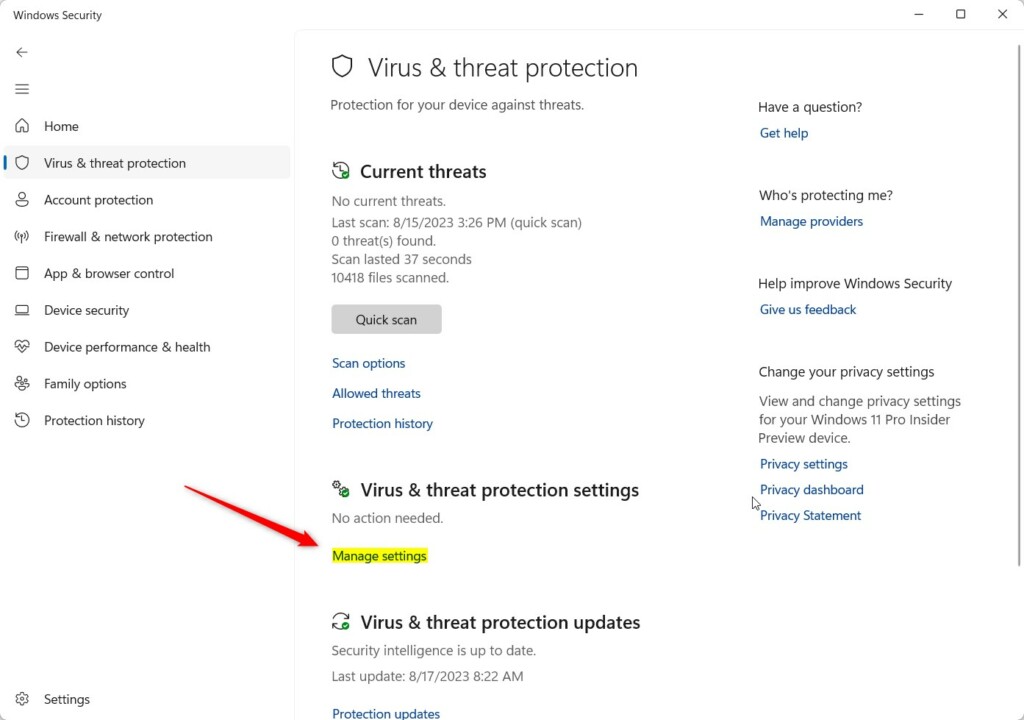
- Scroll down and click Manage settings under Virus & threat protection settings.
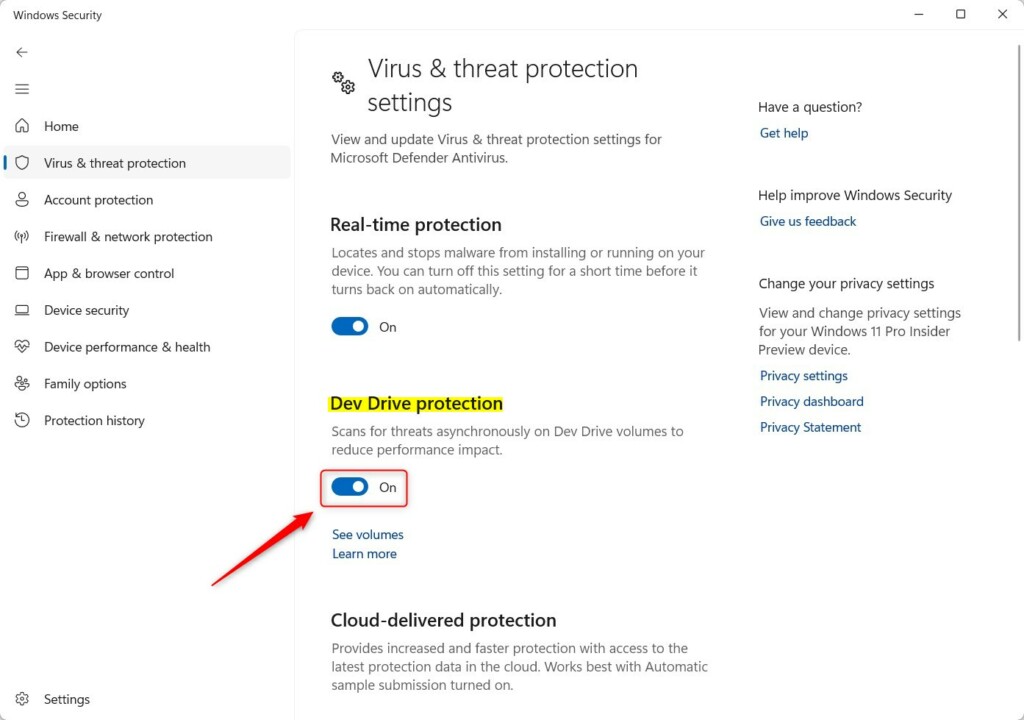
- Find the Dev Drive protection option and toggle it On or Off as you want.
- Close the app when you’re done.
Note: If Real-time protection is off, the Dev Drive protection option will be greyed out. You need to have Real-time protection on to control Dev Drive protection.
How to Turn Dev Drive Protection On or Off Using the Registry (Advanced Users)
If you prefer, you can also turn Dev Drive protection on or off by changing a setting in the Windows Registry. Be careful when editing the Registry! Here’s how:
- ⚠️ REQUIRES ADMIN PRIVILEGES: Open Registry Editor by pressing
Windows + R, typingregedit, and hitting Enter. - Go to this folder path:
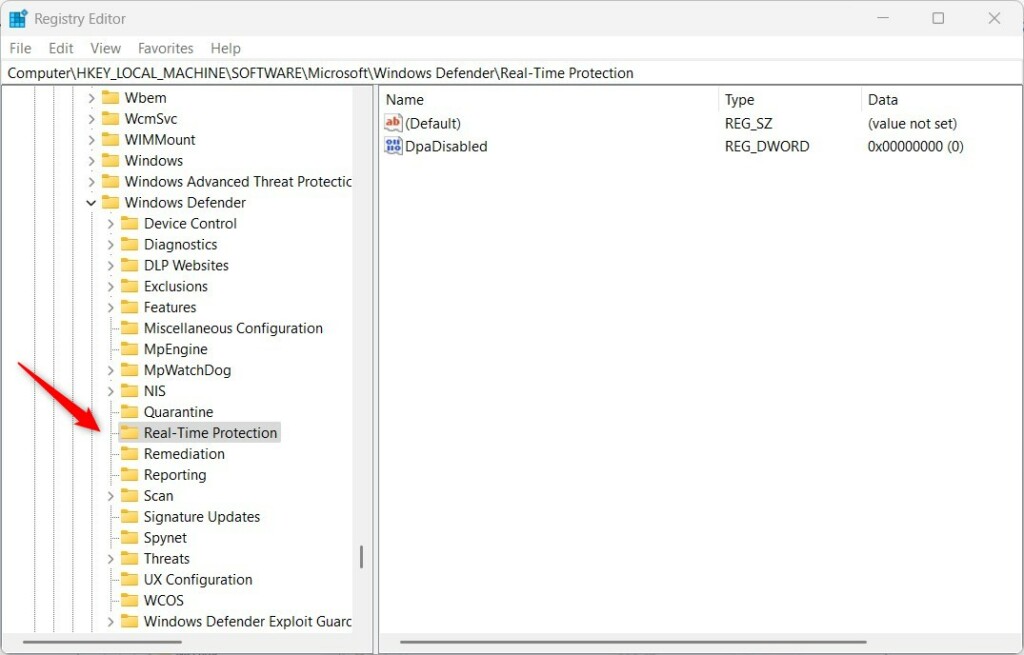
HKEY_LOCAL_MACHINE\SOFTWARE\Microsoft\Windows Defender\Real-Time Protection - If the Real-Time Protection folder is missing, right-click on Windows Defender, select New > Key, and name it Real-Time Protection.
- Inside Real-Time Protection, right-click on the right side and choose New > DWORD (32-bit) Value.
- Name the new value
DisableAsyncScanOnOpen. - Double-click on
DisableAsyncScanOnOpenand set the value:0to turn ON Dev Drive protection
1to turn OFF Dev Drive protection- Click OK and close the Registry Editor.
Summary
You can easily switch Dev Drive Protection on or off using the Windows Security app.
If you want more control or prefer advanced settings, you can use the Registry Editor.
Remember, Dev Drive Protection helps balance speed and security on your Windows 11 PC.
For more details, see the official Microsoft page: Microsoft Defender Endpoint Performance Mode.
Was this guide helpful?

About the Author
Richard
Tech Writer, IT Professional
Richard, a writer for Geek Rewind, is a tech enthusiast who loves breaking down complex IT topics into simple, easy-to-understand ideas. With years of hands-on experience in system administration and enterprise IT operations, he’s developed a knack for offering practical tips and solutions. Richard aims to make technology more accessible and actionable. He's deeply committed to the Geek Rewind community, always ready to answer questions and engage in discussions.

No comments yet — be the first to share your thoughts!