How to Enable BitLocker with PIN and USB Key in Windows 11


BitLocker device encryption locks your Windows 11 hard drive so nobody can read your files if your PC gets lost or stolen. You can make this security even stronger by setting up a startup PIN and a USB key, which forces you to plug in a specific flash drive and type a secret code every time you turn on your computer.
This two-step startup check gives you much better protection than a standard Windows password or a basic hardware chip alone. Windows 11 Pro, Enterprise, and Education editions support this setup, while Windows 11 Home users need to upgrade first.
Enable BitLocker with a PIN and USB key by navigating to Control Panel System and Security BitLocker Drive Encryption. Click ‘Change how drive is unlocked at startup’, select ‘Enter a PIN (recommended)’, and then ‘Insert a USB flash drive’. Ensure your TPM is enabled or configure Group Policy if needed.
Prerequisites and TPM Requirements
Before proceeding, verify that the motherboard has a TPM 2.0 chip enabled in the UEFI firmware (the foundational system firmware). Devices lacking a TPM require a specific Group Policy tweak to permit BitLocker operation without one.
Common Errors: The device cannot use a Trusted Platform Module
Encountering the “device cannot use a Trusted Platform Module” error indicates a missing or disabled TPM in the BIOS. Bypassing this roadblock involves enabling the “Require additional authentication at startup” policy inside the Group Policy Editor.
Configuring Group Policy for BitLocker
Configuring Group Policy for BitLocker lets you set up extra startup security like a PIN or a USB key on Windows 11. You need to open the Local Group Policy Editor using the Run command to find and change the startup controls before you can turn on these features.
1. Press Win+R, type gpedit.msc, and press Enter.
2. Navigate to: Computer Configuration\Administrative Templates\Windows Components\BitLocker Drive Encryption\Operating System Drives.
3. Double-click Require additional authentication at startup.
4. Select Enabled and ensure ‘Allow BitLocker without a compatible TPM’ is checked if needed.
5. Click Apply and OK.
Enable a PIN to Unlock BitLocker
To enable a BitLocker PIN on Windows 11, you need to use the Control Panel to change how your drive unlocks at startup. This adds an extra layer of security by making you type a numeric sequence between 6 and 20 digits long every time you turn on your computer.
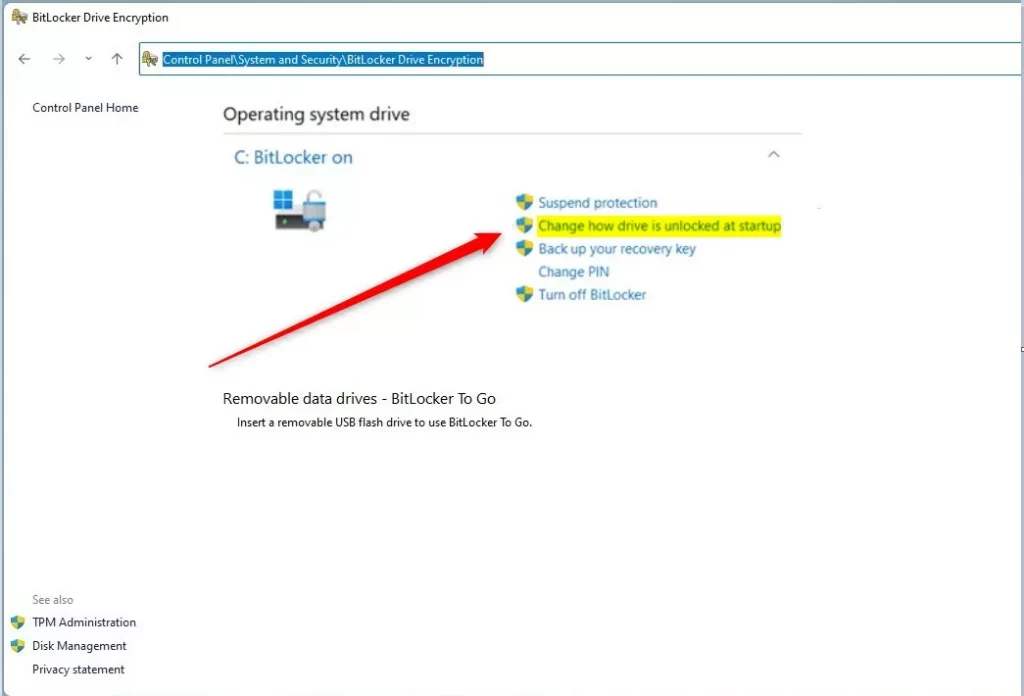
Open the Control Panel and go to Control Panel\System and Security\BitLocker Drive Encryption. Click 'Change how drive is unlocked at startup'.
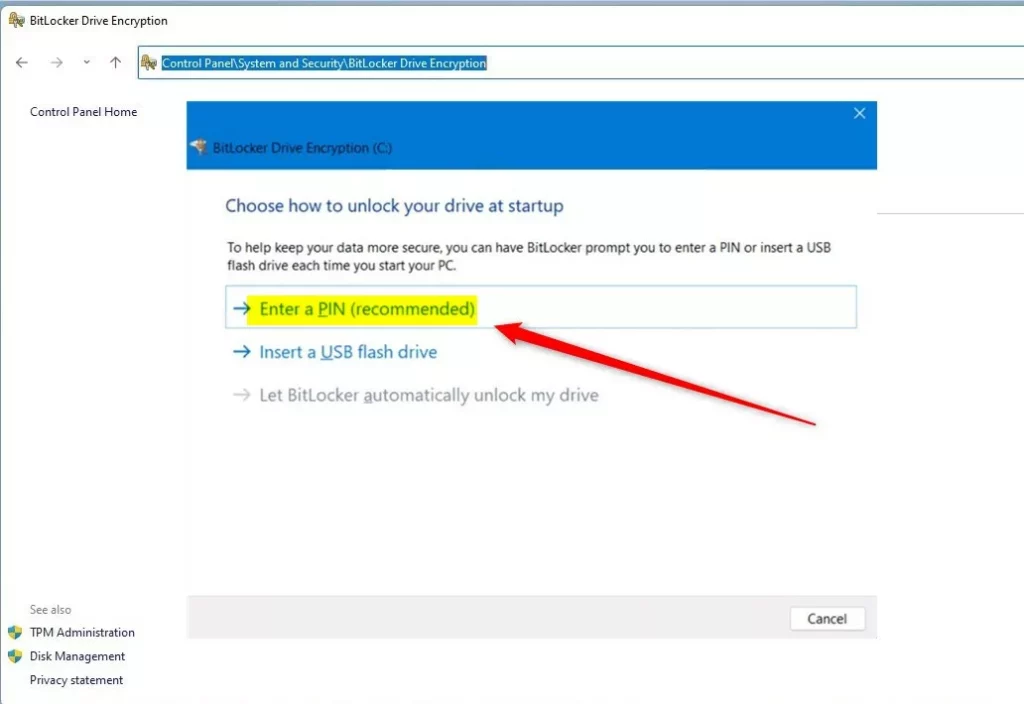
Select 'Enter a PIN (recommended)'.
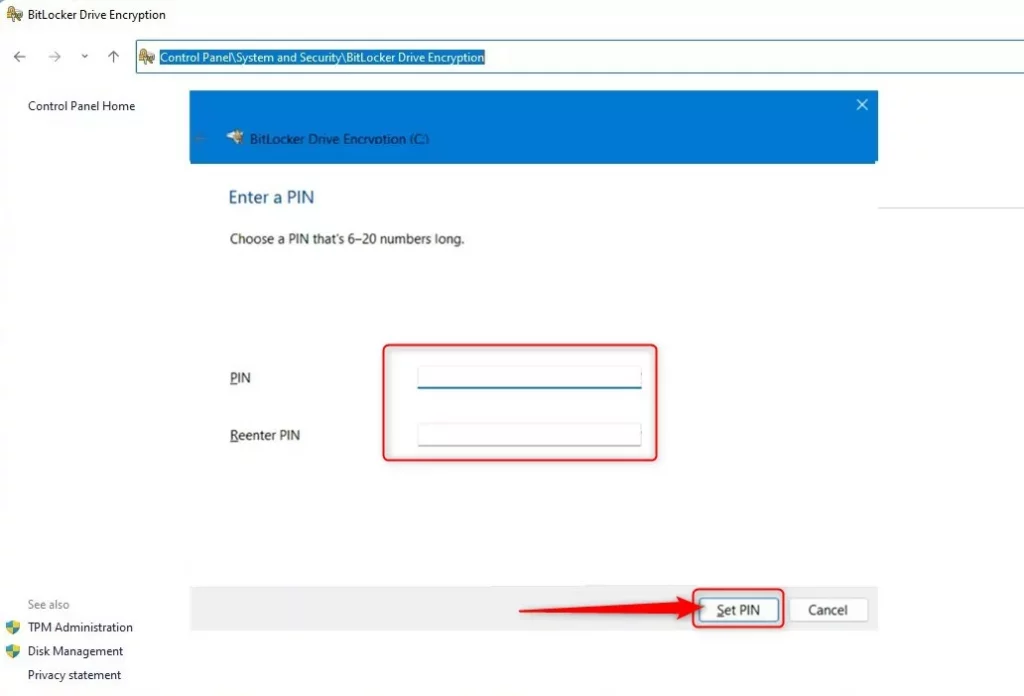
Input a numeric sequence between 6 and 20 digits long. Confirm the entry and click 'Set PIN'.
Unlock with a USB Drive at Startup
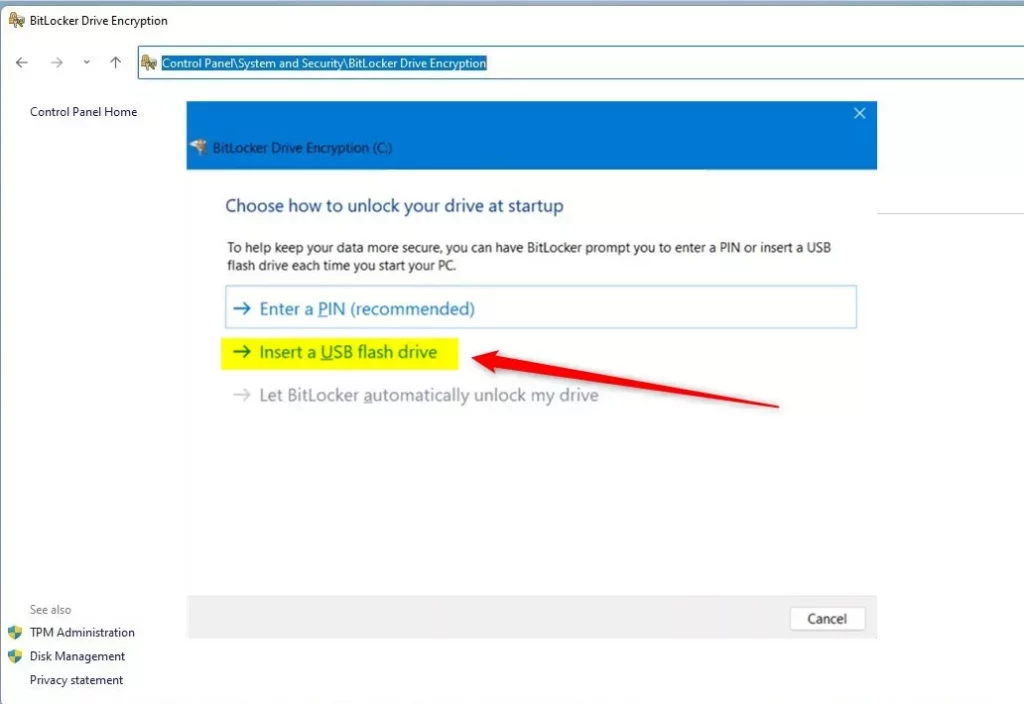
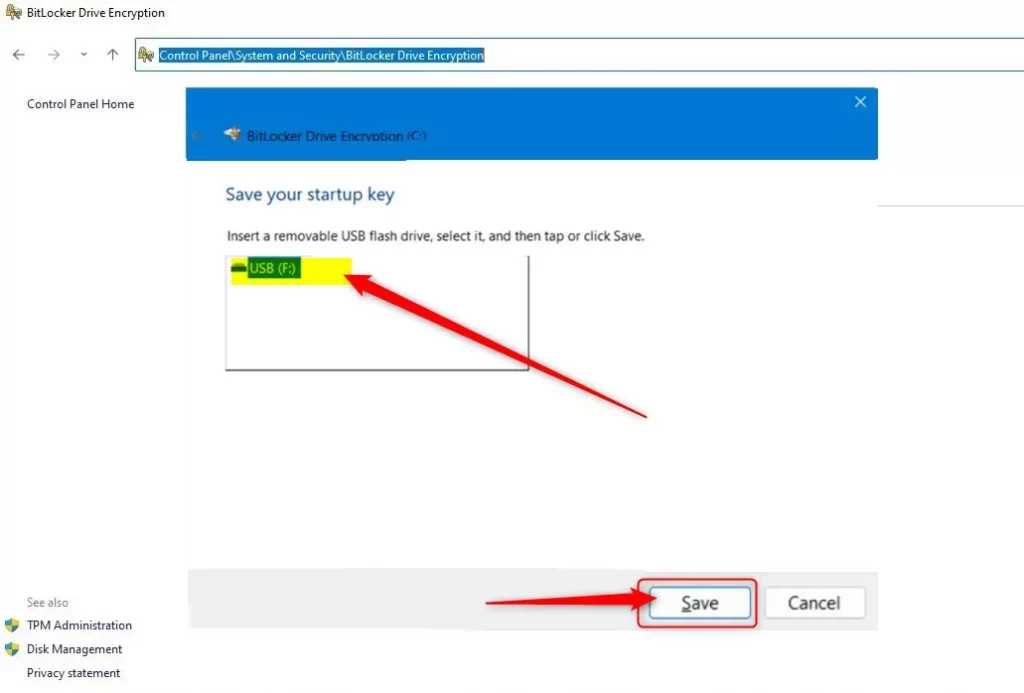
Return to the BitLocker menu and select 'Insert a USB flash drive'.
Choose the target USB drive from the dropdown list and click 'Save'.
Keep the flash drive connected during the subsequent reboot to validate the configuration.
Command Line Configuration
Power users can manage these parameters through PowerShell or Command Prompt. Launching these command-line tools as an Administrator grants full control over drive encryption features.
manage-bde -protectors -add C: -TPMAndPIN
Summary
With the PIN and USB key configured, your Windows 11 machine now demands physical and numerical authentication before booting.
Was this guide helpful?

About the Author
Richard
Tech Writer, IT Professional
Richard is a writer at Geek Rewind who turns complex IT tasks into clear, step-by-step guides. He draws on years of hands-on experience in system administration and enterprise IT operations, focusing on Windows, Linux and WordPress: the problems people actually run into, and the fixes that work. His server and WordPress guides come from systems he runs himself. Richard builds and maintains the platform behind Geek Rewind, from its Ubuntu servers and Nginx configuration to its custom WordPress plugins. Many new tutorials start with readers' questions, and he's always glad to answer them in the comments.



[…] you have set up BitLocker to require users to insert a USB drive that contains a startup key and a PIN at sta… before the computer starts, the steps below show you how to revert to the default […]
[…] users can add additional security by requiring a USB flash drive and a PIN to unlock BitLocker at […]