
Windows 11 installs updates regularly to keep your computer safe and secure. Sometimes these updates require your PC to restart. But what if you’re in the middle of work? That restart can be frustrating.
To solve this problem, Windows lets you set Active Hours. Think of Active Hours as your “do not disturb” window. During these hours, Windows avoids restarting your PC automatically.
Here’s the good news: you don’t have to manually set these hours yourself. Windows can learn when you use your computer and automatically adjust Active Hours based on your actual usage patterns. This means fewer surprise restarts during your work time.
This guide shows you how to turn on or off Automatically Adjust Active Hours on your Windows 11 computer. We’ll cover two easy methods.
How to Turn On or Off Automatically Adjust Active Hours Using Settings
Why do this? The Settings method is the easiest way for most people. It requires no technical knowledge.
What happens? Once enabled, Windows will monitor when you use your PC and automatically set the best Active Hours for you.
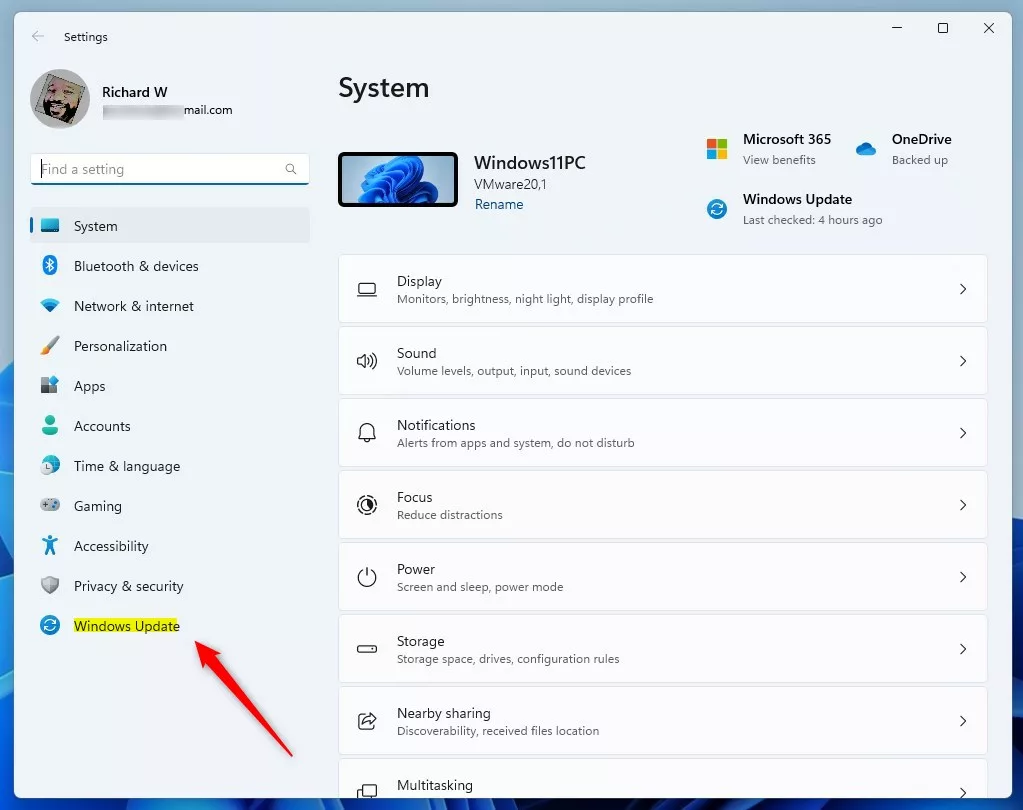
- Open Windows Settings. Click the Start menu button (the Windows icon in the bottom-left corner), then click Settings. Or press
Windows key + Ion your keyboard to open Settings quickly. - In the Settings window, click Windows Update on the left side menu.
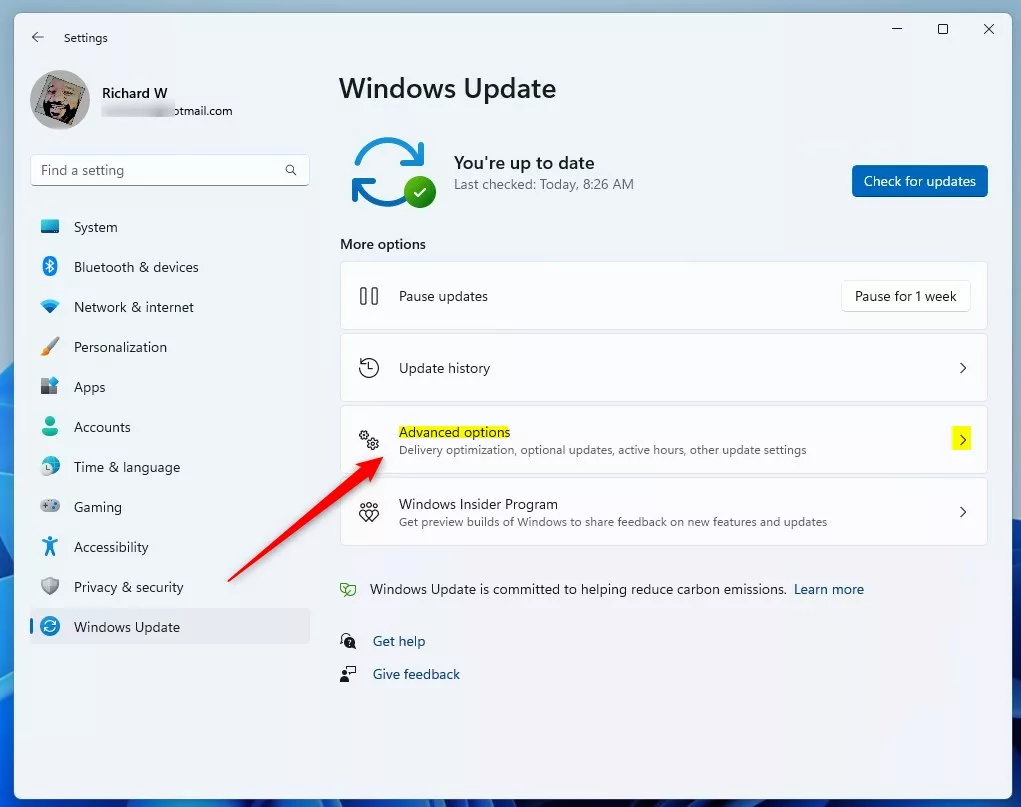
- On the right side, click Advanced options.
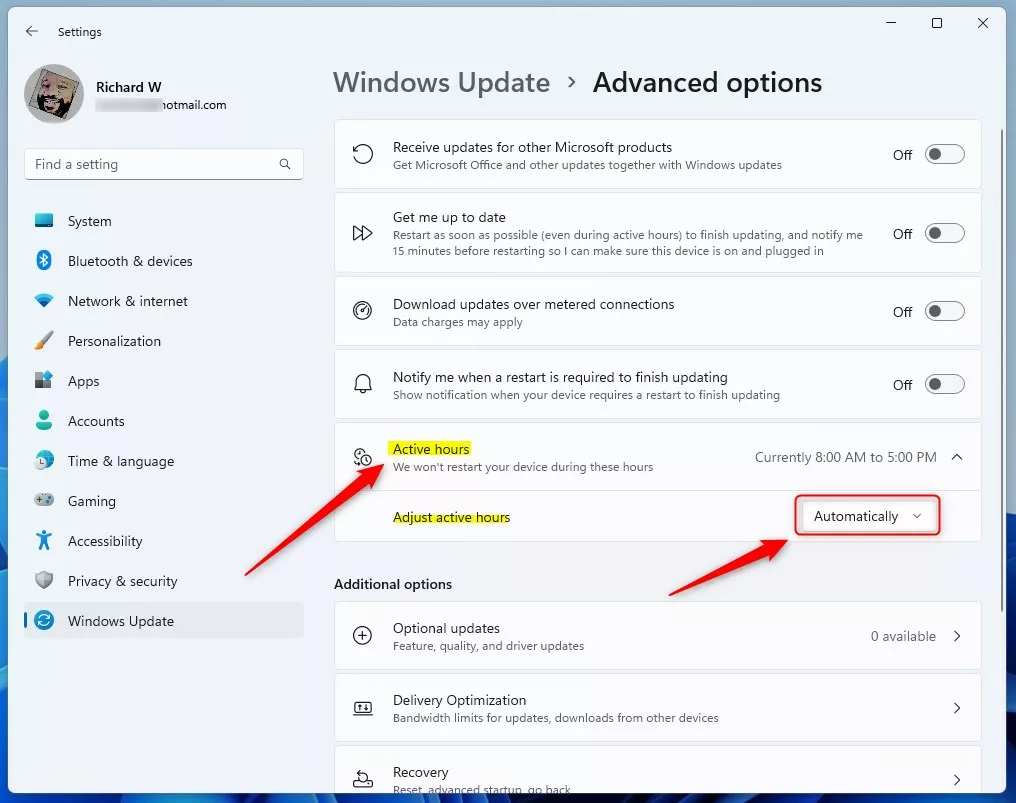
- Find the section called Active hours and click it to open.
- Look for the option that says Automatically adjust active hours for this device based on activity. Use the dropdown menu to select On if you want Windows to automatically set your active hours. Select Off if you want to set them yourself.
After you select your choice, close the Settings app. Your computer will now use this setting when installing updates.
How to Turn On or Off Automatically Adjust Active Hours Using Registry Editor (Advanced)
Why do this? The Registry Editor method gives you direct control over this Windows setting. Use this method only if you’re comfortable editing Windows files.
What happens? You’ll create or modify a registry entry that controls whether Windows automatically adjusts Active Hours.
⚠️ IMPORTANT: Editing the registry can affect your computer if done incorrectly. Follow these steps carefully and consider backing up your registry first.
Open the Registry Editor:
- Press
Windows key + Rto open the Run box. - Type
regeditand press Enter. - ⚠️ ADMIN REQUIRED: If a User Account Control window pops up, click Yes to allow the Registry Editor to open with admin privileges.
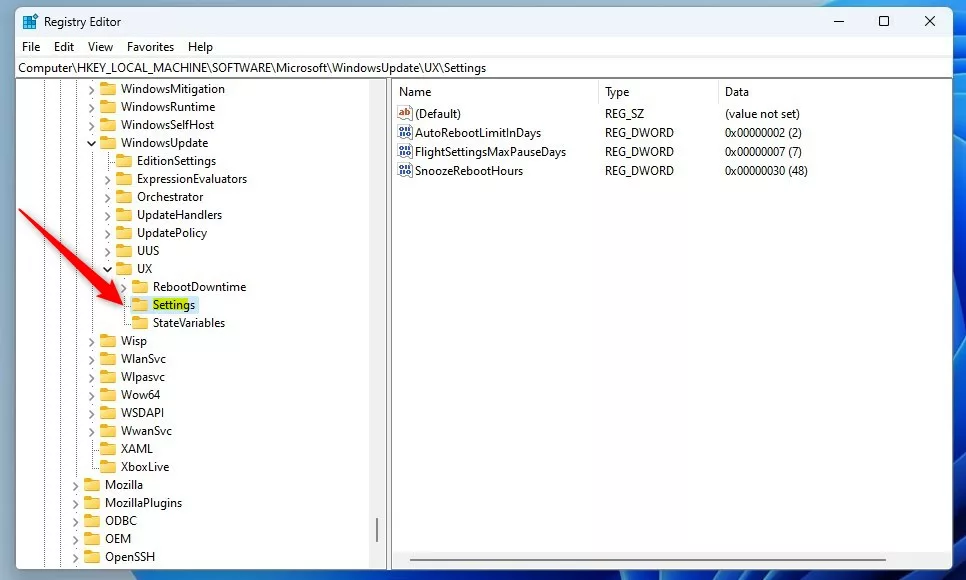
- Navigate to this registry path:
HKEY_LOCAL_MACHINE\SOFTWARE\Microsoft\Windows\Update\UX\Settings - If the Settings folder doesn’t exist inside UX, right-click UX, choose New > Key, and name it Settings.
- Now, inside the Settings folder, right-click on the right side and choose New > DWORD (32-bit) Value.
- Name the new DWORD value:
SmartActiveHoursState - Double-click
SmartActiveHoursStateand set the Base to Decimal. Then enter the value:1to turn On Automatically Adjust Active Hours0to turn Off Automatically Adjust Active Hours
- Click OK to save.
- Close the Registry Editor and restart your computer for the change to take effect.

Summary
What is Automatically Adjust Active Hours? It’s a Windows 11 feature that learns when you use your PC and automatically sets Active Hours. This prevents surprise restarts during your work time.
How to enable it: Use Windows Settings (easiest method) or Registry Editor (advanced method).
Why use it: This feature keeps your computer updated without interrupting your work. Windows installs critical security updates while respecting your schedule.
Which method should you choose? Most users should use the Settings method. Only use the Registry Editor method if you’re comfortable editing Windows system files.
To learn more about managing Windows Updates, check this helpful guide: How to Manually Download Updates for Windows 11



Leave a Reply