How to Turn On or Off Automatic Touchpad Scrolling at Edge in Windows 11

Automatic scrolling at edge is a feature for laptops with a Precision Touchpad. It lets you keep scrolling through a long document or webpage without lifting your fingers. By holding your finger near the edge of the touchpad, the screen continues to move.
Why use this? It makes reading long articles or navigating large spreadsheets much faster. What happens when done? You gain a smoother, more continuous navigation experience without needing to swipe repeatedly.
Precision Touchpad vs. Legacy Touchpad
| Feature | Precision Touchpad | Legacy Touchpad |
|---|---|---|
| Gestures | Supports advanced multi-finger | Limited support |
| Settings | Managed in Windows Settings | Managed by OEM software |
| Scrolling | Smooth, system-level | Often jerky or driver-dependent |
How to Turn On or Off Automatic Scrolling at Edge in Settings
1. Open Settings by pressing Win+I on your keyboard.
2. Select Bluetooth & devices on the left, then click Touchpad on the right.
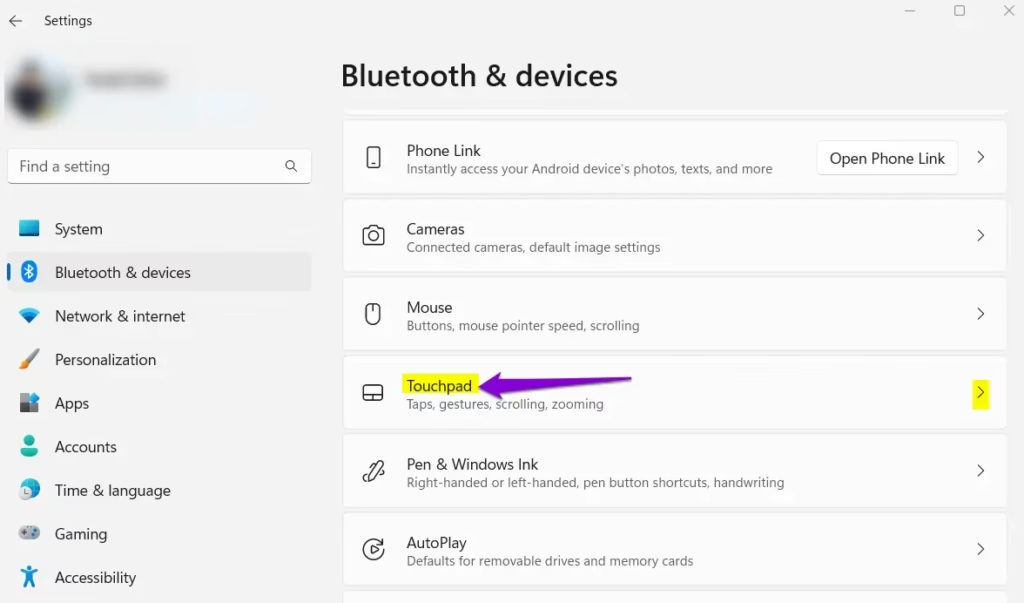
3. Click the arrow next to Scroll & zoom to see more options.
4. Check or uncheck the box for Automatic scrolling at edge based on your preference.
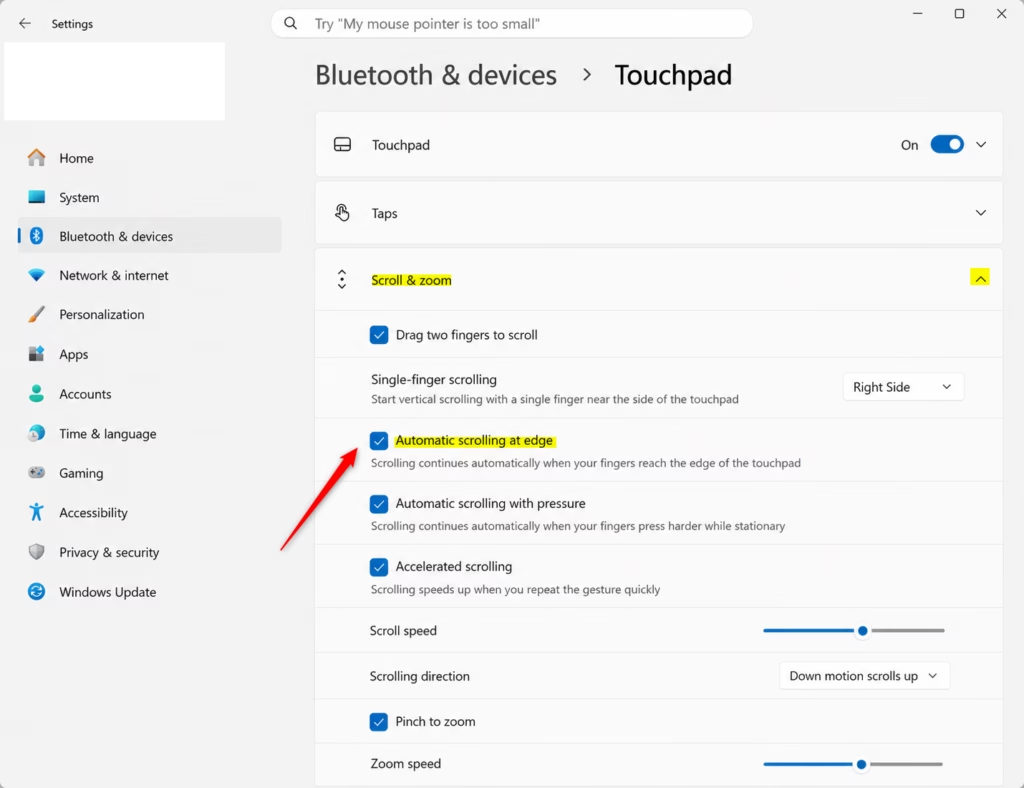
5. Close the window when finished.
How to Configure via Registry (Advanced)
If you prefer using the Registry Editor, follow these steps. Note: This requires administrative privileges.
1. Press Win+R, type regedit, and hit Enter.
2. Navigate to: HKEY_CURRENT_USER\Software\Microsoft\Windows\CurrentVersion\PrecisionTouchPad
3. Double-click EdgeAutoPanningEnabled. Set the value to 1 to turn it on or 0 to turn it off.
Troubleshooting Scrolling Issues
If you do not see the option, your laptop might not support Precision Touchpad drivers. Check Device Manager to see if your device is listed under Mice and other pointing devices as an HID-compliant mouse or a specific driver like Synaptics or ELAN. If you see a yellow warning icon, right-click the driver and select Update driver. You can also run Windows Update to ensure you have the latest firmware for your hardware.
Summary
Automatic scrolling at edge is a helpful feature for efficient navigation. You can easily toggle it in your Windows 11 Touchpad settings. If the feature is missing, check your drivers in Device Manager or run Windows Update to ensure your laptop supports Precision Touchpad gestures. Always keep your system drivers updated to avoid conflicts with OEM software like Synaptics or ELAN.
Why is the edge scrolling option missing from my Windows 11 settings?
This option only appears if your laptop hardware supports Precision Touchpad drivers. If you have a legacy touchpad, your settings are likely controlled by third-party software from your laptop manufacturer, such as Synaptics or ELAN control panels, rather than the standard Windows 11 menu.
Does changing registry settings affect my mouse wheel scrolling?
No, modifying the registry key for EdgeAutoPanningEnabled only impacts the behavior of your touchpad gestures. It does not change how your physical mouse wheel functions or the scroll speed settings configured elsewhere in the Windows 11 mouse properties menu.
Was this guide helpful?



Leave a Reply Cancel reply