
This guide will help you easily turn the Adaptive Brightness feature on or off on your Windows 11 PC. Adaptive Brightness changes your screen brightness automatically based on the light around you, so your screen looks good whether you’re inside or outside.
If you like, you can still adjust the brightness manually using the brightness slider after turning on Adaptive Brightness.
What is Adaptive Brightness?
Adaptive Brightness uses a sensor in your computer to detect the lighting in your environment and adjusts your screen brightness automatically. This helps reduce eye strain and saves battery life on laptops.
How to Turn On or Off Adaptive Brightness
Option 1: Using Windows Settings
- Press Windows key + I to open the Settings app.
- Click System on the left side.
- Click Display on the right side.
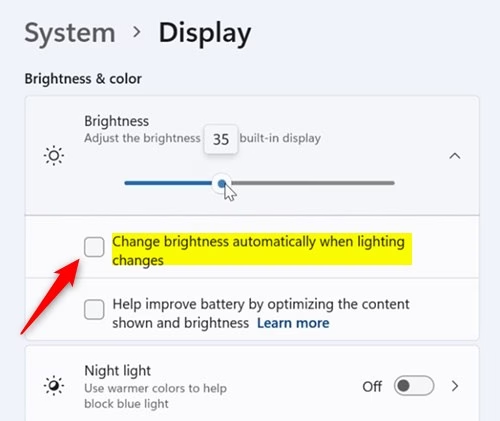
- Find the Brightness section and click to expand it.
- Look for the option “Change brightness automatically when lighting changes”.
- Check the box to turn Adaptive Brightness On, or uncheck it to turn it Off.
- Close the Settings window when done.

Option 2: Using Windows Terminal
If you like using commands, you can create a BAT file to quickly turn Adaptive Brightness on or off.
Turn On Adaptive Brightness
powercfg -setacvalueindex SCHEME_CURRENT 7516b95f-f776-4464-8c53-06167f40cc99 FBD9AA66-9553-4097-BA44-ED6E9D65EAB8 1
powercfg -SetActive SCHEME_CURRENT

powercfg -setdcvalueindex SCHEME_CURRENT 7516b95f-f776-4464-8c53-06167f40cc99 FBD9AA66-9553-4097-BA44-ED6E9D65EAB8 1
powercfg -SetActive SCHEME_CURRENT
Turn Off Adaptive Brightness
powercfg -setacvalueindex SCHEME_CURRENT 7516b95f-f776-4464-8c53-06167f40cc99 FBD9AA66-9553-4097-BA44-ED6E9D65EAB8 0
powercfg -SetActive SCHEME_CURRENT

powercfg -setdcvalueindex SCHEME_CURRENT 7516b95f-f776-4464-8c53-06167f40cc99 FBD9AA66-9553-4097-BA44-ED6E9D65EAB8 0
powercfg -SetActive SCHEME_CURRENT
Note: The -setacvalueindex command changes the setting when plugged in, and the -setdcvalueindex command changes it on battery power.
Option 3: Using Intel Graphics Control Panel
If your PC uses Intel graphics, you might also have settings there that control Adaptive Brightness.
- Open the Intel Graphics Control Panel.
- Click the Power icon.
- Select either On Battery or Plugged in mode.
- Check or uncheck Enable Display Power Saving Technology to turn Adaptive Brightness on or off.
- Adjust the slider to set how much brightness change you want.
- Click Apply.
- Confirm by clicking Yes within 15 seconds to keep your changes.
Option 4: Using AMD Radeon Settings
If your computer has AMD graphics, you can change Adaptive Brightness through AMD Radeon Settings:
- Open AMD Radeon Settings.
- Click Display.
- If you have multiple screens, pick the display you want to change.
- Turn Vari-Bright on or off. This is AMD’s version of adaptive brightness.
- If you turn it on, adjust the Vari-Bright Level slider to your liking.
- Close AMD Radeon Settings when finished.
Summary
- Adaptive Brightness helps your screen adjust brightness automatically based on light around you.
- You can turn it on or off easily through:
- Windows Settings
- Command scripts (BAT files)
- Intel Graphics Control Panel (if you have Intel graphics)
- AMD Radeon Settings (if you have AMD graphics)
- Remember, changes only affect the current power plan.
- When your laptop is in battery saver mode, Windows may reduce brightness automatically by 30% to save power.
- Adjust these settings to find the brightness level that’s comfortable for your eyes.
By using these methods, you can make sure your screen is easy to see and gentle on your eyes, no matter where you are.



Leave a Reply