
Does your Windows 11 computer need better protection? You can turn on Enhanced Phishing Protection to make it safer. Why? This feature helps warn you if you use the same password for your Microsoft account on different websites or apps. What happens when you reuse passwords? If one site gets hacked, hackers could access your other accounts.
Enhanced Phishing Protection is part of Microsoft Defender SmartScreen. It helps protect your passwords from phishing attacks and keeps unsafe sites or apps away from your device.
This protection comes built into Windows 11. It works with Microsoft Defender to keep your device and information safe. It also works with other security features like:
- Controlled folder access
- Real-time protection
- Tamper protection
- Ransomware protection
When you turn on Microsoft Defender SmartScreen enhanced protection, Windows will alert you if you enter your Microsoft password on risky websites or apps. It will remind you to change your password.
This protection works with popular web browsers like Microsoft Edge and other Chromium-based browsers (such as Google Chrome). It can also warn you if you try to type your password on a site that Microsoft Defender SmartScreen thinks is dangerous.
How to Turn On or Off Password Reuse Warnings in Windows 11
Follow these easy steps to enable or disable the password reuse warnings:
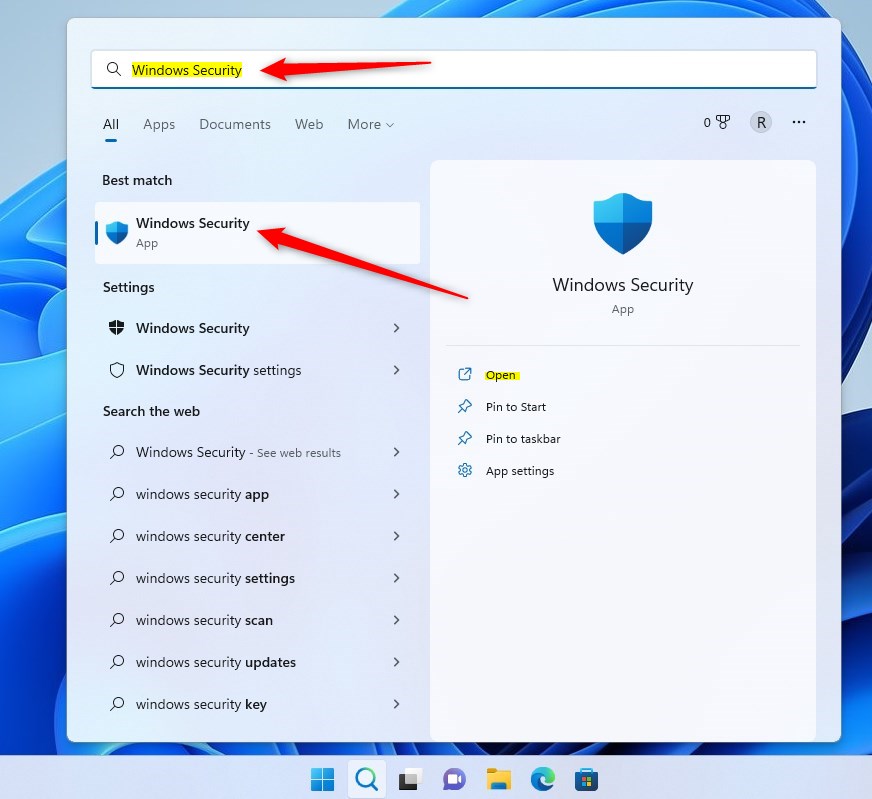
- Click the Search box on your taskbar (bottom-left corner).
- Type Windows Security and click the Windows Security app in the search results.
Next:
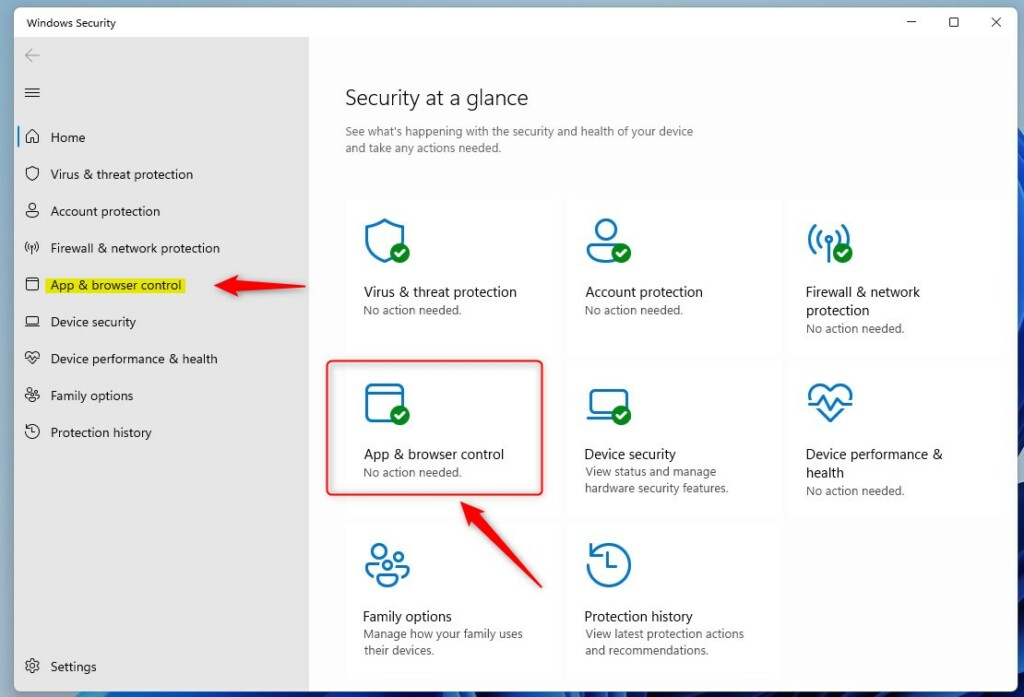
- In Windows Security, click on App & browser control.
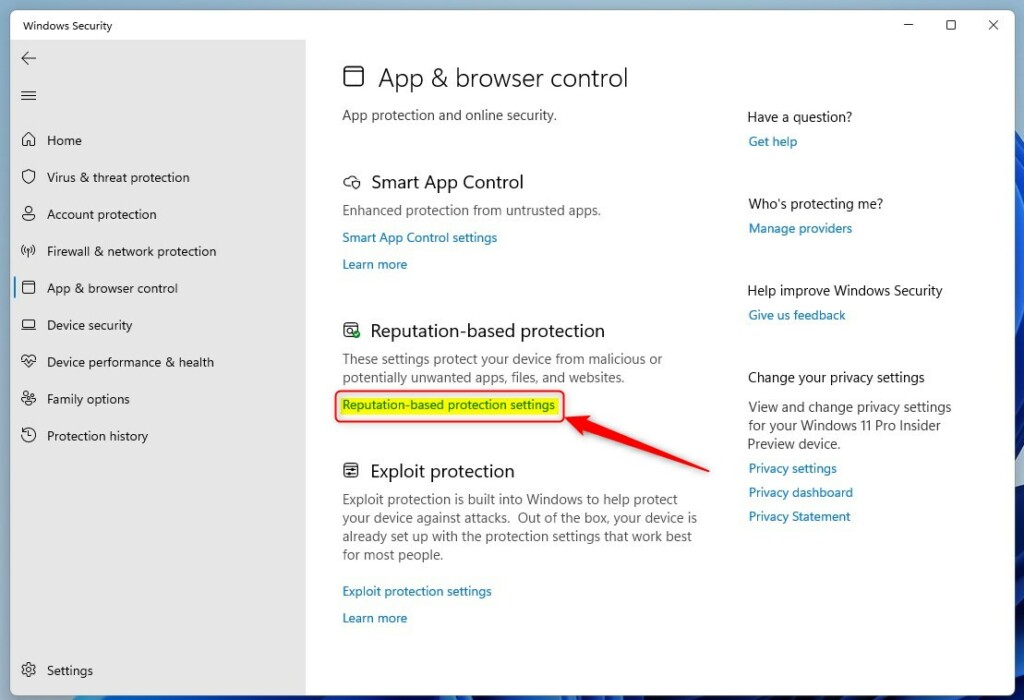
- Scroll down and click Reputation-based protection settings.
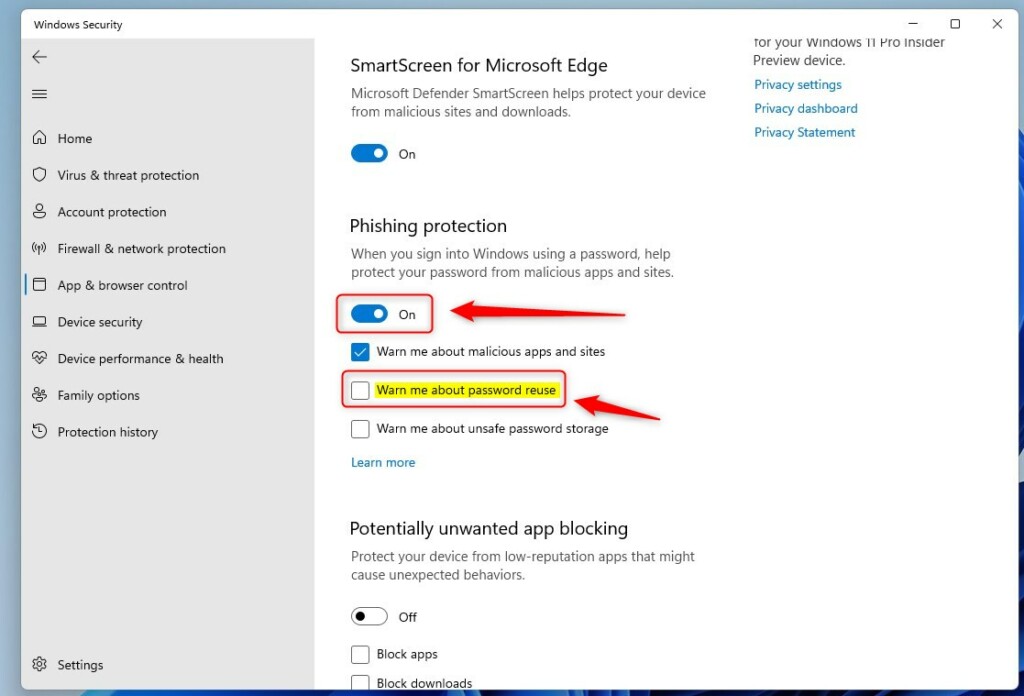
- Under Phishing protection, toggle the switch to On or Off to enable or disable Enhanced Phishing Protection.
When enabled, you can also choose to get warnings about:
- Malicious apps and websites
- Password reuse
- Unsafe password storage
Advanced Option: Using Local Group Policy Editor
Do you want more control? You can use the Local Group Policy Editor. Here’s how:
- FLAG: Admin privileges required. Click the Start Menu button and type Edit group policy.
- Click Edit group policy from the search results.

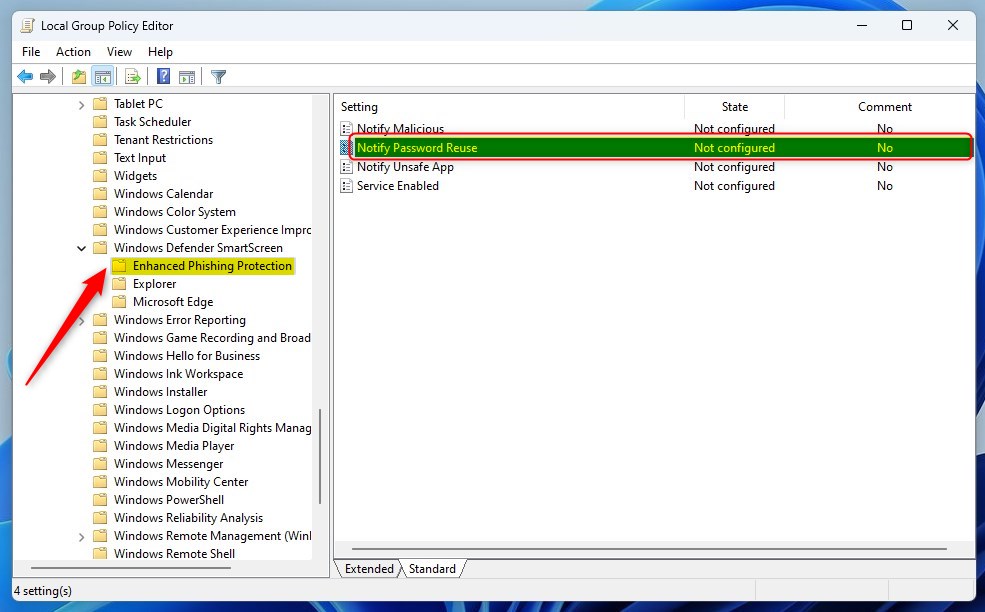
In the Local Group Policy Editor window, navigate to:
Computer Configuration > Administrative Templates > Windows Components > Windows Defender SmartScreen > Enhanced Phishing ProtectionThen:
- Find and double-click Notify Password Reuse in the right pane.
- Choose one of the following options:
- Not Configured (default setting)
- Enabled (turns on password reuse warnings)
- Disabled (turns off password reuse warnings)
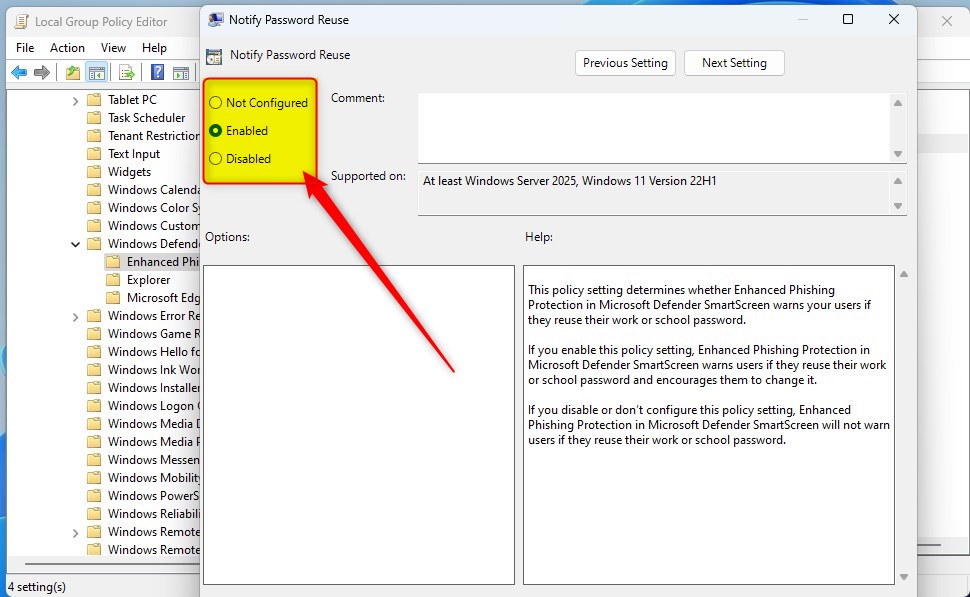
- Click OK to save your changes, then close the Local Group Policy Editor.
Summary
Enhanced Phishing Protection helps keep your passwords safer. Why use it? It warns you if you reuse your Microsoft account password on other sites or apps. What happens when you enable it? Windows will alert you about risky password reuse and help you stay safer.
This feature works with Microsoft Defender for better security on your device and in the cloud.
You can turn it on or off easily through Windows Security. You can also use the Local Group Policy Editor for advanced settings.
Following these steps helps you stay safer while browsing and using apps on Windows 11.
For more info, you can visit the original guide here: Geek Rewind – SmartScreen Phishing Protection



Leave a Reply