
This guide will help you easily turn Device Discovery on or off in Windows 11. Device Discovery lets your computer be found by other devices on the same Wi-Fi or network. This is useful if you want to connect or share things between devices.
Note: Turning on Device Discovery also turns on some extra services like SSH (used for secure connections). Because this can let others connect to your PC, only turn it on when you trust the network (like your home or work Wi-Fi).
Turn Device Discovery On or Off Using the Settings App
Follow these simple steps:
Open the Settings app:
- Click the Start button, then click Settings, OR
- Press Windows key + I on your keyboard.
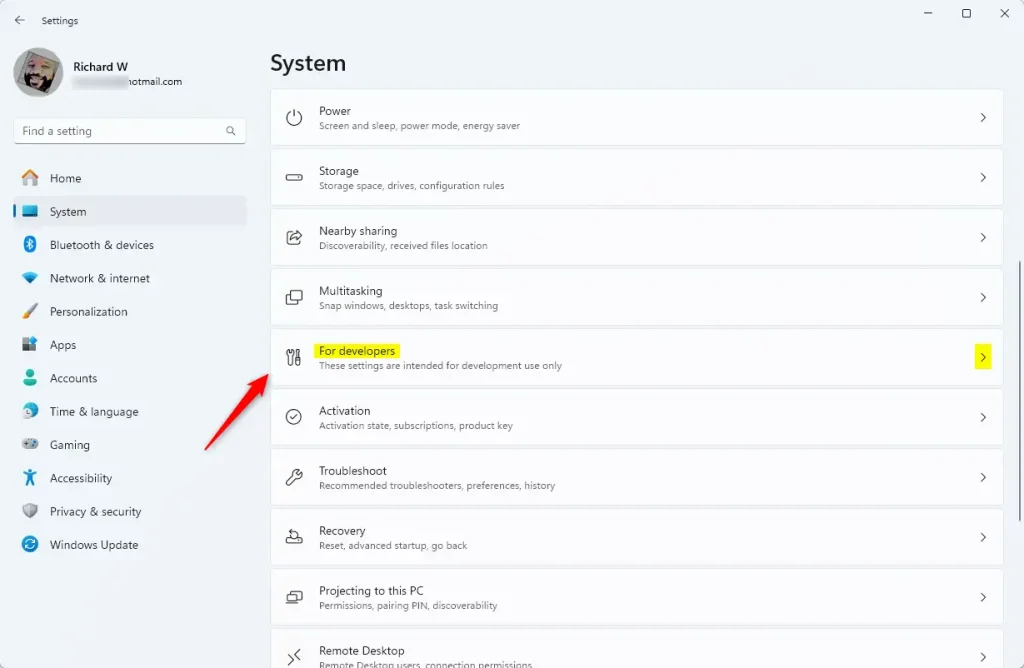
- In Settings, click System on the left side.
- On the right, find and click For developers.
- Make sure Developer Mode is turned On.
- Below Developer Mode, find Device discovery. Click it, then switch the toggle to On to enable it.
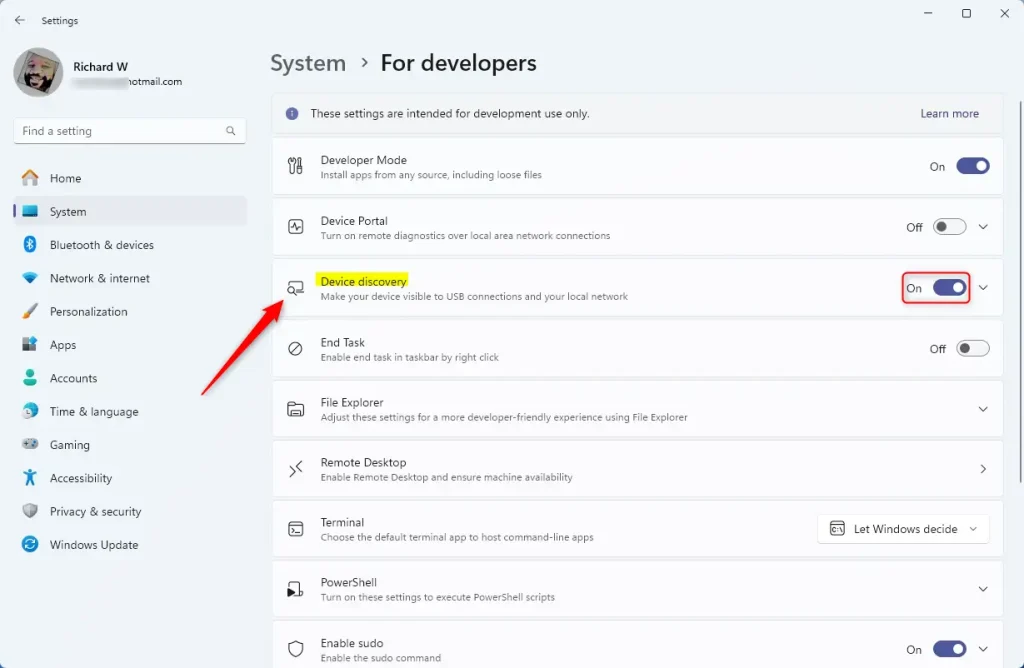
- If you want to turn it off later, just switch the toggle to Off.
- When done, you can close the Settings app.
Turn Device Discovery On or Off Using the Registry Editor (Advanced)
If you prefer, you can also change Device Discovery using the Windows Registry Editor. This is a more advanced method, so be careful!
Warning: Editing the registry can cause problems if done wrong. Please back up your PC before making changes.
Open the Registry Editor:
- [Admin Required] Press Windows key + R, type
regedit, and press Enter. - In Registry Editor, go to this path:
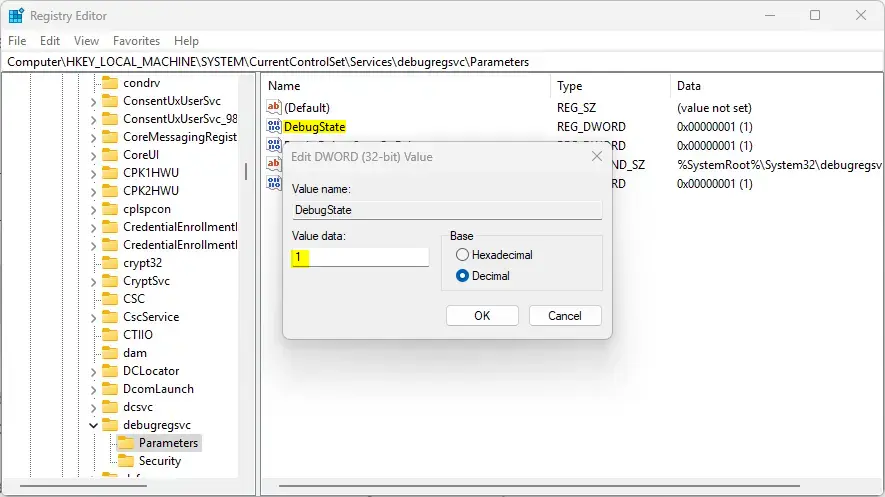
Computer\HKEY_LOCAL_MACHINE\SYSTEM\CurrentControlSet\Services\debugregsvc\Parameters - Look for a value named DebugState on the right side.
- If it exists, double-click it to edit.
- Enter 1 to turn Device Discovery On.
- Enter 0 to turn Device Discovery Off.
- If you don’t see DebugState, right-click on an empty space, choose New > DWORD (32-bit) Value, name it DebugState, then set the value as above.
- Save your changes and close Registry Editor.
- Restart your computer to apply the changes.
Summary
- Device Discovery lets your PC be found by other devices on the same network.
- It also turns on SSH services that allow secure remote connections.
- Use the Settings app for an easy way to turn it on or off.
- The Registry Editor method is for advanced users and requires caution.
- Only enable Device Discovery on networks you trust to keep your PC safe.
Now you know how to manage Device Discovery in Windows 11! If you want to learn more about turning on Developer Mode, check out this helpful guide: How to Enable Developer Mode in Windows 11.


Leave a Reply