
If you use Windows 11, you might want your computer to save a backup of the system registry automatically. The registry is like a big settings file that Windows uses to run properly. Having a backup can help fix problems if something goes wrong.
What Changed in Windows 11?
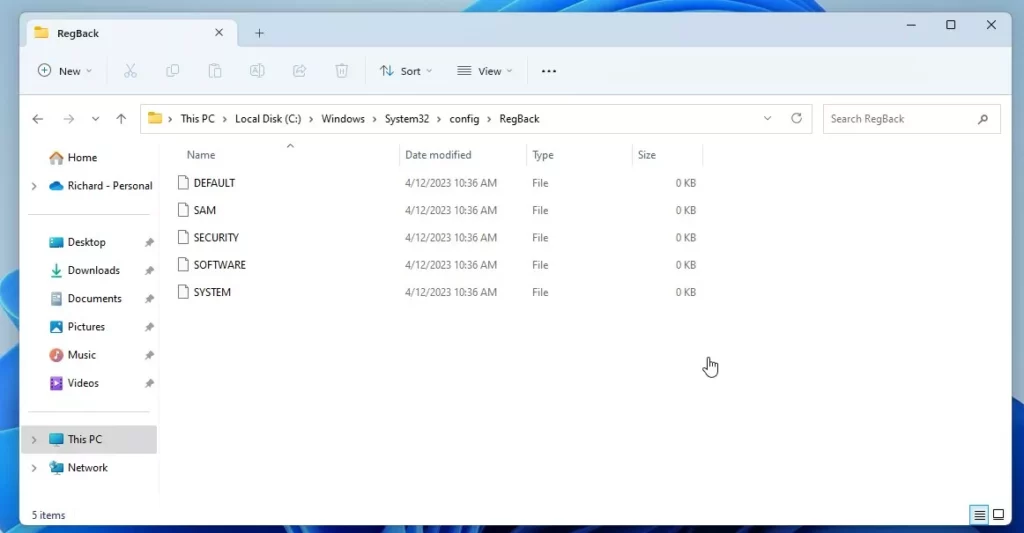
Before Windows 10 (version 1803), Windows used to save a backup of the registry every time you restarted your PC. But now, Windows 11 doesn’t do this by default. If you look inside the folder C:\Windows\System32\config\RegBack, you’ll see registry files, but they are empty (0 KB).
This change was made to save space on your hard drive.
Why Should You Turn It On?
If you want Windows 11 to automatically back up the registry again, you can turn this feature back on. It can help if your computer has registry problems and you need to restore it.
Note: It’s still a good idea to create System Restore Points as your main safety net.
Step-by-Step: How to Enable Automatic Registry Backup
- Open the Registry Editor:
– Press Windows key + R on your keyboard.
– Typeregeditand press Enter.
– If asked by User Account Control, click Yes. - Go to this folder path:
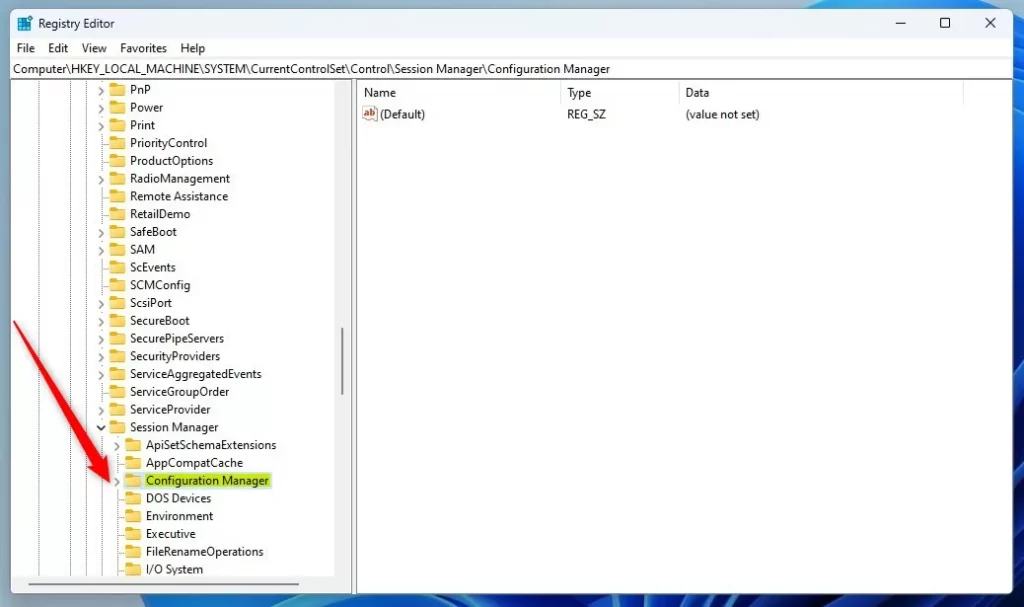
HKEY_LOCAL_MACHINE\SYSTEM\CurrentControlSet\Control\Session Manager\Configuration Manager - If you don’t see the Configuration Manager folder:
– Right-click on Session Manager.
– Choose New > Key.
– Name the new key Configuration Manager. - Create a new setting:
– Click on the Configuration Manager folder.
– Right-click on the right side and select New > DWORD (32-bit) Value.
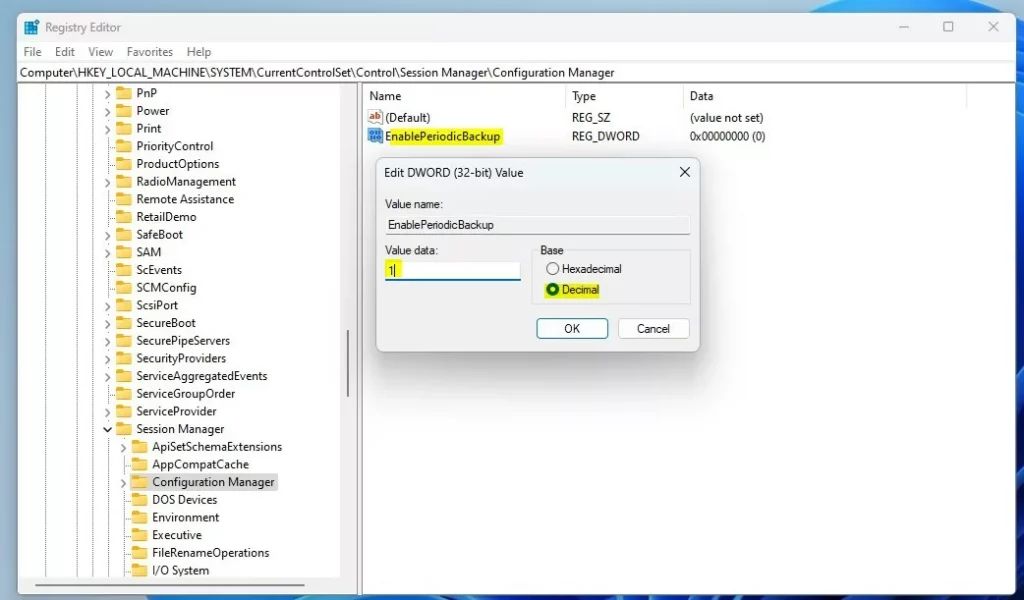
– Name it EnablePeriodicBackup. - Set the value:
– Double-click EnablePeriodicBackup.
– Make sure Base is set to Decimal.
– In Value data, type 1 to enable automatic backups.
– Click OK. - Close Registry Editor and restart your PC.
After restarting, Windows will start making automatic registry backups again.
What Does This Look Like?
Here’s a screenshot showing the Configuration Manager folder inside the Registry Editor:
And here is how the new EnablePeriodicBackup value should look:
Once enabled and after a restart, your backup files will be saved again here:
C\:Windows\System32\config\RegBack
Summary
- Windows 11 does not automatically save registry backups when restarting by default.
- You can turn this feature back on by adding a setting in the Registry Editor.
- Automatic backups help protect your system if the registry gets corrupted.
- Always keep system restore points as your main backup method.
Want to Learn More?
Check out the official Microsoft explanation here:
Microsoft Support: Registry not backed up in RegBack folder
If you want me to help with adding screenshots or making it easier to follow, just ask!


Leave a Reply