How to Disable Mouse Acceleration in Windows 11

You disable mouse acceleration in Windows 11 to achieve a more consistent and predictable cursor experience.
Mouse acceleration, officially known as “Enhance pointer precision,” is a Windows setting that artificially speeds up your mouse cursor based on how quickly you move your physical mouse. This means a fast flick of your wrist can send the cursor much further than a slow, deliberate movement, which can feel unpredictable.
By turning off Enhance pointer precision, you create a direct one-to-one relationship between your physical mouse movement and the cursor’s movement on your screen. This direct mapping, for instance, is critical for gamers aiming in titles like Valorant or for graphic designers making pixel-perfect adjustments in Photoshop.
Disable mouse acceleration in Windows 11 by unchecking “Enhance pointer precision” in Mouse Properties under the Pointer Options tab. Access this through Settings > Bluetooth & devices > Mouse > Additional mouse settings. This creates a 1:1 mapping between mouse movement and cursor movement for improved accuracy.
How to disable mouse acceleration 🪟 Windows 11
You can disable mouse acceleration in Windows 11 through the Settings app to make your mouse movements more consistent. This guide shows you exactly how to turn off that setting so your cursor moves precisely where you want it, every time.
1. Open your Settings menu. You can do this by pressing the Windows key + I on your keyboard or by clicking Start and then Settings.
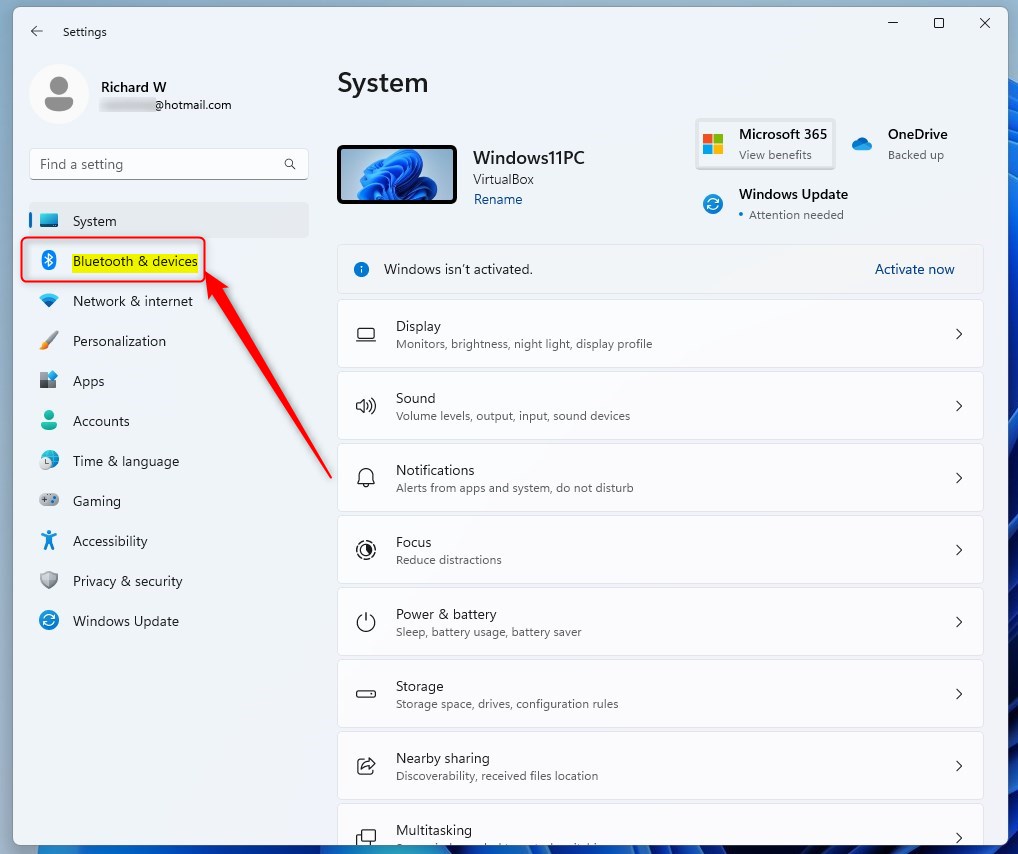
2. In the menu on the left, click on Bluetooth & devices.
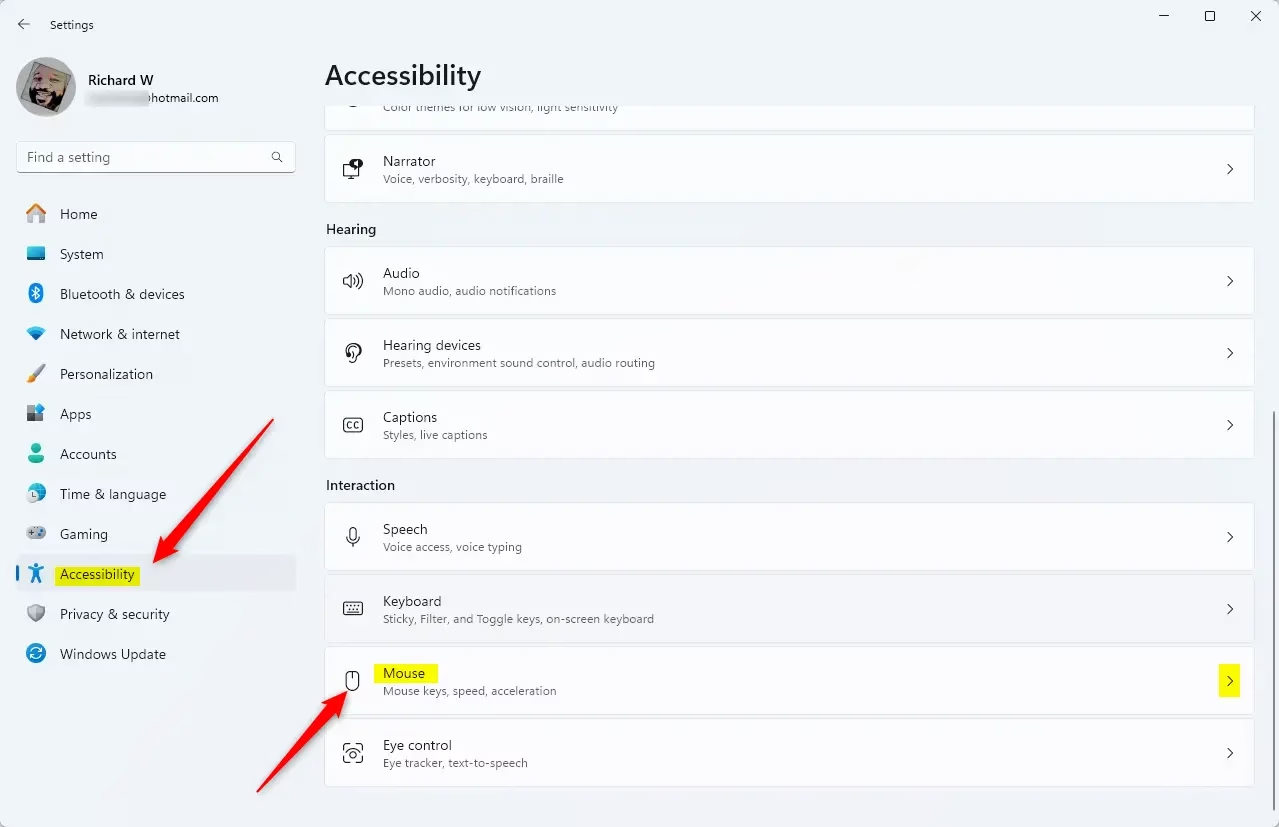
3. On the right side of the screen, click on Mouse.
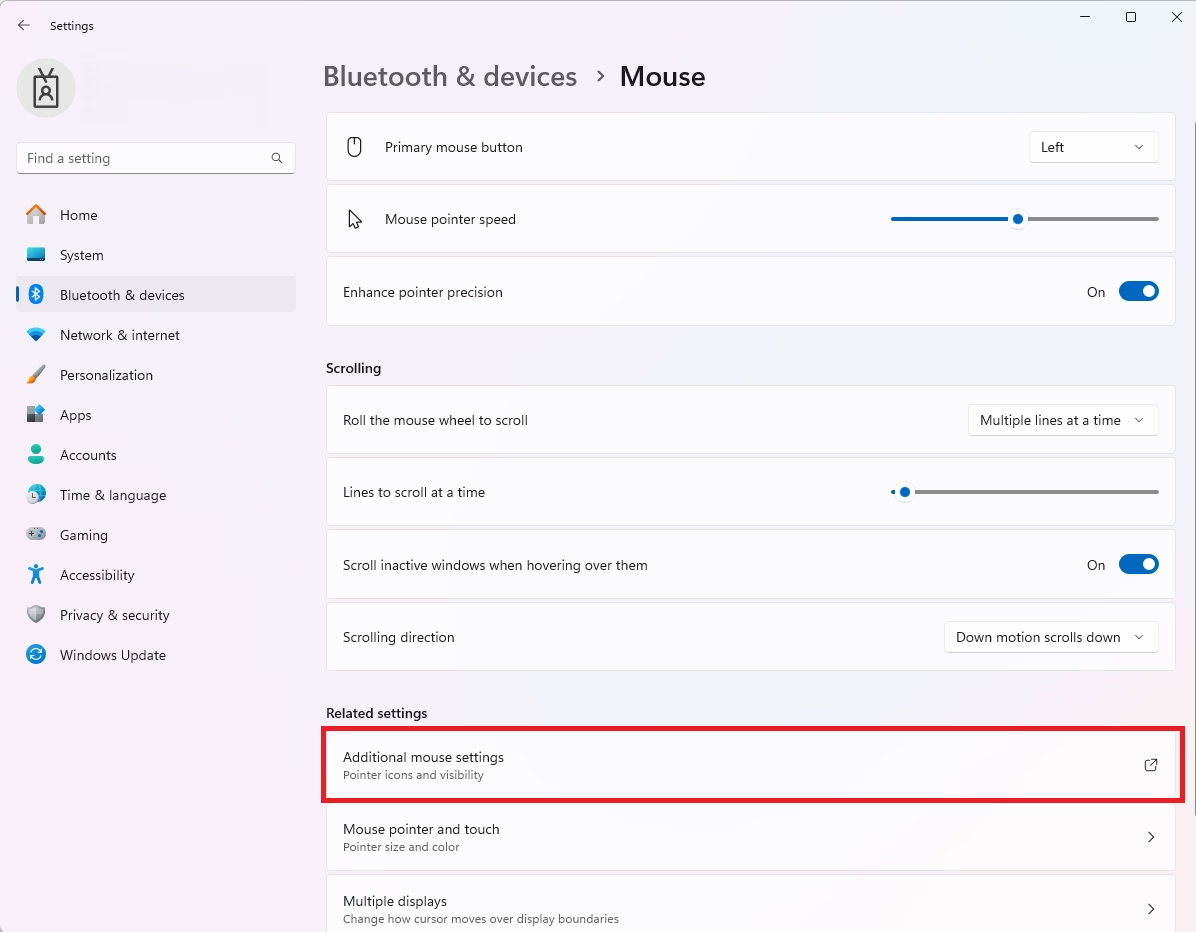
4. Scroll down to the bottom and click on Additional mouse settings.
5. A new window will appear. Click on the Pointer Options tab at the top.
6. Look for the box labeled Enhance pointer precision and uncheck it.
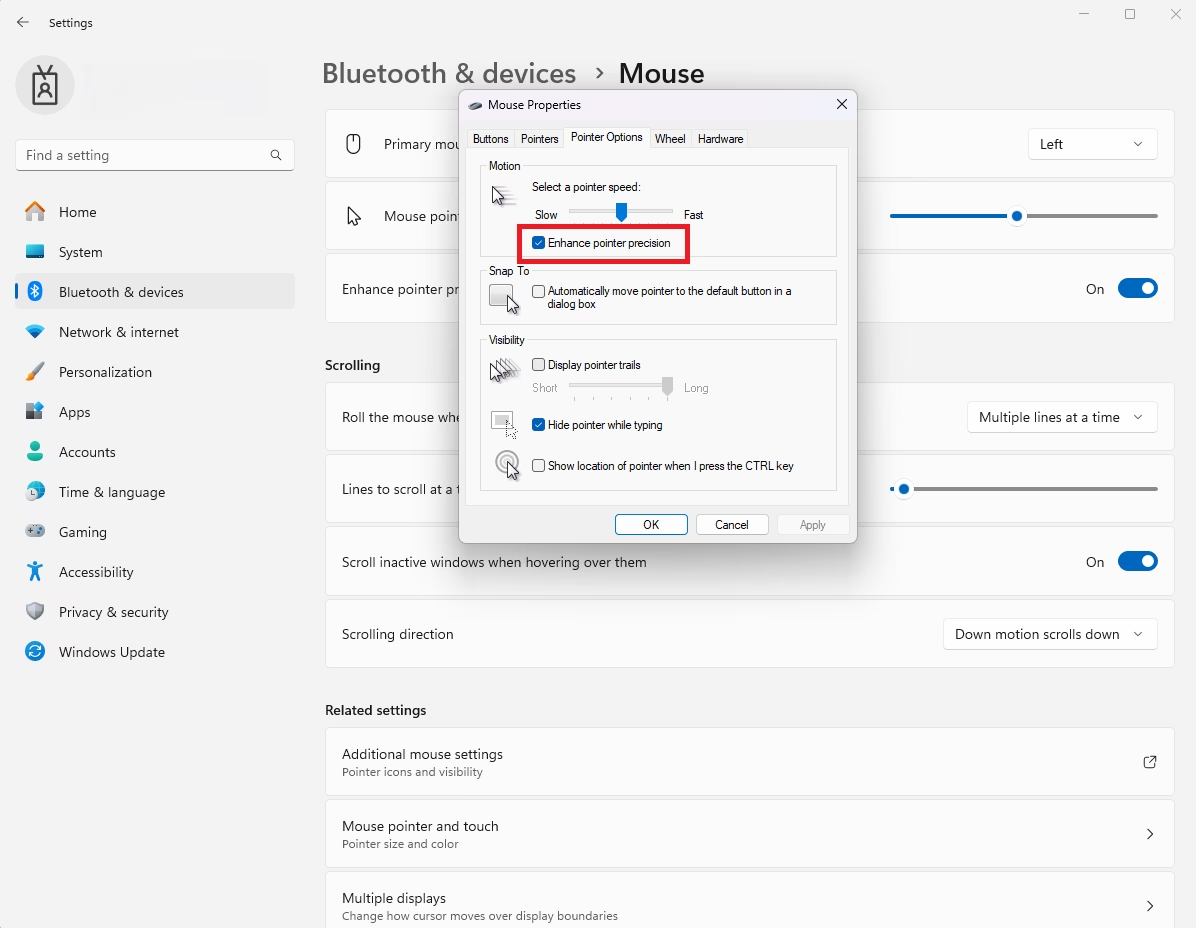
7. Click OK to save your changes.
Advanced Registry Method (Requires Admin Privileges)
For those comfortable with advanced settings, you can disable mouse acceleration in Windows 11 using the Registry Editor. This method involves a small change to a specific setting, but it requires administrator access to your computer.
1. Press Windows Key + R, type regedit, and press Enter.
2. Navigate to the following path:
HKEY_CURRENT_USER\Control Panel\Mouse
3. Find the MouseSpeed string. Double-click it and change the value to 0.
4. Click OK and restart your computer to apply changes.
reg add "HKEY_CURRENT_USER\Control Panel\Mouse" /v MouseSpeed /t REG_SZ /d 0 /fGaming Optimization and Troubleshooting
Gamers often disable mouse acceleration in Windows 11 to improve accuracy, and further optimizing your mouse settings can boost your gaming performance.
Summary
Turning off mouse acceleration is a quick way to improve your computer’s responsiveness. When you disable “Enhance pointer precision” in your mouse settings, your cursor moves in a straight, predictable line every time. This change helps you improve accuracy in all your daily tasks and gaming sessions.
Does disabling mouse acceleration improve aim in FPS games?
Yes, it significantly improves aim consistency. By removing acceleration, your muscle memory can rely on a 1:1 ratio between your physical hand movement and the in-game crosshair movement. This eliminates the variable speed factor, allowing for more precise flick shots and tracking in competitive shooters.
Is mouse acceleration the same as mouse sensitivity?
No, they are different. Sensitivity determines the base speed of your cursor. Acceleration changes that speed dynamically based on how fast you move the mouse. Disabling acceleration keeps your sensitivity constant, while changing sensitivity simply makes the cursor move faster or slower across the entire screen.
Was this guide helpful?

About the Author
Richard
Tech Writer, IT Professional
Richard, a writer for Geek Rewind, is a tech enthusiast who loves breaking down complex IT topics into simple, easy-to-understand ideas. With years of hands-on experience in system administration and enterprise IT operations, he’s developed a knack for offering practical tips and solutions. Richard aims to make technology more accessible and actionable. He's deeply committed to the Geek Rewind community, always ready to answer questions and engage in discussions.


No comments yet — be the first to share your thoughts!