How to Turn On/Off Enhance Pointer Precision in Windows 11

Want to fine-tune how your mouse pointer behaves in Windows 11? You can turn Enhance Pointer Precision on or off to adjust how its speed changes based on how fast you move your mouse.
Enhance Pointer Precision is a Windows setting that changes how your mouse pointer moves. It’s designed to help you make more precise movements when you move your mouse slowly, and to increase the speed for faster movements.
This feature can significantly impact gaming or detailed design work. You’ll find the setting within Windows 11’s Mouse Properties, often under Pointer Options.
Specifically, the settings that control this behavior are housed in the Windows Registry, typically found at `HKCU\Control Panel\Mouse` with values like `MouseSpeed`, `MouseThreshold1`, and `MouseThreshold2`.
Open Settings (⊞ Win+I), go to Bluetooth & devices, then Mouse, and toggle Enhance pointer precision under Motion. Alternatively, open Control Panel, click Mouse, go to Pointer Options, and check or uncheck the box. This setting adjusts pointer speed based on mouse movement.
Option 1
Turn On or Off Enhance Pointer Precision in Settings
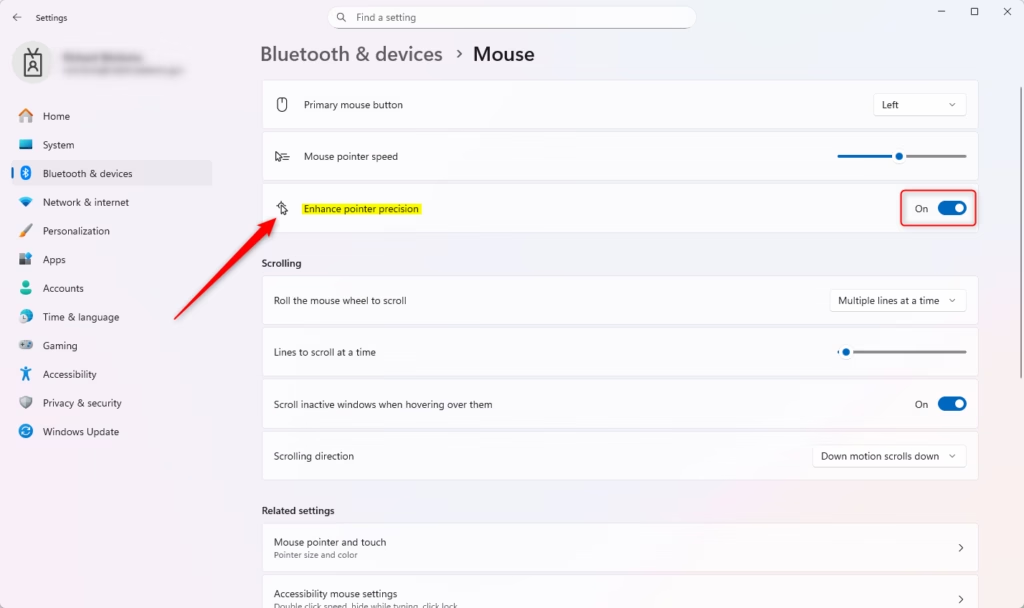
You can easily turn enhance pointer precision on or off in Windows 11 Settings by going to Bluetooth & devices, then Mouse, and using the Motion toggle.
- Open Settings by pressing
Win+I. - Click on Bluetooth & devices on the left side. Then click on Mouse on the right side.
- Under Motion, turn Enhance pointer precision On (default) or Off depending on what you want.
- Close Settings when you’re done.
Option 2
Turn On or Off Enhance Pointer Precision in Control Panel
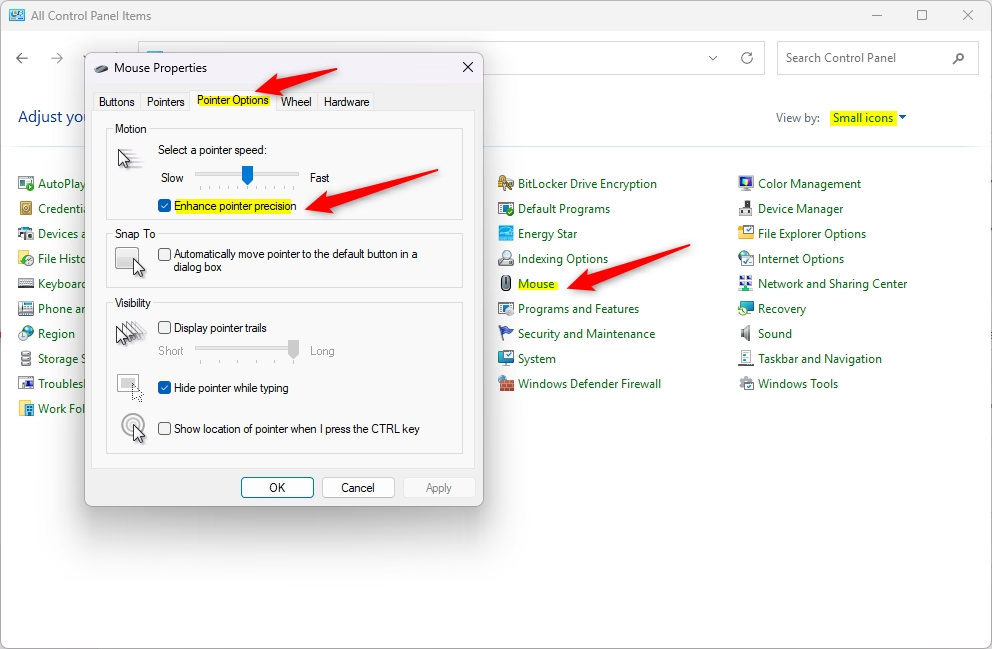
To turn enhance pointer precision on or off using the Control Panel, open it, click Mouse, go to the Pointer Options tab, and check or uncheck the box next to the setting.
- Open Control Panel in icons view. Click on the Mouse icon.
- Click on the Pointer Options tab.
- Under Motion, check the box (turns it on – default) or uncheck the box (turns it off) next to Enhance pointer precision.
- Click OK.
- Close Control Panel when you’re done.
Option 3
Turn On or Off Enhance Pointer Precision using Registry
This method gives you direct control over the exact settings. Changes take effect immediately.
⚠️ Admin privileges required
Turn On Enhance Pointer Precision
This is the default setting.
reg add "HKEY_CURRENT_USER\Control Panel\Mouse" /v MouseSpeed /t REG_SZ /d 1 /f
reg add "HKEY_CURRENT_USER\Control Panel\Mouse" /v MouseThreshold1 /t REG_SZ /d 6 /f
reg add "HKEY_CURRENT_USER\Control Panel\Mouse" /v MouseThreshold2 /t REG_SZ /d 10 /f
Turn Off Enhance Pointer Precision
reg add "HKEY_CURRENT_USER\Control Panel\Mouse" /v MouseSpeed /t REG_SZ /d 0 /f
reg add "HKEY_CURRENT_USER\Control Panel\Mouse" /v MouseThreshold1 /t REG_SZ /d 0 /f
reg add "HKEY_CURRENT_USER\Control Panel\Mouse" /v MouseThreshold2 /t REG_SZ /d 0 /f
Summary
Enhance pointer precision is a Windows feature that changes how your mouse pointer moves, making it more accurate for some tasks.
Should I turn enhance pointer precision on?
You should turn enhance pointer precision on if you do office tasks, as it helps accuracy with slow mouse movements, but gamers and designers often turn it off for consistent cursor speed.
How do I enhance cursor precision in Windows?
You can enhance cursor precision in Windows by opening Settings, going to Bluetooth & devices, selecting Mouse, and turning on the Enhance pointer precision option under Motion.
How to turn on enhanced pointer precision?
To turn on enhanced pointer precision, press the Windows key + I to open Settings, click Bluetooth & devices, select Mouse, and then switch on the Enhance pointer precision option in the Motion section.
How to get 1600 DPI on 🪟 Windows 11?
Windows 11 does not have a native DPI setting for your mouse. To achieve 1600 DPI, you must use your mouse manufacturer's dedicated software, such as Logitech G Hub, Razer Synapse, or Corsair iCUE. Install the software, locate the sensitivity or DPI tab, and manually adjust the slider to 1600 DPI.
Was this guide helpful?

About the Author
Richard
Tech Writer, IT Professional
Richard, a writer for Geek Rewind, is a tech enthusiast who loves breaking down complex IT topics into simple, easy-to-understand ideas. With years of hands-on experience in system administration and enterprise IT operations, he’s developed a knack for offering practical tips and solutions. Richard aims to make technology more accessible and actionable. He's deeply committed to the Geek Rewind community, always ready to answer questions and engage in discussions.



No comments yet — be the first to share your thoughts!