How to Enable or Disable Google Drive Launch on Login

This guide explains how to control whether Google Drive starts automatically when you sign in to your Windows 11 computer.
Google Drive is a service that lets you save files online and sync them across all your devices. By default, the app starts running in the background as soon as you turn on your computer.
Why change this setting?
You might want to stop Google Drive from starting automatically if your computer feels slow when it first turns on. Disabling it saves system resources. If you use Google Drive every day, you might prefer to keep it enabled so your files are always ready to go.
What happens when you change this?
If you disable the setting, the app will not run until you manually click the icon to open it. If you enable it, the app will start itself every time you log in.
Follow these steps to change your preferences:
- Look at your taskbar near the clock. Click the Taskbar overflow (the small arrow) and select the Google Drive icon to open the flyout window.
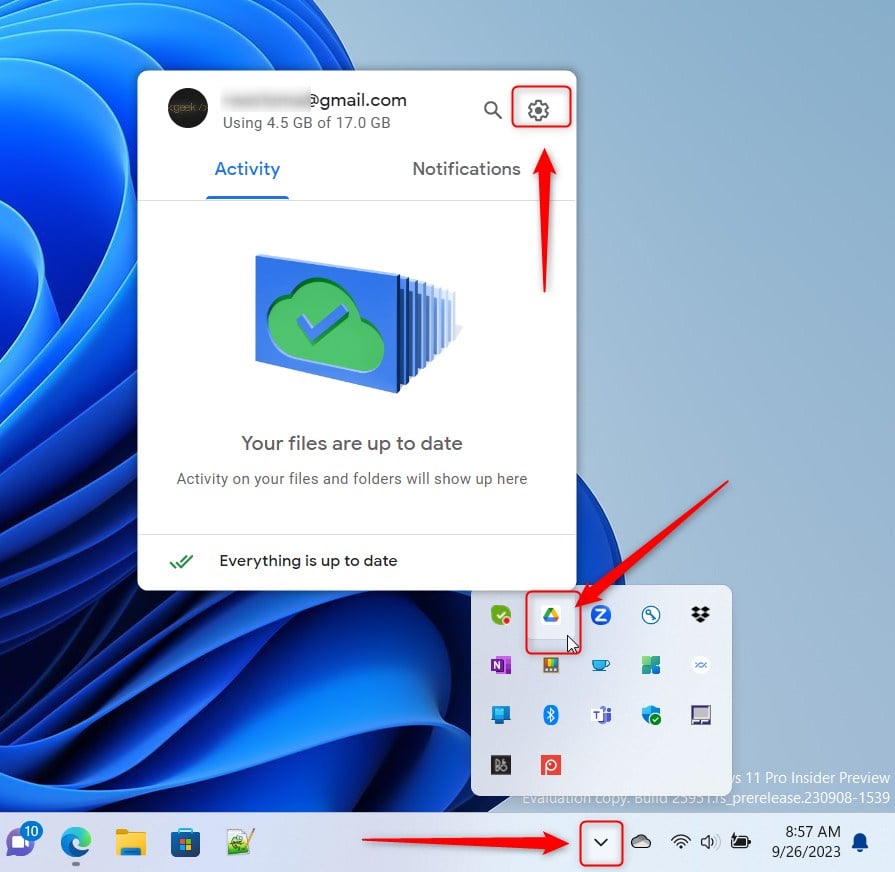
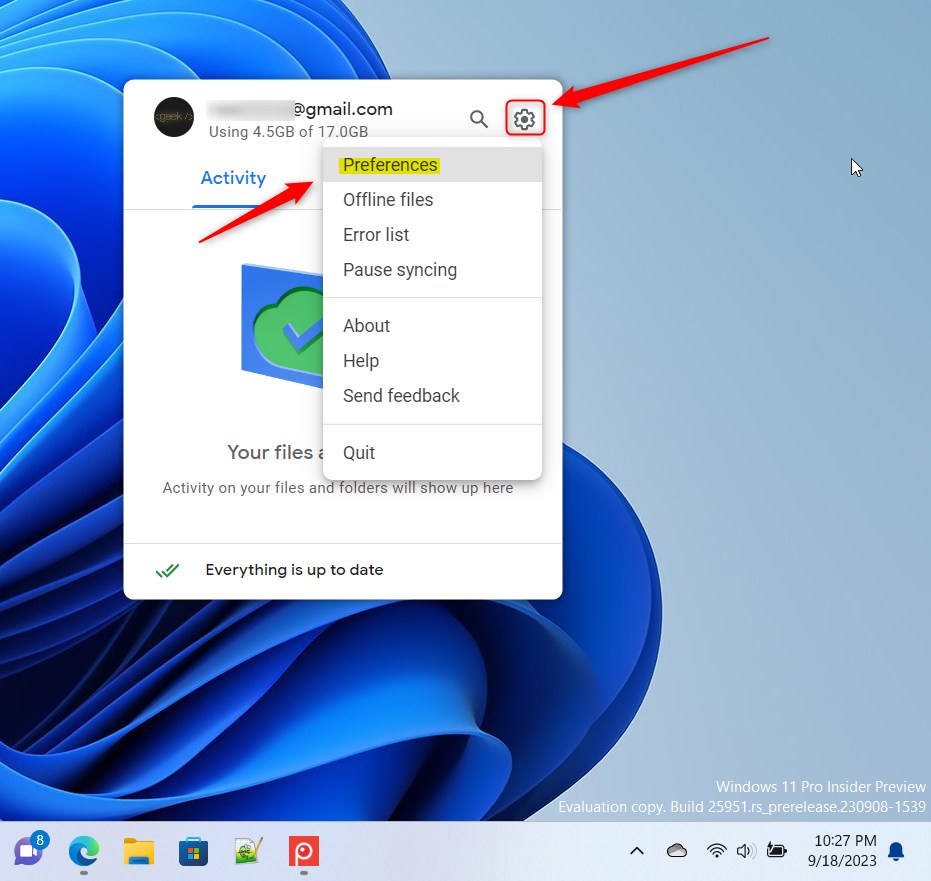
- In the window that appears, click the Settings (gear icon) at the top and select Preferences.
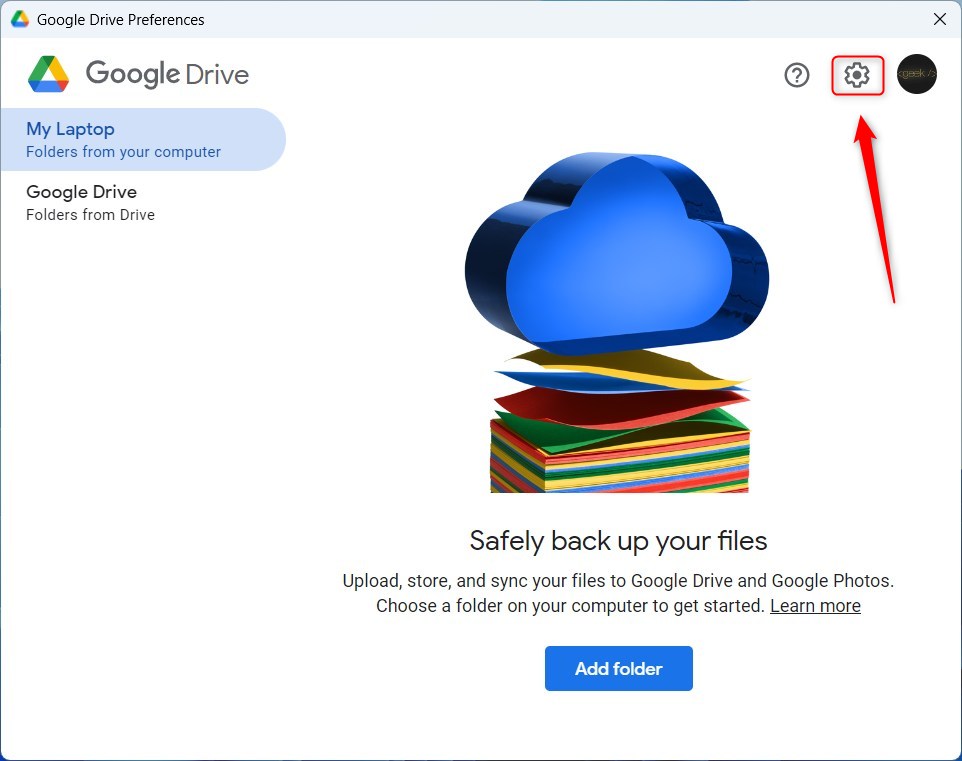
- On the new screen, click the Settings gear icon located at the top right.
- Find the section labeled Launch on login. Check the box to turn the feature on, or uncheck the box to turn it off.
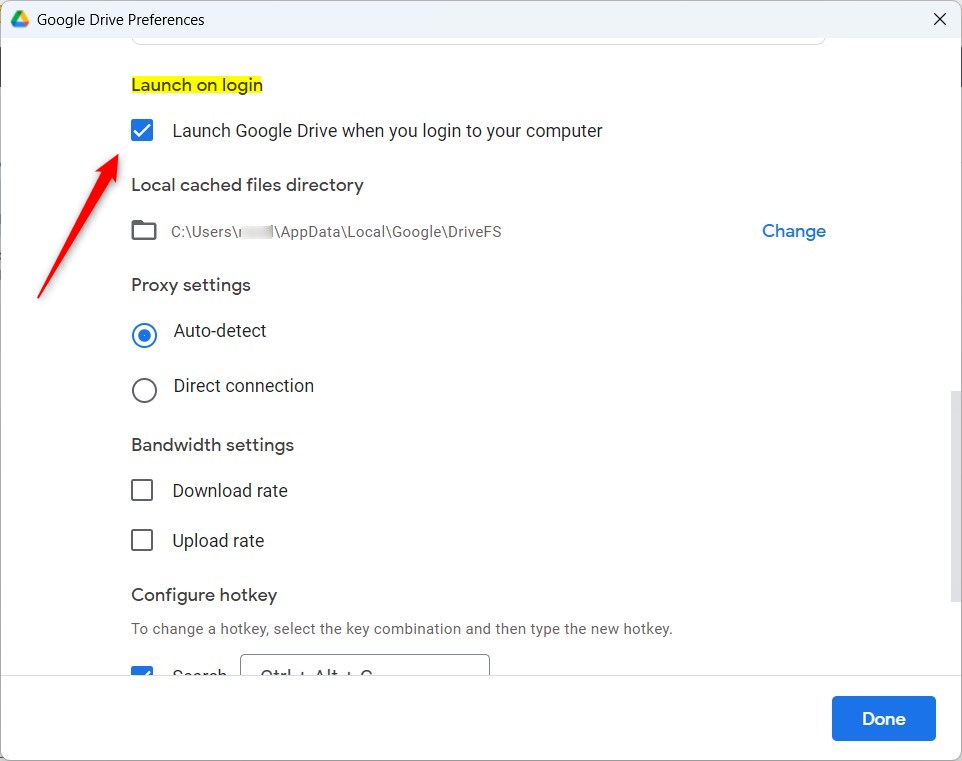
Note: No administrative privileges are required to change these settings within the Google Drive app.
Summary
- Disabling automatic startup helps your computer boot faster and uses less memory.
- Enabling automatic startup ensures your files stay synced without you having to remember to open the app.
- You can always turn this feature back on or off by following the steps above.
How do I enable Google Drive to launch on login?
How can I disable Google Drive from starting at login?
What happens if I disable Google Drive from launching at login?
Why would I want Google Drive to launch at login?
Can I change the Google Drive launch settings later?
Was this guide helpful?





[…] can use the Google Drive app on Windows to manage your files. You can install and start Google Drive at login, stream Google Drive to a folder or driver letter, pause syncing, add files and photos to sync with […]
[…] can install and start Google Drive at login, stream Google Drive to a folder or driver letter, pause syncing, add files and photos to sync with […]
[…] can manage many options with the Google Drive app. Users can install and start Google Drive at login, stream Google Drive to a folder or driver letter, pause syncing, and […]