How to Pause and Resume Google Drive Sync on Windows 11

You pause and resume Google Drive sync on Windows 11 by right-clicking the Google Drive icon in your system tray and selecting the desired option.
Pausing Google Drive sync temporarily stops the upload and download of your files between your PC and the cloud, preventing unnecessary data usage or system strain.
Google Drive is a cloud storage service that keeps your files accessible across multiple devices and facilitates file sharing. Version 60.0.0 of the Google Drive desktop application is the current iteration for Windows.
To pause Google Drive sync, right-click the Google Drive icon in your system tray, click the gear icon, and select “Pause syncing.” To resume, repeat these steps and select “Resume syncing.
Quick Answer: How to Pause Google Drive Sync
To pause Google Drive sync, click the Google Drive icon in your Windows 11 system tray (bottom right corner), click the Settings gear icon, and select Pause syncing. This stops all uploads and downloads until you manually choose to resume.
Why pause Google Drive sync?
Why: You might have a slow internet connection or a limited data plan. Pausing sync saves your bandwidth for important tasks like video calls or gaming. It also prevents the app from using resources when you need your computer to run at full speed.
What happens when done: When you pause, the app stops talking to the cloud. Your files stay exactly where they are on your computer and in the cloud. No new changes will be uploaded, and no new files will be downloaded until you click Resume syncing.
How to pause Google Drive sync on 🪟 Windows 11
1. Look at the bottom right corner of your screen. Click the small arrow to open the Taskbar overflow menu.
2. Click the Google Drive icon to open the menu window.
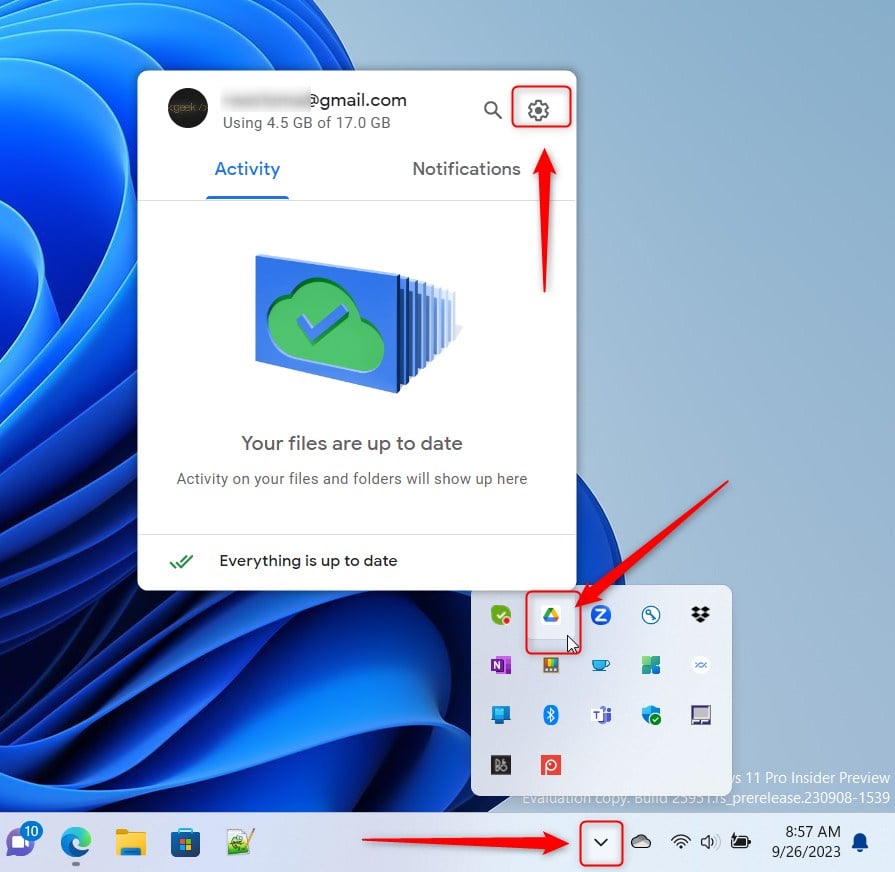
3. Click the Settings gear icon at the top right of the window.
4. Select Pause syncing.

Google Drive will stay paused until you tell it to start again.
How to resume syncing
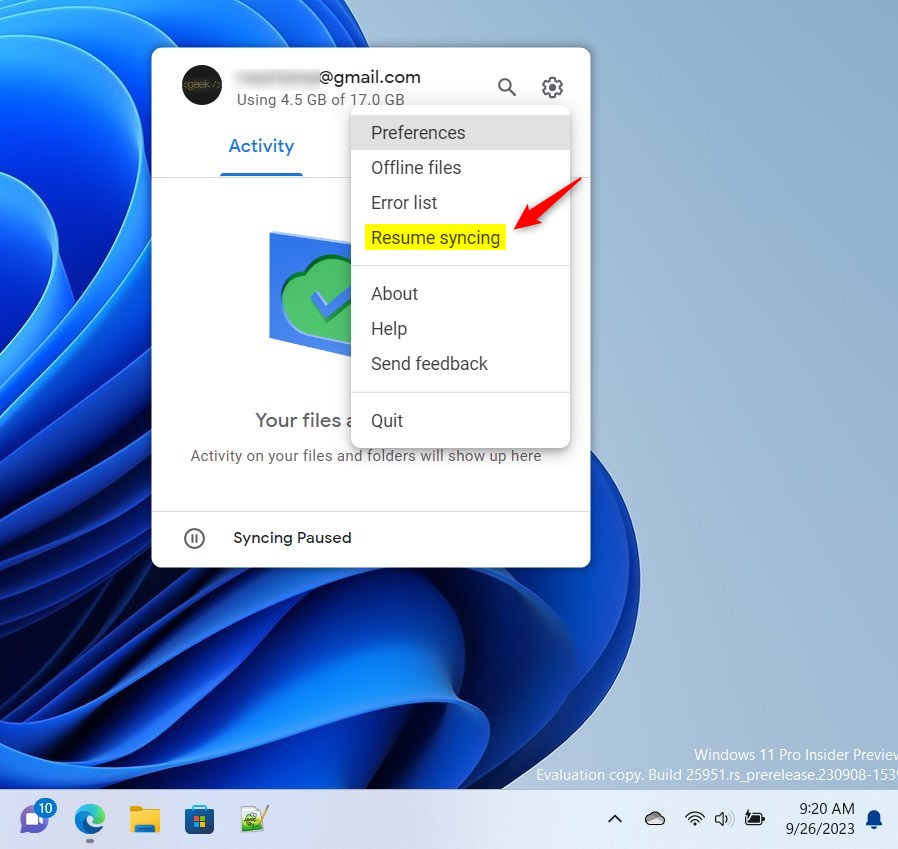
1. Click the Google Drive icon in the Taskbar overflow menu again.
2. Click the Settings gear icon.
3. Select Resume syncing.
Checking your sync status
You can always check if your files are up to date by looking at the Google Drive icon. If you see a small pause symbol, the app is currently paused. If you see a spinning icon, it is actively syncing. If it is a solid icon, your files are fully synced.
Troubleshooting sync errors
If your files are not syncing, first check your internet connection. If the app is stuck, you can try restarting it. Note: If you need to reinstall the app, you may need admin privileges to run the installer from 📁C:\Program Files\Google\Drive. You can download the latest version from the official Google Drive download page.
Streaming vs Mirroring
Google Drive for Desktop offers two ways to handle files. Streaming keeps files in the cloud and only downloads them when you open them. Mirroring saves a copy of your files on your computer. Pausing sync affects both methods, as it stops the app from checking for updates in either direction.
Does pausing Google Drive sync delete my files?
No, pausing Google Drive sync does not delete your files. It simply puts the synchronization process on hold. Your files remain safely stored on your local hard drive and in your Google Drive cloud account. Once you resume syncing, the app will compare your files and upload or download any changes made during the pause.
Can I pause sync for specific folders only?
Currently, the Google Drive desktop app does not support pausing sync for individual folders. The pause function applies to the entire application. If you want to stop specific folders from syncing, you must adjust your sync preferences in the settings menu to remove those folders from the list of items being backed up or mirrored.
Summary
Pausing Google Drive sync is a simple way to manage your bandwidth and computer performance. Whether you are on a slow connection or just need to focus, you can easily stop and start the sync process using the system tray icon. Remember that pausing does not delete your data; it just waits for your command to resume. For more control, ensure your Google Drive for Desktop app is updated to the latest version.
Was this guide helpful?

About the Author
Richard
Tech Writer, IT Professional
Richard, a writer for Geek Rewind, is a tech enthusiast who loves breaking down complex IT topics into simple, easy-to-understand ideas. With years of hands-on experience in system administration and enterprise IT operations, he’s developed a knack for offering practical tips and solutions. Richard aims to make technology more accessible and actionable. He's deeply committed to the Geek Rewind community, always ready to answer questions and engage in discussions.



[…] and start Google Drive at login, stream Google Drive to a folder or driver letter, pause syncing, add files and photos to sync with Google Drive, stream or mirror their files on Google […]
[…] and start Google Drive at login, stream Google Drive to a folder or driver letter, pause syncing, add files and photos to sync with Google Drive, stream or mirror their files on Google Drive, […]
[…] and start Google Drive at login, stream Google Drive to a folder or driver letter, pause syncing, add files and photos to sync with Google Drive, and […]
[…] can install and start Google Drive at login, stream Google Drive to a folder or driver letter, pause syncing, and […]