How to Sync Files & Photos to Google Drive in Windows 11

You sync your files and photos to Google Drive in Windows 11 by installing and configuring Google Drive for desktop.
Google Drive is Google’s cloud storage service, allowing you to access your documents, photos, and other files from any device.
This tool enables seamless synchronization, ensuring your important data is backed up online and available across your ecosystem. You can choose specific folders on your PC, including your Pictures folder, to automatically upload to Google Drive.
The Google Drive for desktop application, available since its initial release, is essential for achieving this integration on your Windows 11 PC.
Install Google Drive for desktop and sign in with your Google account. In Preferences, select “Folders from your computer,” click “Add folder,” choose your desired files, and select “Sync with Google Drive” or “Back up to Google Photos.
Why sync your files?
Syncing your files keeps your data safe. If your computer breaks or is lost, your files remain in the cloud. It also lets you open documents or view photos from your phone or tablet. You gain peace of mind knowing your work is backed up automatically.
What happens when done?
Once you finish, your computer will upload new files to your Google account. You can see these items on any device where you are signed in. The Google Drive app runs in the background to keep everything updated in real-time.
Google Drive for Desktop: Stream vs. Mirror
When you set up Google Drive, you must choose how your files appear on your computer. Use this table to decide:
| Feature | Stream Files | Mirror Files |
|---|---|---|
| Hard Drive Space | Uses very little space | Uses space for all files |
| Offline Access | Only for selected files | All files are available |
| Best For | Users with limited space | Users who need constant access |
Installing Google Drive for Desktop
Note: You must have administrative rights on your PC to install this software. Download the installer from the official Google website and run the file. Follow the on-screen prompts to sign in with your Google account.
Adding Folders to Sync
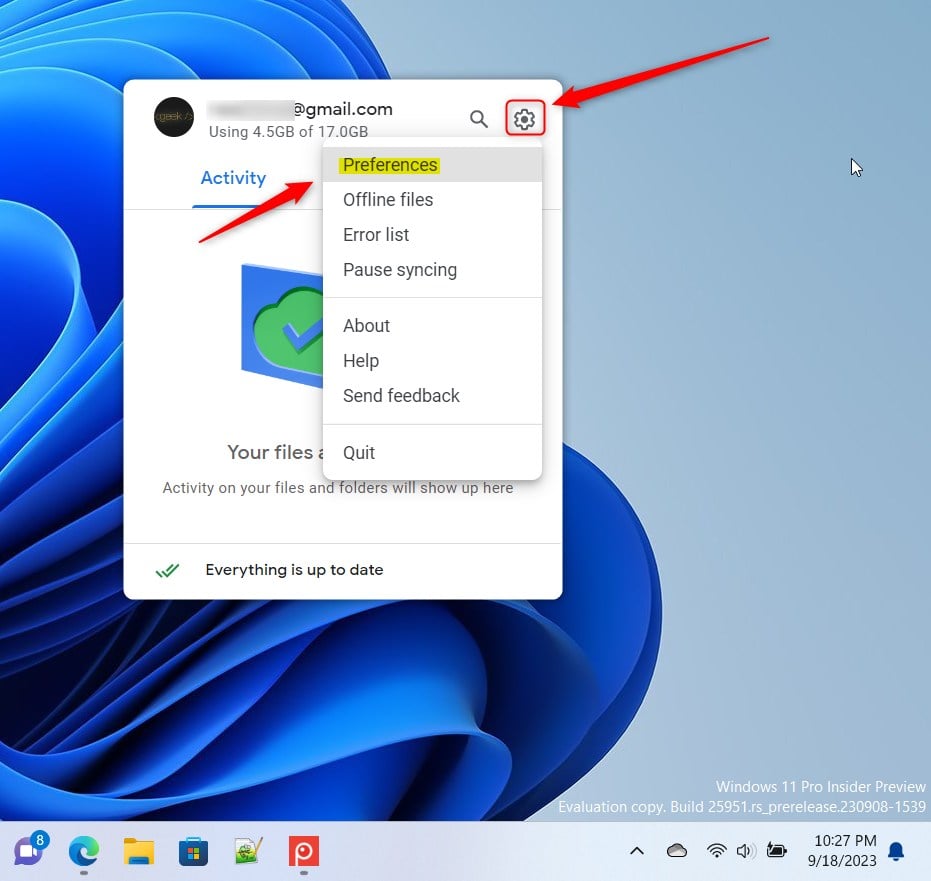
1. Open the Google Drive window from your taskbar. Click the small arrow in the bottom right corner of your screen and click the Google Drive icon.

2. Click the Settings gear icon at the top right and select Preferences.
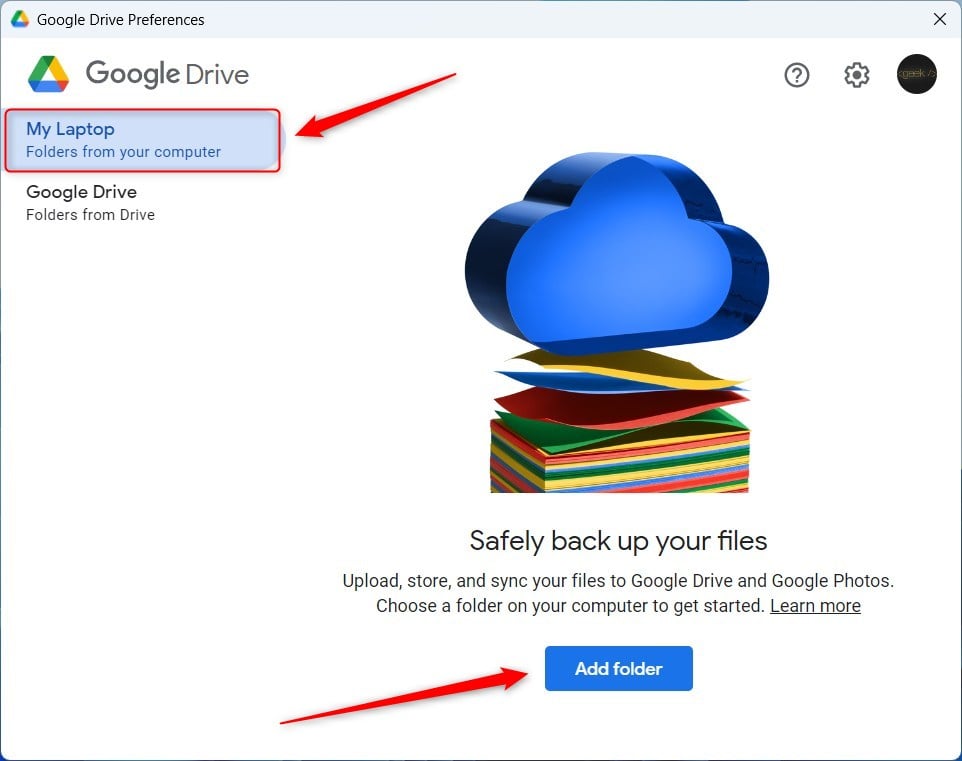
3. Select Folders from your computer on the left side. Click the Add folder button to pick a folder on your PC, such as 📁C:\Users\GenericUser\Documents.
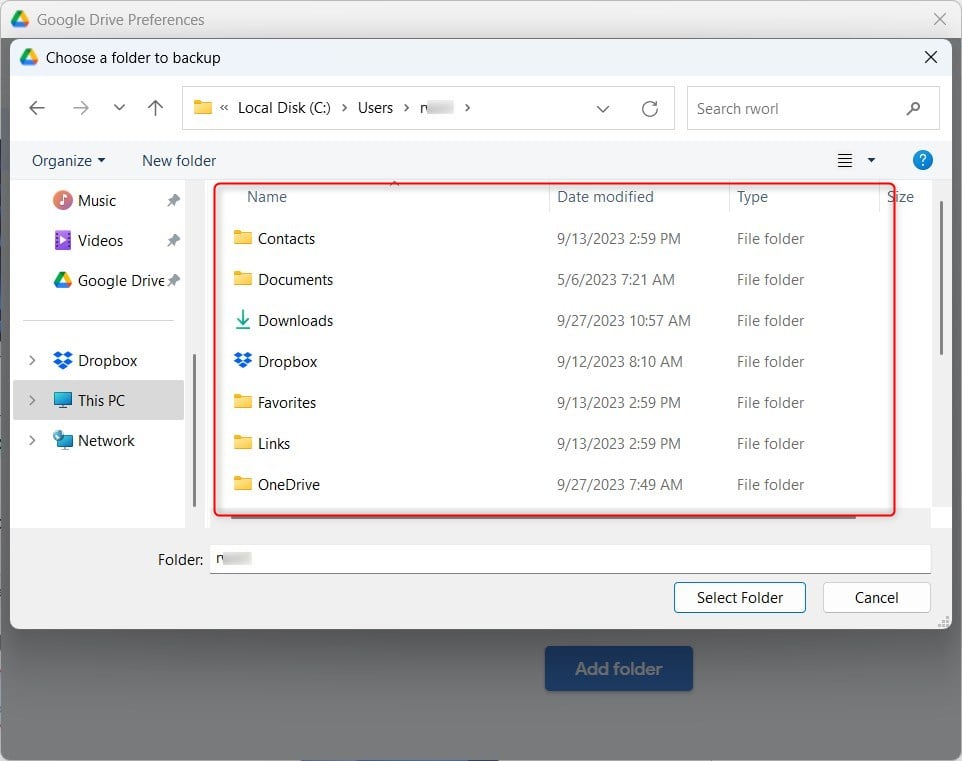
4. In File Explorer, choose the folder you want to back up.
5. If you are backing up documents, choose Sync with Google Drive.
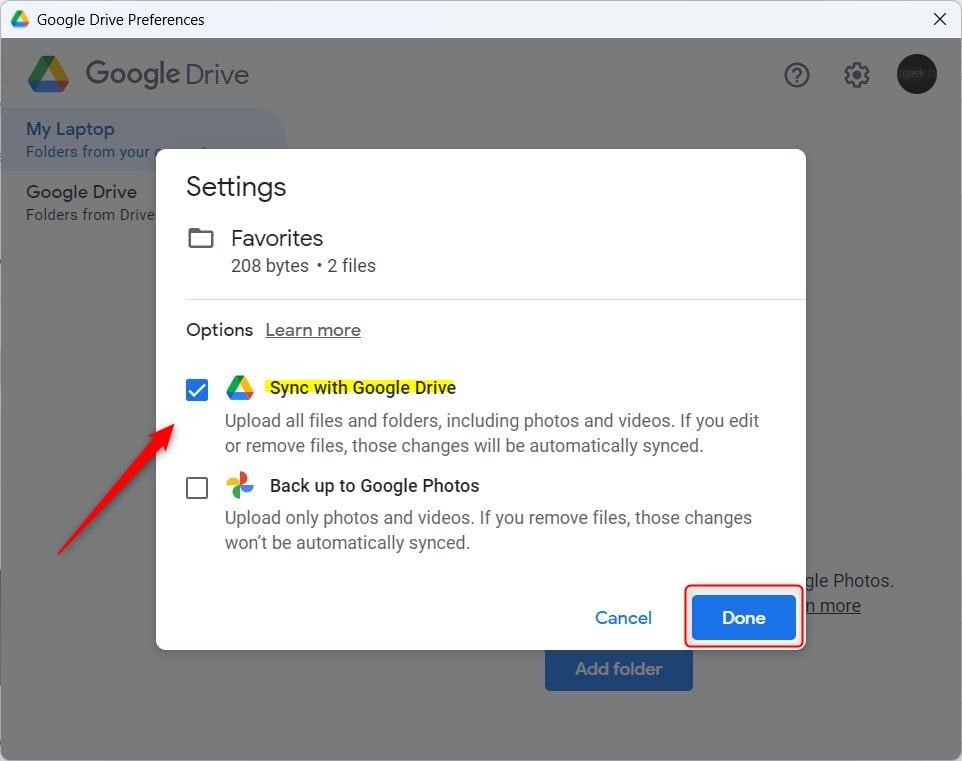
6. If you are backing up photos, choose Back up to Google Photos instead.
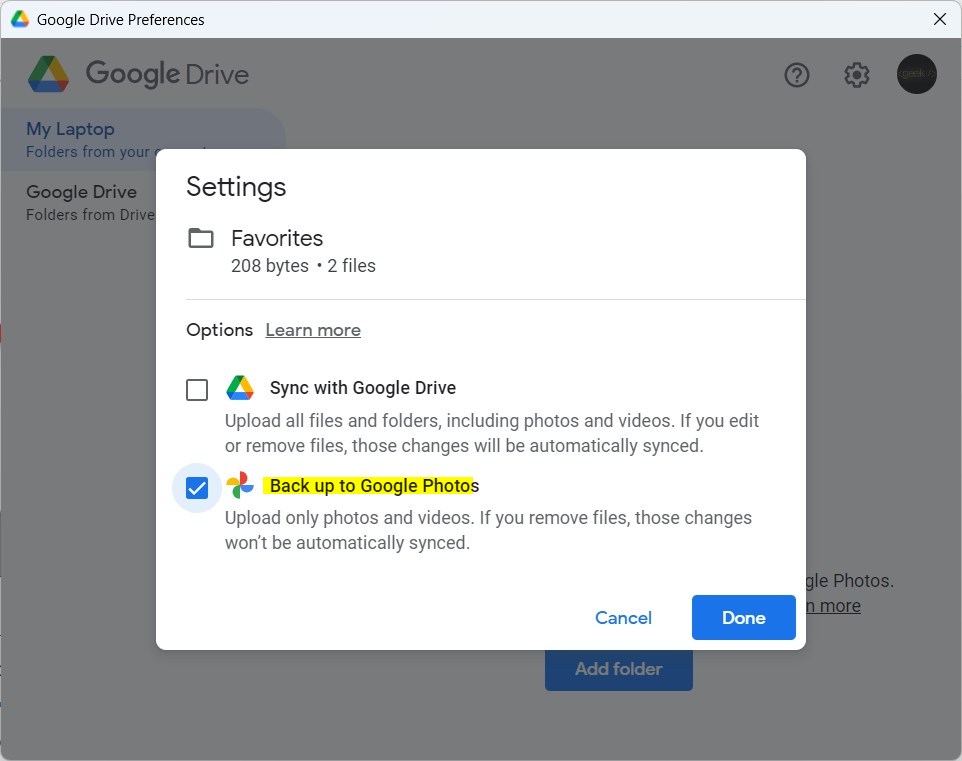
7. Click Done to save your changes.
Advanced Configuration and Bandwidth
You can control how much internet speed Google Drive uses. In Preferences, click the Settings gear icon. Look for Bandwidth settings. You can limit the download and upload rates if your internet connection is slow. This prevents the app from hogging your connection while you work.
Troubleshooting Sync Errors
If files are not syncing, check the Sync status icon in your taskbar. If it shows an error, click it to see specific messages. Often, restarting the app or checking your internet connection fixes the issue. Ensure you have enough storage space in your Google account.
Multi-Account Management
Google Drive for Desktop allows you to add multiple accounts. Click your profile icon in the app settings and select Add another account. You can switch between accounts easily to manage work and personal files separately.
Summary
Syncing your files to Google Drive provides a secure, automatic backup for your important data. By choosing between streaming and mirroring, managing your bandwidth, and using multiple accounts, you can customize your cloud storage experience. For more help, visit the Google Drive Support page.
How do I fix Google Drive sync errors?
To fix sync errors, first check your internet connection. Click the Google Drive icon in your taskbar to view the sync status. If an error persists, try restarting the application or signing out and back into your account. Ensure your local drive has enough space to accommodate the files you are syncing.
Can I sync files without downloading them to my hard drive?
Yes, by using the ‘Stream files’ option in Google Drive preferences. This keeps your files in the cloud and only downloads them to your computer when you open them. This is an excellent way to save storage space on your hard drive while keeping all your data accessible.
How do I pause syncing in Google Drive?
To pause syncing, click the Google Drive icon in your taskbar, click the Settings gear icon, and select ‘Pause syncing’. This stops all uploads and downloads until you choose to resume. This is helpful if you need to dedicate your full internet bandwidth to another task like a video call.
Does Google Drive sync files automatically?
Yes, once configured, Google Drive for Desktop runs in the background and syncs files automatically. Any changes you make to files within your synced folders are detected and uploaded to the cloud in real-time. This ensures your backup is always up to date without requiring any manual intervention from you.
Was this guide helpful?

About the Author
Richard
Tech Writer, IT Professional
Richard, a writer for Geek Rewind, is a tech enthusiast who loves breaking down complex IT topics into simple, easy-to-understand ideas. With years of hands-on experience in system administration and enterprise IT operations, he’s developed a knack for offering practical tips and solutions. Richard aims to make technology more accessible and actionable. He's deeply committed to the Geek Rewind community, always ready to answer questions and engage in discussions.



Why does my google drive app not have a settings icon or “flyout window” as you describe?
Download the official Google Drive Windows app from the link below.
https://www.google.com/drive/download/
[…] Drive at login, stream Google Drive to a folder or driver letter, pause syncing, add files and photos to sync with Google Drive, stream or mirror files on Google Drive, and […]
[…] Google Drive at login, stream Google Drive to a folder or driver letter, pause syncing, add files and photos to sync with Google Drive, stream or mirror their files on Google Drive, and […]
[…] and start Google Drive at login, stream Google Drive to a folder or driver letter, pause syncing, add files and photos to sync with Google Drive, stream or mirror their files on Google Drive, and […]