How to Enable or Disable Google Drive Launch on Login

You can enable or disable Google Drive from launching automatically when you log into Windows to manage system resources and your workflow.
Google Drive for desktop is an application that synchronizes your files between your computer and cloud storage. By default, it’s set to start with Windows, which can impact startup speed if you have many applications launching at once.
Disabling this feature can free up valuable memory and CPU power during your computer’s boot process, leading to a faster startup. Conversely, keeping it enabled ensures your files are always up-to-date the moment you log in, which is ideal if you heavily rely on cloud storage.
When disabled, Google Drive remains closed until you manually open it. When enabled, it runs quietly in the background, managing file synchronization without further input.
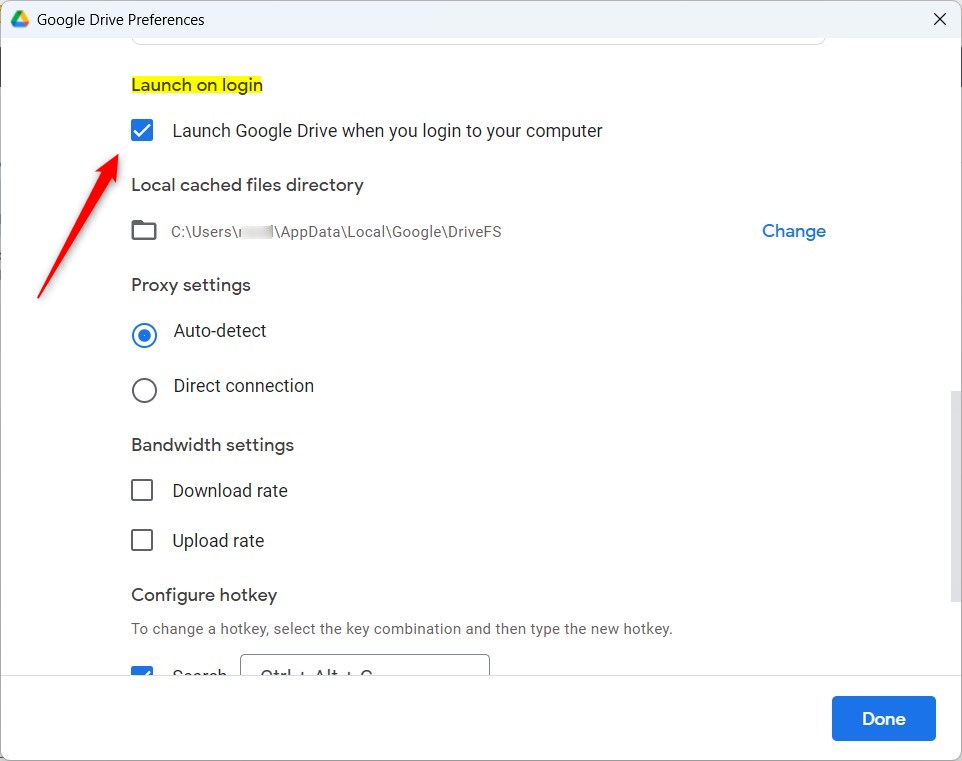
Open Google Drive preferences, click the Settings gear, and then check or uncheck the “Launch on login” box. This setting controls whether Google Drive starts automatically when you log into your computer.
How to Configure Google Drive Startup on Windows
Managing your startup applications is straightforward. Follow these steps to adjust your preferences:
- Look at your taskbar near the clock. Click the Taskbar overflow (the small arrow) and select the Google Drive icon to open the flyout window.
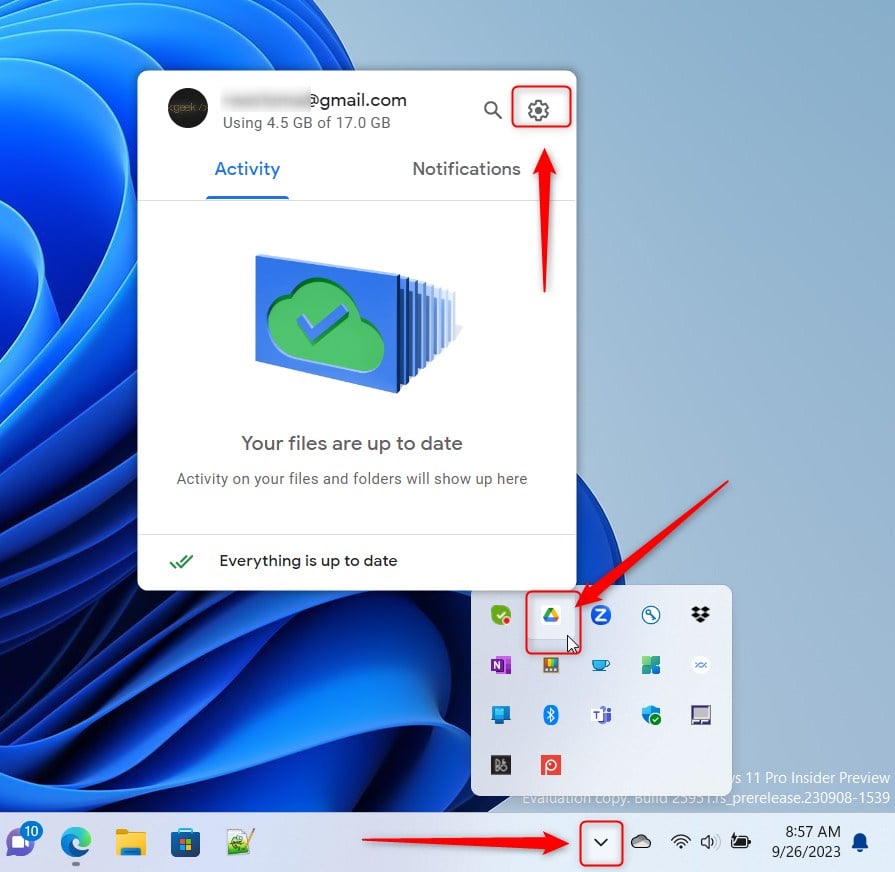
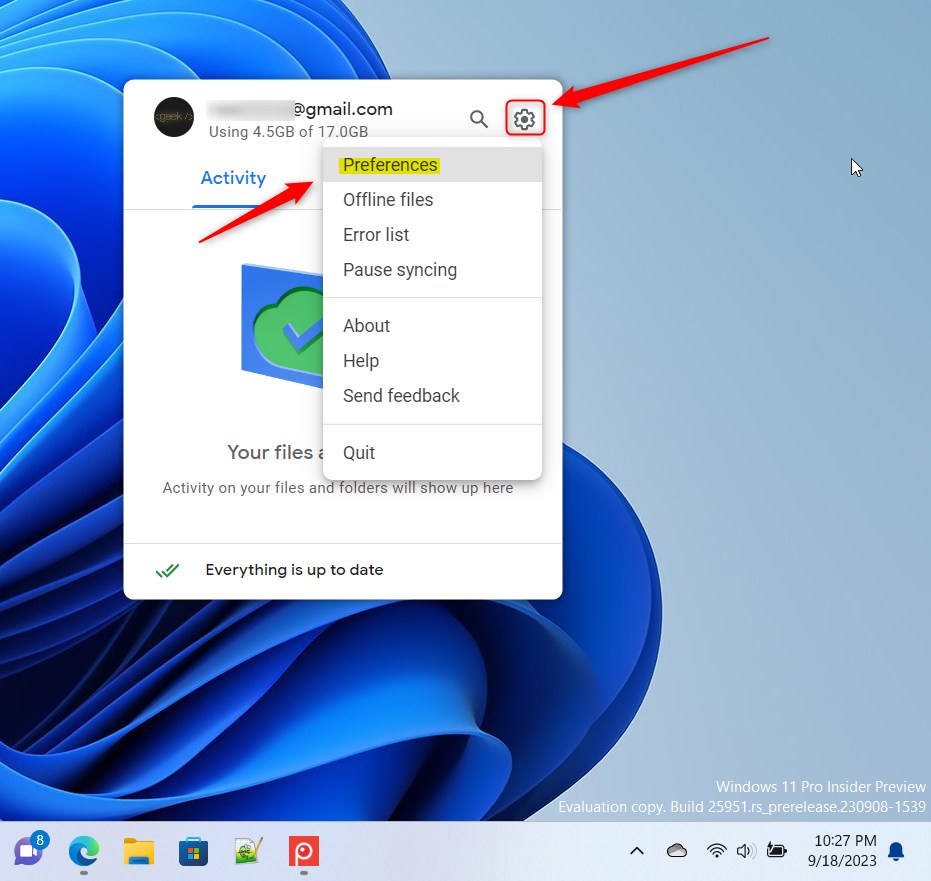
- In the window that appears, click the Settings (gear icon) at the top and select Preferences.
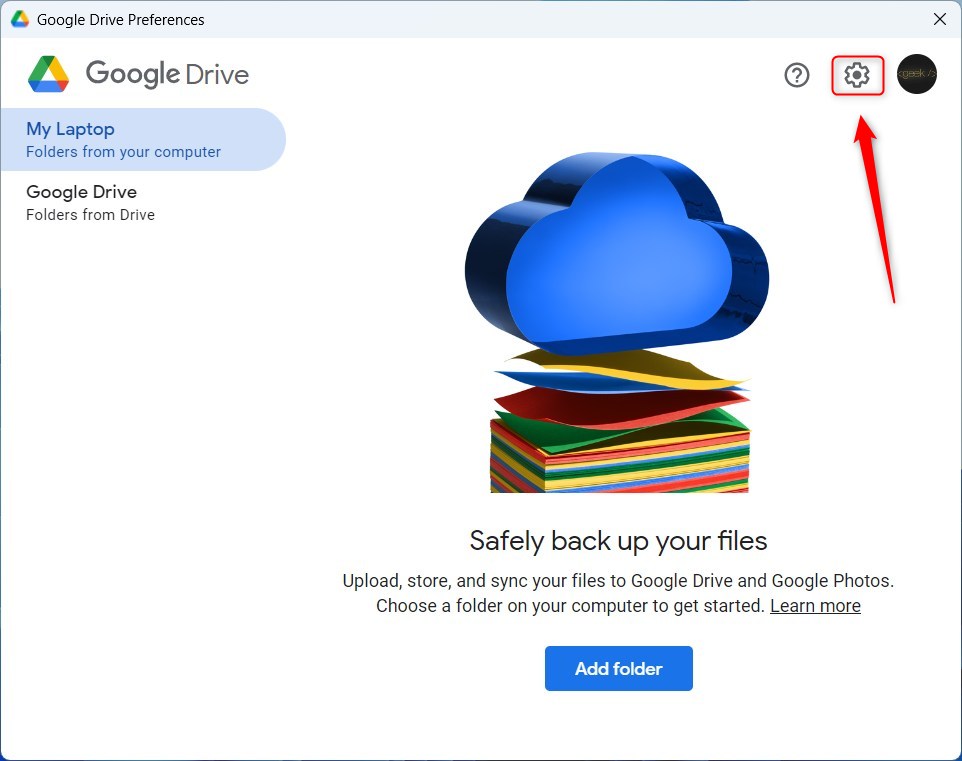
- On the new screen, click the Settings gear icon located at the top right.
- Find the section labeled Launch on login. Check or uncheck the box to toggle the feature.
Note: No administrative privileges are required to change these settings within the Google Drive app.
Managing Startup Items on macOS
If you are using a Mac, the process is slightly different. You can manage login items through your System Settings:
- Open the Apple Menu and select System Settings.
- Navigate to General and then click Login Items.
- Look for Google Drive in the list. If it is present, you can remove it using the minus (-) button to stop it from launching at login.
Troubleshooting Launch Failures
If Google Drive fails to start even when the setting is enabled, consider these steps:
- Check Task Manager (Windows): Press Ctrl+Shift+Esc. Look under the Startup tab to ensure Google Drive is set to Enabled.
- Reinstall the App: Sometimes, corrupted files prevent the app from launching. Reinstalling the latest version from the official Google website often resolves this.
- Check System Permissions: Ensure your user account has the necessary permissions to execute files in the installation directory, typically located at 📁C:\Program Files\Google\Drive File Stream.
Advanced Configuration: Streaming vs. Mirroring
When configuring your Google Drive preferences, you may choose between Streaming and Mirroring. Streaming files saves space by keeping them in the cloud, while Mirroring saves a copy on your local hard drive. Both methods rely on the app running in the background, so ensure your launch settings are configured correctly to maintain consistent syncing.
Summary
- Disabling automatic startup helps your computer boot faster and uses less memory.
- Enabling automatic startup ensures your files stay synced without you having to remember to open the app.
- You can manage these settings via the Google Drive Preferences menu or your OS startup settings.
- Always ensure your app is updated to the latest version to avoid background sync issues.
Does disabling launch on login affect file syncing?
Yes, if you disable the launch on login setting, Google Drive will not start automatically when you turn on your computer. Consequently, file syncing will not occur until you manually open the application. Once you launch the app, it will resume syncing your files to ensure they are up to date.
Will Google Drive slow down my computer startup time?
Google Drive does consume system resources during the startup process as it initializes and checks for file changes. On older computers or systems with limited RAM, having many startup applications can lead to a noticeable delay. Disabling unnecessary startup items, including Google Drive, can help improve your overall boot speed.
Was this guide helpful?

About the Author
Richard
Tech Writer, IT Professional
Richard, a writer for Geek Rewind, is a tech enthusiast who loves breaking down complex IT topics into simple, easy-to-understand ideas. With years of hands-on experience in system administration and enterprise IT operations, he’s developed a knack for offering practical tips and solutions. Richard aims to make technology more accessible and actionable. He's deeply committed to the Geek Rewind community, always ready to answer questions and engage in discussions.



[…] can use the Google Drive app on Windows to manage your files. You can install and start Google Drive at login, stream Google Drive to a folder or driver letter, pause syncing, add files and photos to sync with […]
[…] can install and start Google Drive at login, stream Google Drive to a folder or driver letter, pause syncing, add files and photos to sync with […]
[…] can manage many options with the Google Drive app. Users can install and start Google Drive at login, stream Google Drive to a folder or driver letter, pause syncing, and […]
[…] can change many settings in the Google Drive app. You can install and start Google Drive at login, stream Google Drive to a folder or driver letter, pause syncing, add files and photos to sync with […]