

This article explains how to turn “Auto-verify” on or off in the Google Chrome web browser.
Google Chrome is a cross-platform web browser developed by Google. It and Microsoft Edge share the same codebase. They are practically identical in basic functionalities, using browsing activities, including history and other browsing data, to provide personalized ads, search, shopping, and news.
Starting with Chrome version 121 and higher, a new “Auto-verify” feature was added so that sites can help verify you’re not a bot. When turned on, the sites you visit can verify you’re a natural person and not a bot.
This is done by saving a small amount of info with Chrome, mainly to validate you’re not a bot.
People may want to turn “Auto-verify” on or off in Google Chrome for different reasons. For instance, you may want to turn off this feature if you care about your privacy and don’t want to share your browsing data with websites.
On the other hand, if you frequently visit sites that require verification, such as online stores or social media platforms, turning on “Auto-verify” can make your browsing experience more seamless and efficient.
Turn “Auto-verify” on or off in Chrome
As mentioned above, users can turn “Auto-verify” on or off in Chrome to enhance their browsing experience or protect their privacy.
Here’s how to do it.
First, open the Google Chrome browser.
Then click on the Customize and Control (3 vertical dots button) in the top right corner and select Settings.

On the Settings page on the left panel, click the Privacy and security link on the left.

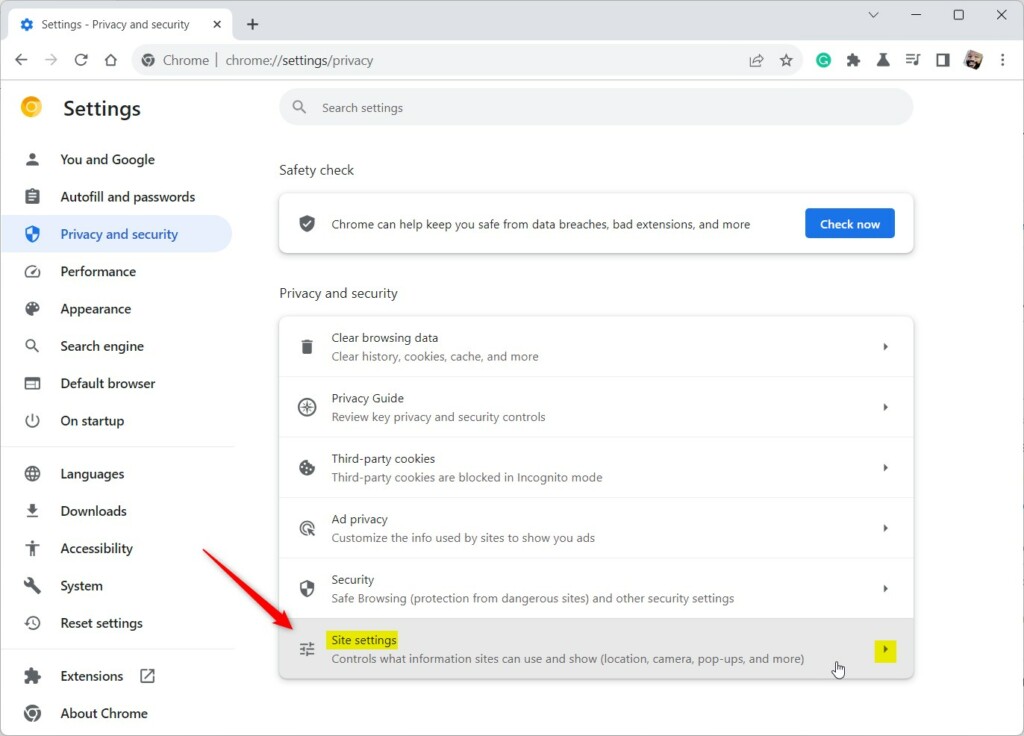
On the right, select the “Site settings” tile to expand it.
On the Site settings page, under Content, click and expand the Additional content settings tile.

Next, click the “Auto-verify” tile to expand it.
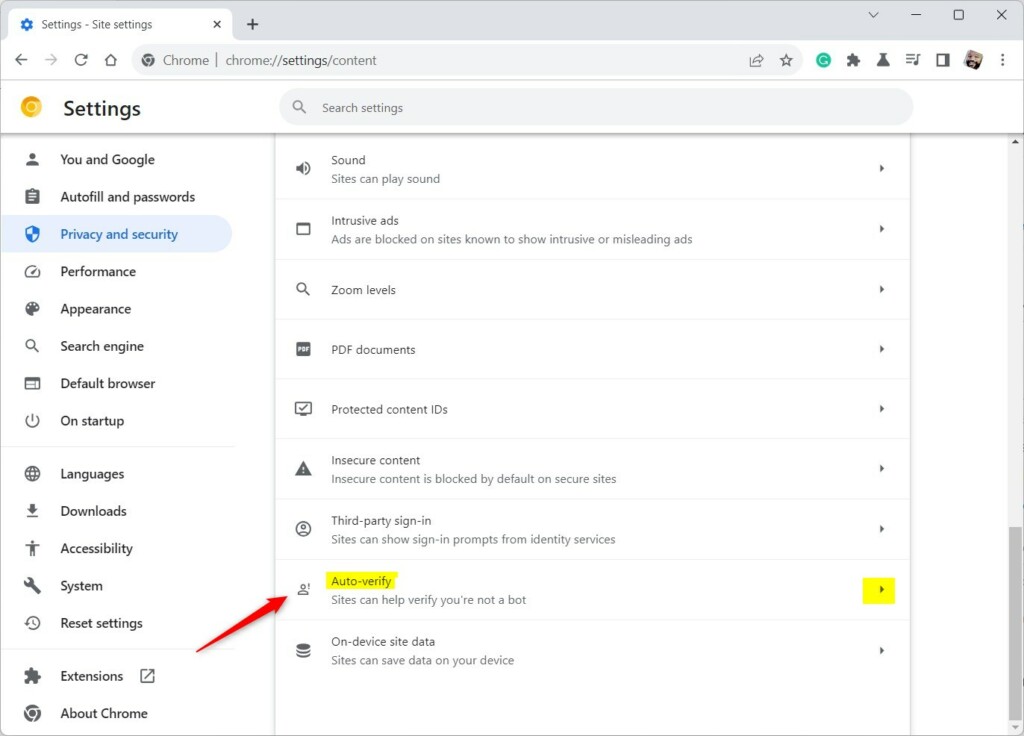
Users can also use the URL below in the address bar to go directly to the Auto-verify page in Chrome.
chrome://settings/content/autoVerify
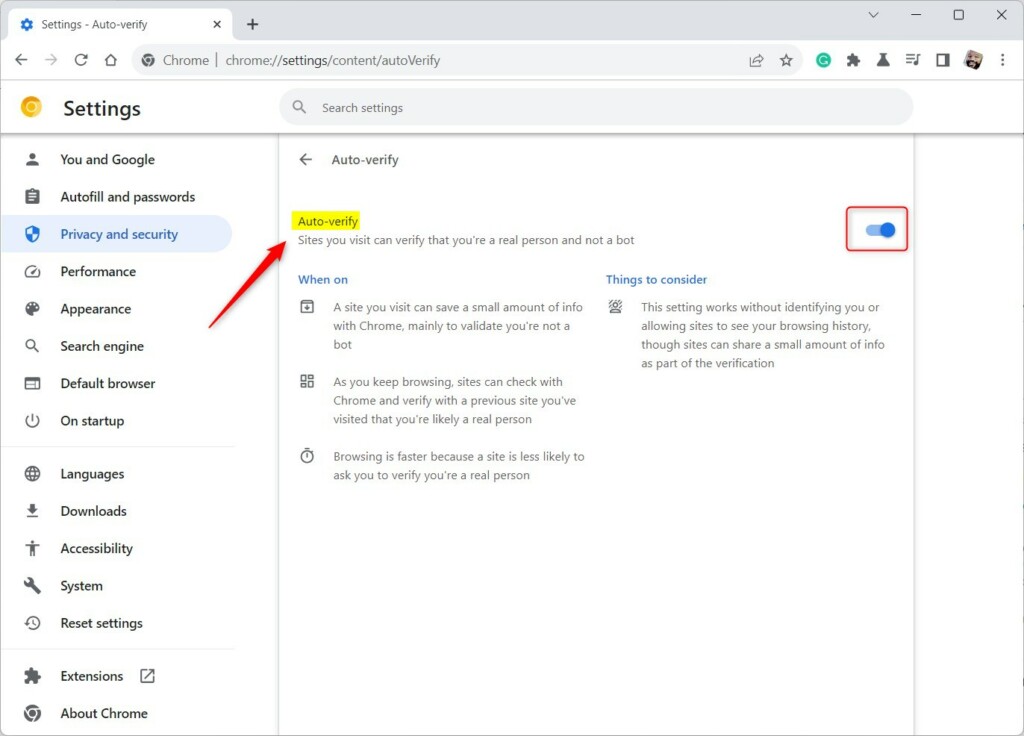
On the Auto-verify settings page, select the “Auto-verify” tile. Then, toggle the switch button to the On position to enable it.
To disable it, toggle the switch button to the Off position.
That should do it!
Conclusion:
- Enabling “Auto-verify” can streamline the browsing experience on verification-requiring sites
- Disabling “Auto-verify” can enhance privacy by preventing the sharing of browsing data
- Access “Auto-verify” settings in Chrome via “chrome://settings/content/autoVerify” or through the browser interface
- Toggling the switch to On or Off efficiently manages the “Auto-verify” feature for a personalized browsing experience




Leave a Reply