

This post shows steps for students and new users to clear the printer queue in Windows 11.
When you print in Windows, what you print first goes to the print queue. Sometimes, you may encounter Windows errors that prevent users from printing new documents.
Clearing the printer queue may resolve your issues and allow users to print documents again.
Windows allows users to view and cancel print jobs after accessing the print queue via the notification area or the Windows Settings app. One of the most frustrating things is when a job won’t print or gets stuck in the printing queue.
You can’t simply cancel the print jobs. In situations like these, you may have to clear the print queue, and the steps below show you how to do that in Windows 11.
Sometimes, canceling a print job may help. But if that won’t resolve your issues, your other option may be to clear the print queue.
If you want to learn how to cancel a print job, read the post below:
How to cancel a print job in Windows 11.
How to clear a print queue in Windows 11
As mentioned above, one can clear the print queue to resolve issues in Windows 11. The steps below show you how to clear the queue forcefully so they may continue printing other documents.
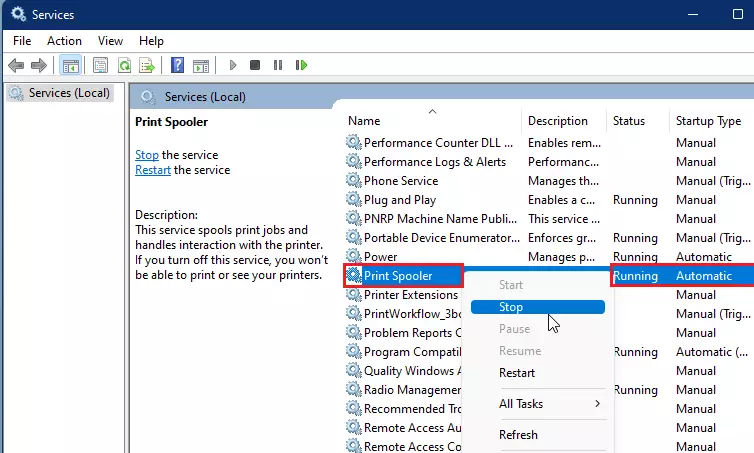
First, open the Services console and stop the Print spooler. Press the Windows Key, then search for and select the Services app.
Once the Services console opens, local the Print spooler service, then stop it. Right-click on the Print spooler service and select Stop.
Next, press the Windows key + E on your keyboard to open a File Explorer window. Use the environment variable in File Explorer to locate the Print spooler folder.
Type the path below in File Explorer to go to the Print Spooler folder.
%windir%System32spoolPRINTERS
Delete all files in this folder.
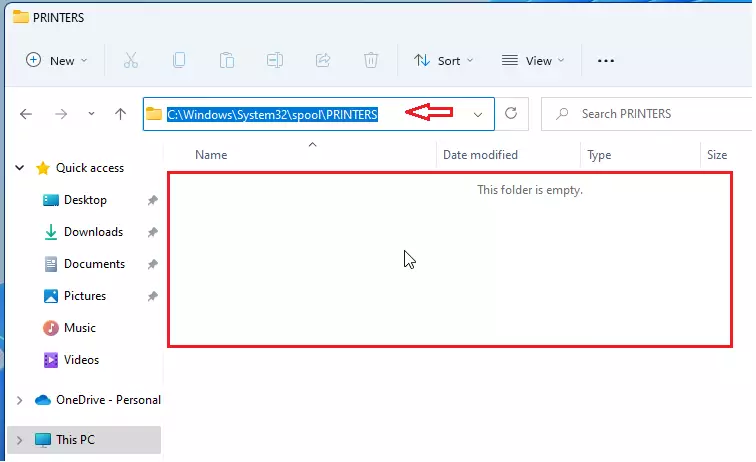
The print queue should now be empty. Return to the Services console and start the Print spooler service or restart your computer.
Go and print again; hopefully, this should resolve your printer issues.
That should do it!
Conclusion:
- Clearing the printer queue in Windows 11 can effectively resolve printing issues.
- Stopping the Print spooler service is the first crucial step.
- Deleting files from the Print Spooler folder removes all stuck print jobs.
- Once the queue is cleared, restarting the Print spooler allows you to print normally again.
- Regularly monitoring your print jobs can help prevent queue issues in the future.



Leave a Reply Cancel reply