How to Change the Display Language of Copilot

This tutorial shows you how to change the display language for Copilot on the web and the Copilot app in Windows 11.
Sign in to Copilot, click Preferences in the sidebar, and select your desired language from the Language drop-down menu. Restart the Windows 11 app if necessary to apply the change.
What Is Microsoft Copilot?
Microsoft Copilot is your helpful AI assistant built right into your computer and online, designed to help you finish tasks more quickly.
When you sign in to Copilot with your Microsoft account, Copilot uses your account to give you personalized help. You’ll also get access to lots of features right away. For instance, your Copilot chat history is saved and synced across all your devices when you sign in with the same Microsoft account.
Understanding Display Language
The display language is the language you see for all of Copilot’s menus, buttons, and text, making it easier to understand and use.
Copilot can automatically recognize the language you type or speak, as long as it’s supported.
For a complete list of supported regions and languages, check out the ‘Supported regions and languages in Microsoft Copilot’ page on Microsoft Support.
How to Change Copilot’s Display Language
- Open the copilot.microsoft.com site or the Copilot app on Windows 11.
- Sign in to Copilot with your Microsoft account if you want to sync your settings. In the app, click the Account button on the sidebar and click Sign in.
- Click Preferences on the left side. Find the Language drop-down menu and select the language you want Copilot to use.
- If you are using the Copilot app on Windows 11, click Restart to apply the changes.
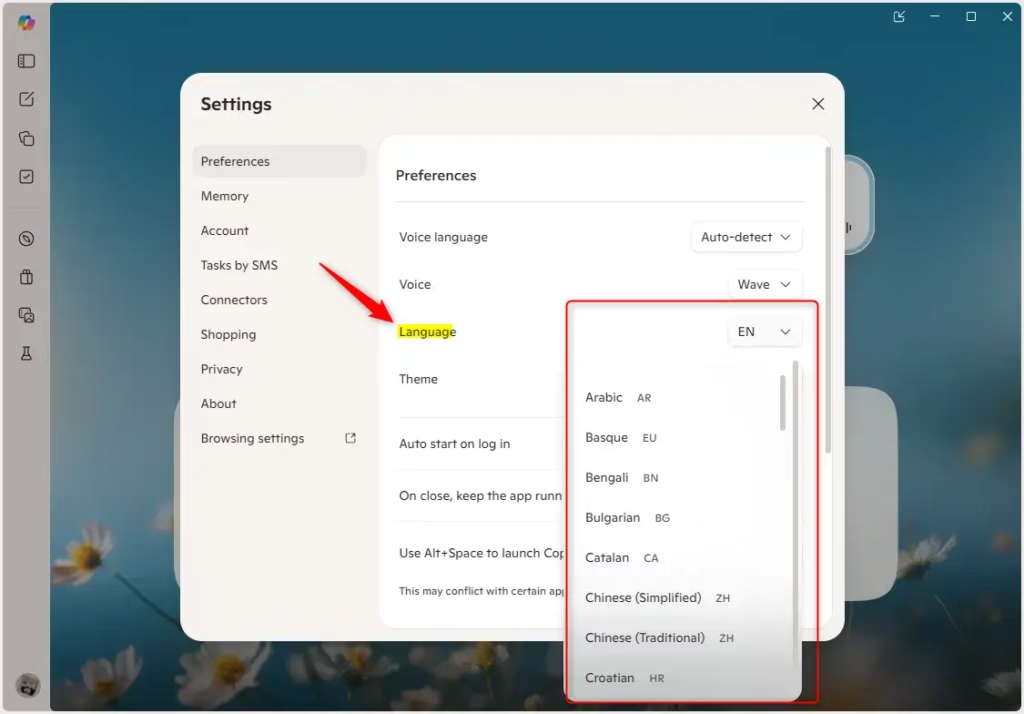
To change Copilot’s display language, first open either the copilot.microsoft.com website or the dedicated Copilot app on Windows 11.
That’s it!
Summary
Changing Copilot’s display language is a simple process. Just sign in, go to Preferences, and choose your desired language from the menu. Remember to restart the Windows 11 app if you’re using it, so Copilot shows everything in your new language.
Why is my Copilot in a different language?
Copilot generates responses in your UI language, when the input text contains multiple languages. Copilot tries to generate responses in your preferred UI language even if that isn’t an officially supported language.
How do I change the primary language in Copilot agent?
Go to the Settings page for your agent. Select Languages and select Edit next to the primary language. Select the desired region from the list. Select Save.
Was this guide helpful?

About the Author
Richard
Tech Writer, IT Professional
Richard, a writer for Geek Rewind, is a tech enthusiast who loves breaking down complex IT topics into simple, easy-to-understand ideas. With years of hands-on experience in system administration and enterprise IT operations, he’s developed a knack for offering practical tips and solutions. Richard aims to make technology more accessible and actionable. He's deeply committed to the Geek Rewind community, always ready to answer questions and engage in discussions.




No comments yet — be the first to share your thoughts!