
This guide will show you how to test Quick Machine Recovery in Windows 11. It’s a helpful tool that fixes serious problems stopping your PC from starting properly.
What is Quick Machine Recovery?
Quick Machine Recovery is a Windows 11 feature that helps your computer fix itself when serious errors prevent it from starting. It can search for fixes online and repair your PC automatically without needing you to hire a technician.
This feature builds on the Startup Repair tool and uses a safe environment called the Windows Recovery Environment (WinRE) to scan for solutions and fix issues.
Starting with Windows 11 build 26120.3653 (Beta 24H2), Quick Machine Recovery is available to test.
How to Test Quick Machine Recovery on Your PC
Follow these simple steps to try Quick Machine Recovery:
Step 1: Open Windows Terminal as Administrator ⚠️
- Click the Start button.
- Type Windows Terminal.
- Right-click on it and choose Run as administrator.
- When it opens, click the down arrow (˅) next to the plus (+) tab and select Command Prompt.
Step 2: Enable Recovery Test Mode ⚠️
Copy and paste this command into the Terminal window and press Enter:
reagentc /SetRecoveryTestmodeStep 3: Set Your PC to Boot into Recovery Mode ⚠️
Copy and paste this command and press Enter:
reagentc /BootToReStep 4: Restart Your Computer
Click Start > Power > Restart. Your PC will now start in Quick Machine Recovery test mode.
What If Your PC Doesn’t Start in Recovery Mode?
Do this:
- In the recovery screen, choose Continue to boot Windows normally.
- Once Windows starts, open Windows Terminal (Admin) again and run these two commands. Press Enter after each one:
reagentc.exe /Disable
reagentc.exe /Enable
Try the steps to start Quick Machine Recovery test mode again.
If everything works, you will see the recovery test screen like this:
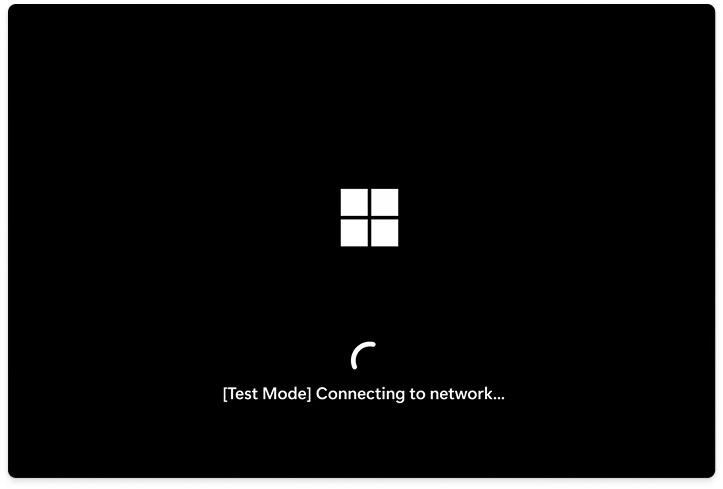
That’s it! You have successfully tested Quick Machine Recovery on your Windows 11 PC.
Summary
- Why Quick Machine Recovery? It fixes serious startup problems automatically using online solutions.
- What does it use? Windows Recovery Environment (WinRE) and Windows Update to find fixes.
- What do you need to do? Run simple commands in Windows Terminal as an admin to test it.
- What if it doesn’t work? You can reset the recovery settings with two commands and try again.
- What does success look like? Seeing the recovery test screen means your PC is ready to recover from future startup issues.
- Why test this feature? You’re making sure your PC can handle startup problems better and recover quickly.



Leave a Reply